Best Free Adobe Alternatives in 2026: 8 Tools Compared

- Photopea is the fastest free route to layered photo and design editing, since it runs in a browser with no install.
- GIMP and Krita are the strongest free desktop options for photo retouching and digital painting.
- Canva is the easiest choice for social posts and simple layouts, though its free tier limits some assets.
- DaVinci Resolve gives free video editing that is far deeper than most paid rivals, but it needs a capable computer.
Quick comparison
| Product | Ideal for | Price from | Free version | |
|---|---|---|---|---|
 GIMP | Free desktop photo editing | Free | Yes | Visit |
 Inkscape | Free vector design | Free | Yes | Visit |
 Krita | Digital painting and illustration | Free | Yes | Visit |
 Photopea | Browser-based editing | Free | Yes | Visit |
 Canva | Quick social and layout design | Free | Yes | Visit |
 Scribus | Free page layout and print | Free | Yes | Visit |
 DaVinci Resolve | Free video editing | Free | Yes | Visit |
 Audacity | Free audio editing | Free | Yes | Visit |
The best free Adobe alternatives
Adobe tools set the standard for photo editing, design, and video, but the subscription cost puts many people off. The good news is that free tools now cover most everyday jobs, from retouching a photo to laying out a flyer or cutting a short video.
We compared official feature pages, download pages, and app store listings for each tool below. Our pick for most people is Photopea, because it runs in a browser and handles layered files with little fuss. If you need deep photo editing on desktop, GIMP is the stronger long-term choice.
One honest note: free tools rarely match Adobe across the board. Expect some rough edges, slower workflows for advanced jobs, and fewer ready-made templates. The tools below are still good enough for a large share of real work.
GIMP
Ideal for: Free desktop photo editing
GIMP is the best-known free image editor, and for good reason. It handles layers, masks, selections, and retouching tools that cover most Photoshop-style jobs, and it opens common file formats without complaint.
The interface looks old-fashioned next to modern apps, and new users may need tutorials to find their way around. Once learned, though, it is a capable daily editor for photos, web graphics, and scanned artwork.
Our view: choose GIMP if you want a free desktop editor you can grow into over years, not just a quick fix.
Bottom line: GIMP is a strong fit for free desktop photo editing, and its main draw is deep retouching and layer tools. Weigh that against the limits above before you commit, and test it with your own real work during any trial or free period.
- Deep retouching and layer tools
- Huge plugin and brush library
- Runs on Windows, Mac, and Linux
- Dated interface
- Learning curve for new users
- No native CMYK support for print work
Inkscape
Ideal for: Free vector design
Inkscape is the free answer to Illustrator. It draws clean vector shapes, handles text on paths, and works natively with SVG, which is the standard format for web graphics and many print shops.
It is less polished for print colour management than paid tools, and huge illustrations can slow it down. For logos, icons, diagrams, and web graphics, those limits rarely matter.
Our view: the default free choice for vector work, especially for web use and small business branding.
Bottom line: Inkscape is a strong fit for free vector design, and its main draw is full vector drawing tools. Weigh that against the limits above before you commit, and test it with your own real work during any trial or free period.
- Full vector drawing tools
- Native SVG support
- Active community and extensions
- Can feel slow on very large files
- Print colour tools are limited
Krita
Ideal for: Digital painting and illustration
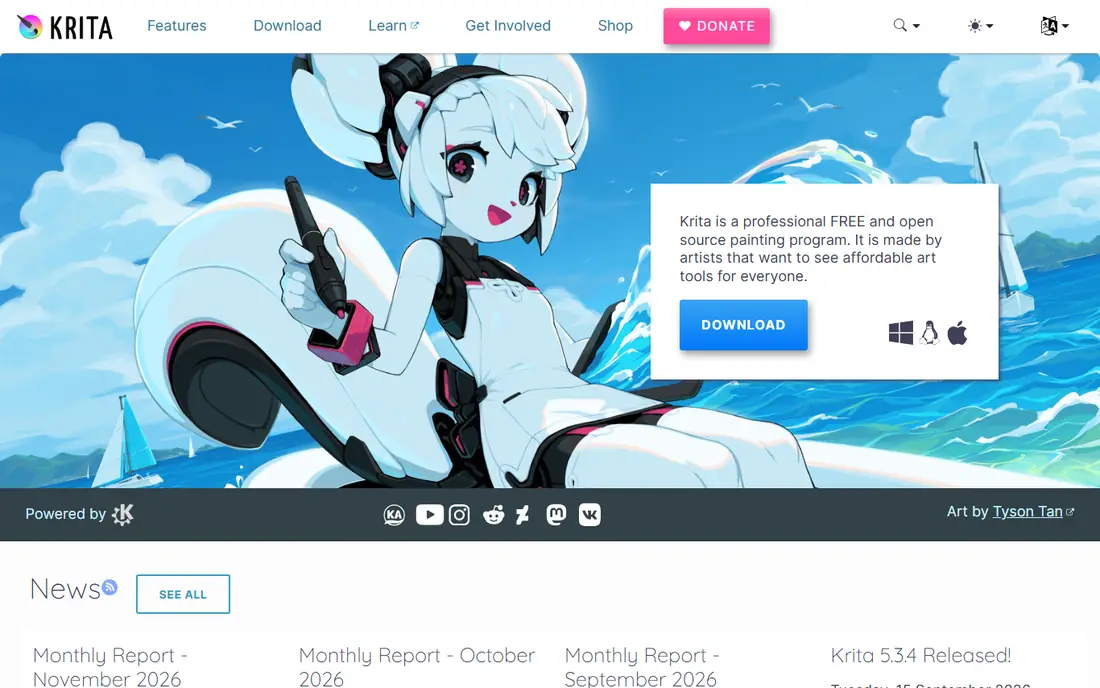
Krita is made for drawing and painting rather than photo editing. Its brush engine, stabilisers, and layer handling make it a favourite with illustrators, comic artists, and concept painters.
It also handles basic image editing and simple animation, so it can cover a sketch-to-finished-piece workflow in one app. Photographers will still want GIMP or Photopea alongside it.
Our view: pick Krita first if your work starts with a blank canvas and a stylus.
Bottom line: Krita is a strong fit for digital painting and illustration, and its main draw is brush engine built for artists. Weigh that against the limits above before you commit, and test it with your own real work during any trial or free period.
- Brush engine built for artists
- Animation tools included
- Clean, focused workspace
- Photo editing tools are thinner than GIMP
- Large canvases need decent hardware
Photopea
Ideal for: Browser-based editing
Photopea runs entirely in a web browser and opens PSD, XCF, and other layered formats. That makes it ideal for a quick edit on a shared computer or a Chromebook, where installing software is not an option.
The layout will feel familiar to anyone who has used Photoshop, which shortens the learning time a lot. The free version is ad-supported, and a paid tier removes ads, but the core editor is free.
Our view: our pick for most people, because it is free, fast to start, and handles real layered files.
Bottom line: Photopea is a strong fit for browser-based editing, and its main draw is opens PSD and other layered files. Weigh that against the limits above before you commit, and test it with your own real work during any trial or free period.
- Opens PSD and other layered files
- No install needed
- Familiar Photoshop-style layout
- Free version shows ads
- Very large files can strain a browser tab
Canva
Ideal for: Quick social and layout design
Canva is the easiest tool on this list for non-designers. Pick a template, swap in your text and photos, and export a post, flyer, or presentation in minutes.
The free tier is generous for everyday use, but premium photos, videos, and brand kit features sit behind a paid plan. Designers who need fine control over layout will find it limiting.
Our view: the best free option for fast, good-looking social and marketing graphics.
Bottom line: Canva is a strong fit for quick social and layout design, and its main draw is huge template library. Weigh that against the limits above before you commit, and test it with your own real work during any trial or free period.
- Huge template library
- Very easy for non-designers
- Team sharing built in
- Free tier limits premium images and brand tools
- Less control for advanced design
Scribus
Ideal for: Free page layout and print
Scribus is the free answer to InDesign. It handles multi-page documents, master pages, and print-ready PDF export, which matters for magazines, booklets, and brochures.
It is not a quick social graphics tool, and its template library is thin compared with Canva. For a print project with real layout needs, though, it is a serious free option.
Our view: choose Scribus when a document must be laid out properly for print.
Bottom line: Scribus is a strong fit for free page layout and print, and its main draw is proper page layout tools. Weigh that against the limits above before you commit, and test it with your own real work during any trial or free period.
- Proper page layout tools
- PDF export for print
- Handles multi-page documents
- Steeper learning curve
- Template choice is thin
DaVinci Resolve
Ideal for: Free video editing
DaVinci Resolve is a professional video editor whose free version covers editing, colour grading, effects, and audio mixing. Many paid editors offer less than this free tier does.
The catch is hardware and learning time. A modest laptop will struggle with high-resolution footage, and the workspace has many panels to learn. Beginners should start with a short project and a few tutorials.
Our view: the strongest free video editor by a wide margin, if your computer can run it.
Bottom line: DaVinci Resolve is a strong fit for free video editing, and its main draw is professional editing, colour, and audio tools. Weigh that against the limits above before you commit, and test it with your own real work during any trial or free period.
- Professional editing, colour, and audio tools
- Free version is deep
- Regular updates
- Needs a strong computer
- Interface can overwhelm beginners
Audacity
Ideal for: Free audio editing
Audacity is a free, open-source audio editor for recording and editing voice, podcasts, and music tracks. It handles cutting, noise reduction, and effects with little fuss.
It is not a full digital audio workstation for composing music, and its look is plain. For podcast editing, voice work, and simple audio cleanup, it remains a reliable free choice.
Our view: keep Audacity on hand for any audio cleanup job, even if you edit video elsewhere.
Bottom line: Audacity is a strong fit for free audio editing, and its main draw is simple multi-track audio editing. Weigh that against the limits above before you commit, and test it with your own real work during any trial or free period.
- Simple multi-track audio editing
- Effects and noise tools
- Light on resources
- Not a full music production studio
- Interface is plain
How we picked these
We compared official feature pages, download pages, and app store listings, and we checked that each tool is still maintained and works in 2026. We favoured tools with a clear free tier, not just a trial, and we noted where a paid tier removes limits.
We did not claim hands-on testing. Where a price was not published or a feature depended on a paid tier, we said so plainly rather than guessing.
How to pick the right free Adobe alternative
Match the tool to the job, not to the Adobe app you are used to. Photo editing calls for GIMP or Photopea, vector work calls for Inkscape, painting calls for Krita, and layout calls for Scribus or Canva. Using one tool for everything usually gives a weaker result.
Check file compatibility before you switch. If clients send PSD or AI files, test opening them in your chosen free tool first. Photopea handles PSD files well, while GIMP and Inkscape may need extra steps for some Adobe formats.
Think about your computer. DaVinci Resolve and large GIMP projects need decent hardware, while Photopea and Canva shift more work to the browser. If your machine is old, browser tools will feel faster.
Expect a learning curve with the desktop tools. Free help exists in the form of manuals, forums, and video guides, but you should budget an evening to learn the basics. Canva is the exception, since most people can produce something usable within an hour.
Finally, mix tools without guilt. Many people use Photopea for quick edits, GIMP for deeper retouching, and Canva for social posts. Free tools work well together, and using two or three is often better than forcing one to do everything.
Frequently asked questions
Are free Adobe alternatives really free?
The tools here have genuinely free versions, not just trials. Some, such as GIMP and Krita, are fully free open-source software. Others, such as Canva and Photopea, have paid tiers that add assets or remove ads.
Can GIMP replace Photoshop completely?
For most photo editing, retouching, and web graphics, yes. For high-end print work with strict CMYK needs or deep Adobe workflow integration, some professionals still keep Photoshop.
Is Photopea safe to use for client work?
Photopea runs in your browser and processes files locally on your device. For sensitive client files, check its current privacy page and avoid public computers for confidential work.
Which free tool is best for beginners?
Canva is easiest for design, and Photopea is easiest for photo editing with a familiar layout. Both let a beginner produce good results quickly.
Do these tools work on Mac and Windows?
Most do, including GIMP, Krita, Inkscape, and DaVinci Resolve. Photopea and Canva run in a browser on any system. Check each download page for your exact system version.