Alternatives to Google Docs in 2026: 8 Tools Compared

- 1
 Microsoft WordWord file compatibility and desktop powerVisit
- 2
 Zoho WriterFree cloud writing with offline modeVisit
- 3
 Proton DocsPrivacy-first collaborative documentsVisit
- 4
 ONLYOFFICE DocsOffice compatibility with self-hostingVisit
- 5
 LibreOffice WriterFree offline open-source writingVisit
- Microsoft Word suits users who exchange Word files daily, while LibreOffice Writer suits users who want a free offline editor.
- Notion suits teams that want docs plus databases, while Proton Docs suits privacy-focused users who want encryption.
- Zoho Writer offers a strong free cloud alternative with offline mode and document automation.
- Check file compatibility before switching: complex Word formatting and comments can shift when moving between editors.
Quick comparison
| Product | Ideal for | Price from | Free version | |
|---|---|---|---|---|
| Microsoft Word | Word file compatibility and desktop power | $9.99 per month | Free trial | Visit |
| Zoho Writer | Free cloud writing with offline mode | Free | Yes | Visit |
| Proton Docs | Privacy-first collaborative documents | Free | Yes | Visit |
| ONLYOFFICE Docs | Office compatibility with self-hosting | See website | Yes | Visit |
| LibreOffice Writer | Free offline open-source writing | Free | Yes | Visit |
 Notion | Docs plus wikis and databases | $10 per user per month | Yes | Visit |
 Apple Pages | Free polished writing on Apple devices | Free | Yes | Visit |
 CryptPad | Encrypted collaboration for privacy-focused groups | Free | Yes | Visit |
The best alternatives to Google Docs
We compared official feature pages, pricing pages, app store listings, privacy policies and public reviews to build this list of 8 options for alternatives to google docs. Prices were checked in October 2026 and can change, so confirm the current price on the vendor site before you buy. Our pick for most people is the first option that fits your budget and workflow, not necessarily the most expensive tool on the list. Read the quick comparison first to narrow the field, then read the full write-ups for the two or three options that fit your needs best.
Microsoft Word
Ideal for: Word file compatibility and desktop power

Microsoft Word remains the standard for document exchange, because clients, schools and employers expect Word files. Desktop apps handle complex formatting, tracked changes and long documents better than browser editors. Real-time collaboration through OneDrive covers most team needs.
Subscription pricing and licensing complexity are the main drawbacks, and browser collaboration is less fluid than Google Docs for some users. For Word-file work, Word is the safest alternative.
- Gold standard Word compatibility
- Full desktop apps
- Real-time collaboration in Microsoft 365
- Subscription cost
- Collaboration is weaker than Google Docs for some teams
- Licensing is complex
Zoho Writer
Ideal for: Free cloud writing with offline mode
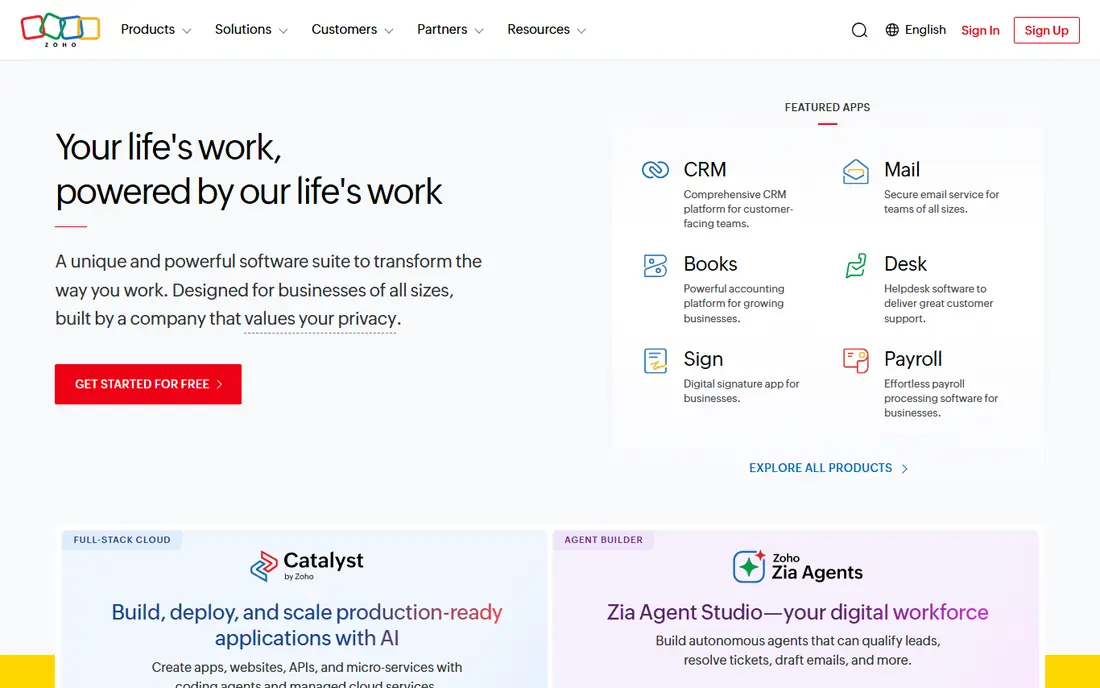
Zoho Writer is a strong free Google Docs replacement, with a full cloud editor, offline mode, mail merge, e-signatures and approval workflows. That breadth suits small businesses that need more than basic writing without paying. WorkDrive integration adds storage for teams.
Very large documents can slow down, and Word conversion is imperfect on complex layouts. Teams outside Zoho also get less integration value. For a free, capable cloud editor, Zoho Writer is a top pick.
- Free full-featured editor
- Offline mode
- Mail merge, e-signatures and approvals
- Large documents can slow
- Word conversion is imperfect
- Best inside Zoho
Proton Docs
Ideal for: Privacy-first collaborative documents

Proton Docs offers end-to-end encrypted collaborative documents, which suits journalists, lawyers and privacy-conscious teams. Editing is real time, and Swiss hosting plus Proton's privacy record reassure users handling sensitive drafts. The free tier includes 5 GB of Drive storage.
Formatting depth and templates lag Word and Google Docs, and there is no full Sheets or Slides equivalent yet. Storage on the free plan is also limited. For private collaborative writing, Proton Docs is the leading choice.
- End-to-end encryption
- Collaborative editing
- Swiss hosting
- Formatting and templates are lighter than Word
- No Sheets or Slides equivalent yet
- Storage limits on free plan
ONLYOFFICE Docs
Ideal for: Office compatibility with self-hosting
ONLYOFFICE Docs suits teams that need high Word compatibility plus the option to self-host. Editors handle Word, Excel and PowerPoint formats well, and DocSpace adds collaboration and rooms. For firms that must control document data, self-hosting is a real advantage.
The template and add-on ecosystem is smaller than Microsoft or Google, and business pricing is per admin, which needs care. Self-hosting also needs IT resources. For compatibility plus control, ONLYOFFICE is a strong pick.
- High Word compatibility
- Self-hosting available
- Cloud and desktop editors
- Template and add-on ecosystem is smaller
- Business pricing is per admin
- Setup needs IT for self-hosting
LibreOffice Writer
Ideal for: Free offline open-source writing
LibreOffice Writer is a free, open-source word processor that handles most Word documents well and works fully offline. That suits writers who do not want an account, a subscription or cloud storage. It runs on Windows, Mac and Linux, and community support is extensive.
There is no built-in real-time co-editing, so teams must share files or use another tool for collaboration. The interface also feels dated. For free offline writing, LibreOffice Writer is the standard pick.
- Free and open source
- Full offline editing
- Near-complete Word parity for most documents
- No built-in real-time co-editing
- Interface feels dated
- Collaboration needs other tools
Notion
Ideal for: Docs plus wikis and databases
Notion suits teams that want documents connected to wikis, databases and project tracking. Block pages can hold text, tables, tasks and embeds, which makes it a knowledge hub, not just an editor. Templates shorten setup for common team docs.
There is no native Word export, so exchanging formal Word files is awkward. Large pages can also slow down, and offline support is limited. For team knowledge work, Notion is excellent; for Word exchange, pick Word instead.
- Block pages that double as databases
- Strong templates
- Good for team wikis
- No native Word export
- Large pages can slow
- Offline support is limited
Apple Pages
Ideal for: Free polished writing on Apple devices
Apple Pages offers polished templates and layout control for free on Mac, iPad and iPhone. That suits Apple users who want beautiful documents without a subscription. Collaboration through iCloud works well inside the Apple ecosystem.
There is no native Windows or Android app, and Word export can shift complex layouts. Collaboration is also Apple centered. For Apple-only users, Pages is a beautiful free alternative.
- Free on Apple devices
- Polished templates
- Good layout control
- No native Windows or Android app
- Word export can shift layouts
- Collaboration is Apple centered
CryptPad
Ideal for: Encrypted collaboration for privacy-focused groups
CryptPad offers encrypted collaborative documents, sheets and presentations, with self-hosting for schools and nonprofits. Public instances allow basic use without an account, which suits privacy-focused groups. For sensitive collaboration, encryption is the point.
Formatting is basic compared with Word or Google Docs, and performance varies on public instances. The ecosystem is also smaller. For encrypted group writing, CryptPad is a principled pick.
- End-to-end encrypted docs
- Self-hosting available
- No account needed on public instances for basic use
- Formatting is basic
- Performance varies on public instances
- Smaller ecosystem
How we picked these
We started from the topic and shortlisted products that exist and work today, then checked each vendor homepage, pricing page and free tier. We compared feature pages, app store listings, privacy policies and public reviews, and we dropped any product whose homepage could not be verified or whose price could not be checked. Where a price was unclear or varied by region, we wrote See website rather than guessing a number. That rule kept the list honest, even where a neat price would have made the comparison table look tidier.
We also weighed fit over fame. A well-known product stayed on the list only if it truly fits the topic, and smaller tools earned a place when they served a clear use case better. No product here was tested hands-on for this article, and no vendor paid for placement.
Price and free-tier details matter most when plans change often, so we favoured products with clear published pricing and a trial or free tier where one exists. If a vendor changed a plan after our check, the vendor site is the correct source, and the ranking here still reflects fit, not just price. That check takes extra time, but it prevents a shortlist built on outdated pricing or a product that no longer exists.
Choosing a Google Docs alternative by compatibility and privacy
Start with the files you must exchange. If clients and employers send Word files, pick Word or ONLYOFFICE for fidelity. If privacy matters most, pick Proton Docs or CryptPad. Then test real-time collaboration with a colleague, because solo editing and shared editing are different jobs.
Before you pay, run a trial on a real task from your own work, not a demo file. Check export formats, mobile access and support hours, because those details decide whether a tool survives daily use. Also check renewal terms and cancellation steps, since a cheap first year can become an expensive second year if renewal jumps. Finally, ask who will own setup and training, because a tool nobody is responsible for tends to fall out of use within a few months. Keep a short note on why you picked the winner, so a future review can judge it against the same criteria instead of starting from scratch.
A useful final test is to imagine the tool in six months, when the first excitement has faded and the work is routine. If the daily steps are still quick, the cost is still clear, and the support route is still obvious, the choice is likely sound. If any of those three answers is unclear, use the trial period to get a clear answer before committing to an annual plan.
Frequently asked questions
What is the best free alternative to Google Docs?
LibreOffice Writer is free and offline, while Zoho Writer offers a free cloud editor with offline mode. Apple Pages is free on Apple devices, and Proton Docs is free with 5 GB of storage.
Is Microsoft Word better than Google Docs?
Word is better for complex formatting, offline desktop work and Word file fidelity. Google Docs is better for simple real-time collaboration in a browser, which is why many teams still use it.
Which Google Docs alternative is best for privacy?
Proton Docs offers end-to-end encryption for documents, while CryptPad offers encrypted collaboration and self-hosting. Both trade some formatting depth for privacy.
Can I collaborate in real time without Google Docs?
Yes. Microsoft Word, Notion, Zoho Writer and ONLYOFFICE all support real-time or near-real-time collaboration, though offline and comment handling vary by tool.