Best 3D Printing Software in 2026: 7 Programs Compared

- 1
 Ultimaker CuraMost FDM ownersVisit
- 2
 PrusaSlicerPrusa owners and advanced usersVisit
- 3
 Bambu StudioBambu Lab ownersVisit
- 4
 Lychee SlicerResin printingVisit
- 5
 Simplify3DAdvanced FDM controlVisit
- Ultimaker Cura is our pick for most FDM printer owners, with free slicing, wide printer support and a large plugin library.
- PrusaSlicer suits Prusa printer owners and advanced users who want open-source slicing with strong organic supports.
- Bambu Studio suits Bambu Lab printer owners, with tight integration, multi-material support and fast slicing.
- Lychee Slicer suits resin printing, with strong support generation and resin profiles.
- Slicing and modeling are different jobs, so most makers need one slicer plus one modeling tool, not a single program for both.
Quick comparison
| Product | Ideal for | Price from | Free version | |
|---|---|---|---|---|
| Ultimaker Cura | Most FDM owners | Free | Yes | Visit |
| PrusaSlicer | Prusa owners and advanced users | Free | Yes | Visit |
| Bambu Studio | Bambu Lab owners | Free | Yes | Visit |
| Lychee Slicer | Resin printing | Free | Yes | Visit |
| Simplify3D | Advanced FDM control | See website | No | Visit |
 Autodesk Fusion 360 | Modeling for printing | See website | Free trial | Visit |
 Blender | Free modeling and sculpting | Free | Yes | Visit |
The best 3D printing software
3D printing software splits into slicers, which turn 3D models into printer instructions, and modeling tools, which create the models in the first place. Slicers suit printer owners who download models, while modeling tools suit makers who design their own parts. The list below covers both, so pick the combination that matches whether you download, design or do both.
Ultimaker Cura
Ideal for: Most FDM owners
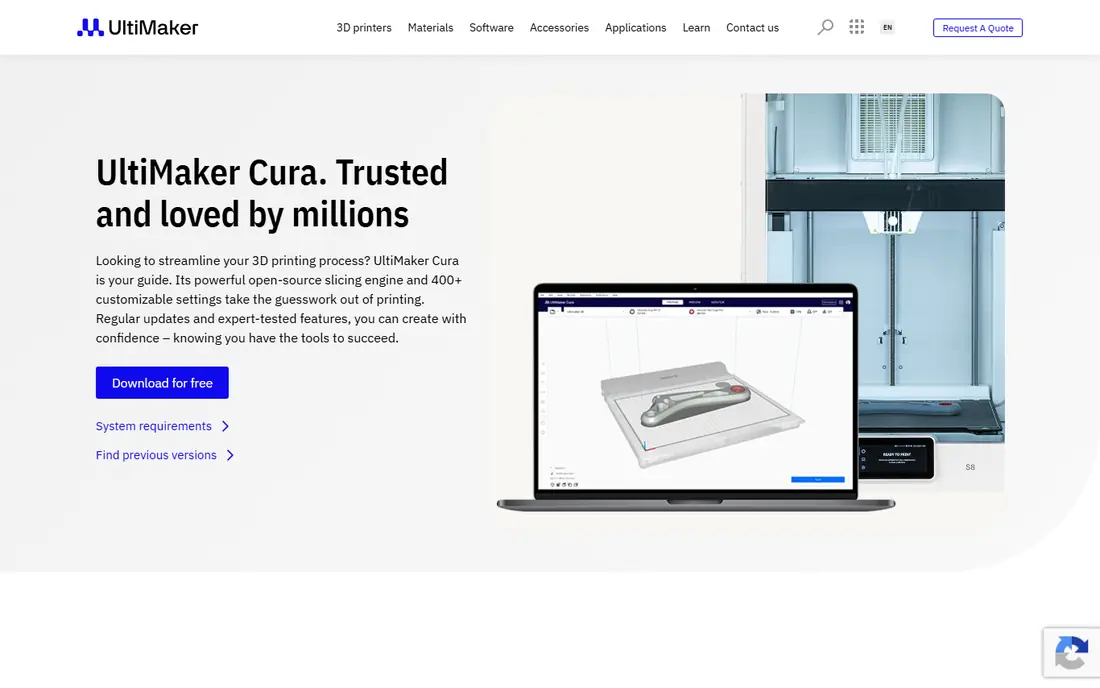
Ultimaker Cura is our pick for most FDM printer owners. It is free and open-source, supports a wide range of printers beyond Ultimaker machines, and offers a large plugin library for extra features. Recommended settings help beginners start quickly, while custom settings give advanced users control over layer height, supports, infill and speed.
The interface packs many settings into panels that can feel busy for new users, and some advanced features need plugins rather than being built in. For a free slicer that works with most FDM printers, Cura offers the widest support and the largest community.
- Free and open-source slicing
- Wide printer support beyond Ultimaker
- Large plugin library and marketplace
- Interface can feel busy for beginners
- Some advanced features need plugins
PrusaSlicer
Ideal for: Prusa owners and advanced users

PrusaSlicer suits Prusa printer owners and advanced users who want open-source slicing with strong features. Organic supports, variable layer height, paint-on supports and seam painting give fine control over print quality, while Prusa printer profiles are excellent out of the box. The tool also supports many third-party printers through custom profiles.
The interface is more technical than Cura recommended mode, which can intimidate beginners, and the best-tuned profiles remain Prusa-focused. For advanced FDM users and Prusa owners, PrusaSlicer offers the most capable free slicing.
- Free and open-source
- Strong organic supports and variable layer height
- Excellent Prusa printer profiles
- Interface is more technical than Cura recommended mode
- Best profiles are Prusa-focused
Bambu Studio
Ideal for: Bambu Lab owners

Bambu Studio suits Bambu Lab printer owners above all. Tight integration with Bambu printers covers multi-material and multi-color printing, AMS filament management, fast slicing and cloud monitoring, with printer profiles tuned for Bambu machines. For Bambu owners, no other slicer matches the integration.
Value drops sharply for non-Bambu printers, and cloud features raise privacy questions for some users, though local network options exist. For Bambu Lab owners, Bambu Studio is the obvious and best slicer choice.
- Free with tight Bambu Lab printer integration
- Multi-material and multi-color support
- Fast slicing and cloud features
- Best value only for Bambu Lab printers
- Cloud features raise privacy questions for some users
Lychee Slicer
Ideal for: Resin printing
Lychee Slicer suits resin printing, where support generation and orientation matter more than FDM settings. Strong automatic and manual supports, resin profiles, hollowing and hole tools help resin makers print detailed miniatures and models successfully. The free tier covers core slicing, with a Pro tier adding advanced features.
Full features need a paid Pro subscription, and FDM support is limited compared with Cura or PrusaSlicer, so FDM owners should look elsewhere. For resin printer owners, Lychee is the most capable dedicated slicer.
- Strong support generation for resin prints
- Resin profiles and hollowing tools
- Free tier covers core slicing
- Full features need a paid Pro tier
- FDM support is limited compared with Cura or PrusaSlicer
Simplify3D
Ideal for: Advanced FDM control
Simplify3D suits advanced FDM users who want fine-grained control. Multiple processes per model let different parts of a print use different settings, support customization is detailed, and the long track record gives confidence for production use. For users who need process-level control that free slicers handle less cleanly, Simplify3D remains relevant.
It is paid software in a market where Cura, PrusaSlicer and Bambu Studio are free, and development pace has lagged free rivals in some periods, so check current features before buying. For advanced control at a price, Simplify3D offers a distinct approach.
- Fine-grained process control with multiple processes per model
- Strong support customization
- Long track record
- Paid software in a market dominated by free slicers
- Development pace has lagged free rivals in some periods
Autodesk Fusion 360
Ideal for: Modeling for printing
Autodesk Fusion 360 suits modeling functional parts for printing. Parametric CAD lets you design precise, measurable parts with sketches, extrusions, assemblies and joints, which suits brackets, enclosures, tools and mechanical parts far better than sculpting tools. Cloud collaboration helps teams share designs.
Full commercial use needs a subscription, with a free personal tier and trial available under Autodesk terms, and the learning curve is steeper than beginner tools. For makers who design functional parts, Fusion 360 offers the most capable modeling in this list.
- Parametric CAD modeling ideal for functional parts
- Assemblies, joints and engineering drawings
- Cloud collaboration
- Subscription cost for full commercial use
- Learning curve is steeper than Tinkercad or Blender basics
Blender
Ideal for: Free modeling and sculpting
Blender suits free modeling and sculpting for printing. Organic shapes, characters, miniatures and artistic models benefit from powerful sculpting, modeling and mesh tools, all free and open-source, with a large community and extensive tutorials. The 3D Print Toolbox add-on helps check models for printing.
The learning curve is steep, and Blender is not ideal for parametric engineering parts where exact dimensions and assemblies matter, which is where Fusion 360 excels. For artistic and organic modeling at no cost, Blender is unmatched.
- Completely free and open-source
- Powerful sculpting and modeling for organic shapes
- Large community and tutorials
- Learning curve is steep for CAD-style precision work
- Not ideal for parametric engineering parts
How we picked these
We compared official product pages, documentation and public reviews for 3D printing software available in October 2026. We kept slicers and modeling tools with active development, wide printer or format support, and distinct strengths, from free FDM slicing to resin support generation to parametric CAD. We did not claim hands-on testing, and we noted where pricing requires vendor confirmation.
How to choose the right 3D printing software
Start with your printer and your job. FDM owners need Cura, PrusaSlicer or Bambu Studio depending on printer brand, resin owners need Lychee, and designers need Fusion 360 for functional parts or Blender for organic shapes. Most makers need one slicer plus one modeling tool, not a single program.
Then check compatibility and cost. Confirm that the slicer supports your printer model and filament or resin profiles, that the modeling tool exports clean STL or 3MF files, and that subscription costs fit your use, since free tools cover most hobby needs. Finally, test a small print early, since slicer settings and model quality matter more than software choice alone.
A calibration habit that saves filament and frustration is to print a small test piece, such as a calibration cube or a temperature tower, whenever you change filament brand, nozzle size or major slicer settings. That ten-minute test reveals stringing, adhesion and dimensional problems before they ruin a long print. Keep notes on the settings that worked for each filament, since those notes turn trial and error into a repeatable profile you can reuse with confidence.
Material choice interacts with slicer settings more than beginners expect, since the same model sliced for PLA, PETG and ABS needs different temperatures, cooling and retraction values. Start with the filament profile supplied by the slicer or filament maker, print a small test, and adjust one setting at a time, recording each change. Changing several settings at once makes it impossible to know which change fixed a problem, which slows learning.
Frequently asked questions
What is the best 3D printing software?
Ultimaker Cura suits most FDM owners, PrusaSlicer suits Prusa owners and advanced users, Bambu Studio suits Bambu Lab owners, Lychee Slicer suits resin printing, Fusion 360 suits functional part modeling, and Blender suits free organic modeling. Most makers need a slicer plus a modeling tool.
Is 3D printing software free?
Much of it is. Cura, PrusaSlicer, Bambu Studio and Blender are free, Lychee offers a free tier with a paid Pro option, and Fusion 360 offers a free personal tier and trial under Autodesk terms. Simplify3D is paid. Check current licensing terms on each vendor site.
What is the difference between a slicer and a modeling tool?
A modeling tool creates or edits 3D models, while a slicer turns a finished model into layer-by-layer printer instructions, called G-code, with settings for layer height, supports, infill and speed. You need both to design and print your own parts, but only a slicer if you download ready-made models.
Which slicer is best for beginners?
Ultimaker Cura recommended mode suits beginners with wide printer support and simple settings, while PrusaSlicer offers more control for users ready to learn. Bambu Studio suits Bambu Lab beginners through tight printer integration. Start with the slicer matched to your printer brand.
Can I use Blender for 3D printing?
Yes, Blender creates and edits models for printing, with a 3D Print Toolbox add-on to check for manifold geometry and other print issues. It suits organic and artistic shapes best, while Fusion 360 suits precise functional parts. Export as STL or 3MF and slice in Cura, PrusaSlicer or Bambu Studio.