Best AI App to Edit Photos in 2026: 7 Apps Compared

- 1
 Adobe PhotoshopFull AI editing controlVisit
- 2
 Adobe LightroomBatch photo editingVisit
- 3
 Topaz Photo AIEnhancement and upscalingVisit
- 4
 Luminar NeoCreative AI looksVisit
- 5
 CanvaQuick social editsVisit
- Adobe Photoshop suits serious editors who want generative fill and full control, while Lightroom suits photographers who edit many photos fast.
- Topaz Photo AI suits sharpening, denoising, and upscaling older or noisy photos, and Luminar Neo suits one-click creative looks.
- Canva and Fotor suit social and business users who need quick edits, templates, and background removal.
- Remini suits restoring and enhancing faces in old or low-quality photos, though results vary by source image.
- Check whether AI features need credits or a subscription, since free plans often limit the best tools.
Quick comparison
| Product | Ideal for | Price from | Free version | |
|---|---|---|---|---|
| Adobe Photoshop | Full AI editing control | See website | Free trial | Visit |
| Adobe Lightroom | Batch photo editing | See website | Free trial | Visit |
| Topaz Photo AI | Enhancement and upscaling | See website | No | Visit |
| Luminar Neo | Creative AI looks | See website | Free trial | Visit |
| Canva | Quick social edits | Free | Yes | Visit |
 Fotor | Easy online AI edits | Free | Yes | Visit |
 Remini | Face and old photo repair | See website | Yes | Visit |
The best AI apps to edit photos
We compared official feature pages, pricing pages, app store listings, and public reviews for seven AI photo editors. Our pick for most people is Adobe Lightroom for everyday editing speed, with Photoshop close behind for editors who need deeper control.
Adobe Photoshop
Ideal for: Full AI editing control
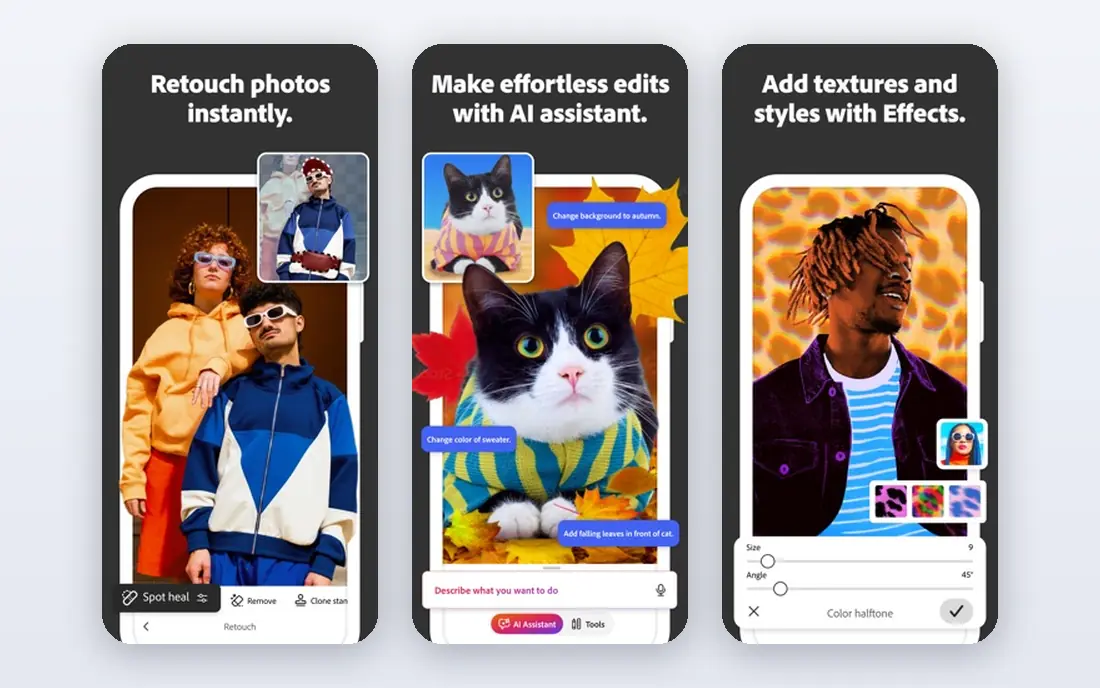
Photoshop is the deep editor in this list. Its AI tools can fill a missing area, expand a canvas, remove objects, and select subjects with a few clicks, and you can refine every result by hand. That control matters when an edit must look natural at full size, such as a product photo or a print. The tutorial base is also huge, so most problems already have a clear guide.
The cost and complexity are real. Photoshop is a subscription product, and beginners may feel lost among its panels and tools. If you edit photos every day or need pixel-level control, it earns its place. If you only need quick fixes, Lightroom or Canva will feel faster and cheaper.
- Generative fill and expand
- Precise selection tools
- Huge tutorial base
- Subscription cost
- Steep learning curve
Adobe Lightroom
Ideal for: Batch photo editing
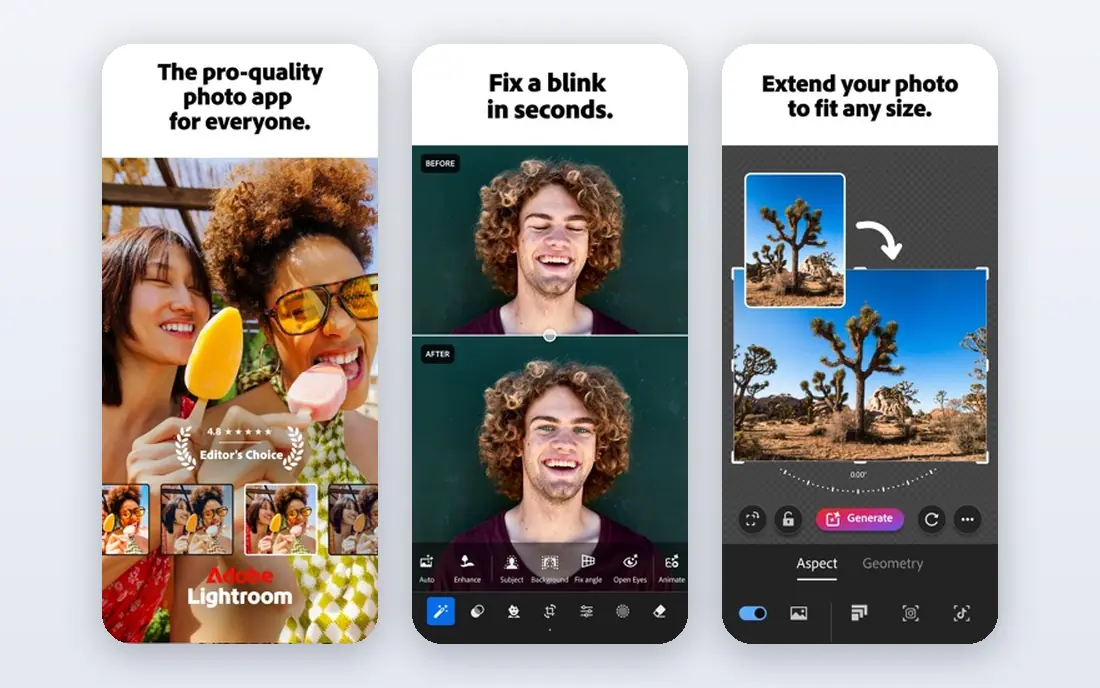
Lightroom suits photographers who shoot many photos and need consistent edits fast. AI masking can select skies, subjects, or backgrounds across a batch, and denoise tools clean up high-ISO shots without leaving the app. Presets let you apply a look to hundreds of photos, then adjust the few that need individual work. Cloud sync keeps edits available on phone and desktop.
Lightroom is not a pixel editor. Removing a complex object or rebuilding part of an image is Photoshop work, not Lightroom work. The subscription also adds up over time. For photographers who value speed, organization, and consistent color, Lightroom remains the best everyday AI editor here.
- Fast batch edits and presets
- AI masking and denoise
- Cloud sync
- Weaker pixel editing than Photoshop
- Subscription cost
Topaz Photo AI
Ideal for: Enhancement and upscaling
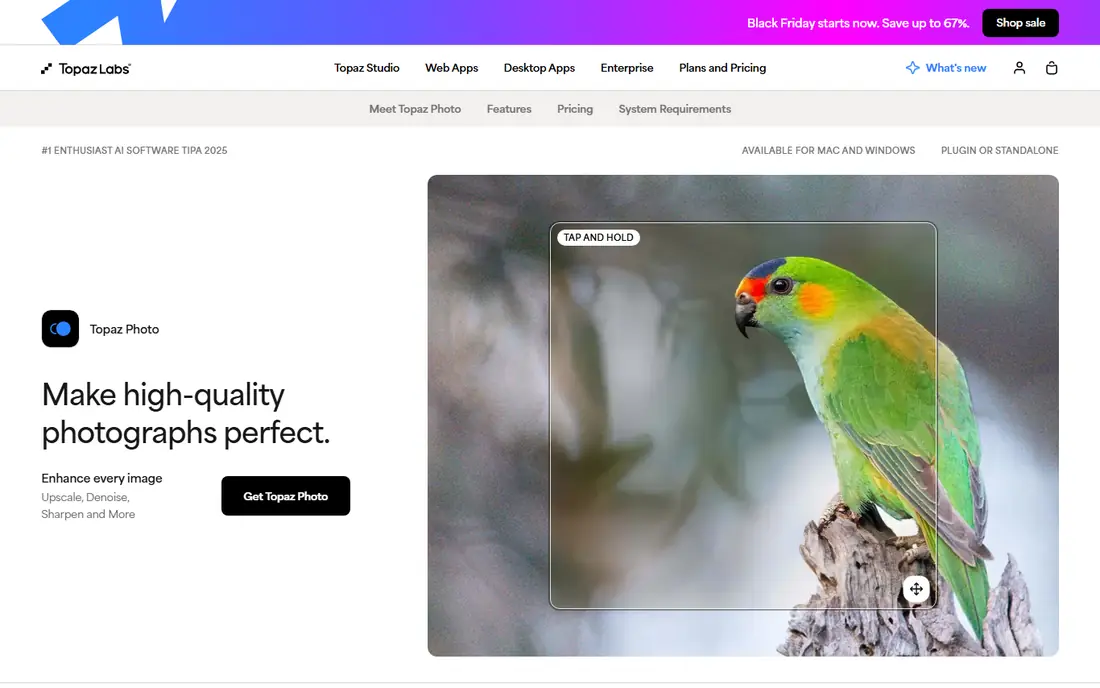
Topaz Photo AI focuses on fixing image quality: it removes noise, sharpens soft detail, recovers faces, and upscales images for larger prints. It works as a standalone app or alongside Lightroom and Photoshop, which suits photographers who already have an editor but need better enhancement. The autopilot mode picks settings for each photo, while manual controls let you tune strength.
The price is higher than a simple app, and processing can be slow on older machines. It also cannot replace a full editor for creative work. For rescuing noisy, soft, or low-resolution photos, Topaz is the strongest specialist in this list.
- Strong denoise and sharpening
- Face recovery
- Upscaling for prints
- One-time price is high
- Slower on older computers
Luminar Neo
Ideal for: Creative AI looks
Luminar Neo is built for creative edits without deep manual work. Its AI tools can replace skies, relight a scene, enhance portraits, and remove objects, and templates give a finished look in one click. That suits enthusiasts who want striking results fast, especially for scenery and portraits shared online. The interface is friendlier than Photoshop for casual editors.
Catalog speed can lag with very large libraries, and some extensions cost extra. Luminar is also less suited to heavy batch work than Lightroom. For creative, single-image edits with a wow factor, it is a fun and capable choice.
- Sky replacement and relighting
- Portrait AI tools
- Template looks
- Slower with large catalogs
- Some tools need extra purchases
Canva
Ideal for: Quick social edits
Canva is the fastest path from a photo to a finished social post, ad, or presentation slide. Its AI tools remove backgrounds, erase objects, and expand images, and templates cover every major social format. Teams can share brand kits and edit together, which suits small businesses that need content often. The free plan covers basic editing and many templates.
Precision is limited compared with Photoshop, and the strongest AI tools sit behind the Pro plan. Canva also works best in a browser or mobile app rather than as a deep desktop editor. For speed, templates, and social output, Canva is hard to beat.
- Background remover and Magic Edit
- Templates for every format
- Easy sharing
- Less precise than desktop editors
- Best AI tools need Pro
Fotor
Ideal for: Easy online AI edits
Fotor is a browser-based editor with AI enhancement, background removal, object removal, and batch processing. It suits people who want a quick edit without installing software, such as fixing a product photo or a headshot before posting. The interface is simple, and the free plan covers core tools for occasional use.
Free use includes limits and ads, and the editor lacks the depth of Photoshop or Lightroom for careful work. Fotor is best as a quick online tool rather than a main editor. For occasional edits on any computer, it is a useful free option to keep bookmarked.
- AI enhancer and background remover
- Batch tools
- Simple interface
- Ads and limits on free plan
- Less depth than pro editors
Remini
Ideal for: Face and old photo repair
Remini enhances faces and old photos with AI, turning blurry, low-resolution, or damaged images into sharper versions. It is popular for restoring family photos, improving old phone shots, and cleaning up social profile pictures. The mobile workflow is simple: upload, enhance, and save, with little manual work needed.
Results vary by source image, and heavily damaged photos may still look artificial. Free use is credit-limited, so heavy users need a subscription. Remini will not replace a full editor, but for face and old photo repair it is the most focused tool here.
- Strong face enhancement
- Old photo restoration
- Simple mobile workflow
- Results vary
- Credits limit free use
How we picked these
We compared official feature pages, pricing pages, app store listings, and public reviews for each app, and we favored tools that still work in October 2026 and use AI for real editing tasks, not just filters. We did not claim hands-on testing, and we weighed edit quality, batch speed, ease of use, and free plan limits. Where a price was unclear at writing time we wrote "See website" rather than guessing.
What to check before you choose
Start with your output. Social posts favor Canva and Fotor, prints favor Lightroom and Topaz, and careful retouching favors Photoshop. Test the same photo in two tools before paying, since AI results differ by subject, lighting, and resolution. Check whether AI features use credits, since a subscription with credit limits can run out mid-project.
Also check export quality and file handling. A tool that only exports compressed images will not suit print work, while a desktop editor keeps full-resolution files. Read the privacy terms if you edit client or family photos, and keep originals before applying AI edits. A short trial with your real photos beats any feature list.
Also match the editor to your output size. A photo destined for a phone screen forgives small flaws that a large print will expose, so editors with strong detail, denoise, and sharpening tools matter more for print work. Test each candidate with your hardest photos, not your best ones: a noisy indoor shot, a backlit portrait, and an old scanned image will reveal weaknesses faster than a clean daylight photo. Check how the editor handles batch exports too, since wedding and event photographers may export hundreds of files at once, and slow exports can eat an evening. Color management matters as well: a calibrated monitor and a consistent export profile will do more for accurate color than any single AI slider. Keep a simple folder routine with originals, edits, and exports kept apart, so you can always return to the source file.
Pricing deserves a careful look over a full year. Subscriptions suit editors who use the tool weekly, while one-time purchases suit occasional editors who dislike ongoing bills. Credit-based AI features add another cost layer, so check how many credits a typical edit uses and whether unused credits roll over. Free plans work for learning, but export limits and watermarks can block real client work. Trial the top two tools on the same set of photos and time yourself from import to export, since the faster workflow often matters more than a small quality gap. Finally, read the privacy terms for cloud editors, especially if you edit client or family photos, and keep local backups of finished work.
Frequently asked questions
What is the best ai app to edit photos for beginners?
Canva and Fotor are good beginner picks because they offer templates, background removal, and one-click enhancement without a steep learning curve. Luminar Neo also suits beginners who want creative looks. Move to Lightroom or Photoshop only when you need batch speed or pixel control.
Can AI edit photos automatically?
Yes, tools like Lightroom, Luminar Neo, and Topaz can auto-enhance, denoise, and mask photos with little input. Auto results are a strong starting point, but check faces, skies, and fine detail before publishing, since AI can invent texture that was not in the original.
Is Topaz Photo AI worth it?
Topaz is worth it if you often rescue noisy, soft, or low-resolution photos for print or client work. For casual social photos, free tools and phone editors may be enough. Try it on your worst photos first, since that is where its value shows.
Can I remove backgrounds with AI for free?
Yes. Canva and Fotor offer background removal on free plans with limits, and many phone editors include it too. For clean edges on hair and complex subjects, a paid desktop tool usually gives better results, so test with your hardest image.
Do AI photo editors change the original photo?
AI edits can sharpen, fill, or rebuild parts of an image, so the result may differ from the original scene. Keep an untouched copy of important photos, and be careful with edits to news, legal, or historical images where accuracy matters.