Best AI Document Collaboration Tools in 2026: 8 Tools Compared

- 1
 NotionAll-in-one team workspaceVisit
- 2
 Google DocsSharing with anyoneVisit
- 3
 Microsoft WordOffice-based collaborationVisit
- 4
 CodaDocs plus databasesVisit
- 5
 Zoho WriterLow-cost word processingVisit
- Notion and Coda suit teams that want docs, databases, and AI in one workspace.
- Google Docs and Microsoft Word remain the safest picks for sharing documents with people outside your team.
- Confluence fits companies that need a structured knowledge base rather than loose documents.
- Zoho Writer and Dropbox Paper are strong low-cost options for smaller teams.
Quick comparison
| Product | Ideal for | Price from | Free version | |
|---|---|---|---|---|
| Notion | All-in-one team workspace | See website | Yes | Visit |
| Google Docs | Sharing with anyone | Free | Yes | Visit |
| Microsoft Word | Office-based collaboration | See website | Yes | Visit |
| Coda | Docs plus databases | See website | Yes | Visit |
| Zoho Writer | Low-cost word processing | See website | Yes | Visit |
 ClickUp Docs | Docs inside project work | See website | Yes | Visit |
 Confluence | Company knowledge base | See website | Yes | Visit |
 Dropbox Paper | Simple team docs | Free | Yes | Visit |
The best AI document collaboration tools
We compared official feature pages, pricing pages, and app-store listings for document tools with AI features available in October 2026. The list covers word processors, wikis, and all-in-one workspaces, since "document collaboration" means different things to different teams.
Notion
Ideal for: All-in-one team workspace

Notion combines documents, wikis, tasks, and databases in a single workspace. AI features can draft, summarize, and search across your pages, and agents can handle routine work such as triage and reporting. Teams build hubs for projects, handbooks, and meeting notes without switching apps.
The catch is scale. Very large workspaces can feel slower than a plain word processor, and offline access is limited compared with desktop apps. For a team that wants one home for docs and knowledge, Notion's flexibility is hard to match.
- Docs, wikis, and databases in one place
- AI search and writing help
- Huge template library
- Can feel slow in very large workspaces
- Offline use is limited
Google Docs
Ideal for: Sharing with anyone
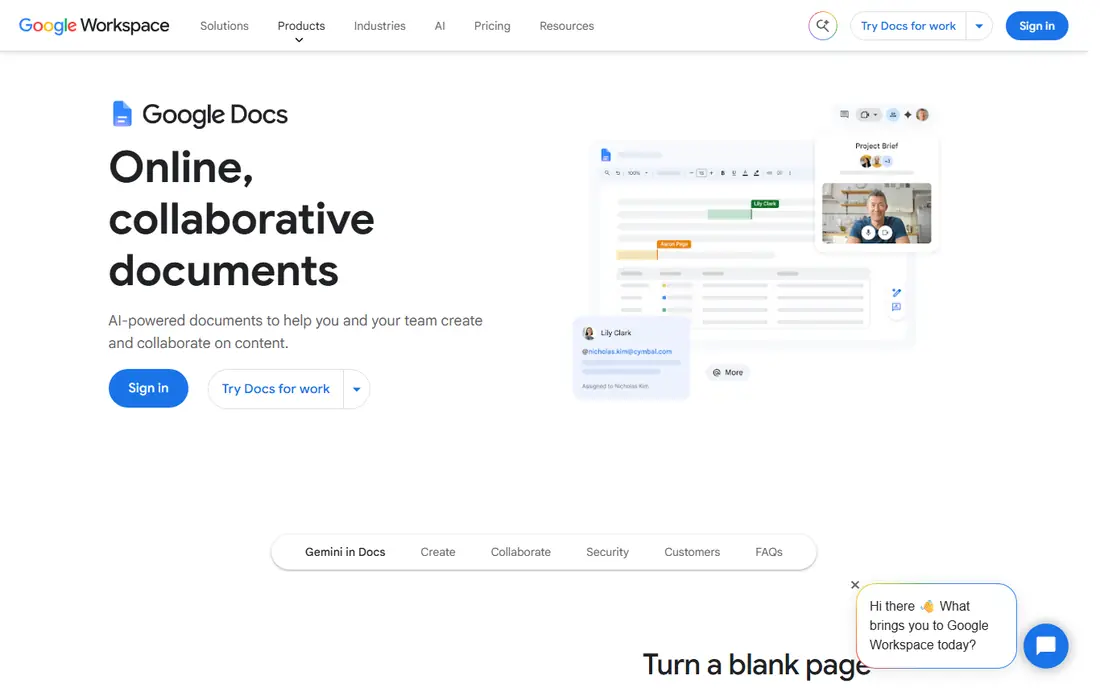
Google Docs is the easiest document to share. Anyone with a Google account can edit in real time, comments and suggestions keep feedback tidy, and version history makes it simple to undo changes. Gemini AI features can draft, summarize, and refine text for Workspace customers.
Formatting depth is the limit. Long reports with complex styles, fields, and layouts are still easier in Word. But for everyday collaboration, especially with people outside your company, Google Docs remains the lowest-friction choice.
- Free with a Google account
- Real-time editing for many people
- Easy sharing and comments
- AI features need a paid Workspace plan
- Formatting is simpler than Word
Microsoft Word
Ideal for: Office-based collaboration
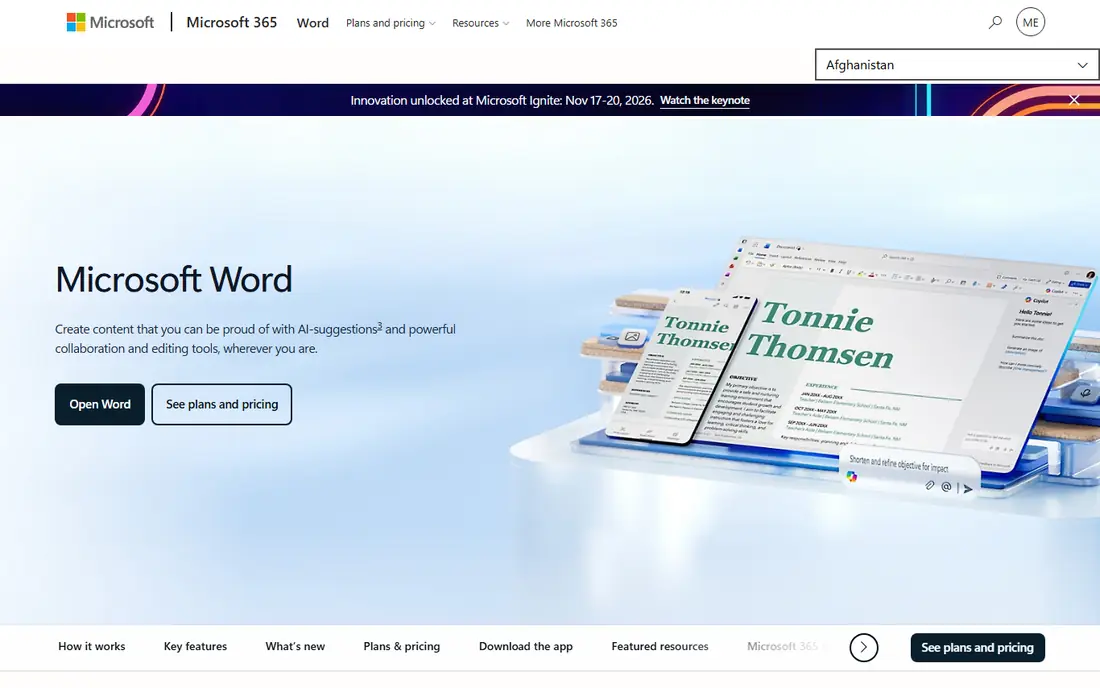
Word is still the standard for formal documents. The web version is free for anyone with a Microsoft account, while the desktop apps and Copilot features come with Microsoft 365 plans. Copilot can draft, rewrite, and summarize inside the document, and real-time co-authoring works across web and desktop.
The free web version covers basic collaboration well, but advanced AI and desktop features need payment. For a company already on Microsoft 365, Word's combination of formatting power and Copilot help is the natural pick for shared documents.
- Strongest formatting and templates
- Copilot drafting and editing
- Word on the web is free
- Full Copilot needs a paid plan
- Desktop app needs a subscription for full use
Coda
Ideal for: Docs plus databases
Coda, now evolving into Superhuman Docs, turns documents into working tools. Tables can sync, buttons can trigger actions, and AI can draft content, answer questions from your docs, and fill columns at scale. Teams use it for trackers, hubs, and decision docs that need more than static text.
The flexibility has a cost: new users need time to learn formulas and building blocks, and the rebrand may confuse buyers checking plans. For a team that wants documents to do work rather than just hold words, Coda's depth is worth the learning time.
- Docs that act like apps
- Tables, buttons, and automations
- AI chat and writing help
- Learning curve is steeper than Docs
- Pricing changed as it became Superhuman Docs
Zoho Writer
Ideal for: Low-cost word processing
Zoho Writer is a complete online word processor with desktop apps for Windows, Mac, and Linux, plus mobile apps. Real-time collaboration, comments, and change tracking cover team editing, while Zia, Zoho's AI assistant, helps with grammar, style, rewriting, and translation. Document automation can turn templates into filled forms and signed documents.
The main limit is network effect. Fewer outside partners use Zoho Writer, so sharing with clients often means exporting to Word format. For a small team that wants a capable, low-cost word processor with AI help, Zoho Writer is strong value.
- Full word processor with offline desktop apps
- Zia AI writing help
- Good value
- Collaboration is less common outside Zoho users
- Fewer third-party integrations than Google or Microsoft
ClickUp Docs
Ideal for: Docs inside project work
ClickUp Docs keeps documents inside the same workspace as tasks, chat, and goals. AI features can search across docs, tasks, and conversations, draft content, and summarize work. For a team already running projects in ClickUp, writing a brief next to the task it describes removes a lot of switching.
As a standalone word processor, ClickUp Docs is simpler than Word or Google Docs, with fewer formatting and layout options. It makes sense as part of ClickUp, not as a replacement for a full word processor. For project teams, the closeness to tasks is the main reason to use it.
- Docs live beside tasks and chat
- AI search across work
- Free tier is generous
- Document editing is simpler than Word
- Best value only inside ClickUp
Confluence
Ideal for: Company knowledge base
Confluence is Atlassian's workspace for team knowledge. Pages live in spaces with templates, and Rovo AI can draft, summarize, and find answers across Confluence and connected tools. It pairs closely with Jira, so product and engineering teams can link specs, decisions, and project work.
For a quick shared document, Confluence can feel heavier than Google Docs, and permissions need thought as spaces grow. For a company that needs a lasting knowledge base with search, structure, and history, Confluence is the more durable choice.
- Structured spaces and pages
- Rovo AI search and summaries
- Deep Jira integration
- Feels heavy for quick one-off docs
- Setup and permissions need planning
Dropbox Paper
Ideal for: Simple team docs
Dropbox Paper is a simple collaborative doc that is free with any Dropbox account. Real-time editing, comments, to-dos, and embeds for video, maps, and design files cover most team writing needs. Docs can turn into presentations automatically, which suits quick internal updates.
AI features are thinner here than in Notion, Google Docs, or Word, and fewer outside partners use Paper. For a team already on Dropbox that wants a clean, free place to write together, Paper does the job without another subscription.
- Free with a Dropbox account
- Clean editing
- To-dos and embeds inside docs
- Fewer AI features than rivals
- Smaller user base for sharing
How we picked these
We compared official feature pages, pricing pages, and app-store listings for document collaboration tools with AI features available in October 2026. We favored tools with real-time editing, comments, version history, and AI drafting or search, and we included word processors, wikis, and workspaces. We also weighed permissions, version history, and export options, since shared documents need clear ownership and a way out if a team switches tools later. We did not include our own product in this list.
How to choose a document collaboration tool
Start with who you share with. If documents go to clients and partners often, pick a tool they already use, usually Google Docs or Word, to avoid access problems. If documents stay inside your team, a workspace such as Notion, Coda, or Confluence may serve you better with structure and search.
Then test the AI features on your own work. Draft a real brief, summarize a long page, and check whether the AI output needs heavy editing. Also confirm offline needs, export formats, and admin controls before rolling a tool out to a whole team. The best tool is the one your team opens without thinking, not the one with the longest feature list.
When you choose a document collaboration tool, pay attention to permissions and version history, since those decide whether shared writing stays safe. A tool should let you share a single page without exposing a whole workspace, and it should show who changed what and when. Export matters too: check that you can download documents as Word, PDF, or Markdown, so your work is not trapped if you switch tools later. AI features deserve a test on your own documents, not just a demo, since summarization and drafting quality vary with document length and subject. Also confirm how the tool handles comments and suggestions, because a clean review workflow saves more time than a long feature list. For regulated work, ask about data residency, retention, and whether document content trains models, since vendors differ on those points. Run a trial with a real project, including outside collaborators, and watch for friction in sharing, commenting, and exporting before you commit a whole team.
Frequently asked questions
What is the best AI document collaboration tool?
Notion suits teams that want docs, databases, and AI in one workspace. Google Docs is best for sharing with anyone, while Word is best for formal documents inside Microsoft 365. The right pick depends on who you share with and how structured your knowledge needs to be.
Can AI write documents for my team?
AI can draft, summarize, rewrite, and answer questions from your documents, but output needs review. Treat AI drafts as a starting point, check facts and tone, and keep sensitive details out of tools your company has not approved.
Is Google Docs free for collaboration?
Yes. Anyone with a Google account can create and share Docs for free, with real-time editing, comments, and version history. Some AI features and admin controls require a paid Google Workspace plan.
What is the difference between Notion and Confluence?
Notion is a flexible workspace where docs, databases, and tasks mix freely, which suits smaller and fast-moving teams. Confluence is a more structured knowledge base with spaces and permissions, which suits larger companies and teams already using Jira.
Do these tools work offline?
Offline support varies. Word's desktop apps and Zoho Writer's desktop apps work offline, while Notion and Confluence are mainly online tools. Google Docs supports offline editing in Chrome with setup, and Dropbox Paper is mainly an online tool.
How do I keep AI features from changing my document's meaning?
Treat AI output as a draft and review it line by line before sharing. AI summaries can drop caveats, and AI rewrites can soften commitments or change numbers, so check facts, figures, and dates against the source. Use track changes or suggestions mode where available, so edits stay visible to collaborators. For sensitive or contractual documents, limit AI use to grammar and clarity, and keep substantive edits manual. Most tools also let admins control which AI features are available, which helps a team set consistent rules.