Best AI Text to Vector Tools in 2026: 8 Tools Compared

- 1
 RecraftPrompt-to-SVG generationVisit
- 2
 Vectorizer.AITracing images to vectorsVisit
- 3
 KittlText-driven design for productsVisit
- 4
 Adobe IllustratorProfessional vector editingVisit
- 5
 IdeogramText-driven graphics with strong text renderingVisit
- Recraft leads for true prompt-to-SVG generation, with editable vector output from text.
- Vectorizer.AI leads for tracing existing images into clean vectors.
- Kittl and Ideogram suit designers who want text-driven graphics with easy editing.
- Native vector generation and tracing are different jobs, so pick by whether you start from text or an image.
Quick comparison
| Product | Ideal for | Price from | Free version | |
|---|---|---|---|---|
| Recraft | Prompt-to-SVG generation | See website | Yes | Visit |
| Vectorizer.AI | Tracing images to vectors | See website | Free trial | Visit |
| Kittl | Text-driven design for products | See website | Free trial | Visit |
| Adobe Illustrator | Professional vector editing | See website | Free trial | Visit |
| Ideogram | Text-driven graphics with strong text rendering | Free | Yes | Visit |
 Linearity Curve | Vector editing on Mac and iPad | Free | Yes | Visit |
 Inkscape | Free open vector editing | Free | Yes | Visit |
 Vectr | Simple free vector editing | Free | Yes | Visit |
The best ai text to vector tool
We compared text-to-vector tools on whether they generate native vectors or trace raster images, output cleanliness, editability and pricing. That distinction matters, because traced vectors often need cleanup while native vectors arrive as editable shapes. Our pick for most designers is Recraft, with Vectorizer.AI as the tracing specialist.
Recraft
Ideal for: Prompt-to-SVG generation
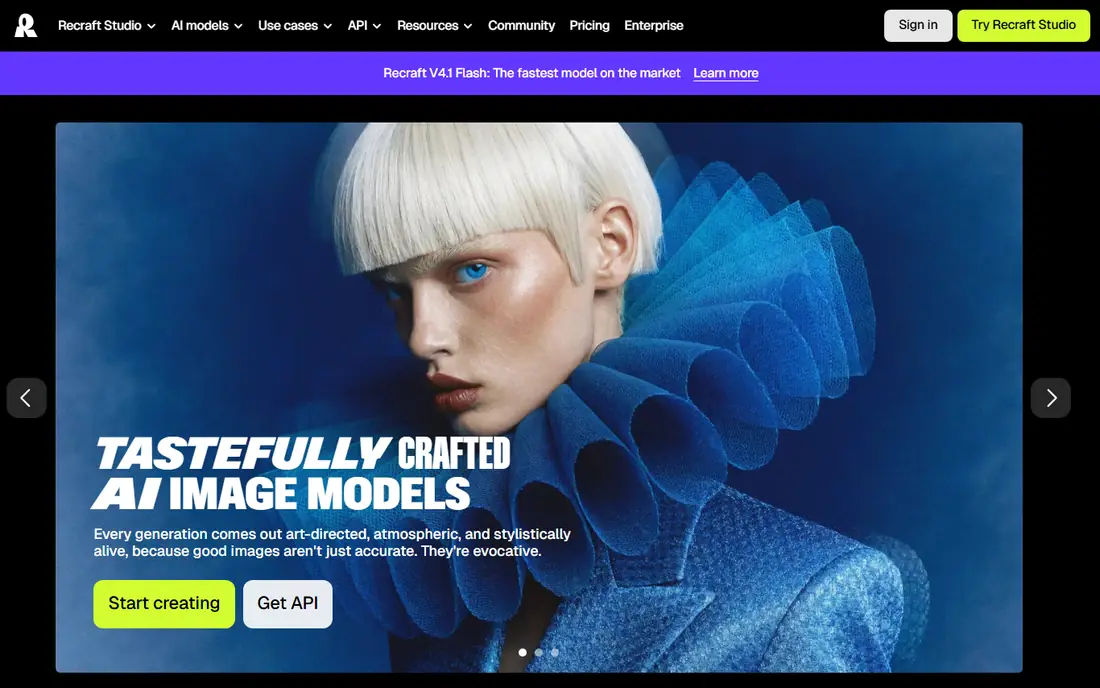
Recraft generates native SVG vectors directly from text prompts, so logos, icons and illustrations arrive as editable shapes rather than traced pixels. Brand styles help teams keep output consistent. Paid plans start near 10 dollars a month billed annually in recent pricing reports, with credits governing output volume, while free outputs are public and not licensed for commercial use.
For most readers, the deciding question with Recraft is fit rather than raw feature count. Check the plan limits that matter to you, such as seats, usage caps and what happens when a trial ends, before you commit to a paid tier. If the free tier or trial covers your core task, use it for a full week of real work before paying, and keep an eye on renewal terms and cancellation steps. That short test usually tells you more than any feature list, and it keeps the choice grounded in how you actually work day to day.
- Native SVG from text prompts
- Brand styles
- Commercial rights on paid plans
- Credits limit output
- Free outputs are public and non-commercial
Vectorizer.AI
Ideal for: Tracing images to vectors

Vectorizer.AI traces raster images into vectors, producing SVG, EPS, DXF or PDF files from logos, illustrations and artwork. That tracing focus suits designers who already have an image and need a scalable version. Complex or noisy images trace less cleanly, so simple, flat artwork gives the best results, and full use needs a subscription.
For most readers, the deciding question with Vectorizer.AI is fit rather than raw feature count. Check the plan limits that matter to you, such as seats, usage caps and what happens when a trial ends, before you commit to a paid tier. If the free tier or trial covers your core task, use it for a full week of real work before paying, and keep an eye on renewal terms and cancellation steps. That short test usually tells you more than any feature list, and it keeps the choice grounded in how you actually work day to day.
- Clean tracing to SVG, EPS and PDF
- Good for logos
- Simple workflow
- Tracing quality depends on source image
- Subscription for full use
Kittl
Ideal for: Text-driven design for products
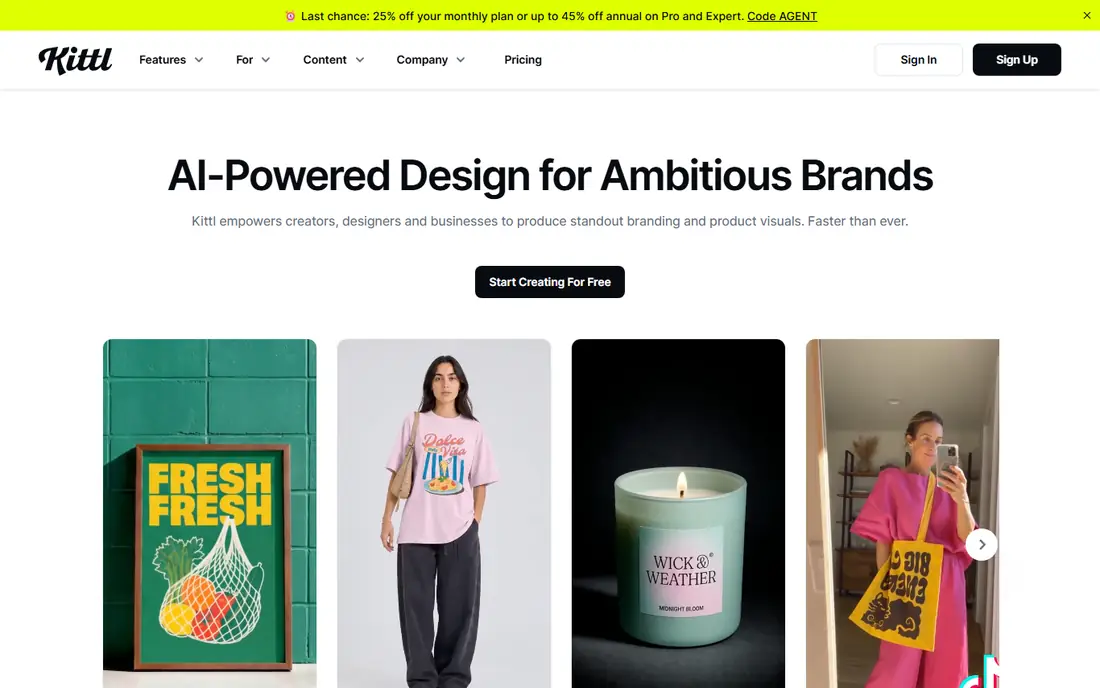
Kittl combines AI design generation with templates and vector editing, aimed at apparel, posters and product design. The workflow from prompt to editable design to print file is smooth. The free tier limits output, and advanced AI features sit in paid plans, so check limits against your production volume.
For most readers, the deciding question with Kittl is fit rather than raw feature count. Check the plan limits that matter to you, such as seats, usage caps and what happens when a trial ends, before you commit to a paid tier. If the free tier or trial covers your core task, use it for a full week of real work before paying, and keep an eye on renewal terms and cancellation steps. That short test usually tells you more than any feature list, and it keeps the choice grounded in how you actually work day to day.
- AI design tools plus templates
- Vector editing
- Print-on-demand friendly
- Free tier limits
- Advanced AI features are paid
Adobe Illustrator
Ideal for: Professional vector editing
Adobe Illustrator remains the industry standard for vector editing, and its text-to-vector features generate editable graphics inside a professional toolset. The ecosystem of fonts, plugins and tutorials is unmatched. The subscription costs real money and the learning curve is steep, but for professional vector work it remains the benchmark.
For most readers, the deciding question with Adobe Illustrator is fit rather than raw feature count. Check the plan limits that matter to you, such as seats, usage caps and what happens when a trial ends, before you commit to a paid tier. If the free tier or trial covers your core task, use it for a full week of real work before paying, and keep an eye on renewal terms and cancellation steps. That short test usually tells you more than any feature list, and it keeps the choice grounded in how you actually work day to day.
- Industry-standard vector tools
- Text-to-vector features
- Huge ecosystem
- Subscription cost
- Learning curve
Ideogram
Ideal for: Text-driven graphics with strong text rendering
Ideogram is known for rendering text accurately inside generated images, which helps logos and posters where wording matters. Vector-style outputs suit design starting points, though editability as true SVG paths is more limited than Recraft. The free tier covers experimentation, while heavier use needs a paid plan.
For most readers, the deciding question with Ideogram is fit rather than raw feature count. Check the plan limits that matter to you, such as seats, usage caps and what happens when a trial ends, before you commit to a paid tier. If the free tier or trial covers your core task, use it for a full week of real work before paying, and keep an eye on renewal terms and cancellation steps. That short test usually tells you more than any feature list, and it keeps the choice grounded in how you actually work day to day.
- Strong text in images
- Vector-style outputs
- Easy prompting
- Vector editability is limited
- Free tier limits
Linearity Curve
Ideal for: Vector editing on Mac and iPad
Linearity Curve, formerly Vectornator, is a modern vector editor for Mac and iPad with AI-assisted features and a clean interface. It suits designers who work on Apple devices and want a lighter alternative to Illustrator. The ecosystem is smaller, and some features need a paid plan, but the core editor is capable.
For most readers, the deciding question with Linearity Curve is fit rather than raw feature count. Check the plan limits that matter to you, such as seats, usage caps and what happens when a trial ends, before you commit to a paid tier. If the free tier or trial covers your core task, use it for a full week of real work before paying, and keep an eye on renewal terms and cancellation steps. That short test usually tells you more than any feature list, and it keeps the choice grounded in how you actually work day to day.
- Modern vector editor
- AI features
- Apple device focus
- Smaller ecosystem than Illustrator
- Some features are paid
Inkscape
Ideal for: Free open vector editing
Inkscape is a free, open-source vector editor with full SVG support, path tools and extensions. It edits vectors generated elsewhere beautifully, and it costs nothing. It does not generate vectors from text itself, so pair it with Recraft or another generator, and expect a technical interface that rewards patience.
For most readers, the deciding question with Inkscape is fit rather than raw feature count. Check the plan limits that matter to you, such as seats, usage caps and what happens when a trial ends, before you commit to a paid tier. If the free tier or trial covers your core task, use it for a full week of real work before paying, and keep an eye on renewal terms and cancellation steps. That short test usually tells you more than any feature list, and it keeps the choice grounded in how you actually work day to day.
- Free open-source vector editor
- Full SVG support
- Extensions
- Interface feels technical
- AI generation needs other tools
Vectr
Ideal for: Simple free vector editing
Vectr is a free browser-based vector editor with a simple interface and collaboration features. It suits beginners and quick edits, such as resizing a logo or adjusting colours. The feature set is basic next to Illustrator or Inkscape, so complex illustrations need a deeper tool, but the zero cost and simplicity are genuine strengths.
For most readers, the deciding question with Vectr is fit rather than raw feature count. Check the plan limits that matter to you, such as seats, usage caps and what happens when a trial ends, before you commit to a paid tier. If the free tier or trial covers your core task, use it for a full week of real work before paying, and keep an eye on renewal terms and cancellation steps. That short test usually tells you more than any feature list, and it keeps the choice grounded in how you actually work day to day.
- Free browser vector editor
- Simple interface
- Collaboration
- Feature set is basic
- Less suited to complex work
How we picked these
We compared official feature pages, pricing pages, app store listings, privacy policies and public reviews for each option below. We kept only products that exist and work now, that fit the topic directly, and whose official homepage we could confirm. Where a price was not published clearly, we wrote See website rather than guessing, and we favoured options with a free tier or trial where one exists.
Getting usable vectors from a text prompt
Write prompts like a designer, not a novelist. Name the subject, style, colour palette and composition in plain terms, and specify flat vector style when you want clean shapes. Vague prompts produce vague vectors that need heavy cleanup.
Check the paths before you call a vector done. Open the SVG in an editor, inspect anchor points and colour regions, and simplify where the file is messy. A clean file with fewer points scales better and prints better than a detailed but tangled one.
Match the tool to the starting point. Text prompts belong in Recraft, Ideogram or Illustrator, while existing images belong in Vectorizer.AI. Using a tracer for a text job, or a generator for a tracing job, wastes time and produces weaker files.
Frequently asked questions
What is the best AI text to vector tool?
Recraft leads for native prompt-to-SVG generation, with editable output and brand styles. Vectorizer.AI leads for tracing existing images, while Kittl suits product designers.
Can AI generate true vector files?
Yes, tools such as Recraft generate native SVG with editable paths, unlike image generators that produce raster files. Check that the export is SVG with separate shapes, not a raster image inside an SVG wrapper.
Is Recraft free?
Recraft offers a free tier with daily credits, though free outputs are public and not licensed for commercial use. Paid plans add private generation, commercial rights and more credits.
What is the difference between generating and tracing vectors?
Generation creates vectors from a text prompt as editable shapes, while tracing converts an existing raster image into paths. Generation suits new artwork, tracing suits converting existing logos and art.
Which tool is best for logos?
Recraft and Illustrator suit new logo design, with Recraft faster for concepts and Illustrator deeper for refinement. Vectorizer.AI suits converting an existing logo into a scalable vector.