Best AI Tools for Productivity in 2026: 9 Options Compared

- 1
 ChatGPTEveryday drafting and researchVisit
- 2
 Notion AITeams already using NotionVisit
- 3
 Microsoft CopilotMicrosoft 365 usersVisit
- 4
 Google GeminiGoogle Workspace usersVisit
- 5
 MotionAuto-scheduling busy calendarsVisit
- A general assistant such as ChatGPT or Copilot covers drafting, summarising and research for most workers.
- Motion and Reclaim suit people whose calendars are the bottleneck, by auto-scheduling tasks around meetings.
- Otter.ai and Fireflies remove note-taking from meetings, with free tiers that suit solo users.
- AI tools save the most time when they connect to the apps you already use, so check integrations before paying.
Quick comparison
| Product | Ideal for | Price from | Free version | |
|---|---|---|---|---|
| ChatGPT | Everyday drafting and research | $20 per month | Yes | Visit |
| Notion AI | Teams already using Notion | $20 per month | Free trial | Visit |
| Microsoft Copilot | Microsoft 365 users | $19.99 per month | Yes | Visit |
| Google Gemini | Google Workspace users | See website | Yes | Visit |
| Motion | Auto-scheduling busy calendars | See website | Free trial | Visit |
 Reclaim.ai | Habit and focus time protection | See website | Yes | Visit |
 Otter.ai | Meeting transcription and notes | $8.33 per month | Yes | Visit |
 Fireflies.ai | Team meeting intelligence | $10 per month | Yes | Visit |
 Grammarly | Faster, cleaner writing | $12 per month | Yes | Visit |
The best ai tools for productivity
We compared AI assistants, schedulers and meeting tools on what they actually save time on, not on demo promises. Our pick for most people is one general assistant plus one meeting tool, since those two cover the largest daily time sinks.
ChatGPT
Ideal for: Everyday drafting and research

Our first look at ChatGPT starts with who it serves best. It is the default general assistant for knowledge work. Drafts, summaries and research start here for most users, and the Plus plan raises limits for heavy days.
The catch is organisation: it does not manage your calendar or tasks for you. It fits anyone who wants one assistant for writing and thinking tasks. Check the current pricing page before you commit, since plans in this category change often, and use the free plan or trial to confirm the fit with your own work.
Before you pay for ChatGPT, run one real task through it, such as a full document, a full trip plan or a full project, and judge it on that result rather than on the marketing page.
- Fast drafting, summarising and brainstorming
- Broad tool support
- Free tier for light use
- Outputs need checking
- No built-in calendar or task management
Notion AI
Ideal for: Teams already using Notion
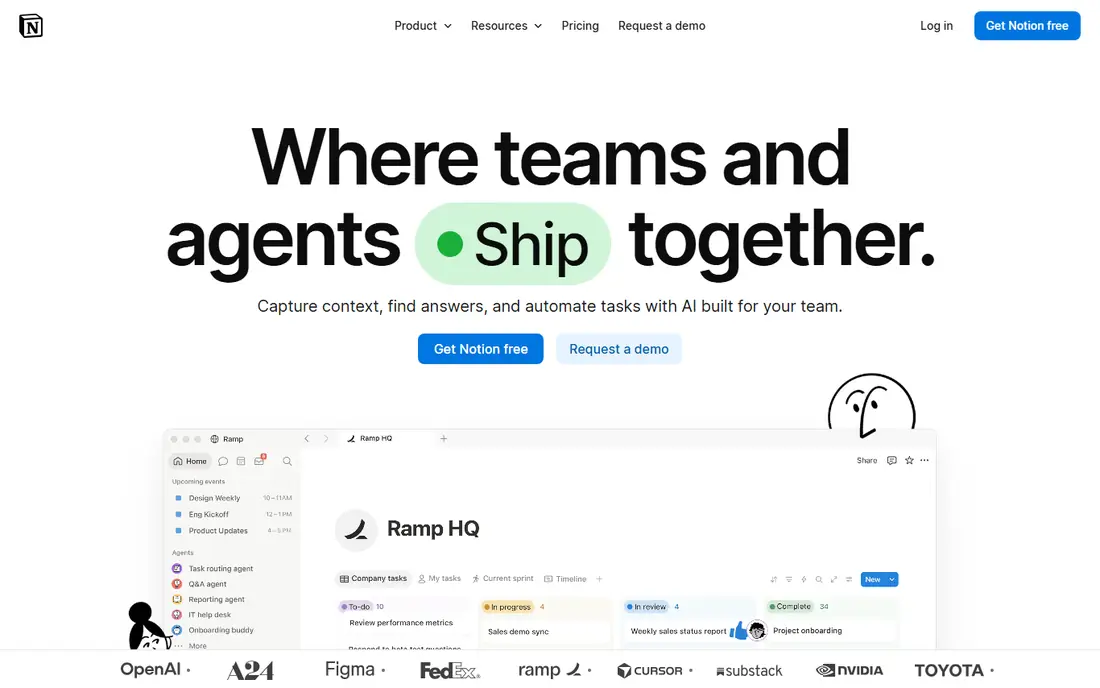
For many readers, Notion AI will be the most practical choice on this list. It pays off only if your work already lives in Notion. Summaries, drafts and workspace search happen where notes already sit, so nothing needs copying elsewhere.
The catch is lock-in: the value drops sharply if you leave Notion. It fits teams that already run docs and tasks in Notion. Check the current pricing page before you commit, since plans in this category change often, and use the free plan or trial to confirm the fit with your own work.
A useful test for Notion AI is to try the exact workflow you will repeat weekly, then check how long it takes and whether the output needs heavy fixing before it is usable.
- AI inside docs, wikis and tasks
- Answers questions across your workspace
- Business includes AI
- Weak as a standalone tool outside Notion
- Per-user pricing adds up
Microsoft Copilot
Ideal for: Microsoft 365 users

Next up is Microsoft Copilot, which takes a different approach to the same job. It is the natural choice inside Microsoft 365. Copilot drafts, summarises and answers questions across Office apps without leaving them.
The catch is cost stacking: the AI tier sits on top of a Microsoft subscription. It fits workers and teams already committed to Microsoft 365. Check the current pricing page before you commit, since plans in this category change often, and use the free plan or trial to confirm the fit with your own work.
When you trial Microsoft Copilot, note what is missing as well as what works, since the missing piece often decides whether a tool survives past the first month.
- AI inside Word, Excel, Outlook and Teams
- Free chat tier
- Strong for Office-heavy work
- Full value needs a Microsoft 365 subscription
- Advanced features sit on paid tiers
Google Gemini
Ideal for: Google Workspace users
Google Gemini earns its place here for a specific kind of user. It is the equivalent pick for Google Workspace households and teams. It summarises documents, drafts in Docs and answers questions grounded in your files.
The catch is that the best features are paid, and free limits apply. It fits people who already live in Gmail, Docs and Drive. Check the current pricing page before you commit, since plans in this category change often, and use the free plan or trial to confirm the fit with your own work.
We would also check support and documentation for Google Gemini during the trial, since a tool you cannot get help with becomes expensive in staff time even when the subscription looks cheap.
- Works across Gmail, Docs and Drive
- Strong research and multimodal input
- Free tier available
- Deepest features need a paid Google plan
- Quality varies by task
Motion
Ideal for: Auto-scheduling busy calendars
If the options so far have not fit, Motion is worth a closer look. It suits people whose day is ruled by competing tasks and meetings. Motion reschedules tasks when meetings move, so a disrupted day does not need manual replanning.
The catch is price and habit: it only helps if tasks and deadlines live in the app. It fits busy professionals with packed, shifting calendars. Check the current pricing page before you commit, since plans in this category change often, and use the free plan or trial to confirm the fit with your own work.
Before you pay for Motion, run one real task through it, such as a full document, a full trip plan or a full project, and judge it on that result rather than on the marketing page.
- Rebuilds your day around priorities automatically
- Combines calendar, tasks and projects
- Strong for managers
- Price is high for solo users
- Needs a digital calendar habit to work well
Reclaim.ai
Ideal for: Habit and focus time protection
Reclaim.ai is the option we point to when a reader has a clear priority in mind. It is the quieter alternative to full auto-scheduling. Reclaim defends focus blocks, lunch and habits by moving them around meetings instead of letting them vanish.
The catch is platform: it is built around Google Calendar. It fits Google Calendar users who lose focus time to meetings. Check the current pricing page before you commit, since plans in this category change often, and use the free plan or trial to confirm the fit with your own work.
A useful test for Reclaim.ai is to try the exact workflow you will repeat weekly, then check how long it takes and whether the output needs heavy fixing before it is usable.
- Protects focus time and habits automatically
- Syncs with Google Calendar
- Free tier for individuals
- Google Calendar only for core features
- Team features are paid
Otter.ai
Ideal for: Meeting transcription and notes
Another strong contender is Otter.ai, and it stands out for one clear reason. It removes note-taking from meetings almost entirely. Live transcripts, summaries and action items land in a searchable workspace after each call.
The catch is the free cap: heavy meeting users will need a paid plan. It fits workers with frequent meetings who need reliable notes. Check the current pricing page before you commit, since plans in this category change often, and use the free plan or trial to confirm the fit with your own work.
When you trial Otter.ai, note what is missing as well as what works, since the missing piece often decides whether a tool survives past the first month.
- Live transcription with speaker labels
- Searchable summaries
- Free tier with monthly minutes
- Free minutes are limited
- Accuracy drops with crosstalk and accents
Fireflies.ai
Ideal for: Team meeting intelligence
We round out the list with Fireflies.ai, which fills a gap the others leave open. It is the team-oriented rival to Otter, with wider language coverage. Fireflies records, transcribes and summarises across Zoom, Meet and Teams, and pushes notes to other tools.
The catch is that the free tier limits AI summaries, so teams usually pay. It fits teams that need meeting notes shared across tools. Check the current pricing page before you commit, since plans in this category change often, and use the free plan or trial to confirm the fit with your own work.
We would also check support and documentation for Fireflies.ai during the trial, since a tool you cannot get help with becomes expensive in staff time even when the subscription looks cheap.
- Supports many languages
- Strong integrations
- Free tier with unlimited transcription
- AI summaries are limited on the free tier
- Bot joins calls visibly
Grammarly
Ideal for: Faster, cleaner writing
Grammarly rounds out our shortlist with a focused set of strengths. It saves time in the editing pass most workers skip. Grammar, clarity and tone fixes appear as you write, which cuts revision rounds.
The catch is scope: it will not organise your day or take meeting notes. It fits anyone who writes a lot of email and documents. Check the current pricing page before you commit, since plans in this category change often, and use the free plan or trial to confirm the fit with your own work.
Before you pay for Grammarly, run one real task through it, such as a full document, a full trip plan or a full project, and judge it on that result rather than on the marketing page.
- Works across email, docs and browsers
- Tone and clarity help beyond grammar
- Useful free tier
- It improves writing rather than planning or scheduling work
How we picked these
We compared official feature pages, pricing pages, app store listings, privacy policies and public reviews for each product, and kept only products that exist, work today and truly fit the topic. We favoured clear pricing, a usable free plan or trial, and honest limits over long feature lists. Where a price could not be verified on the vendor site, we wrote See website rather than guessing.
We did not claim hands-on testing we did not do. Instead, we weighed what each vendor documents, what reviewers report in practice, and where each product falls short, so the trade-offs below are stated plainly.
How to get real time back from AI tools
List your three biggest time sinks for a week, such as meetings, email or planning, and pick one tool per sink. Measure the result after two weeks, and drop any tool that adds setup work without removing a task you used to do by hand.
Frequently asked questions
What is the best AI productivity tool?
There is no single winner, since drafting, scheduling and meetings are different jobs. A general assistant covers most drafting, while Motion or Reclaim covers scheduling and Otter.ai or Fireflies covers meetings.
Are AI productivity apps worth paying for?
They are worth it when they remove a repeated task, such as writing notes or shuffling a calendar. If you only use a tool occasionally, the free tier usually covers it.
Which AI tool is best for meetings?
Otter.ai suits live transcription and searchable notes, while Fireflies adds broader language support and integrations. Both offer free tiers for solo users.
Can AI tools plan my day automatically?
Motion and Reclaim rebuild your schedule around priorities and meetings, but they work best when your calendar is already digital and your tasks have due dates.
Do AI productivity tools work with Google and Microsoft apps?
Most connect to Google Calendar, Outlook or both, but depth varies. Check the integration list for your exact apps before subscribing, since some features only work on one platform.