Best AI Tools to Animate Photo Into Video in 2026: 8 Tools Compared

- Kling AI is our pick for realistic human motion from a single photo, with native audio and strong camera control on paid plans.
- Runway suits creators who want directorial control over how a still animates, including reference images and multi-shot sequences.
- Luma Dream Machine is the fastest path to cinematic clips with natural physics, while Pika suits playful social effects and transitions.
- Only animate photos you own or have permission to use, and never animate a photo of a real person into a misleading video without their consent.
Quick comparison
| Product | Ideal for | Price from | Free version | |
|---|---|---|---|---|
 Kling AI | Realistic human motion | See website | Yes | Visit |
 Runway | Directorial control | $12 per month | Yes | Visit |
 Luma Dream Machine | Fast cinematic clips | See website | Yes | Visit |
 Pika | Social effects and transitions | See website | Yes | Visit |
 Hailuo AI | Low-cost high-volume clips | $7.99 per month | Yes | Visit |
 HeyGen | Talking photo presenters | See website | Yes | Visit |
 PixVerse | Fast social-ready clips | See website | Yes | Visit |
 Adobe Firefly | Commercially safe workflow | See website | Yes | Visit |
The best ai tools to animate photo into video
Image-to-video tools take one still photo and generate a short moving clip from a text prompt, camera direction or both. Most clips run from a few seconds to about twenty seconds, and quality depends on the source photo as much as the model. We compared motion realism, camera control, audio, free tiers and commercial terms.
Kling AI
Ideal for: Realistic human motion
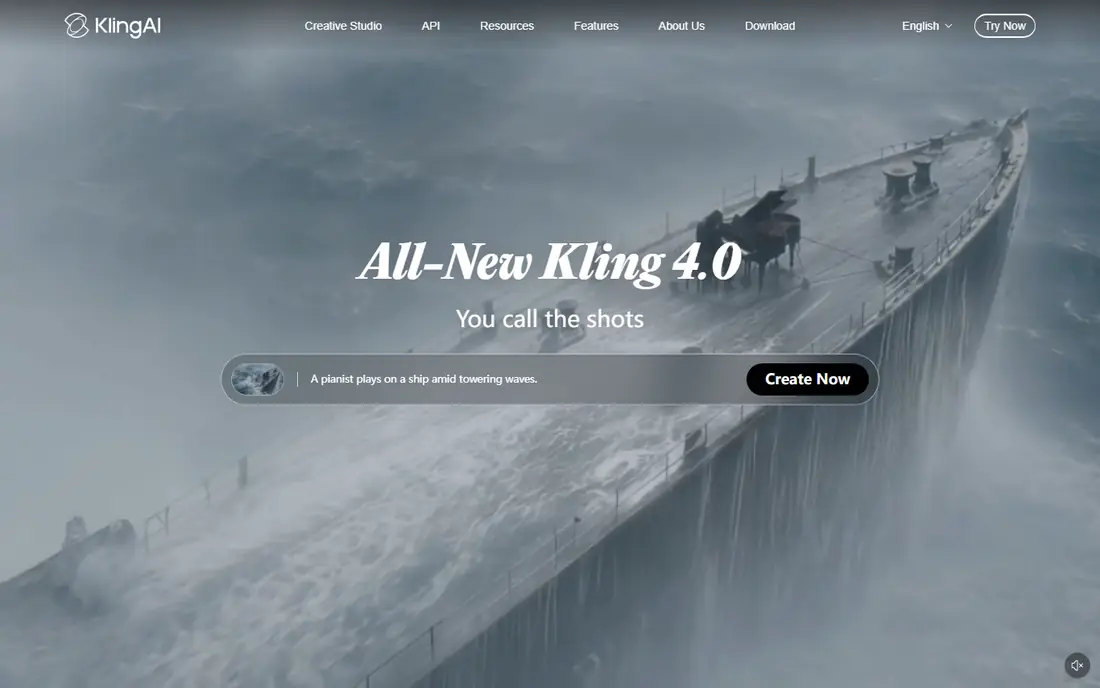
Kling AI leads for realistic people. Upload a portrait or a full scene, describe the motion, and Kling produces movement that holds together better than most rivals, with faces, hands and walking motion that look less warped. Paid plans add native audio, lip sync and higher resolution, while a free daily allowance lets you test the workflow before paying.
The catch is cost at volume. Higher resolution, longer clips and advanced models consume more credits, so a creator producing daily clips should price a month of real output, not a single test. Kling suits hero clips where realism matters most, and it pairs well with a cheaper tool for drafts and experiments.
- Strong realistic human movement
- Native audio and lip sync
- Storyboard and multi-shot options
- Credit costs rise with resolution and length
- Queues vary by plan and model
Runway
Ideal for: Directorial control
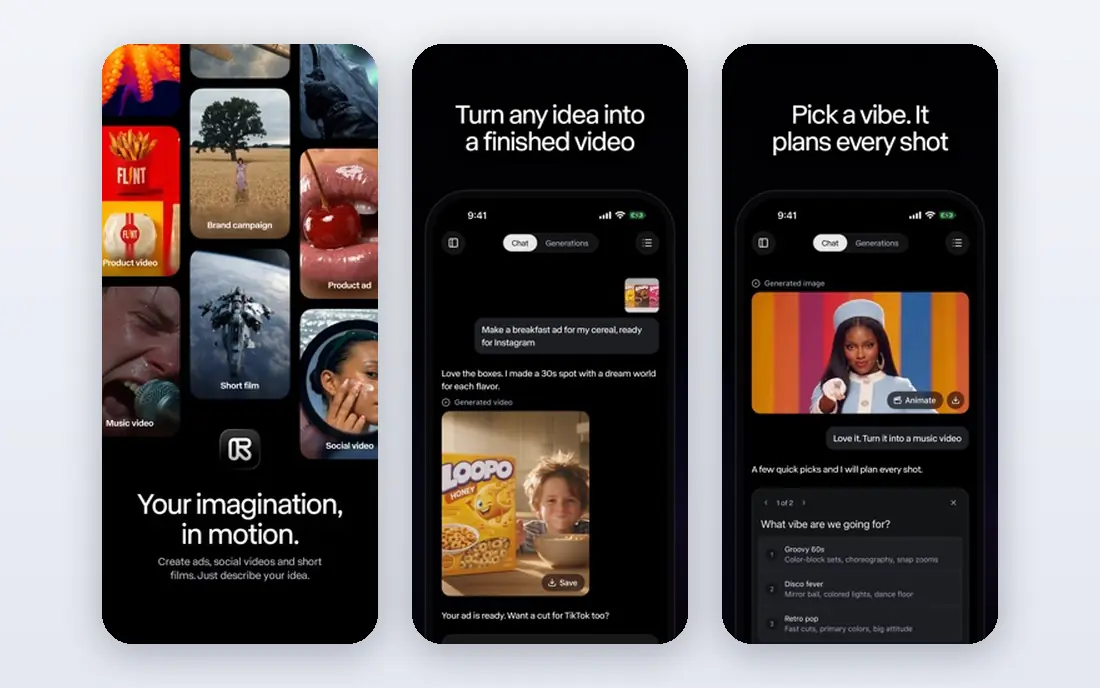
Runway is the director tool. Its image-to-video models accept reference images, camera moves and structured prompts, so you can steer a shot rather than accept whatever the model invents. Published summaries list paid plans from about 12 dollars per month, with a free trial for testing, and multi-shot support for sequences up to about a minute on higher tiers.
The weakness is iteration cost. Every retake consumes credits, and a picky director can burn a monthly allowance on one scene. Runway suits creators and small studios who value control and are willing to plan shots carefully before generating.
- Reference-image and camera control
- Multi-shot sequences
- Production workflow for teams
- Credits disappear quickly during iteration
- Paid plans needed for serious volume
Luma Dream Machine
Ideal for: Fast cinematic clips
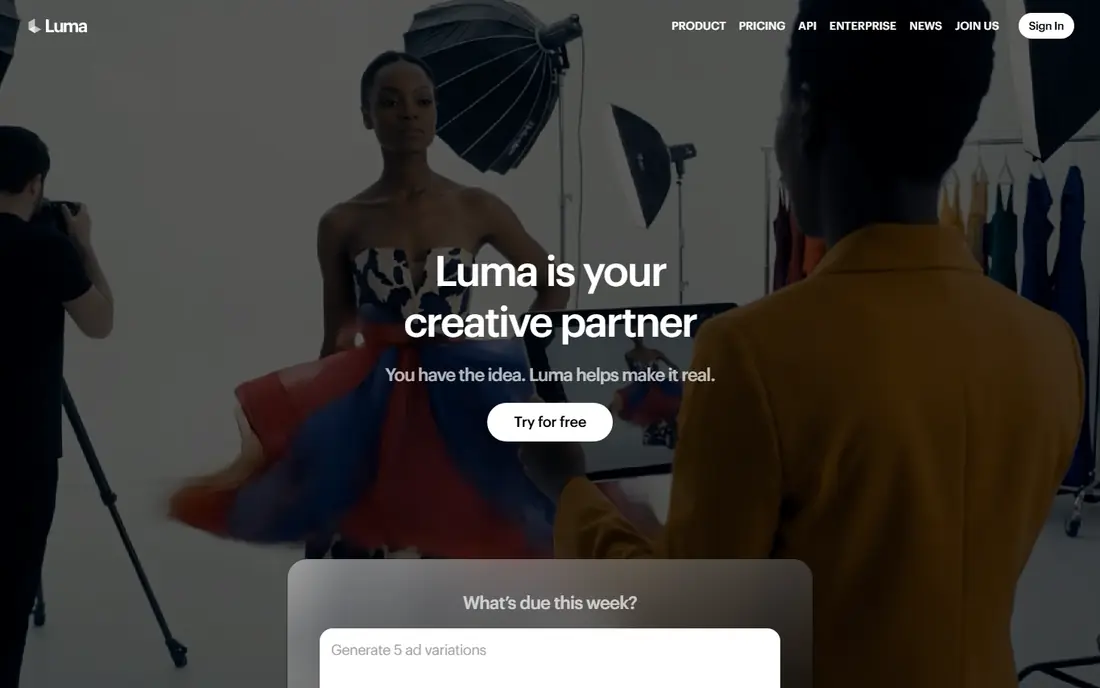
Luma Dream Machine is the speed pick. It turns a photo into a smooth, cinematic clip quickly, with camera moves and physical motion that feel natural rather than jittery. A free tier covers testing, and paid plans add resolution, length and generation capacity for creators who publish often.
The limit is scale. Luma is ideal for exploration and social clips, but a team producing dozens of clips a week should compare credit costs against Kling and Hailuo before committing. Use Luma when you need a beautiful clip fast, and keep a budget tool for bulk drafts.
- Fast generation
- Natural physics and camera movement
- Strong cinematic feel from simple prompts
- Serious volume becomes expensive
- Clip length is short on lower tiers
Pika
Ideal for: Social effects and transitions
Pika suits social creators who want fast, fun results. Its interface is simple, its effects library covers playful transformations, and Pikaframes lets you define a start and end image so the clip morphs between two specific photos. A free tier with credits lets you test effects without paying, and paid plans add resolution and volume.
The trade-off is realism. Pika clips look great as social moments, but they are less suited to a serious product film or a realistic portrait animation. Use Pika for transitions, memes and short social hooks, and use Kling or Runway for hero footage.
- Easy for beginners
- Pikaframes transitions between two images
- Fun effects for social content
- Short clips can favour spectacle over continuity
- Realism trails Kling for human motion
Hailuo AI
Ideal for: Low-cost high-volume clips
Hailuo AI, from MiniMax, is the budget volume pick. Published summaries list paid plans from about 7.99 dollars per month, with a generous free credit allowance for testing, and its character animation handles expressive faces and action better than its price suggests. That combination suits creators who generate many clips and need to keep costs down.
The catch is change. Hailuo plan details, model names and availability shift often, so confirm the current plan on the pricing page before you build a workflow around it. Hailuo is best as a high-volume second tool, with Kling or Runway kept for the clips that must look their best.
- Generous free credits
- Strong character and action animation
- Low entry price
- Plan details and model availability change often
- Output style varies by model
HeyGen
Ideal for: Talking photo presenters
HeyGen answers a different question: what if the photo should talk? Upload a portrait, add a script and a voice, and HeyGen produces a presenter clip with lip sync in many languages. That workflow suits training videos, product explainers, sales outreach and localised content where a human presenter would be costly to film repeatedly.
The limit is scope. HeyGen will not animate a scenic photo into a cinematic scene or direct a complex camera move, so pair it with a scene tool when a project needs both. For talking-head content at scale, HeyGen is the most practical pick in this list.
- Photo avatars that speak with lip sync
- Many languages
- Presenter workflow for training and marketing
- Not built for cinematic scene animation
- Avatar realism varies by photo quality
PixVerse
Ideal for: Fast social-ready clips
PixVerse suits creators who publish short clips daily. Its templates, effects and multi-transition options turn a photo into a finished social clip quickly, with a free tier for testing and paid plans for volume. The workflow is closer to a social editor than to a film tool, which is a strength when speed matters.
The weakness is originality. Template-driven clips can start to look alike, so PixVerse works best for volume content, trends and drafts, while hero clips still benefit from Runway or Kling direction. Keep PixVerse for the feed, and reserve a director tool for the pieces that carry your brand.
- Fast templates and effects
- Multi-shot control
- Social-ready exports
- Credit use rises with resolution and duration
- Style can feel template-driven
Adobe Firefly
Ideal for: Commercially safe workflow
Adobe Firefly is the brand-safe pick. Its video generation sits inside Adobe workflows, with licensing terms designed for commercial use, which matters for agencies and brands that must defend every asset they publish. A free tier covers testing, and paid plans add generative credits for higher volume and resolution.
The catch is cost structure. Video consumes credits faster than still images, so a team producing many clips should model monthly credit use carefully. Firefly suits Creative Cloud users who need safe, integrated video generation more than they need the widest model choice.
- Clear commercial licensing approach
- Integration with Creative Cloud
- Image-to-video inside Adobe tools
- Premium video consumes generative credits
- Model choice is narrower than specialist rivals
How we picked these
We compared motion quality, camera control, audio and lip sync, free tiers, pricing and commercial terms for tools still operating in October 2026. We kept scene animators and talking-photo tools separate in our thinking, since they solve different jobs. We did not run a scored video test, and we did not repeat vendor claims about realism as measured facts.
What to check before you buy
Start with the source photo. Sharp, well-lit photos with a clear subject animate far better than compressed or blurry images, so upscale or re-shoot weak sources before blaming the model. Write prompts that describe one clear motion, such as a slow camera push or a head turn, rather than asking for five actions in one clip.
Next, check rights and consent. Only animate photos you own or have permission to use, and never create a misleading video of a real person, especially a private person or a child. Many tools include safeguards, but the responsibility stays with the creator. For client work, keep written permission and confirm the commercial licence for your plan.
Finally, count credits honestly. Free tiers are for testing, and a finished project often needs several retakes per clip. Estimate clips per month, retakes per clip and resolution needs, then pick the plan that covers that total. A cheaper tool that forces constant top-ups is not cheaper than a mid-tier plan on the right tool.
Frequently asked questions
What is the best AI tool to animate a photo into video?
Kling AI is our pick for realistic motion, Runway for directorial control, and Luma Dream Machine for fast cinematic clips. The best choice depends on your job: a hero portrait, a social transition or a talking presenter each favour a different tool.
How long are AI photo-to-video clips?
Most tools produce clips between about 4 and 20 seconds from a single photo, with multi-shot features extending some projects further. Runway supports longer sequences on higher tiers, while social tools such as Pika and PixVerse focus on short clips.
Can I animate any photo?
Most clear, well-lit photos animate well, while low-resolution or heavily compressed images produce weaker motion. Photos with clear subjects, depth and good lighting work best, and illustrated images also animate well when they have defined shapes.
Is it free to animate photos into video?
Most tools offer free tiers or free credits, but exports may carry watermarks and paid plans are needed for higher resolution, longer clips and commercial use. Test with the free tier, then pay for the plan that covers your monthly clip volume.
Can I use animated photos for commercial work?
Yes, when you own the source photo, have consent for any people in it, and your plan includes commercial rights. Adobe Firefly is the most explicit commercial pick, but always read the licence for your exact tool and plan before publishing client work.