7 Strong AI Tools to Deblur Images in 2026

- 1
 VanceAICasual users who want numerous photo tools in one web accountVisit
- 2
 UpscaylFree, private, offline upscaling and sharpeningVisit
- 3
 HitPaw FotorPeaOne click desktop enhancement with batch supportVisit
- 4
 Cutout.proFree web deblurring plus background and portrait toolsVisit
- 5
 LetsEnhanceWeb deblurring with different models for different photo typesVisit
- The list opens with VanceAI, aimed at casual users who want numerous photo tools in one web account.
- Remini suits old family photos and mobile face restoration.
- Remini is the lowest-priced starter here at $6.99 per user/month.
- 7 of the 7 tools have a free plan, including VanceAI, Upscayl, HitPaw FotorPea and Cutout.pro.
- Before buying HitPaw FotorPea, weigh this: automatic settings can over process some photos.
Direct answer
Our first pick is VanceAI, best for casual users who want plenty of photo tools in one web account. For a different need, Upscayl covers free, private, offline upscaling and sharpening and HitPaw FotorPea covers one click desktop enhancement with batch support. The full list of 7 tools follows, with prices and free plan facts.
Quick comparison
| Product | Ideal for | Price from | Free version | |
|---|---|---|---|---|
| VanceAI | Casual users who want numerous photo tools in one web account | See website | Yes | Visit |
| Upscayl | Free, private, offline upscaling and sharpening | See website | Yes | Visit |
| HitPaw FotorPea | One click desktop enhancement with batch support | See website | Yes | Visit |
| Cutout.pro | Free web deblurring plus background and portrait tools | See website | Yes | Visit |
| LetsEnhance | Web deblurring with different models for different photo types | $9 per user/month | Yes | Visit |
 Pixelcut | Sellers who require clean, sharp product photos quick | See website | Yes | Visit |
 Remini | Old family photos and mobile face restoration | $6.99 per user/month | Yes | Visit |
The best AI tools to deblur images
Ainotely put together this guide to AI tools to deblur images for readers who want a clear shortlist without reading every vendor page. It compares 7 tools on starting price, free plans, who each one suits and where each one falls short.
VanceAI
Ideal for: Casual users who want numerous photo tools in one web account
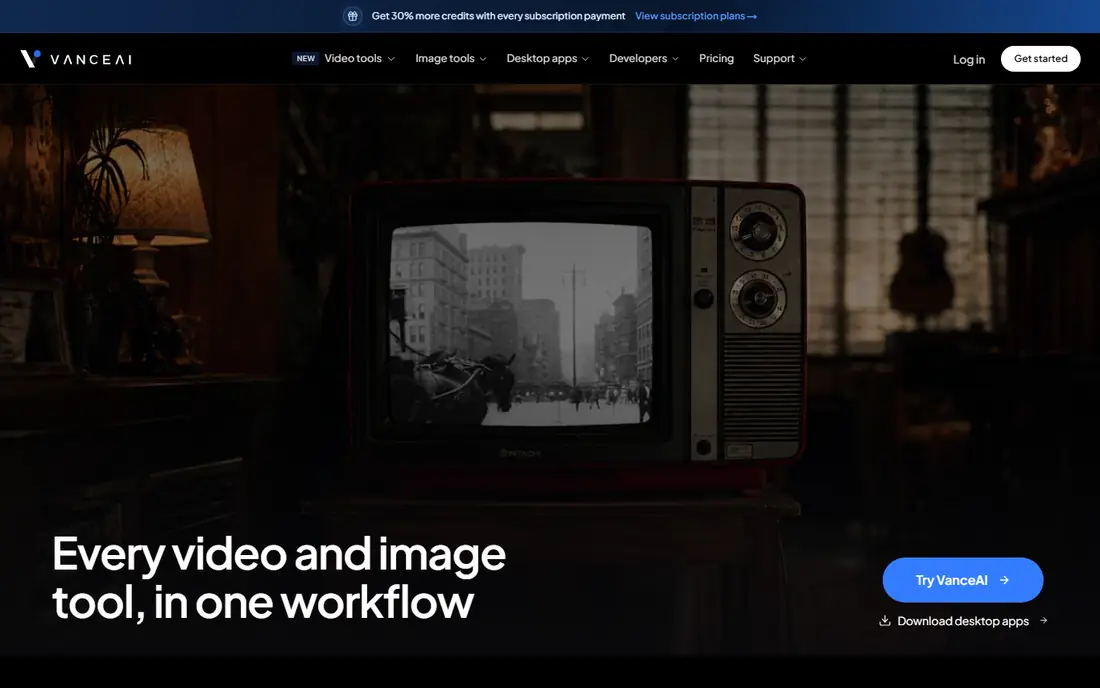
Choose VanceAI for casual users who want numerous photo tools in one web account. Its deblur and sharpening tools manage everyday photos, screenshots, and AI art reasonably well, and credit packs let occasional users pay without a monthly subscription. That adaptability is handy for someone who enhances photos in bursts, like before a listing update or a family event.
Quality is the honest compromise. More specifically, test it on your hardest photo first, not your easiest, before buying a large credit pack. As for the details, past listings quote credits from about $4.95 per 100 credits. But plan terms change, so verify current credit pricing on the VanceAI site. This comparison lists no price for VanceAI; ask the vendor. VanceAI offers a free plan.
Trade-offs to know: Credit pricing makes per image cost harder to predict at first.
- Credit packs for occasional use
- Including deblur, denoise, upscaling
- Results can look smoothed or unnatural on fine texture
Upscayl
Ideal for: Free, private, offline upscaling and sharpening
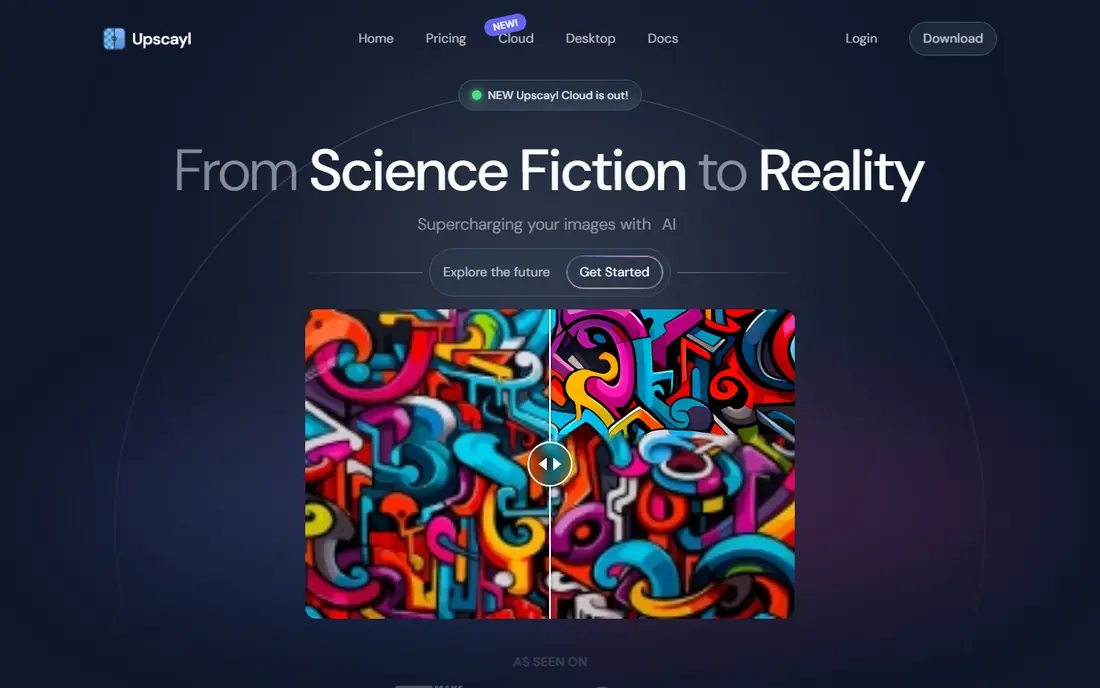
In short, Upscayl is for free, private, offline upscaling and sharpening. It is free, open source, and runs on your own computer. So there is no credit meter, no upload to a vendor server, and no subscription to cancel.
Where it is weaker: Needs a reasonably capable computer and GPU for quick results.
If you have a capable computer and time to experiment, Upscayl can match premium web tools on plenty of photos. Worth adding: the cost is hardware and patience. For everyday use, if you need instant results on a phone, a web tool will feel simpler. Upscayl shows no starting price here, so confirm the cost on the vendor site. A free plan is available with Upscayl.
- Free and open source
- Well suited to batch work without a subscription
- Interface and model choice need more learning than a one tap app
HitPaw FotorPea
Ideal for: One click desktop enhancement with batch support
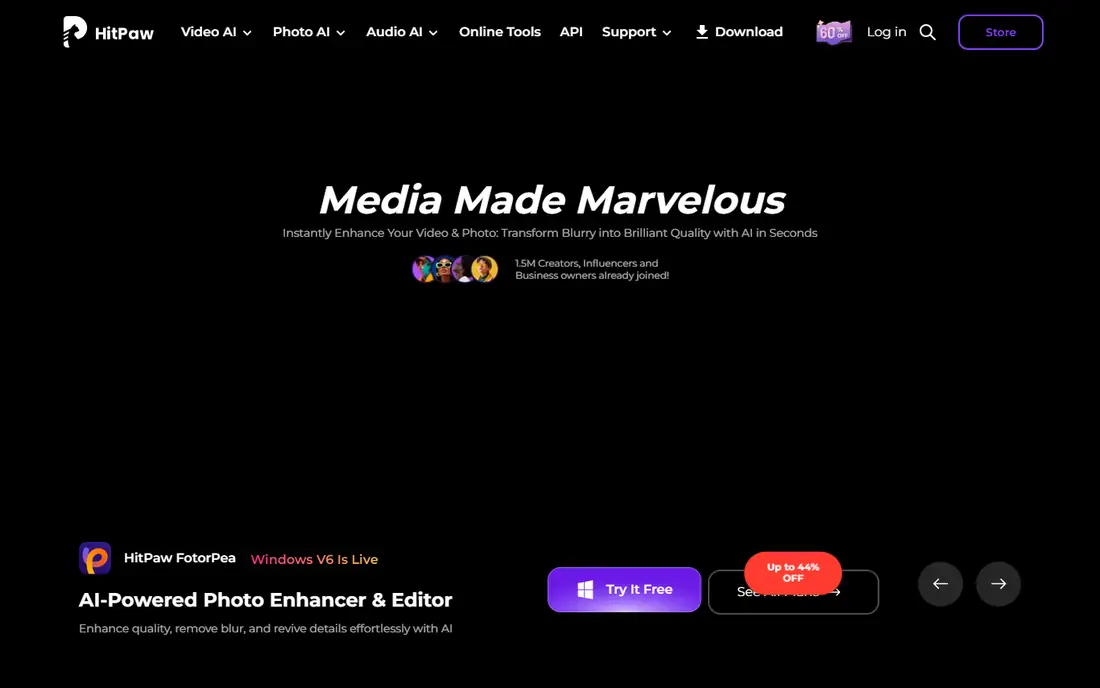
HitPaw FotorPea works best for one click desktop enhancement with batch support. Open a photo, let the tool detect blur, noise, or low resolution, and export a cleaner version. For everyday use, a tool that guesses the problem can guess wrong, notably on mixed photos where only part of the image is blurry.
What to check first: premium features and export limits vary by plan, so check terms before buying.
Automation is also the weakness. Check the result at full size, and be ready to try a different model or a manual tool for the images that matter most. Pricing for HitPaw FotorPea is not stated here, so ask the vendor for current figures. Free access exists with HitPaw FotorPea.
- Face restoration mode for portraits
- Automatic enhancement that spots typical photo problems
- Automatic settings can over process some photos
Cutout.pro
Ideal for: Free web deblurring plus background and portrait tools
Cutout.pro targets free web deblurring plus background and portrait tools. Cutout.pro is a decent free first test for a blurry photo, particularly if the same image also needs background work.
From a buyer's view, if it only looks decent as a thumbnail, a more solid tool like LetsEnhance or Topaz is the better next step. Beyond that, the free level is not a production plan. Pricing for Cutout.pro is not stated here, so ask the vendor for current figures. Cutout.pro offers a free plan.
Watch-outs: Quality varies by image type, with portraits more solid than complicated scenes.
- Merges photo enhancement with background removal and portrait tools
- Free level for trying enhancement
- Free level limits resolution and volume
LetsEnhance
Ideal for: Web deblurring with different models for different photo types
LetsEnhance targets web deblurring with different models for different photo types. For a catalog or a large archive, count credits per image and check batch limits before committing to a plan. Beyond that, the limits are practical.
Trade-offs to know: No offline mode.
LetsEnhance processes the entire image, so you cannot sharpen only a face and leave the background soft. Its Strong model is the one to try first for blur, whereas its Prime model tends to provide more natural results for portraits. That choice of models matters, since a single general algorithm often over sharpens one photo type whereas underperforming on another. LetsEnhance starts at: $9 per user/month. LetsEnhance has a free plan.
- Browser based, so no install is needed
- Including a capable model for blurry photos
- No selective or masked sharpening, since the entire image is processed
Pixelcut
Ideal for: Sellers who require clean, sharp product photos quick
Think of Pixelcut for sellers who require clean, sharp product photos quick. Its enhancer sharpens product photos, cleans backgrounds, and prepares images for marketplaces like Amazon, Etsy, and Shopify in one workflow. Also, Portraits, outdoor scenes, and scanned documents are not its strength.
A general tool for example LetsEnhance or Topaz will normally do better there. For a seller who photographs dozens of items a week, that end to end listing focus matters more than the absolute sharpest single image. This comparison lists no price for Pixelcut; ask the vendor. Pixelcut includes a free tier.
Trade-offs to know: Less versatile for portraits, outdoor scenes, documents.
- Quick mobile and web workflow
- Product focused enhancer with background and listing tools
- Quality and pricing vary by plan, so check current terms
Remini
Ideal for: Old family photos and mobile face restoration
For old family photos and mobile face restoration, Remini is a natural candidate. Remini became widely used for a reason: it makes old, blurry faces look presentable with almost no effort. In practice, for casual users who primarily want to rescue portraits, that simplicity beats a full photo editor.
The main drawbacks: Weekly pricing layers on up over per year.
Outdoor scenes, documents, and product photos do not get the same benefit. The AI can invent facial details that were not in the original, which matters for historical photos. In practice, pricing in past listings starts around $6.99 per week, with monthly and yearly choices also offered, so check the current plan in the app before subscribing. Remini cost at the entry level: $6.99 per user/month. Free access exists with Remini.
- Solid face detail recovery on old and low quality portraits
- Very straightforward mobile workflow
- Free level is restricted and watermarked in some cases
What went into this list
For each of the 7 tools we noted price, free plan or trial, fit for AI tools to deblur images and the main limit, using vendor pages and documentation. Seat minimums, billing terms and add-ons can move the real cost, so the starting prices here are a guide and not a quote. Order on the page follows fit for the typical buyer first, then price transparency and free access. Your own requirements should decide the final pick.
Before you commit
- Confirm the entry price on the vendor page. For VanceAI, Upscayl, HitPaw FotorPea and others that means a quote rather than a fixed price.
- Read the fine print on the free plans from VanceAI, Upscayl, HitPaw FotorPea and others; seat, project and feature caps differ.
- Before choosing VanceAI, weigh its main limit: results can look smoothed or unnatural on fine texture.
- Look at the renewal terms for VanceAI: auto-renewal, notice periods and price changes can matter more than the first-year price.
- See whether Pixelcut offers onboarding or training, and whether it is included in the price.
Frequently asked questions
Is VanceAI the right pick for everyone comparing AI tools to deblur images?
No single tool suits every team. VanceAI comes first because it fits casual users who want many photo tools in one web account, while Upscayl suits free, private, offline upscaling and sharpening and HitPaw FotorPea suits one click desktop enhancement with batch support. Match the tool to your own size, budget and workflow before deciding.
Which tool is a good match for blurry faces?
Start with VanceAI if you need casual users who want plenty of photo tools in one web account. Upscayl is the better match for free, private, offline upscaling and sharpening, and HitPaw FotorPea for one click desktop enhancement with batch support. The best choice depends on budget, team size and workflow.
Which options for AI tools to deblur images have a free plan?
7 of the 7 tools have a free plan, including VanceAI, Upscayl, HitPaw FotorPea and Cutout.pro. Free plans usually cap users, projects or features, so check the limits on the vendor page.
Can I try these tools before paying?
Often, yes. VanceAI, Upscayl, HitPaw FotorPea and others have a free plan. Use your own data and a real task during the test, and check what the free tier or trial limits before you rely on it.
Do these tools publish their prices?
Not all of them. VanceAI, Upscayl, HitPaw FotorPea and others publish no starting price, so expect a quote request for those. The rest, LetsEnhance included, show a starting price, though seats and billing terms still change the final cost.