Best ai ui design tools in 2026: 8 Options Compared

- Our pick for most people is Figma, because it balances range, ease of use, and clear pricing information.
- Uizard is the strongest alternative if the top pick does not fit your needs, especially for non-designers turning ideas into screens.
- Prices and free plans vary widely, so check the official site before you commit, and treat any plan marked See website as a prompt to confirm current terms.
- The right choice depends less on feature count and more on how you will actually use it week to week.
Quick comparison
| Product | Ideal for | Price from | Free version | |
|---|---|---|---|---|
 Figma | teams designing interfaces together | Free | Yes | Visit |
 Uizard | non-designers turning ideas into screens | See website | Free trial | Visit |
 Galileo AI | teams generating UI drafts from prompts | See website | Free trial | Visit |
 Framer | designers who also publish websites | Free | Yes | Visit |
 Sketch | Mac-based design teams | See website | Free trial | Visit |
 Penpot | teams that want open source design | Free | Yes | Visit |
 Relume | teams building sitemaps and wireframes fast | See website | Free trial | Visit |
 Visily | teams turning screenshots into editable designs | See website | Free trial | Visit |
The best best ai ui design tools
We compared official feature pages, pricing pages, app store listings, privacy policies, and public reviews to build this list. The goal was simple: find options that exist today, fit the topic, and serve different kinds of users. Prices change, so we mark anything we could not verify on the vendor site as See website rather than guessing a number.
Figma
Ideal for: teams designing interfaces together
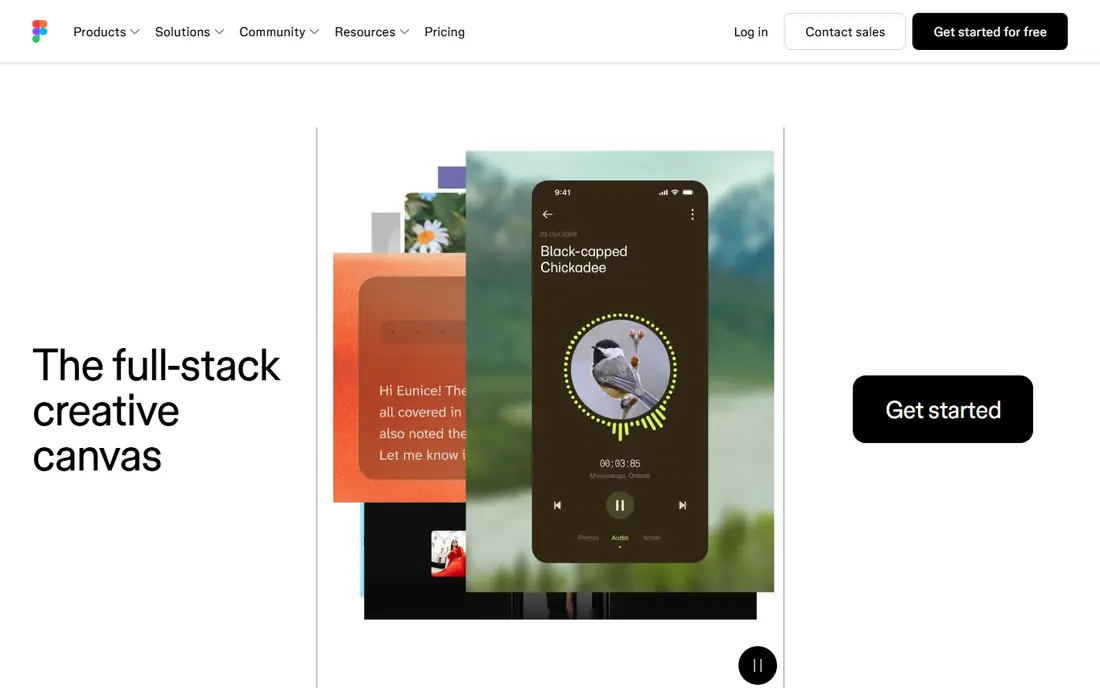
For many readers, Figma stands out as a strong choice for teams designing interfaces together. Its main strength is real-time collaboration with a huge plugin range. That matters in daily use, because a tool that fits your routine is more likely to stay useful after the first week, when novelty fades and real habits form. The honest catch is that AI features are paid add-ons. We would still shortlist it for teams designing interfaces together, but we would check the official pricing and terms on its own site before signing up, and compare it with at least one other option on this list. That comparison is worth the few minutes it takes, since switching later often costs more time than choosing carefully now.
- Real-time collaboration
- Huge plugin range
- Prototyping built in
- AI features are paid add-ons
- Offline use is limited
Uizard
Ideal for: non-designers turning ideas into screens
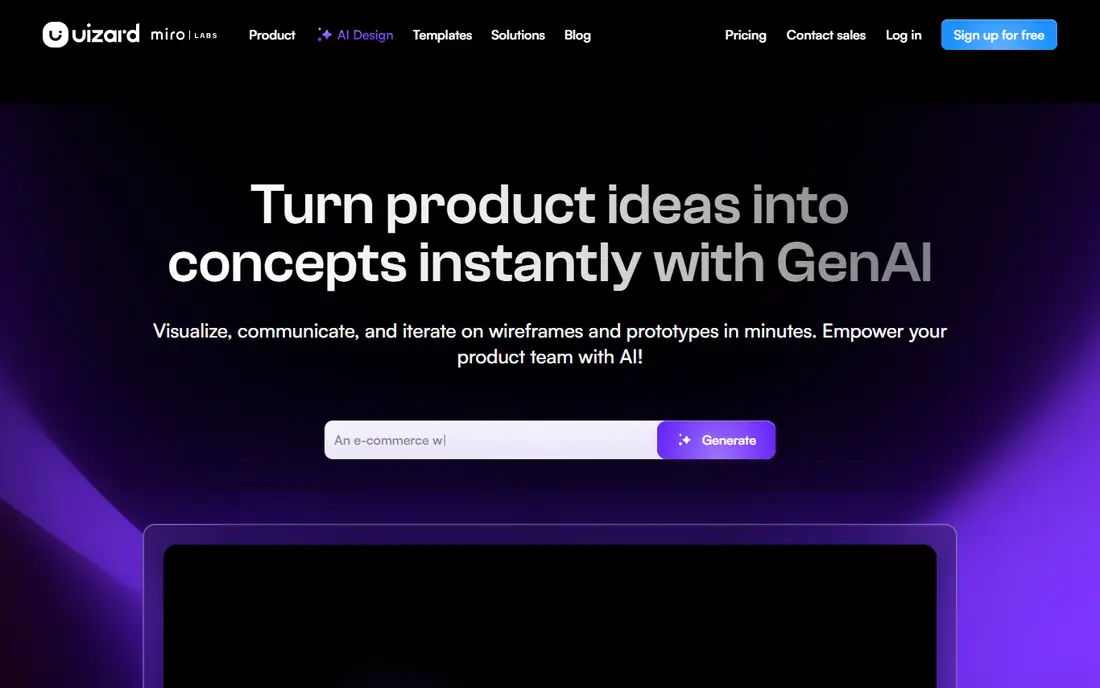
If you want a safe first choice, Uizard stands out as a strong choice for non-designers turning ideas into screens. Its main strength is text to screen generation for quick ideas. That matters in daily use, because a tool that fits your routine is more likely to stay useful after the first week, when novelty fades and real habits form. The honest catch is that output needs design polish. We would still shortlist it for non-designers turning ideas into screens, but we would check the official pricing and terms on its own site before signing up, and compare it with at least one other option on this list. That comparison is worth the few minutes it takes, since switching later often costs more time than choosing carefully now.
- Text to screen generation
- Templates
- Easy editing
- Output needs design polish
- Free tier is limited
Galileo AI
Ideal for: teams generating UI drafts from prompts
Start here if Galileo AI stands out as a strong choice for teams generating UI drafts from prompts. Its main strength is prompt to UI drafts in minutes. That matters in daily use, because a tool that fits your routine is more likely to stay useful after the first week, when novelty fades and real habits form. The honest catch is that polish is still needed. We would still shortlist it for teams generating UI drafts from prompts, but we would check the official pricing and terms on its own site before signing up, and compare it with at least one other option on this list. That comparison is worth the few minutes it takes, since switching later often costs more time than choosing carefully now.
- Prompt to UI generation
- Editable outputs
- Fast drafts
- Access is waitlist based at times
- Polish still needed
Framer
Ideal for: designers who also publish websites
For a different kind of user, Framer stands out as a strong choice for designers who also publish websites. Its main strength is design plus publish in one tool. That matters in daily use, because a tool that fits your routine is more likely to stay useful after the first week, when novelty fades and real habits form. The honest catch is that the learning curve is real for advanced sites. We would still shortlist it for designers who also publish websites, but we would check the official pricing and terms on its own site before signing up, and compare it with at least one other option on this list. That comparison is worth the few minutes it takes, since switching later often costs more time than choosing carefully now.
- Design plus publish in one tool
- AI page generation
- Templates
- Learning curve for advanced sites
- CMS features are basic
Sketch
Ideal for: Mac-based design teams
Consider this option when Sketch stands out as a strong choice for Mac-based design teams. Its main strength is a native Mac app with strong libraries. That matters in daily use, because a tool that fits your routine is more likely to stay useful after the first week, when novelty fades and real habits form. The honest catch is that it is Mac only. We would still shortlist it for Mac-based design teams, but we would check the official pricing and terms on its own site before signing up, and compare it with at least one other option on this list. That comparison is worth the few minutes it takes, since switching later often costs more time than choosing carefully now.
- Native Mac app
- Strong symbols and libraries
- Plugin range
- Mac only
- Collaboration is thinner than Figma
Penpot
Ideal for: teams that want open source design
This one suits readers who Penpot stands out as a strong choice for teams that want open source design. Its main strength is open source design in the browser. That matters in daily use, because a tool that fits your routine is more likely to stay useful after the first week, when novelty fades and real habits form. The honest catch is that the plugin range is smaller. We would still shortlist it for teams that want open source design, but we would check the official pricing and terms on its own site before signing up, and compare it with at least one other option on this list. That comparison is worth the few minutes it takes, since switching later often costs more time than choosing carefully now.
- Open source
- Works in the browser
- Code-friendly output
- Plugin range is smaller
- Performance varies on large files
Relume
Ideal for: teams building sitemaps and wireframes fast
A good fit here is Relume stands out as a strong choice for teams building sitemaps and wireframes fast. Its main strength is an AI sitemap builder with Figma export. That matters in daily use, because a tool that fits your routine is more likely to stay useful after the first week, when novelty fades and real habits form. The honest catch is that it is narrower than full design tools. We would still shortlist it for teams building sitemaps and wireframes fast, but we would check the official pricing and terms on its own site before signing up, and compare it with at least one other option on this list. That comparison is worth the few minutes it takes, since switching later often costs more time than choosing carefully now.
- AI sitemap builder
- Wireframe library
- Figma export
- Narrower than full design tools
- Paid plans for full use
Visily
Ideal for: teams turning screenshots into editable designs
For readers who value simplicity, Visily stands out as a strong choice for teams turning screenshots into editable designs. Its main strength is screenshot to editable design conversion. That matters in daily use, because a tool that fits your routine is more likely to stay useful after the first week, when novelty fades and real habits form. The honest catch is that output needs cleanup. We would still shortlist it for teams turning screenshots into editable designs, but we would check the official pricing and terms on its own site before signing up, and compare it with at least one other option on this list. That comparison is worth the few minutes it takes, since switching later often costs more time than choosing carefully now.
- Screenshot to design conversion
- Templates
- AI generation
- Output needs cleanup
- Team features are newer
How we picked these
We started with the topic and the related searches readers actually use, then checked each candidate against official feature pages, pricing pages, app store listings, privacy policies, and public reviews. We kept only products that exist and work in October 2026 and truly fit the topic. We dropped anything we could not verify, and we used See website wherever a current price was not clear on the vendor site. We also looked for a mix of well known leaders and smaller options, so the list is not just the biggest names. A product earned a place for a concrete strength and a clear audience, not for marketing claims. Where a product has a known weakness, we say so in its section rather than hiding it in general praise.
What to check before you choose
Start with your own needs, not with the longest feature list. Write down the one job you need done most often, the devices you will use, and the budget you are willing to pay each month. Then test the top two options on that job, not on a demo that shows everything at once. A short trial tells you more than a long review, because it shows how the product behaves with your files, your contacts, and your schedule. Check pricing in full, including renewal prices, add on fees, and limits on the free plan. Read the privacy policy for data sharing and deletion options, especially for apps that handle location, health, money, or personal photos. Look at recent public reviews for support quality and for problems that appear after an update. If a product needs other people to join, such as family members or teammates, check that they can use it on their devices too. Finally, plan your exit before you commit. Ask how to export your data, cancel a plan, and delete an account. A product that makes leaving easy is often a product that treats customers fairly while they stay. Keep notes on what you tried, what worked, and what did not, so the next choice is easier.
Frequently asked questions
Which option is best for best ai tools for ui design?
The answer depends on your main need, but start with Figma for general use and Uizard if you need non-designers turning ideas into screens. Compare their free plans and official pricing, then test the one that matches your daily routine before paying.
Which option is best for best ai tool for ui design?
The answer depends on your main need, but start with Figma for general use and Uizard if you need non-designers turning ideas into screens. Compare their free plans and official pricing, then test the one that matches your daily routine before paying.
Which option is best for best ai ui design tool?
The answer depends on your main need, but start with Figma for general use and Uizard if you need non-designers turning ideas into screens. Compare their free plans and official pricing, then test the one that matches your daily routine before paying.
Are there free options for best ai ui design tools?
Yes, several options on this list offer a free plan or a free trial, as shown in the comparison table. Free plans usually limit features, storage, or usage, so read the limits on the official site. A free start is a good way to test fit before committing to a paid plan.
How do I choose between these best ai ui design tools options?
List your top need, your devices, and your monthly budget, then shortlist two options and test them on a real task. Check pricing, privacy terms, and cancellation options on the official sites. The best choice is the one you will actually keep using, not the one with the longest feature list.