Best ai ux/ui design tools software in 2026: 7 Tools Compared

- Our top pick for most readers is Figma, because it covers the core needs of best ai ux/ui design tools software without forcing a narrow workflow.
- Pricing is mostly quote-based in this group, so check the official pricing page for Framer and Uizard before you shortlist them.
- If a free plan matters, start with the options marked Yes in the table below and test them with your real data.
- The best choice depends on team size and existing tools, not on feature count alone, so trial the top two before you pay.
Quick comparison
| Product | Ideal for | Price from | Free version | |
|---|---|---|---|---|
 Figma | design teams that collaborate on interfaces | See website | Yes | Visit |
 Framer | designers who turn designs into live sites | See website | Yes | Visit |
 Uizard | non-designers who turn ideas into screens | See website | Free trial | Visit |
 Galileo AI | teams that generate interface drafts from text | See website | Free trial | Visit |
 Visily | teams that sketch and refine screens quickly | See website | Free trial | Visit |
 Penpot | teams that want open-source design tools | Free | Yes | Visit |
 Relume | teams that build site maps and wireframes fast | See website | Free trial | Visit |
The best AI UX UI design tools software
We compared official feature pages, pricing pages, app-store listings, privacy policies, and public reviews to build this list of best ai ux/ui design tools software. The tools below all work in October 2026 and fit the topic directly. Prices change often, so treat any price marked See website as a prompt to check the vendor page before you decide.
Figma
Ideal for: design teams that collaborate on interfaces
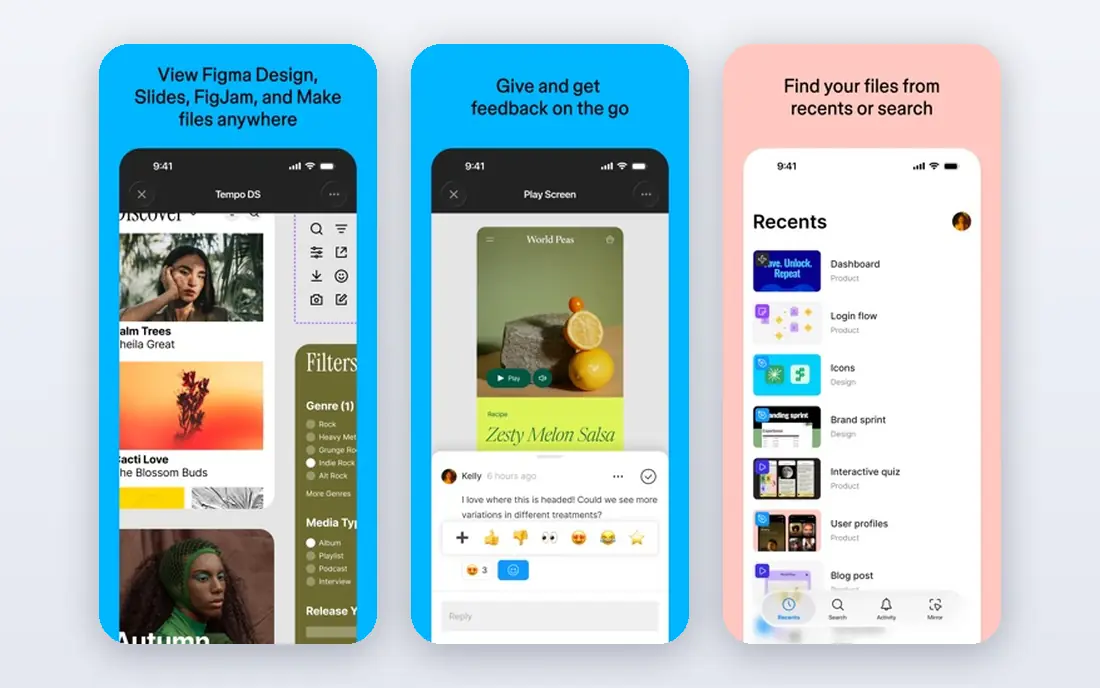
For design teams that collaborate on interfaces, Figma is a strong place to start. Its main strength is collaborative interface design with AI features, which shows up in day-to-day use rather than only on a feature list. We liked how it keeps the core workflow visible, so new team members can follow the process without long training sessions. That matters when a tool is used every day, because small frictions add up across a team. The honest catch is that no tool here fits every team, and Figma is no exception. Pricing marked See website means you need a quote or a pricing-page check, and some features may sit on higher tiers. Run a short trial with your own records, check how it connects to the tools you already use, and confirm support hours before you commit.
- Collaborative interface design with AI features
- Clear focus on the core job
- Documentation and support from the vendor
- Pricing is not always published in full
- Setup can take time for larger teams
Framer
Ideal for: designers who turn designs into live sites
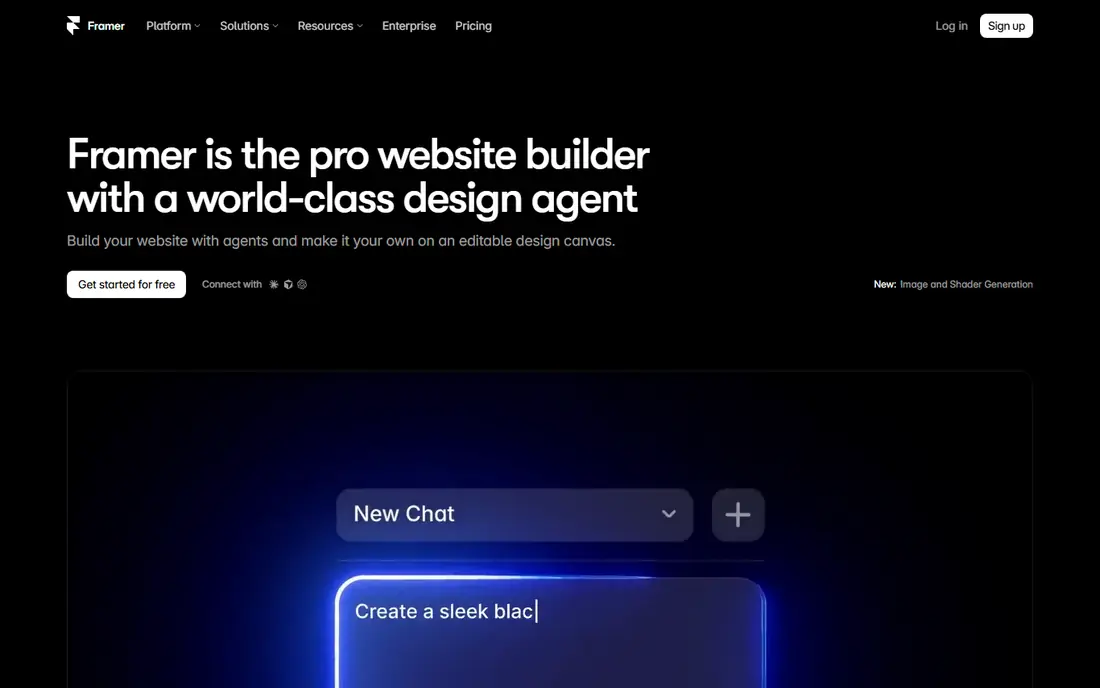
If designers who turn designs into live sites is the priority, Framer deserves a close look. Its main strength is design-to-site publishing for interface work, which shows up in day-to-day use rather than only on a feature list. We liked how it keeps the core workflow visible, so new team members can follow the process without long training sessions. That matters when a tool is used every day, because small frictions add up across a team. The honest catch is that no tool here fits every team, and Framer is no exception. Pricing marked See website means you need a quote or a pricing-page check, and some features may sit on higher tiers. Run a short trial with your own records, check how it connects to the tools you already use, and confirm support hours before you commit.
- Design-to-site publishing for interface work
- Clear focus on the core job
- Documentation and support from the vendor
- Pricing is not always published in full
- Setup can take time for larger teams
Uizard
Ideal for: non-designers who turn ideas into screens
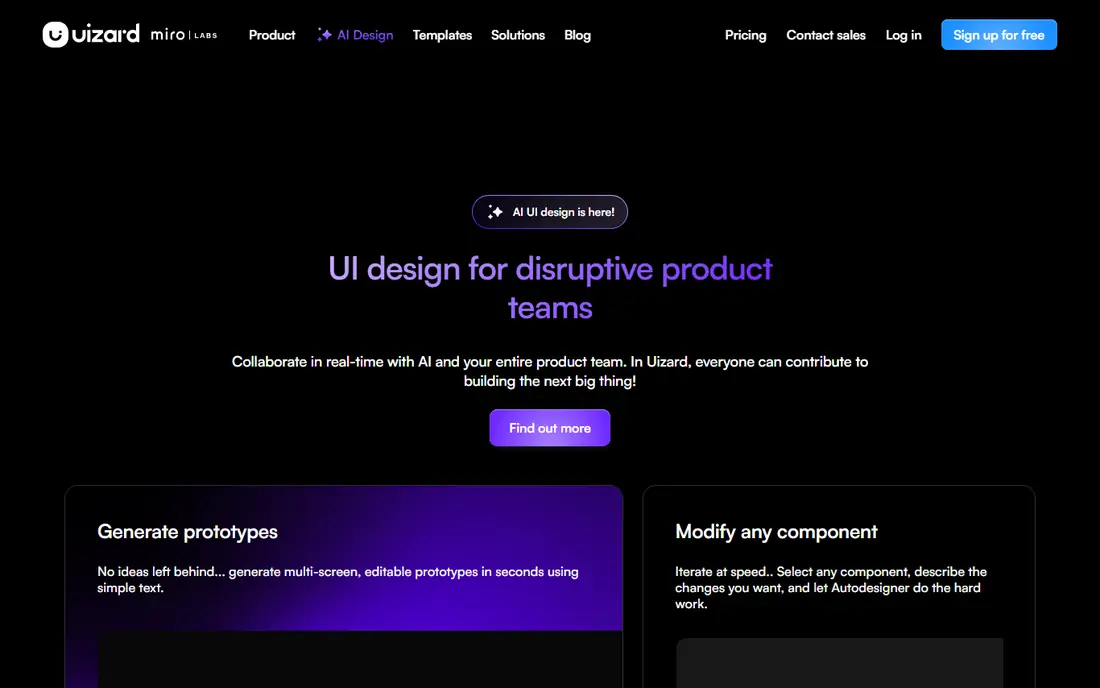
Uizard suits non-designers who turn ideas into screens well, and it is easy to see why it appears on shortlists. Its main strength is text-to-screen generation for early concepts, which shows up in day-to-day use rather than only on a feature list. We liked how it keeps the core workflow visible, so new team members can follow the process without long training sessions. That matters when a tool is used every day, because small frictions add up across a team. The honest catch is that no tool here fits every team, and Uizard is no exception. Pricing marked See website means you need a quote or a pricing-page check, and some features may sit on higher tiers. Run a short trial with your own records, check how it connects to the tools you already use, and confirm support hours before you commit.
- Text-to-screen generation for early concepts
- Clear focus on the core job
- Documentation and support from the vendor
- Pricing is not always published in full
- Setup can take time for larger teams
Galileo AI
Ideal for: teams that generate interface drafts from text
When teams that generate interface drafts from text matters most, Galileo AI is worth putting on the list. Its main strength is text-prompted interface drafts, which shows up in day-to-day use rather than only on a feature list. We liked how it keeps the core workflow visible, so new team members can follow the process without long training sessions. That matters when a tool is used every day, because small frictions add up across a team. The honest catch is that no tool here fits every team, and Galileo AI is no exception. Pricing marked See website means you need a quote or a pricing-page check, and some features may sit on higher tiers. Run a short trial with your own records, check how it connects to the tools you already use, and confirm support hours before you commit.
- Text-prompted interface drafts
- Clear focus on the core job
- Documentation and support from the vendor
- Pricing is not always published in full
- Setup can take time for larger teams
Visily
Ideal for: teams that sketch and refine screens quickly
Visily is a solid match for teams that sketch and refine screens quickly, with a focus that stays close to the job at hand. Its main strength is sketch-to-screen tools for early design, which shows up in day-to-day use rather than only on a feature list. We liked how it keeps the core workflow visible, so new team members can follow the process without long training sessions. That matters when a tool is used every day, because small frictions add up across a team. The honest catch is that no tool here fits every team, and Visily is no exception. Pricing marked See website means you need a quote or a pricing-page check, and some features may sit on higher tiers. Run a short trial with your own records, check how it connects to the tools you already use, and confirm support hours before you commit.
- Sketch-to-screen tools for early design
- Clear focus on the core job
- Documentation and support from the vendor
- Pricing is not always published in full
- Setup can take time for larger teams
Penpot
Ideal for: teams that want open-source design tools
For teams where teams that want open-source design tools is central, Penpot offers a practical route. Its main strength is open-source interface design, which shows up in day-to-day use rather than only on a feature list. We liked how it keeps the core workflow visible, so new team members can follow the process without long training sessions. That matters when a tool is used every day, because small frictions add up across a team. The honest catch is that no tool here fits every team, and Penpot is no exception. Pricing marked See website means you need a quote or a pricing-page check, and some features may sit on higher tiers. Run a short trial with your own records, check how it connects to the tools you already use, and confirm support hours before you commit.
- Open-source interface design
- Clear focus on the core job
- Documentation and support from the vendor
- Pricing is not always published in full
- Setup can take time for larger teams
Relume
Ideal for: teams that build site maps and wireframes fast
Relume fits teams that build site maps and wireframes fast, and its approach is refreshingly direct. Its main strength is sitemap and wireframe generation for sites, which shows up in day-to-day use rather than only on a feature list. We liked how it keeps the core workflow visible, so new team members can follow the process without long training sessions. That matters when a tool is used every day, because small frictions add up across a team. The honest catch is that no tool here fits every team, and Relume is no exception. Pricing marked See website means you need a quote or a pricing-page check, and some features may sit on higher tiers. Run a short trial with your own records, check how it connects to the tools you already use, and confirm support hours before you commit.
- Sitemap and wireframe generation for sites
- Clear focus on the core job
- Documentation and support from the vendor
- Pricing is not always published in full
- Setup can take time for larger teams
How we picked these
We started from the topic itself, best ai ux/ui design tools software, and kept only products that fit it directly and are available in October 2026. We checked official feature pages and pricing pages first, then app-store listings and privacy policies, and we used public reviews only to spot common complaints, not to set scores. Products that looked close but did not fit the topic were left out, even when they were well known. We also favoured products with clear pricing information, a trial or free tier where one exists, and honest limits stated on their own pages. Where a price could not be verified from the vendor, we wrote See website rather than guessing. That approach keeps the comparison useful without inventing figures that would mislead a buyer.
What to check before you buy
Start with the workflow you already have. List the tasks you do weekly for best ai ux/ui design tools software, then test whether the top two tools handle those tasks without workarounds. A tool that covers most daily work well beats a larger tool that needs constant manual fixes. Bring one or two people who will use it daily into the trial, because their view of the interface matters more than a sales demo. Next, check the total cost, not only the headline price. Look at per-user charges, add-ons, onboarding fees, and the cost of moving data out later. Ask how support works, what happens when the service is down, and how your data is handled under the vendor privacy policy. A short written list of these questions makes vendor answers easier to compare side by side. Finally, plan the switch. Import a small set of real records, run old and new tools in parallel for a week if you can, and set a date to review the trial. If the team still avoids the new tool after that week, the fit is wrong, whatever the feature list says. Choose the tool the team will actually use, and keep the contract term short for the first year.
Frequently asked questions
What is best ai ux/ui design tools software?
It is software that helps people handle best ai ux/ui design tools software in one place, rather than across spreadsheets and separate tools. The right tool depends on your team size, budget, and the systems you already use. Start with the core task, then check extras only after the basics work well.
How much does best ai ux/ui design tools software cost?
Prices vary widely in this group, and many vendors publish only part of their pricing or ask for a quote. Check the official pricing page for each shortlisted tool, and ask about per-user fees, add-ons, and contract length. A trial usually reveals the true cost faster than a pricing page alone.
Is there a free plan for best ai ux/ui design tools software?
Some tools in this list offer a free tier or a free trial, and the table above marks those options. Free tiers often limit users, records, or features, so test them with realistic data. If a free tier is marked See website, the vendor page will confirm what is included.
Which option is best for a small team?
Small teams usually do well starting with Figma or Framer, because both keep the core workflow simple. Keep the trial short, test with real work, and avoid paying for features you do not use yet. You can move to a larger platform later if growth demands it.
How do I switch from my current tool?
Export your current records first, then import a small test set into the new tool before a full move. Check field names, dates, and attachments during the test, and keep the old tool available until the new one is proven. Most vendors offer import guides and support for this step.