Best AI Video Editing Platforms for Quick Edits in 2026: 8 Platforms Compared

- Microsoft Clipchamp is the easiest free start: its pricing page lists 1080p exports with no watermarks on the free plan, plus auto captions and silence removal.
- CapCut has the broadest free editor and a Pro plan listed at $19.99 per month or $179.99 per year on CapCut's own comparison page, though prices vary by region.
- OpusClip and Vizard are made for turning one long video into short clips, and both have free plans with limits.
- VEED, Kapwing and Descript sit in the middle: more control than a clip maker, with paid plans from $8 to $16 per month on annual billing.
- Runway generates and alters video with credits that disappear fast, so it suits special effects more than everyday trims.
Quick comparison
| Product | Ideal for | Price from | Free version | |
|---|---|---|---|---|
 CapCut | Mobile and desktop editing with captions | Free | Yes | Visit |
 Microsoft Clipchamp | Free 1080p exports without a watermark | Free | Yes | Visit |
 VEED | Subtitles and browser-based edits | $8 per month (billed yearly) | Yes | Visit |
 Kapwing | Smart trims and team projects | Free | Yes | Visit |
 Descript | Editing video by editing the transcript | Free | Yes | Visit |
 OpusClip | Long video to short clips | Free | Yes | Visit |
 Vizard | Clip-first workflow with a full editor | Free | Yes | Visit |
 Runway | AI-generated and altered footage | Free | Yes | Visit |
The best AI video editing platforms for quick edits
A quick edit usually means trimming dead air, adding captions, resizing for a vertical feed and exporting the same day. These eight platforms handle that work in different ways, from full editors to clip generators.
CapCut
Ideal for: Mobile and desktop editing with captions
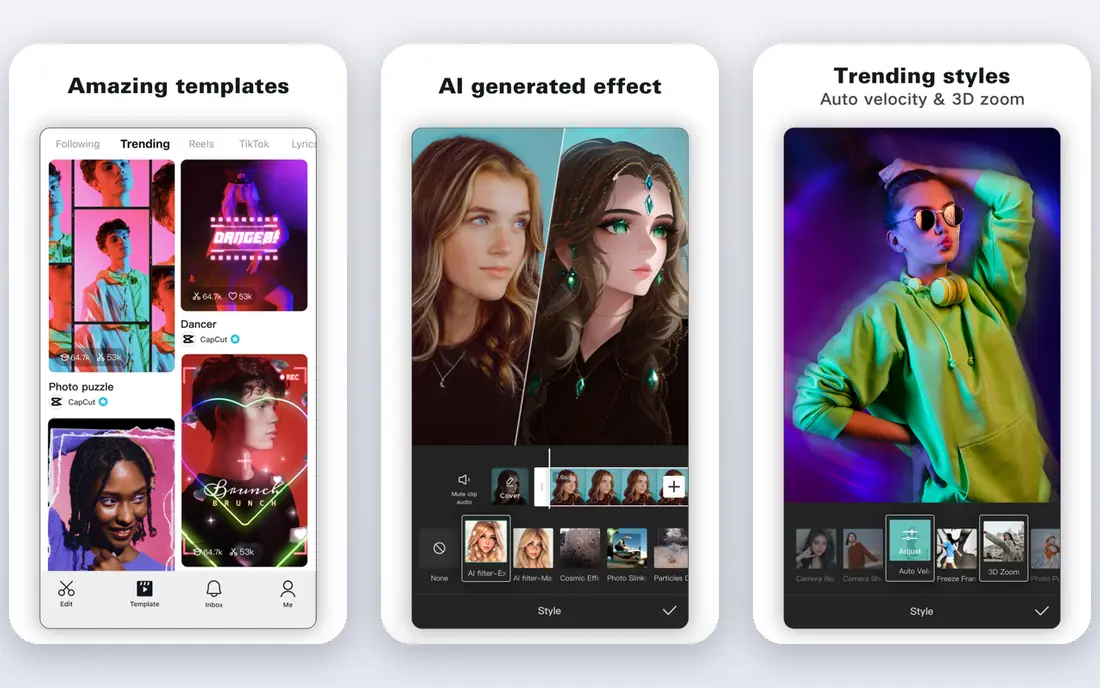
CapCut is the first app most short-form creators try. Its site lists desktop, online, tablet and mobile versions, with AI features such as auto captions, speech recognition, text to speech, video background removal and noise reduction. CapCut's comparison page says the Standard version is free and covers cutting, trimming, merging, splitting, filters, transitions, text and subtitles.
Pro is listed at $19.99 per month or $179.99 per year, with a team plan starting around $24.99 per month, but the same page warns that prices vary by region, platform, taxes and promotions. It also says free cloud storage was discontinued in August 2024.
CapCut is made by ByteDance, the company behind TikTok, so read its privacy policy before uploading sensitive footage. For fast social edits it remains hard to beat on cost.
- Free Standard version covers cutting, text, subtitles and effects
- Runs on mobile, desktop and in a browser
- Auto captions, background removal and noise reduction
- Pro pricing varies by region and platform
- Free cloud storage was discontinued
Microsoft Clipchamp
Ideal for: Free 1080p exports without a watermark

Clipchamp is the quiet bargain here. Its pricing page says the free plan exports up to 1080p with no watermarks, and includes basic editing tools, a royalty-free library and AI features such as subtitles, voiceovers and silence removal. The editor runs in a browser, and there is a Windows app.
Premium exports up to 4K and adds premium stock, filters, effects and a brand kit. The page says Premium features are now included with Microsoft 365 Personal and Family plans, which makes it a no-extra-cost option for many households. For work or school accounts, the page says all premium features and AI video creation require a Copilot license.
It is a good pick for a first video editor or a Windows user who wants clean captions fast. Power users may miss the depth of the bigger editors.
- Free plan exports up to 1080p with no watermark
- Auto captions in 80+ languages and silence removal
- Premium features are included with Microsoft 365 Personal and Family
- 4K and brand kit need a paid plan
- Work and school accounts need a Copilot license for AI video creation
VEED
Ideal for: Subtitles and browser-based edits

VEED works in the browser and leans on subtitles and AI tools. Its pricing page lists Creator at $8 per user per month billed yearly ($96) and Pro at $19 per user per month billed yearly ($228). Creator includes no watermark, 1080p exports, unlimited video length and 120 hours of subtitles a year. Pro adds 4K export, 50 GB of storage, translation to 50+ languages, multiple brand kits and unlimited auto subtitles.
The site offers a start-for-free option and lists tools such as an auto subtitle generator, background noise removal, a video background remover and a compressor. The page we saw did not spell out the free plan's limits, so check them before you plan a project around it.
VEED fits creators who want captions and cleanup in one tab. If you only need captions a few times a month, the free route is worth testing first.
- Creator plan removes the watermark and exports in 1080p
- Pro adds 4K export, translation to 50+ languages and unlimited auto subtitles
- Large set of browser tools for subtitles, noise removal and compression
- Creator subtitles are capped at 120 hours a year
- Free plan limits were not shown on the page we checked
Kapwing
Ideal for: Smart trims and team projects

Kapwing pairs a browser editor with AI helpers. Its pricing page lists Free at $0, Pro at $16 per month on annual billing and Business at $50, with a toggle showing a saving of 33% on annual plans. Free exports carry a Kapwing watermark, are limited to 720p and 4 minutes, and are capped at 30 minutes of exports a month.
Pro removes the watermark, allows 4K and exports up to two hours, and gives 1,000 credits a month. Credits are spent on auto-subtitling, translating, text to speech, dubbing and similar tools. Smart Cut, Find Scenes, Auto Level Audio and a background remover are listed among the automatic tools.
Kapwing suits small teams who share a workspace and want brand fonts and templates. The free watermark makes it a trial tool more than a free tool.
- Pro removes the watermark and exports in 4K
- Smart Cut and Find Scenes listed among its tools
- Shared workspace with Brand Kit
- Free exports carry a watermark and cap at 4 minutes
- Credits are used for subtitles, dubbing and similar AI features
Descript
Ideal for: Editing video by editing the transcript
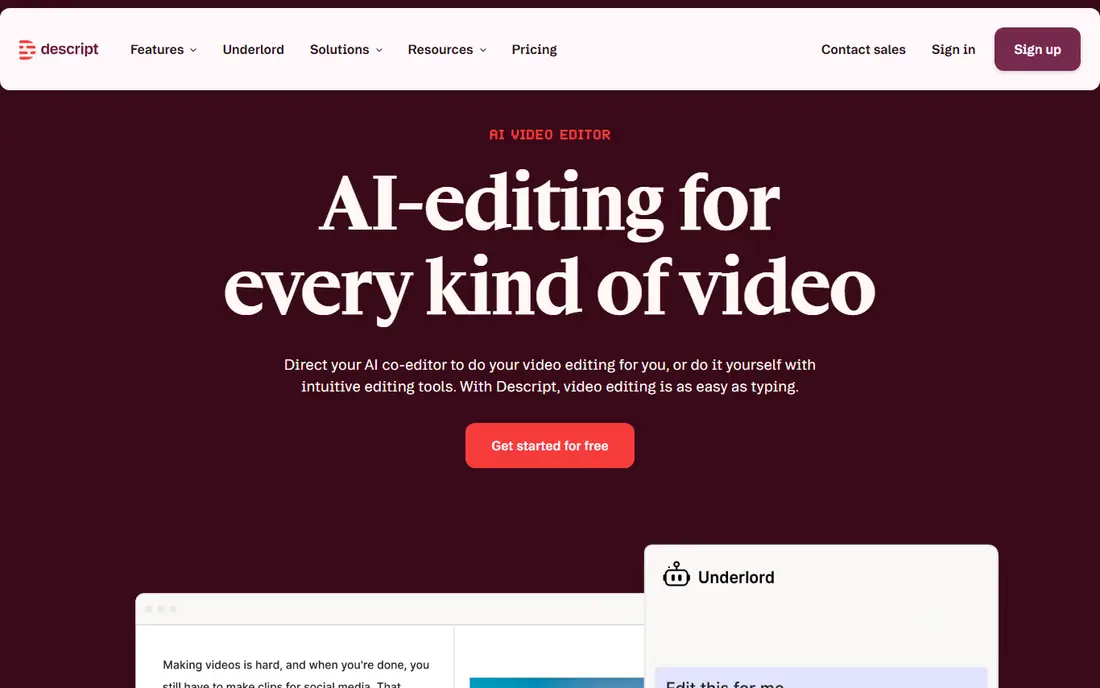
Descript lets you edit by editing words. Its site says that deleting a word removes that moment of video, and moving a sentence moves its footage. The AI co-editor, Underlord, can turn a raw recording into a tighter cut, and tools remove filler words, retakes and background noise.
The pricing page lists Free at $0 with 1 hour of media a month and 720p local export, Hobbyist at $16 or $24, Creator at $24 or $35, and Business at $50 or $65. The page does not label which figure is annual, but the lower number appears to be the annual rate. Watermark-free 1080p export starts on Hobbyist.
Descript is a smart pick for interviews, podcasts and talking-head videos. It is less natural for footage with little speech, such as b-roll montages.
- Edit video by editing text, like a document
- Underlord AI co-editor, Studio Sound and filler-word removal
- Screen recording and clip creation
- Free plan allows 1 hour of media a month
- Pricing labels on the page are unclear
OpusClip
Ideal for: Long video to short clips

OpusClip is a clip finder. Its site says the ClipAnything model picks strong moments from long videos, you can ask for a specific moment with a natural language prompt, captions are added automatically, and ReframeAnything resizes video while tracking the subject. Clips can be published to social platforms from the app.
The free plan includes 60 minutes of processing a month, and new users get a seven-day Pro trial with 90 minutes. The pricing page lists Starter at $15 per month and Pro at $29 per month, and notes that animated caption templates carry a watermark on the free plan.
It is the right tool for a podcaster or YouTuber with long recordings. It is not a general editor, so expect to finish fine details elsewhere.
- Finds highlights in long videos and cuts them into clips
- Auto captions and reframing to follow moving subjects
- Posts to social platforms from the app
- Free plan allows 60 minutes of processing a month
- Free caption templates carry a watermark
Vizard
Ideal for: Clip-first workflow with a full editor

Vizard is another long-to-short tool. Its pricing page lists a free plan with 60 credits a month (one credit equals one minute of video), AI-generated clips, 720p export and 3-day storage, with exports up to 10 minutes. Creator is $29 per month, or $14.50 per month billed yearly at $174, and adds no watermark, 4K export, post scheduling and 100 GB of storage.
The Business plan is $39 per month, or $19.50 per month billed yearly, with a shared workspace, brand kit and unlimited storage. Extra team members cost $5 per month per seat.
Vizard suits creators who want a clip-first workflow with a full editor underneath. The short free storage window means you should download clips promptly.
- Free plan includes AI clips and the full video editor
- Creator removes the watermark and exports in 4K
- Can schedule posts to social accounts
- Free exports are 720p and 10 minutes
- Free video storage lasts only 3 days
Runway
Ideal for: AI-generated and altered footage

Runway is the odd one out, and that is the point. Its site describes a cloud workspace for generating and editing video, with Gen-4.5 as its flagship video model and apps for iPhone and Android. The site says it is used by more than 60 million creatives.
The pricing page lists Free with 125 one-time credits, Standard at $15 per month ($12 on annual billing) with 625 credits, Pro at $35 ($28) with 2,250 credits, and Max at $95 ($76) with 9,500 credits. Gen-4.5 video uses 12 credits per second, so by that math Standard covers roughly 52 seconds of generated video a month and the free credits about 10.
That makes Runway a tool for special shots, not everyday editing. If you only need trims and captions, a cheaper editor is the better fit.
- Generates and edits video, images and audio in one workspace
- Apps for iPhone and Android
- Standard is $12 per month on annual billing
- Credits run out quickly on video generation
- Not built for routine trims and captions
How we picked these
We reviewed official pricing pages, feature pages and product sites for each platform, and we did not run hands-on tests. We looked for tools that handle common quick jobs, such as captions, trimming speech, resizing and clipping, then recorded watermark rules, export limits, credit systems and the US price when the page showed one.
We kept a mix of full editors, clip makers and one generative tool, so the list covers different kinds of quick work. Where a page listed prices without saying whether they were monthly or annual, we said so in the write-up.
How to choose a quick-edit platform
The right tool depends on how you shoot and where the video ends up. Start with the output you need, then check the limits that matter for it.
Check watermarks, length and resolution
Free plans often add a watermark, cap export length or limit resolution. Kapwing and Vizard list 4-minute and 10-minute free export limits, while Clipchamp lists no watermark at 1080p. Match the limit to your longest video.
Understand credits
Several platforms meter AI work with credits or minutes. Vizard counts one credit as one minute of video, and Runway charges 12 credits per second for its flagship video model. Estimate your monthly footage before you pick a plan.
Think about workflow and privacy
Browser tools need no install, desktop apps handle big files better, and mobile apps are fastest for social posts. Whatever you pick, read the privacy terms before you upload footage that shows clients, children or private places. Test the free plan on a real clip before you pay for a year.
Frequently asked questions
What are the best AI video editing tools for quick edits?
For a free start, Clipchamp and CapCut are strong choices. For clips from long recordings, look at OpusClip or Vizard. For transcript-based editing, try Descript.
Is there a free AI video editor without a watermark?
Clipchamp's pricing page says its free plan exports up to 1080p with no watermarks. Many others, including Kapwing, add a watermark on free exports. Always check the export screen before sharing.
Which tool is best for turning a long video into shorts?
OpusClip and Vizard are both built for it. OpusClip says its ClipAnything model finds strong moments and adds captions, while Vizard lists AI clips, auto subtitles and reframing on its pricing page.
Do I need to pay for AI video editing?
Not at first. Most platforms here have free plans, though they limit export length, resolution, credits or storage. Pay only when a limit blocks your real work.
Which platform is best for captions?
VEED, Clipchamp, Kapwing and CapCut all list auto captions or subtitles. Compare language support and monthly caps, since VEED Creator limits subtitles to 120 hours a year.
Sources
- https://www.capcut.com/
- https://www.capcut.com/resource/capcut-standard-vs-pro
- https://clipchamp.com/en/pricing/
- https://clipchamp.com/en/
- https://www.veed.io/pricing
- https://www.kapwing.com/pricing
- https://www.descript.com/pricing
- https://www.descript.com/
- https://www.opus.pro/pricing
- https://www.opus.pro/
- https://vizard.ai/pricing
- https://runway.com/pricing
- https://runway.com/