Best App for Making PowerPoint Presentation Free

- 1
 Microsoft PowerPointThe real PowerPoint, free on the webVisit
- 2
 Google SlidesFree collaboration in the browserVisit
- 3
 CanvaTemplates and quick designVisit
- 4
 LibreOffice ImpressFree offline slides, open sourceVisit
- 5
 Apple KeynoteFree slides for Apple usersVisit
- Google Slides, LibreOffice Impress and Apple Keynote cost nothing at all, while Microsoft PowerPoint web version is free with a Microsoft account.
- Canva free plan covers a huge template library, and Pro costs $12 a month billed yearly for premium assets, background remover and Magic Resize.
- Gamma free plan gives 400 one-time AI credits and exports to PowerPoint, but the credits never refresh, so regular use needs Plus at $9 a seat a month billed yearly.
- WPS Presentation is the closest free clone of PowerPoint, with native PPTX editing, but the free version shows ads and limits templates.
- Check PPTX export before you choose: every app here can open or save PowerPoint files, except Keynote, which exports to PPTX but edits in its own format.
Quick comparison
| Product | Ideal for | Price from | Free version | |
|---|---|---|---|---|
| Microsoft PowerPoint | The real PowerPoint, free on the web | $0 (free web version) | Yes | Visit |
| Google Slides | Free collaboration in the browser | $0 | Yes | Visit |
| Canva | Templates and quick design | $12 per month (billed annually) | Yes | Visit |
| LibreOffice Impress | Free offline slides, open source | $0 | Yes | Visit |
| Apple Keynote | Free slides for Apple users | $0 | Yes | Visit |
 WPS Presentation | Closest free PowerPoint clone | $69.99 per year (Pro+) | Yes | Visit |
 Gamma | AI-generated decks from a prompt | $9 per seat/month (billed annually) | Yes | Visit |
 Beautiful.ai | Smart templates that design for you | $14.50 per month | Yes | Visit |
The best free apps for making PowerPoint presentations
Microsoft PowerPoint
Ideal for: The real PowerPoint, free on the web
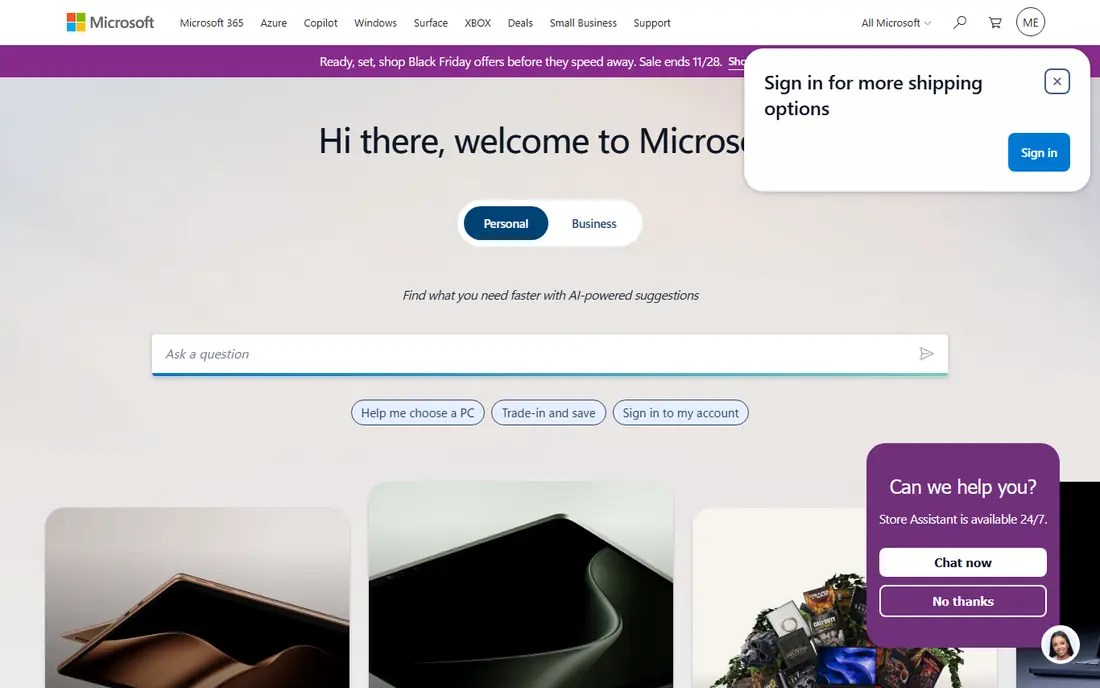
Microsoft PowerPoint is the standard every other app measures itself against, and its web version is free with a Microsoft account, running in the browser with no install. You create, edit and save real PPTX files, so there is no conversion risk when a teacher, client or colleague opens your deck in desktop PowerPoint. The free web version covers the core tools most people use: themes, transitions, animations, charts and presenter view. Files save to OneDrive, with 5 GB free, and you can share a link for others to view or edit.
The desktop app is not free: it comes with Microsoft 365 Personal at $99.99 a year, which also adds Word, Excel, Outlook, OneNote, Copilot and 1 TB of OneDrive storage. The web version lacks a few desktop features, such as advanced morph transitions and some add-ins, but for most school and work decks it is enough. PowerPoint suits anyone who must deliver a real PPTX file and wants zero compatibility risk.
- True PPTX format with no conversion
- Free web version with a Microsoft account
- Desktop app needs Microsoft 365 Personal at $99.99 a year
- Web version lacks some desktop features
Google Slides
Ideal for: Free collaboration in the browser
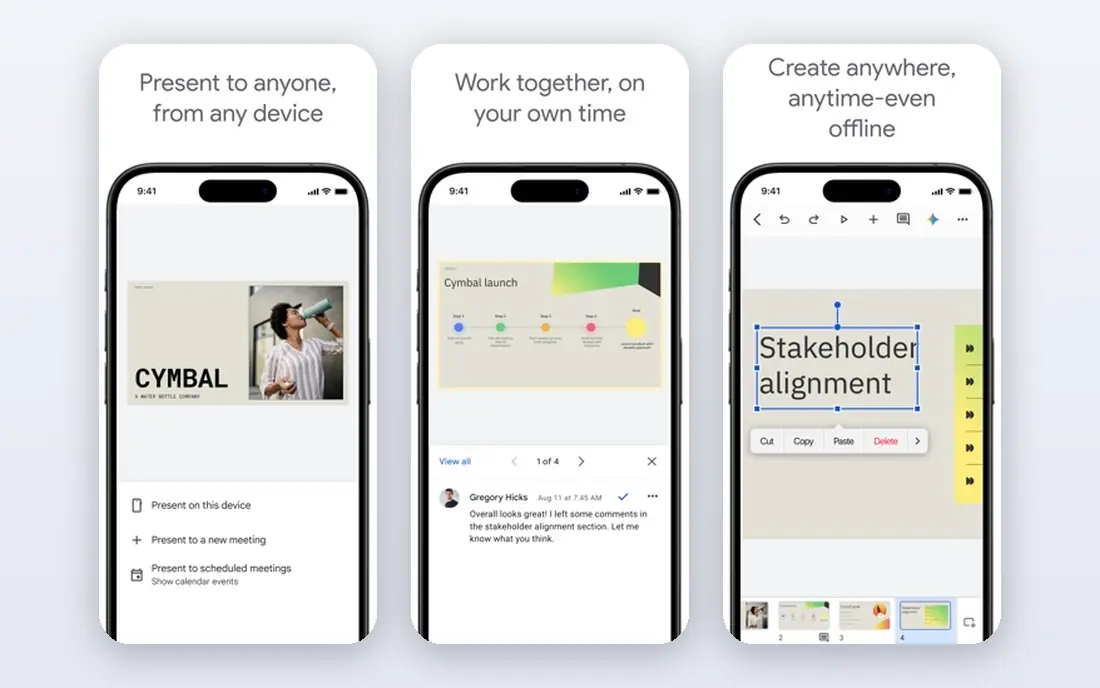
Google Slides is free with any Google account and runs entirely in the browser, with no install and no subscription. Several people can edit the same deck at once, leave comments and see changes live, which makes it the easiest free option for group projects and remote teams. Slides opens PPTX files and exports back to PPTX, PDF and other formats, so a deck started in PowerPoint can be finished in Slides and sent back. Version history records every change, so a deleted slide can be restored in a few clicks.
The trade is design depth: Slides has fewer built-in templates and design tools than Canva or PowerPoint, and offline use needs the Chrome extension set up in advance. Google Workspace Individual, at $9.99 a month, adds premium features and more storage, but Slides itself stays free. Google Slides suits students, teachers and small teams who value free collaboration over fancy design, and who need a deck that works anywhere with a browser.
- Completely free with a Google account
- Real-time collaboration and comments
- Fewer templates and design tools than Canva
- Offline use needs setup
Canva
Ideal for: Templates and quick design
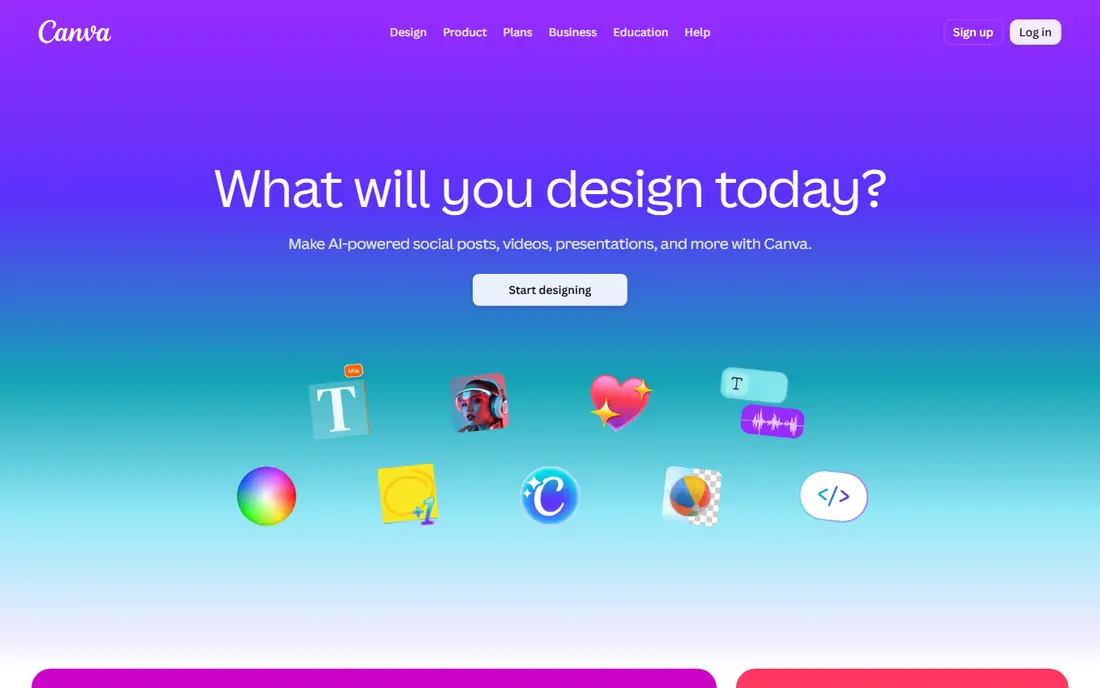
Canva is a design platform with a free plan that covers a large template library, stock photos and basic design tools, which makes it the fastest way to build a good-looking deck without design skill. Presentations start from thousands of templates, and the drag-and-drop editor handles text, images, charts and video on the same canvas. Pro costs $12 a month billed yearly, or $144 a year, and $18 a month on monthly billing, for one person, as of October 2026. Pro adds premium assets, background remover, Magic Resize, 5 brand kits and 100 GB of storage, with a 30-day trial.
Canva exports to PPTX, but fonts and layouts can shift when the file opens in PowerPoint, so check the exported file before presenting. The price has also moved: Pro cost $120 a year in 2025, rose to $144 a year by February 2026, and briefly showed $180 a year in mid-2026 before returning to $144. Canva suits anyone who wants a polished deck fast and values templates over precise PowerPoint compatibility.
- Huge free template library
- Magic Resize and background remover on Pro
- Pro is $144 a year, and the price has risen twice since 2025
- Exports to PPTX can shift fonts
LibreOffice Impress
Ideal for: Free offline slides, open source
LibreOffice Impress is the presentation app in LibreOffice, a free and open-source office suite that runs on Windows, Mac and Linux with no account and no subscription. It opens and saves PPTX files, so a deck can move between Impress and PowerPoint, and it works fully offline, which matters on planes, in schools with weak internet and on older computers. Impress includes templates, master slides, animations, transitions and presenter notes, and the whole suite costs nothing forever.
The interface looks dated next to Canva or PowerPoint, and the template library is smaller. PPTX compatibility is good for text, images and basic layouts, but complex PowerPoint animations and fonts can shift when a file moves between the two apps. LibreOffice Impress suits students, nonprofits and anyone who wants a free offline presentation tool with no account, no ads and no subscription of any kind.
- Completely free and open source
- Works fully offline with no account
- Interface looks dated
- PPTX compatibility is good but not perfect
Apple Keynote
Ideal for: Free slides for Apple users
Apple Keynote is free on every Mac, iPhone and iPad, and also runs free on the web through iCloud, so Apple users get a full presentation app at no cost. Keynote has the best animations of any free app here, with Magic Move transitions that animate objects smoothly between slides, plus cinematic themes, charts and presenter tools. Collaboration works through iCloud, with several people editing at once, and the app opens PowerPoint files directly.
Keynote edits in its own format and exports to PPTX, so a deck built in Keynote needs a check after export: fonts and layouts can shift when the file opens in PowerPoint. That makes Keynote the best choice when you present from an Apple device, and a weaker choice when the deliverable must be a PPTX file that someone else edits. Keynote suits teachers, students and professionals who live in the Apple ecosystem and present from a Mac or iPad.
- Free on every Mac, iPhone and iPad
- Best animations of any free app
- Edits in its own format
- PPTX export needs a check for font and layout shifts
WPS Presentation
Ideal for: Closest free PowerPoint clone
WPS Presentation is part of WPS Office, a free office suite from Kingsoft that mirrors Microsoft Office closely. The free version ships the full Presentation editor, and you can create, edit and save DOCX, XLSX and PPTX files natively, with no activation code and no watermark. That makes it the closest free clone of PowerPoint: the ribbon, the menus and the file format all feel familiar, and a deck built in WPS opens cleanly in PowerPoint. The free tier includes 1 GB of cloud storage and a set of free templates.
The free version shows ads, and the full template catalog sits behind the premium tier. WPS lists Pro+ at $69.99 a year on its own blog, with 20 GB of cloud storage, no ads, PDF editing and AI tools, while third-party listings cite a Premium tier at $29.99 a year, so confirm the price at checkout. WPS Presentation suits Windows and Android users who want a free PowerPoint-like app and do not mind ads in the free version.
- Free version edits PPTX natively
- Interface mirrors PowerPoint closely
- Free version shows ads and limits templates
- Premium price is listed inconsistently
Gamma
Ideal for: AI-generated decks from a prompt
Gamma is an AI presentation tool that turns a prompt, an outline or a document into a full deck with text, images and layout in minutes. The free plan costs nothing and gives 400 AI credits at signup, with up to 10 slides per prompt, and it exports to PDF, PowerPoint, PNG and Google Slides, so the result can be finished in PowerPoint. Plus costs $9 a seat a month billed yearly, or $12 billed monthly, and gives 1,500 monthly credits, up to 100 slides per prompt, advanced image models and no Gamma branding. Pro and Ultra add more credits and features.
The free plan is a genuine trial, not a working plan: the 400 credits never refresh, so once they are gone you upgrade or stop generating, though referrals add 200 credits each. AI output also needs editing, because Gamma can invent facts, dates and figures that look confident but are wrong. Gamma suits anyone who needs a first draft fast and is ready to check every claim before presenting.
- Turns a prompt into a full deck
- Free plan exports to PowerPoint
- Free credits never refresh
- AI output needs editing for accuracy
Beautiful.ai
Ideal for: Smart templates that design for you
Beautiful.ai is a presentation tool built around smart templates that adjust the layout as you type, so slides stay balanced without manual nudging. The free plan lets you try the editor and build decks, while the Pro plan costs $14.50 a month, a price verified on vendor pricing pages in October and November 2026, and adds more templates, premium images, branding controls and PowerPoint export. The designs are clean and modern, which suits business and classroom decks that need to look professional with little effort.
The free plan is limited in templates and exports, so regular use needs the Pro plan, and $14.50 a month is a high price for casual use next to free tools such as Google Slides and LibreOffice Impress. Beautiful.ai also has fewer templates than Canva, so teams that need many styles may feel constrained. Beautiful.ai suits professionals who make decks often and want smart layouts that save design time, rather than students who need a free tool for one assignment.
- Smart templates adjust layout as you type
- Clean, modern designs
- Free plan is limited
- Entry price of $14.50 a month is high for casual use
How we chose
We compared vendor pricing pages, product pages and feature lists for eight apps that make PowerPoint presentations, and we checked each price against the vendor's own pricing page or a source that cites it. Canva Pro at $12 a month billed yearly and Gamma Plus at $9 a seat a month billed yearly were verified from vendor pricing pages as cited by October and November 2026 reads. Microsoft 365 Personal at $99.99 a year comes from the vendor's own price list as cited in September 2026. Beautiful.ai Pro at $14.50 a month was verified on vendor pricing pages in October and November 2026. WPS Pro+ at $69.99 a year comes from the vendor's own blog, with a conflicting third-party Premium figure of $29.99 a year flagged in the text. Google Slides, LibreOffice Impress and Apple Keynote are free with no subscription. We did not test any product hands-on.
What to check before you buy
Export a test deck to PPTX and open it in PowerPoint before you commit, because fonts, layouts and animations can shift between apps, and Canva and Keynote are the most likely to change. Check what the free plan actually limits: Gamma free credits never refresh, WPS free shows ads, and Canva free locks premium templates. Count how many decks you make each month, because a free plan that covers one deck may not cover ten. Confirm offline use if you present without internet, since Google Slides and Gamma need a connection, while LibreOffice Impress and WPS Presentation work offline.
Frequently asked questions
Which free app is best for making a PowerPoint presentation?
Google Slides is the best all-round free choice, with real-time collaboration, no install and PPTX export at no cost. Microsoft PowerPoint web version is best when the file must be a true PPTX with no conversion risk. Canva free plan is best for design-heavy decks with templates, and LibreOffice Impress is best for offline use with no account.
Can I make a PowerPoint presentation completely free?
Yes. Microsoft PowerPoint web version, Google Slides, LibreOffice Impress, Apple Keynote, Canva free plan, WPS Presentation free version, Gamma free plan and Beautiful.ai free plan all let you build a presentation at no cost. The free plans differ in templates, exports and limits, so pick by what you need: collaboration, offline use, AI generation or exact PPTX format.
Do these free apps open and save real PPTX files?
Microsoft PowerPoint web version, Google Slides, LibreOffice Impress and WPS Presentation all open and save real PPTX files. Canva and Gamma export to PPTX, but check the exported file for font and layout shifts before presenting. Apple Keynote opens PPTX files and exports to PPTX, but it edits in its own format, so the export step matters most there.
Is Canva free plan enough for school presentations?
Yes, for most school work. Canva free plan covers a large template library, stock photos and basic design tools, which is enough for class decks, club presentations and posters. Pro adds premium assets, background remover and Magic Resize, but a student who only needs a clean deck for class will not miss them. Check the PPTX export if the teacher requires a PowerPoint file.
What is the best free PowerPoint alternative for Windows?
WPS Presentation is the closest free PowerPoint clone on Windows, with native PPTX editing and a familiar ribbon interface, though the free version shows ads. LibreOffice Impress is the best fully free and open-source option with no ads and no account. Google Slides is best if you want browser-based collaboration, and PowerPoint web version is best if you want the real PowerPoint for free.