Best Apps to Convert MOV to MP4 in 2026: 8 Options Compared

- 1
 HandBrakefree open source video conversionVisit
- 2
 CloudConvertonline conversion without installing softwareVisit
- 3
 VLCfree media player with conversion built inVisit
- 4
 Adobe Expressonline video conversion from AdobeVisit
- 5
 FreeConvertsimple online video conversionVisit
- Our pick for most people is HandBrake, because it balances a clear core feature set with a usable free option and wide availability.
- CloudConvert is the strongest alternative when you want a different balance of features and price, and it is worth comparing side by side with our top pick.
- Free plans on this list vary a lot, so check what is actually included before you sign up, especially limits on features, storage and usage.
- Prices and plans change, so confirm the current price on the vendor website before you pay, and favour the annual cost over a monthly headline figure.
- The best choice depends on your core job, not the longest feature list, so test your top two options with a real task for a week.
Quick comparison
| Product | Ideal for | Price from | Free version | |
|---|---|---|---|---|
| HandBrake | free open source video conversion | Free | Yes | Visit |
| CloudConvert | online conversion without installing software | Free | Yes | Visit |
| VLC | free media player with conversion built in | Free | Yes | Visit |
| Adobe Express | online video conversion from Adobe | Free | Yes | Visit |
| FreeConvert | simple online video conversion | Free | Yes | Visit |
 Zamzar | long-running online file conversion | Free | Yes | Visit |
 Movavi Video Converter | fast desktop conversion with editing | See website | Free trial | Visit |
 Any Video Converter | desktop conversion plus downloads | See website | Free trial | Visit |
The best apps to convert MOV to MP4
We compared 8 options for best app to convert mov to mp4, looking at official feature pages, pricing, app store listings, privacy policies and public reviews. The list below mixes well-known leaders with strong smaller options, and each write-up notes one honest weakness alongside its strengths. Use the comparison table above to shortlist, then read the full write-ups for the two or three options that fit your core job.
HandBrake
Ideal for: free open source video conversion
HandBrake is a free open source video transcoder that converts MOV files to MP4 with detailed quality controls. We found its strengths, free and open source, stand out when compared with the other options on this list, and it fits free open source video conversion without forcing extra complexity on everyday tasks. For many readers, that combination of focus and simplicity is the main reason to shortlist it. The honest catch is worth weighing before you sign up. Interface is technical can matter in daily use, and no cloud conversion is a second point to check against your needs. Pricing is listed as free, and the free plan status is yes, so check the vendor pricing page for the current terms. If those limits do not block your core job, HandBrake is a sensible choice to test for a week with a real task.
- Free and open source
- Batch conversion
- Quality controls
- Interface is technical
- No cloud conversion
CloudConvert
Ideal for: online conversion without installing software
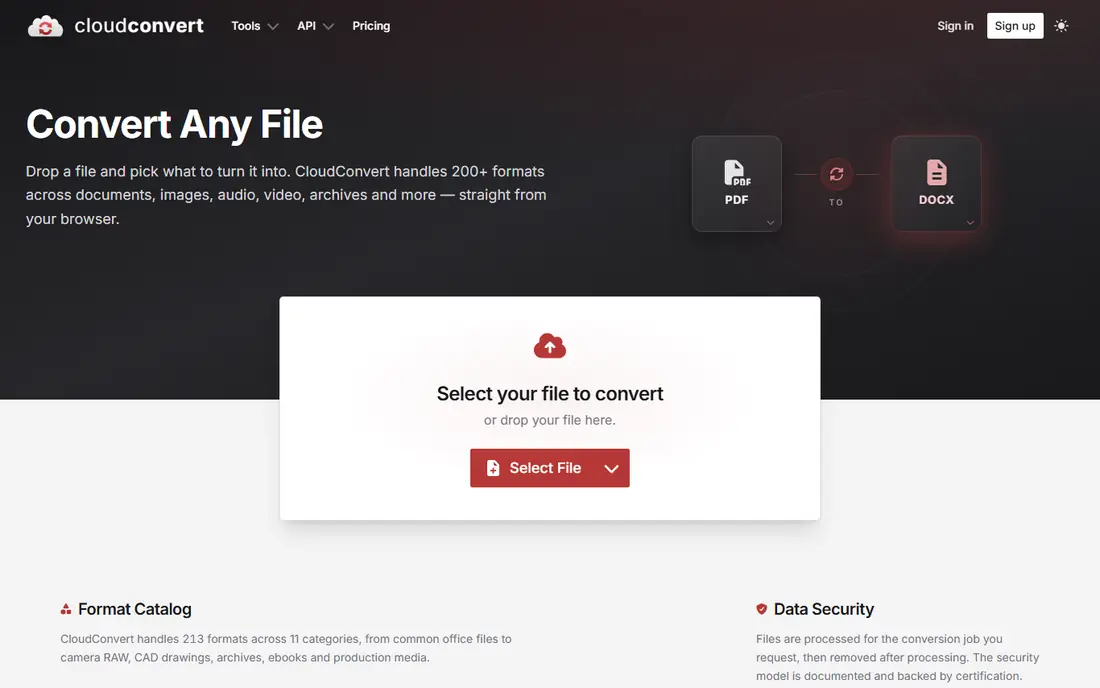
For online conversion without installing software, CloudConvert is a strong contender. CloudConvert converts MOV to MP4 in the browser, with no software to install and support for many formats. Its strengths include online conversion; many formats; API access, which together make it practical for regular use rather than a one-off experiment. We compared its official feature page and pricing with the other options here, and it holds up well on the core job for this topic. No product on this list is perfect, and CloudConvert is no exception. free plan has daily limits; large files need a plan are the main drawbacks to weigh, and they matter more for some readers than for others. With a starting price of free and a free plan status of yes, it is worth testing before paying, and checking the vendor site for the latest plan details. Readers who need the features it lacks should look at the next options on this list instead.
- Online conversion
- Many formats
- API access
- Free plan has daily limits
- Large files need a plan
VLC
Ideal for: free media player with conversion built in
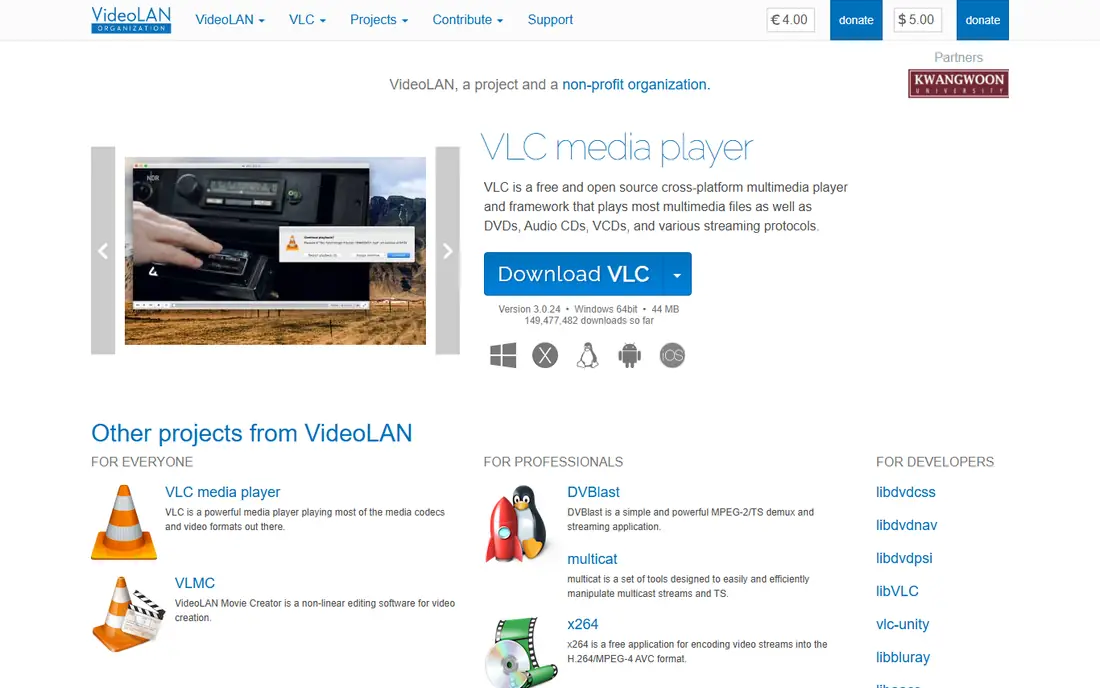
VLC earns its place here for free media player with conversion built in. VLC is a free media player that also converts video files, including MOV to MP4, without extra software. When we compared official pages and public reviews, its strengths, free; plays almost anything; conversion included, came through clearly, and it is a practical option for people who want to get started without a long setup. It is not the flashiest option on the list, but it does its core job well. Before you choose it, weigh the drawbacks honestly: conversion controls are basic; interface is plain. Those limits may not matter for a casual user, but they can frustrate someone who needs the full feature set every day. Starting price is free and free plan status is yes, so confirm the current terms on the vendor website. If the drawbacks do not affect your core job, VLC deserves a place on your shortlist.
- Free
- Plays almost anything
- Conversion included
- Conversion controls are basic
- Interface is plain
Adobe Express
Ideal for: online video conversion from Adobe
Adobe Express offers a simple online video converter for MOV to MP4, alongside its design and editing tools. We found its strengths, simple online conversion, stand out when compared with the other options on this list, and it fits online video conversion from adobe without forcing extra complexity on everyday tasks. For many readers, that combination of focus and simplicity is the main reason to shortlist it. The honest catch is worth weighing before you sign up. Advanced editing needs a plan can matter in daily use, and file size limits apply is a second point to check against your needs. Pricing is listed as free, and the free plan status is yes, so check the vendor pricing page for the current terms. If those limits do not block your core job, Adobe Express is a sensible choice to test for a week with a real task.
- Simple online conversion
- Adobe ecosystem
- Quick results
- Advanced editing needs a plan
- File size limits apply
FreeConvert
Ideal for: simple online video conversion
For simple online video conversion, FreeConvert is a strong contender. FreeConvert is a straightforward online converter for MOV to MP4, with no software to install. Its strengths include simple online conversion; many formats; no install needed, which together make it practical for regular use rather than a one-off experiment. We compared its official feature page and pricing with the other options here, and it holds up well on the core job for this topic. No product on this list is perfect, and FreeConvert is no exception. free plan has size limits; ads on the site are the main drawbacks to weigh, and they matter more for some readers than for others. With a starting price of free and a free plan status of yes, it is worth testing before paying, and checking the vendor site for the latest plan details. Readers who need the features it lacks should look at the next options on this list instead.
- Simple online conversion
- Many formats
- No install needed
- Free plan has size limits
- Ads on the site
Zamzar
Ideal for: long-running online file conversion
Zamzar earns its place here for long-running online file conversion. Zamzar has offered online file conversion for many years, including MOV to MP4, with results delivered by download or email. When we compared official pages and public reviews, its strengths, easy online conversion; many formats; email delivery, came through clearly, and it is a practical option for people who want to get started without a long setup. It is not the flashiest option on the list, but it does its core job well. Before you choose it, weigh the drawbacks honestly: free plan has size and speed limits; conversion queues. Those limits may not matter for a casual user, but they can frustrate someone who needs the full feature set every day. Starting price is free and free plan status is yes, so confirm the current terms on the vendor website. If the drawbacks do not affect your core job, Zamzar deserves a place on your shortlist.
- Easy online conversion
- Many formats
- Email delivery
- Free plan has size and speed limits
- Conversion queues
Movavi Video Converter
Ideal for: fast desktop conversion with editing
Movavi Video Converter converts MOV to MP4 on desktop with a simple interface and basic editing tools. We found its strengths, fast conversion, stand out when compared with the other options on this list, and it fits fast desktop conversion with editing without forcing extra complexity on everyday tasks. For many readers, that combination of focus and simplicity is the main reason to shortlist it. The honest catch is worth weighing before you sign up. Paid software can matter in daily use, and trial adds a watermark is a second point to check against your needs. Pricing is listed as see website, and the free plan status is free trial, so check the vendor pricing page for the current terms. If those limits do not block your core job, Movavi Video Converter is a sensible choice to test for a week with a real task.
- Fast conversion
- Simple interface
- Basic editing
- Paid software
- Trial adds a watermark
Any Video Converter
Ideal for: desktop conversion plus downloads
For desktop conversion plus downloads, Any Video Converter is a strong contender. Any Video Converter converts video between many formats on desktop, including MOV to MP4, with batch processing. Its strengths include many formats; batch conversion; simple interface, which together make it practical for regular use rather than a one-off experiment. We compared its official feature page and pricing with the other options here, and it holds up well on the core job for this topic. No product on this list is perfect, and Any Video Converter is no exception. free version is limited; interface is dated are the main drawbacks to weigh, and they matter more for some readers than for others. With a starting price of see website and a free plan status of free trial, it is worth testing before paying, and checking the vendor site for the latest plan details. Readers who need the features it lacks should look at the next options on this list instead.
- Many formats
- Batch conversion
- Simple interface
- Free version is limited
- Interface is dated
How we picked these
We started from the topic itself and listed only products that exist and work in October 2026 and truly fit that topic, rather than padding the list with near misses. For each product we checked its official feature page and pricing page, its app store listing where one exists, its privacy policy, and public reviews, and we used See website wherever a price could not be confirmed from the vendor site. We favoured products with clear pricing, honest limits and a usable free or trial option, and we noted known weaknesses rather than hiding them. We write as the Ainotely team, and we did not claim hands-on testing that did not happen. Our comparisons rest on the sources listed at the end of this article, and prices, plans and features can change after publication, so the vendor website remains the final source for current terms. If a product changed its pricing or features after our check, the vendor page will show the newer terms.
Choosing the right option for you
Start with the core job
List the one job you need best app to convert mov to mp4 to do well, then judge every option on that job first. A long feature list means little if the core job is awkward, slow or hidden behind extra steps. Shortlist two or three options that handle the core job cleanly, and test them with a real task rather than a demo.
Check the price over a year, not a month
Monthly prices can hide annual costs, add-on fees and limits that matter after the first month. Check what the free plan actually includes, what happens when you hit a limit, and what the annual price would be if you stay. If a product says See website for pricing, open the pricing page before you commit, because plans and prices change.
Look at privacy, support and exit options
Read the privacy policy in plain terms: what data is collected, how it is used, and whether you can export or delete it. Check how support works when something breaks, and whether you can leave without losing your work. A product that is easy to leave is often a safer choice than one that locks your data in.
Try before you commit
Use the free plan or trial for a real week of work, not just an afternoon of clicking around. Note where you get stuck, how often you need help, and whether the product fits your daily routine. The best choice is usually the one you still enjoy using after that week, not the one with the longest feature list.
Frequently asked questions
Which option is best for beginners?
Start with a free plan from a well-known option on this list, and use it for a real task before paying. Beginners benefit most from a simple interface and clear help pages, rather than advanced features they may not use in the first month.
Is there a good free option for best app to convert mov to mp4?
Yes, several options on this list offer a free plan, though free plans usually limit some features, storage or usage. Check the free plan column in the comparison table, then read the pricing page to see exactly what is included before you sign up.
How much should I expect to pay?
Prices vary widely by product, plan and region, so we list Free or See website where a price could not be confirmed from the vendor site at the time of writing. Paid plans usually add features, higher limits or team tools, so compare the annual cost, not just the monthly figure.
Can I switch later if I pick the wrong one?
In most cases, yes, but switching is easier when you can export your data and cancel without a long contract. Check the export and cancellation terms before you commit, and keep a copy of important work outside the app where possible.
How did we choose these options?
We compared official feature pages, pricing pages, app store listings, privacy policies and public reviews for products that exist and work in October 2026. We favoured products that fit the topic closely, with clear pricing and honest limits, over products with vague claims.