Best app to fill out pdf forms free in 2026: 8 Options Compared

- Our pick for most people is Adobe Acrobat Reader, because it covers free PDF form filling with a clear feature set and a free option to try first.
- 8 of the 8 options on this list offer a free plan, so you can test the core features before you pay for anything.
- Prices and free tier limits change often, so check the official pricing page linked for each product before you buy or sign up.
- The best choice depends on your main use case, not on the longest feature list, so start with the best for note in the comparison table.
Quick comparison
| Product | Ideal for | Price from | Free version | |
|---|---|---|---|---|
 Adobe Acrobat Reader | free PDF form filling | Free | Yes | Visit |
 PDFescape | browser PDF form filling | Free | Yes | Visit |
 Sejda | online PDF forms and editing | Free | Yes | Visit |
 Smallpdf | simple PDF form tools | Free | Yes | Visit |
 PDFgear | free PDF editor and forms | Free | Yes | Visit |
 Xodo | PDF forms and annotation | Free | Yes | Visit |
 Foxit PDF Editor | PDF forms for business users | Free | Yes | Visit |
 DocuSign | signing PDF forms | Free | Yes | Visit |
The best apps to fill out PDF forms free
Choosing among apps to fill out PDF forms free is easier when you compare what each option actually does, what it costs, and where it falls short. We reviewed official feature pages, pricing pages, app store listings, privacy policies, and public reviews for the options below, and we did not claim hands-on testing that did not happen. The result is a shortlist that mixes well known names with smaller options that serve a specific need well. Our pick for most people is Adobe Acrobat Reader. It fits free PDF form filling, and it gives new users a clear way to start without a confusing setup. The other seven options each suit a different priority, from lower cost to a narrower focus, so read the best for line for each one and match it to the job you need done.
Adobe Acrobat Reader
Ideal for: free PDF form filling
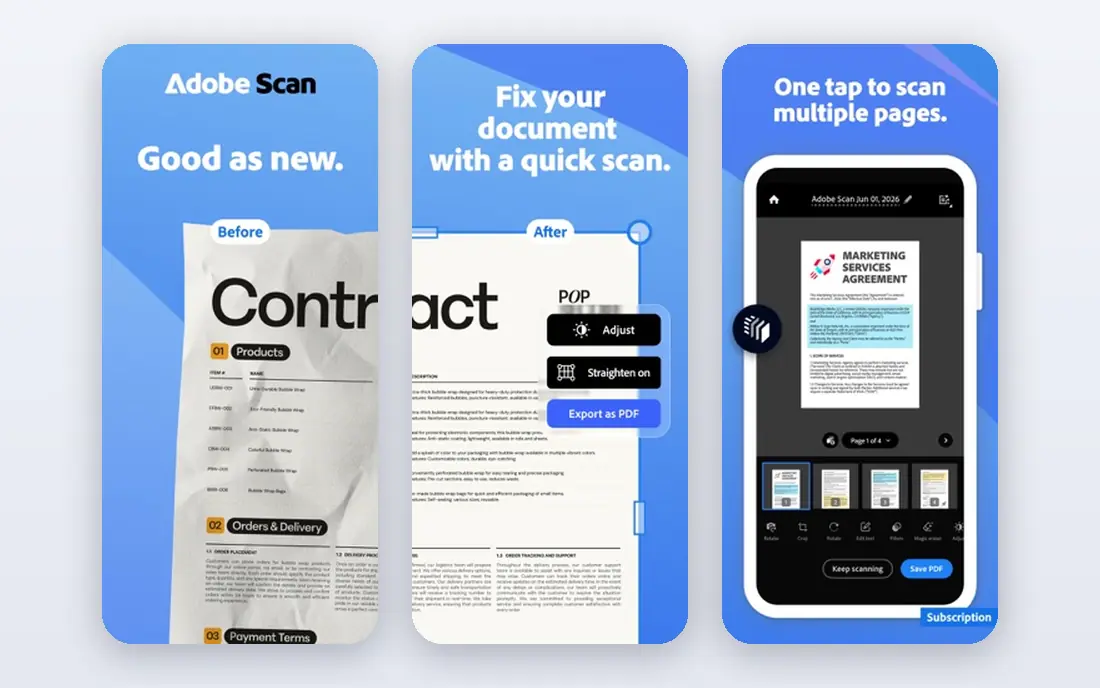
Adobe Acrobat Reader stands out for free PDF form filling. In our review of its official feature pages, pricing, and app store listing, fill and sign forms came across as the main draw, while annotation adds practical value for everyday use. Readers who want free PDF form filling will find a clear starting point here, and the setup is straightforward enough for most people to try without a long learning period. The honest catch is advanced editing needs a paid plan, and app size is large may also matter depending on how you use it. That does not rule Adobe Acrobat Reader out. It simply means you should check the current plan page and the free tier limits before you commit, and compare it with one or two others on this list if price or a specific feature is your top priority.
- Fill and sign forms
- Annotation
- Cloud sync
- Advanced editing needs a paid plan
- App size is large
PDFescape
Ideal for: browser PDF form filling
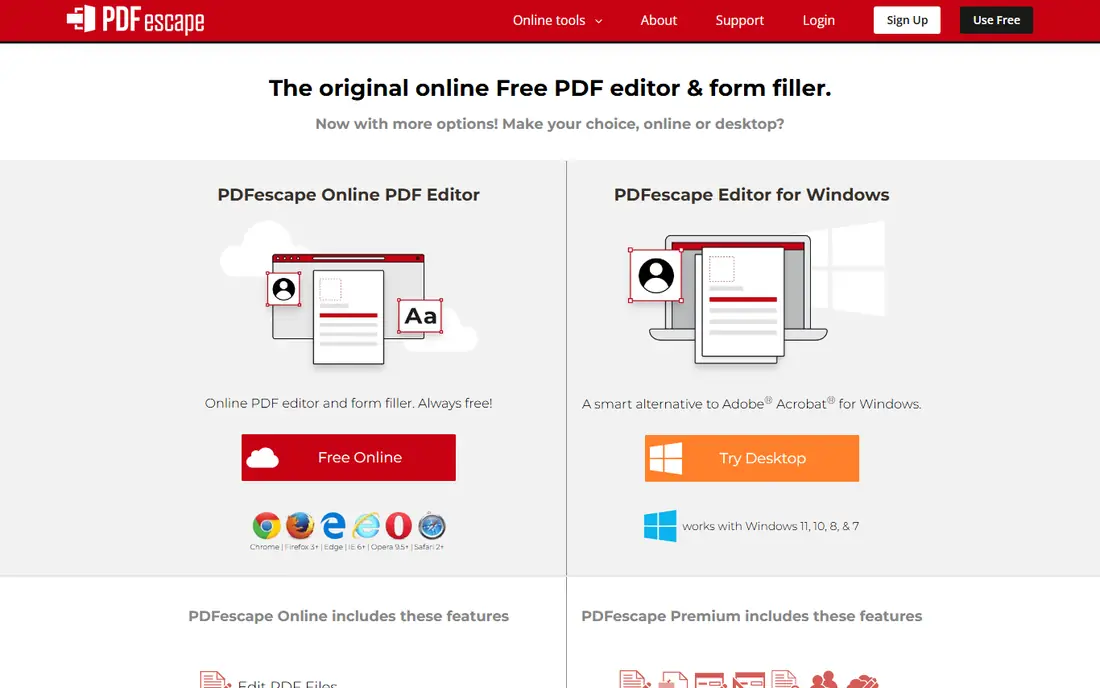
For readers focused on browser PDF form filling, PDFescape deserves a close look. Its official pages point to no install for web use as a central strength, and form fields helps explain why it keeps appearing in this category. It is not the right fit for every reader, but for the use case in its best for line, it covers the basics well and leaves room to grow. No product on this list is perfect, and PDFescape is no exception. free limits on file size and pages is the main drawback we noted, with desktop app is paid as a second point to check. If neither point blocks your main use case, the strengths above still make it worth trying, starting with the free tier or trial where one is offered.
- No install for web use
- Form fields
- Annotation
- Free limits on file size and pages
- Desktop app is paid
Sejda
Ideal for: online PDF forms and editing
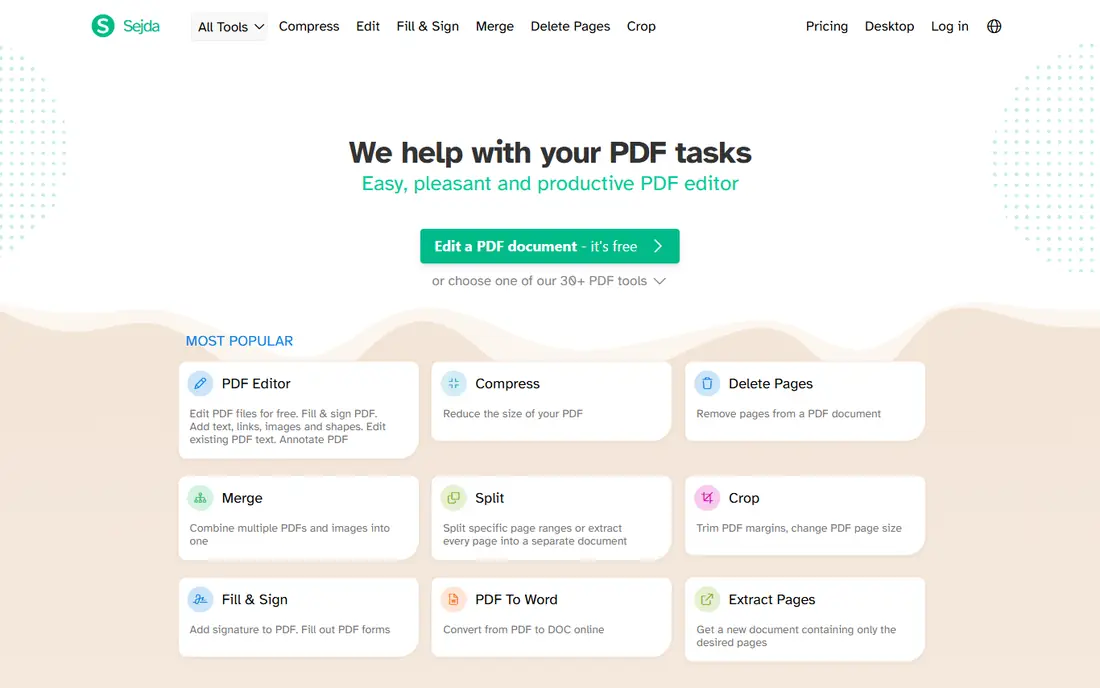
We included Sejda because it fits online PDF forms and editing in a direct way. The standout detail from its official material is form filling, supported by editing. That combination makes it a practical choice for readers who want a tool that does its main job well, without asking them to learn a large set of extra features first. Before you choose Sejda, weigh free tasks per day are limited against what you actually need. large files need paid plans is worth a second look too, especially if you plan to use the product daily. Readers who accept those limits will likely be happy, while readers who need the missing piece should look at the next options on this list.
- Form filling
- Editing
- Signing tools in browser
- Free tasks per day are limited
- Large files need paid plans
Smallpdf
Ideal for: simple PDF form tools
Smallpdf is a useful option for simple PDF form tools, and its official feature pages make the case clearly. form filling is the first thing most readers will notice, and signing adds depth once you start using it regularly. It belongs on a shortlist for this topic, even if the final choice depends on price and personal preference. The trade off with Smallpdf is clear: strong value for simple PDF form tools, balanced by free tasks are limited. full tools need pro adds a further limit to check. Our advice is to test the free version or the trial first, read the current pricing page, and only upgrade once you know the product fits your routine.
- Form filling
- Signing
- Compression and conversion
- Free tasks are limited
- Full tools need pro
PDFgear
Ideal for: free PDF editor and forms
PDFgear stands out for free PDF editor and forms. In our review of its official feature pages, pricing, and app store listing, free form filling came across as the main draw, while editing adds practical value for everyday use. Readers who want free PDF editor and forms will find a clear starting point here, and the setup is straightforward enough for most people to try without a long learning period. The honest catch is newer brand, so check support terms, and some features vary by platform may also matter depending on how you use it. That does not rule PDFgear out. It simply means you should check the current plan page and the free tier limits before you commit, and compare it with one or two others on this list if price or a specific feature is your top priority.
- Free form filling
- Editing
- Signing on desktop and mobile
- Newer brand, so check support terms
- Some features vary by platform
Xodo
Ideal for: PDF forms and annotation
For readers focused on PDF forms and annotation, Xodo deserves a close look. Its official pages point to form filling as a central strength, and annotation helps explain why it keeps appearing in this category. It is not the right fit for every reader, but for the use case in its best for line, it covers the basics well and leaves room to grow. No product on this list is perfect, and Xodo is no exception. advanced collaboration needs paid plans is the main drawback we noted, with interface varies by platform as a second point to check. If neither point blocks your main use case, the strengths above still make it worth trying, starting with the free tier or trial where one is offered.
- Form filling
- Annotation
- Cloud drive connections
- Advanced collaboration needs paid plans
- Interface varies by platform
Foxit PDF Editor
Ideal for: PDF forms for business users
We included Foxit PDF Editor because it fits PDF forms for business users in a direct way. The standout detail from its official material is form creation and filling, supported by signing. That combination makes it a practical choice for readers who want a tool that does its main job well, without asking them to learn a large set of extra features first. Before you choose Foxit PDF Editor, weigh full editing needs a paid licence against what you actually need. free version has limits is worth a second look too, especially if you plan to use the product daily. Readers who accept those limits will likely be happy, while readers who need the missing piece should look at the next options on this list.
- Form creation and filling
- Signing
- Collaboration
- Full editing needs a paid licence
- Free version has limits
DocuSign
Ideal for: signing PDF forms
DocuSign is a useful option for signing PDF forms, and its official feature pages make the case clearly. legally recognised e-signatures is the first thing most readers will notice, and templates adds depth once you start using it regularly. It belongs on a shortlist for this topic, even if the final choice depends on price and personal preference. The trade off with DocuSign is clear: strong value for signing PDF forms, balanced by free plan is limited to a few envelopes per month. full features are paid adds a further limit to check. Our advice is to test the free version or the trial first, read the current pricing page, and only upgrade once you know the product fits your routine.
- Legally recognised e-signatures
- Templates
- Mobile signing
- Free plan is limited to a few envelopes per month
- Full features are paid
How we picked these
We started with products that exist and work in October 2026 and that truly fit the topic, then we compared their official feature pages, pricing pages, app store listings, privacy policies, and public reviews. We favoured options with clear pricing, a usable free tier or trial where one is offered, and a clear statement of who the product is for. We left out products that did not fit the topic, even when they were popular in a nearby category. We also weighed honest drawbacks, because a list that only praises products is not useful. Where a price could not be verified from the vendor site or app store listing, we wrote See website rather than guessing. Readers should still check the linked official site before buying, since plans, limits, and availability change over time.
What to check before you choose
Start with your main job
The fastest way to narrow this list is to name the one job you need done most often. For apps to fill out PDF forms free, that job might be daily use, occasional use, or a single project. Match that job to the best for line in the table, then shortlist two or three options. A product with a longer feature list is not automatically better if its core job does not match yours, and a simpler product can be the better buy when it does the main task well.
Price, free tier, and limits
Check three price details before you pay: the starting price, what the free plan actually includes, and what happens when you hit a limit. Some free plans are generous for light use and tight for heavy use, while some paid plans only make sense when you use the product every week. Look for per user pricing, per month billing, and any add on fees, and compare the total cost for a full year rather than the first month alone.
Fit, support, and privacy
Fit covers device support, ease of use, and how well the product works with tools you already use. Support matters when something goes wrong, so check whether help is by email, chat, or phone, and whether guides are clear. Privacy matters too, so read the privacy policy for data collection, sharing, and deletion options, especially for products that handle personal, financial, or health information.
Mistakes to avoid
A common mistake is paying for the top plan before testing the free tier, which can lock you into features you never use. Another mistake is trusting a single review or a single price claim without checking the official site. Take a short trial, test the feature you care about most, check cancellation terms, and only then commit. If a product promises results that sound too good to be true, treat that promise with care and look for independent evidence.
Frequently asked questions
What is the best best app to fill out pdf forms free?
For most people, Adobe Acrobat Reader is a strong starting point because it fits free PDF form filling and offers a way to try it before paying. The right answer still depends on your budget, your device, and how often you plan to use it, so compare the best for notes in the table before you decide.
Is there a free best app to fill out pdf forms free?
Yes, 8 of the options on this list offer a free plan, though free tiers usually limit features, storage, or usage. Check the free plan line for each product and the official pricing page to see whether the free tier covers your main use case.
How much does a best app to fill out pdf forms free cost?
Costs vary widely across this list, from free plans to quote based business pricing. Where we could not verify a current price from the vendor site, we wrote See website, and we recommend comparing the yearly total, not just the monthly headline price.
Which best app to fill out pdf forms free is best for beginners?
Beginners should start with an option that has a clear interface and a free tier, and Adobe Acrobat Reader is a good first test for that reason. Try the free version for a week, test the feature you need most, and only upgrade if the limits start to get in your way.
How did you choose these apps to fill out PDF forms free?
We compared official feature pages, pricing pages, app store listings, privacy policies, and public reviews, and we favoured products that truly fit the topic with clear pricing. We did not claim hands-on testing that did not happen, and we noted honest drawbacks for each product.