Best Apps to Restore Old Photos Free: 8 Options Compared

- 1
 ReminiFace enhancement and restorationVisit
- 2
 MyHeritageFamily photo restoration and colorizationVisit
- 3
 Google PhotoScanScanning printed photos cleanlyVisit
- 4
 PhotomyneScanning and organizing photo albumsVisit
- 5
 Adobe ExpressEditing and enhancing restored photosVisit
- Remini and MyHeritage lead for face enhancement and colorization, while Google PhotoScan leads for scanning prints well.
- Free tiers usually limit exports, resolution, or daily restorations, so check limits before scanning a whole album.
- Scan at high resolution first, since a poor scan limits what any app can restore.
- Colorization is an interpretation, not a true record, so keep the original scan unchanged.
Quick comparison
| Product | Ideal for | Price from | Free version | |
|---|---|---|---|---|
| Remini | Face enhancement and restoration | Free | Yes | Visit |
| MyHeritage | Family photo restoration and colorization | Free | Yes | Visit |
| Google PhotoScan | Scanning printed photos cleanly | Free | Yes | Visit |
| Photomyne | Scanning and organizing photo albums | See website | Free trial | Visit |
| Adobe Express | Editing and enhancing restored photos | Free | Yes | Visit |
 Canva | Touch-ups and photo presentation | Free | Yes | Visit |
 Fotor | Online photo enhancement | Free | Yes | Visit |
 VanceAI | AI photo restoration online | See website | Free trial | Visit |
The best apps to restore old photos free
Old photos fade, crack, and lose color, but restoration apps can sharpen faces, repair damage, and add color. We compared eight apps that restore old photos, with free tiers or trials for casual users and paid options for larger archives.
Remini
Ideal for: Face enhancement and restoration
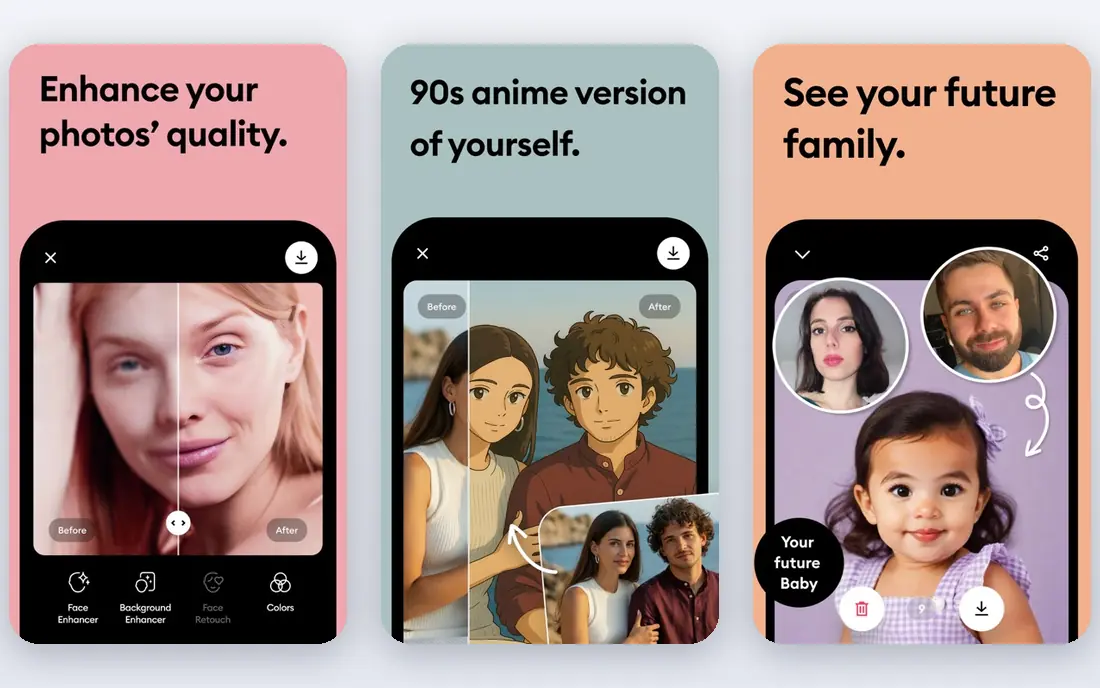
Our pick for Face enhancement and restoration is Remini, and it stands out for strong face enhancement with easy mobile use. Readers who want face enhancement and restoration will find its approach direct and practical. The trade-off is that the free tier limits restorations, so weigh that before you commit.
Pricing is listed as Free below, and the free plan status is Yes. We checked the official site and the app store listing for current plan details, and we suggest confirming the plan that fits your usage before checkout. Compared with the rest of this list, Remini works best when face enhancement and restoration is your main priority.
- Strong face enhancement
- Easy mobile workflow
- Colorization
- Free tier limits restorations
- Subscription for full quality
MyHeritage
Ideal for: Family photo restoration and colorization
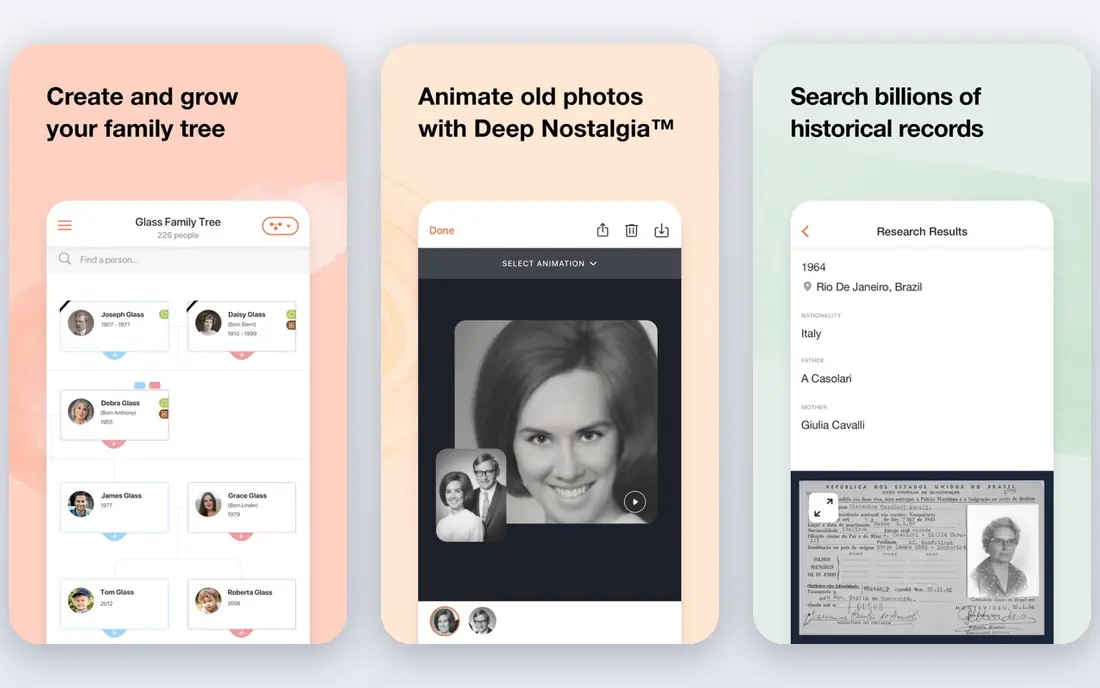
If family photo restoration and colorization matters most to you, MyHeritage deserves a close look. It is known for photo repair linked to family history tools, which gives it a clear edge in this list. On the other hand, full features need a subscription, so it is not the right fit for everyone.
Before you choose, compare MyHeritage with one or two others in this list on price, limits, and support. Its free plan status is Yes and its starting price is shown as Free. In our view, it is a sensible shortlist pick for readers who value family photo restoration and colorization above extra features.
- Photo repair and colorization
- Family history links
- Easy sharing
- Full features need a subscription
- Account needed
Google PhotoScan
Ideal for: Scanning printed photos cleanly
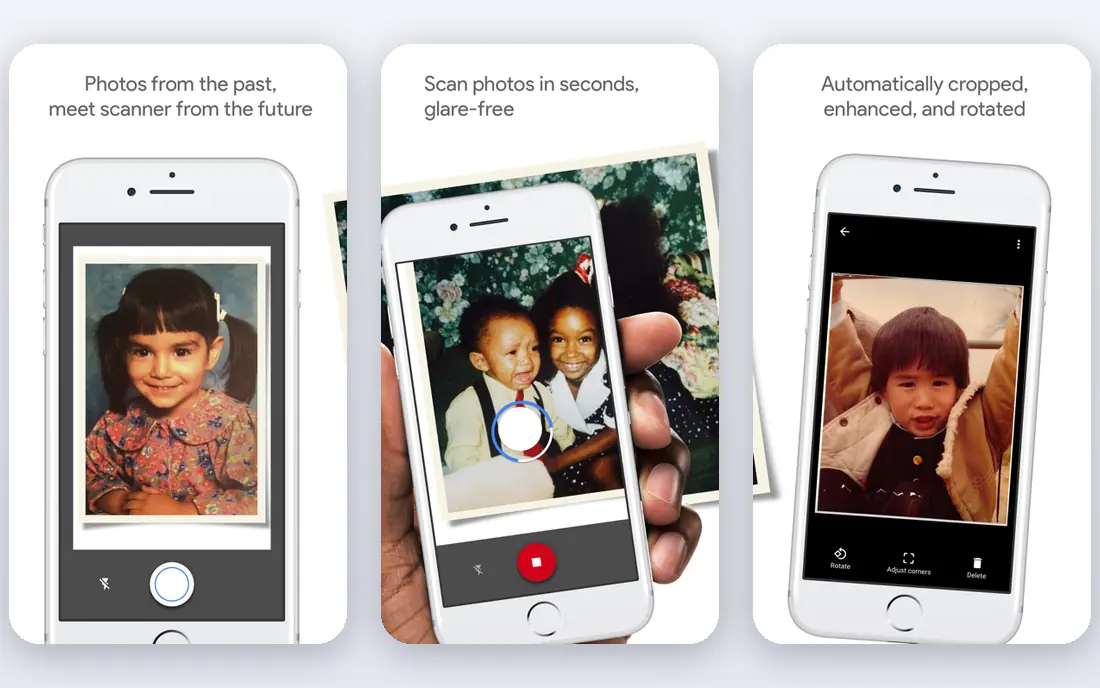
Google PhotoScan earns its place here for scanning printed photos cleanly. Its main strength is free scanning with glare removal, and that makes day to day use feel focused rather than scattered. The catch is that there is no AI restoration built in, which may matter more to some readers than others.
We would shortlist Google PhotoScan when scanning printed photos cleanly is the deciding factor. The starting price is Free and the free plan status is Yes, so the cost picture is clear from the official pricing page. Try the free option or trial first if one is offered, and test it on a real task.
- Free scanning with glare removal
- Automatic cropping
- Google Photos link
- No AI restoration or colorization on its own
Photomyne
Ideal for: Scanning and organizing photo albums
For readers focused on scanning and organizing photo albums, Photomyne is a strong contender. It offers batch scanning for whole albums, and we found that combination easy to recommend for its target audience. Still, restoration tools are basic, so check that detail against your own needs.
The honest summary is this: Photomyne is strong on scanning and organizing photo albums and weaker where restoration tools are basic. With a starting price of See website and a free plan status of Free trial, it is easy to compare against the other options here. Pick it if its strength matches the job you need done most often.
- Batch scanning for albums
- Auto cropping
- Album sharing
- Subscription for full exports
- Restoration tools are basic
Adobe Express
Ideal for: Editing and enhancing restored photos
Adobe Express suits readers who need editing and enhancing restored photos without extra fuss. The headline strength is free editing tools for touch-ups, which covers the core job well. The downside is that restoration is manual rather than one-tap, so a short trial is worth it before you pay.
Pricing is listed as Free below, and the free plan status is Yes. We checked the official site and the app store listing for current plan details, and we suggest confirming the plan that fits your usage before checkout. Compared with the rest of this list, Adobe Express works best when editing and enhancing restored photos is your main priority.
- Free editing tools
- Remove background
- Easy touch-ups
- Restoration is manual, not one-tap AI repair
Canva
Ideal for: Touch-ups and photo presentation
Our pick for Touch-ups and photo presentation is Canva, and it stands out for easy editing and presentation for restored photos. Readers who want touch-ups and photo presentation will find its approach direct and practical. The trade-off is that there is no dedicated old-photo repair, so weigh that before you commit.
Before you choose, compare Canva with one or two others in this list on price, limits, and support. Its free plan status is Yes and its starting price is shown as Free. In our view, it is a sensible shortlist pick for readers who value touch-ups and photo presentation above extra features.
- Easy editing and frames
- Free tier
- Print and sharing options
- No dedicated old-photo repair
- AI tools need paid plans
Fotor
Ideal for: Online photo enhancement
If online photo enhancement matters most to you, Fotor deserves a close look. It is known for browser enhancement with one-tap improve, which gives it a clear edge in this list. On the other hand, advanced AI repair needs a paid plan, so it is not the right fit for everyone.
We would shortlist Fotor when online photo enhancement is the deciding factor. The starting price is Free and the free plan status is Yes, so the cost picture is clear from the official pricing page. Try the free option or trial first if one is offered, and test it on a real task.
- Browser enhancement
- One-tap improve
- Free tier
- Advanced AI repair needs a paid plan
- Ads on free tier
VanceAI
Ideal for: AI photo restoration online
VanceAI earns its place here for aI photo restoration online. Its main strength is dedicated restoration tools with batch options, and that makes day to day use feel focused rather than scattered. The catch is that free credits are limited, which may matter more to some readers than others.
The honest summary is this: VanceAI is strong on aI photo restoration online and weaker where free credits are limited. With a starting price of See website and a free plan status of Free trial, it is easy to compare against the other options here. Pick it if its strength matches the job you need done most often.
- Dedicated restoration and enhancement tools
- Batch options
- Free credits are limited
- Full resolution needs a paid plan
How we picked these
We compared official feature pages, pricing pages, app store listings, privacy policies, and public reviews for each option in this list. We kept only products that exist and work in October 2026 and that truly fit the topic, and we dropped anything whose official homepage did not load or did not match the product. Where we could not verify a current price from the vendor, we wrote See website rather than guessing a figure.
We also weighed who each product is really for, not just how many features it lists. A strong pick for a large team can be a poor pick for one person, and the reverse is true too. That is why each write-up names a best fit and an honest weakness, so you can match the product to your own situation instead of chasing the longest feature list.
Finally, we checked renewal and trial terms where the vendor publishes them, since first-year prices and trial limits can change the real cost. When a vendor did not publish a clear price, we left the field as See website and said so plainly, rather than filling the gap with an estimate. That approach keeps every price claim in this list traceable to the vendor's own pages.
How to choose a photo restoration app
Start with the scan, not the app. Use a flat scan or a scanning app at the highest resolution you can, with even light and no glare. A good scan gives the restoration tool clean detail to work with, while a blurry phone photo limits every result.
Check what the free tier actually includes. Some apps restore a few photos free but charge for high-resolution exports, while others watermark results. If you have a large family archive, count how many photos you need and compare that with daily free limits.
Try the same photo in two apps before committing. Face enhancement, colorization, and scratch repair vary a lot, and one app may handle faces well while another handles backgrounds better. Keep the original scan safe, since AI restoration can also invent details that were not in the photo.
Before you pay, run a short checklist against your top two picks: confirm the plan limits, test the feature you will use most, check support hours, and confirm cancellation terms. A product that passes that checklist on a real task is usually the right choice, even if a rival lists more features on paper. Keep notes from your trial so the decision stays based on evidence, not marketing.
Frequently asked questions
What is the best free app to restore old photos?
Remini and MyHeritage offer strong free or trial restoration for faces and color, while Google PhotoScan is best for scanning prints cleanly. Free tiers usually limit the number of photos or export quality.
Can an app really repair torn or faded photos?
Apps can sharpen faces, reduce noise, and colorize black-and-white photos, and some can soften scratches and stains. Severe tears, missing pieces, or heavy fading may still need a professional restorer.
Is colorization accurate?
No. Colorization guesses colors from patterns and context, so it can look natural without being historically accurate. Treat colorized versions as artistic interpretations and keep the original.
Should I scan or photograph old prints?
Scanning gives sharper, more even results than photographing a print. If you have no scanner, a scanning app with glare removal is the next best option.
Will restoration apps keep my photos private?
Policies differ, and some services keep uploads for processing or improvement. Read the privacy policy, avoid uploading sensitive documents, and delete uploads from the service when you are done if that option exists.