Best Apps for Digital Painting in 2026: 7 Apps Compared

- 1
 ProcreateiPad paintingVisit
- 2
 KritaFree desktop paintingVisit
- 3
 Clip Studio PaintComics and illustrationVisit
- 4
 Adobe PhotoshopProfessional painting plus editingVisit
- 5
 Corel PainterTraditional media feelVisit
- Procreate is our pick for iPad painters, with a one-time price and a brush engine that feels made for drawing.
- Krita is the best free painting app, with professional brushes and tools at no cost on desktop.
- Clip Studio Paint suits comics and illustration, with page management and a huge asset library.
- Adobe Photoshop remains the professional standard for painting combined with photo editing and design work.
- Affinity became free in late 2025, which makes it a strong no-cost option for illustration alongside painting.
Quick comparison
| Product | Ideal for | Price from | Free version | |
|---|---|---|---|---|
| Procreate | iPad painting | $12.99 one-time | No | Visit |
| Krita | Free desktop painting | Free | Yes | Visit |
| Clip Studio Paint | Comics and illustration | $63 one-time | Free trial | Visit |
| Adobe Photoshop | Professional painting plus editing | $22.99 per month | Free trial | Visit |
| Corel Painter | Traditional media feel | $429 one-time | Free trial | Visit |
 MediBang Paint | Free comics and manga | Free | Yes | Visit |
 Rebelle | Watercolor and oil simulation | $89.99 one-time | Free trial | Visit |
The best apps for digital painting
Digital painting apps differ in device, price model and feel, and those three factors matter more than a long feature list. An iPad painter, a desktop illustrator and a comic artist need different tools, so start from your device and your subject, then narrow by price.
Procreate
Ideal for: iPad painting
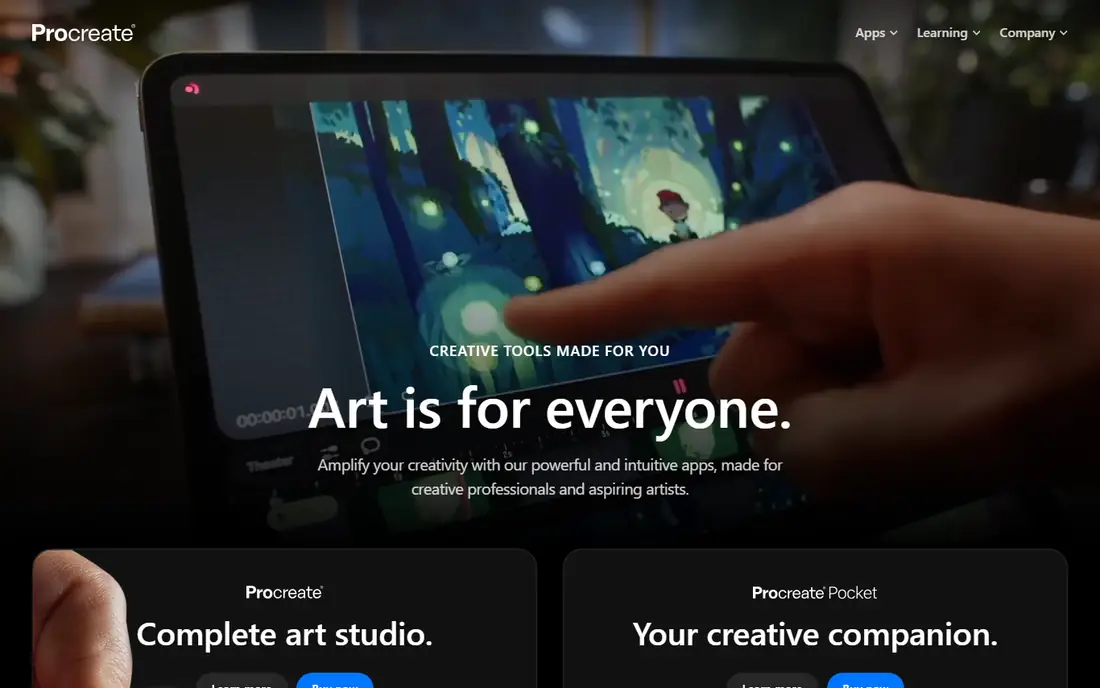
Procreate is our pick for anyone who paints on an iPad. The brush engine feels responsive, gesture controls keep the canvas in reach without menus getting in the way, and the one-time price means you buy it once and keep it. For illustration, concept art and personal painting, it is the app most iPad artists open first.
The limit is platform. There is no Windows, Mac or Android version, so desktop painters need another tool. If you already draw on an iPad, though, Procreate is the obvious purchase, and its price is low enough that trying it is barely a decision.
- One-time price with no subscription
- Excellent brush engine and gesture controls
- Animation assist for simple motion
- IPad only, with no desktop version
- No free tier beyond paid purchase
Krita
Ideal for: Free desktop painting

Krita is the best free painting app, full stop. It offers brush stabilizers, blending modes, layer management, animation timelines and a large brush library without charging anything or locking features behind a subscription. Digital painters on Windows, Mac and Linux get a serious tool for no money, which is rare in this category.
The interface packs a lot in, so beginners may need a few sessions to feel comfortable. Performance also depends on your machine, especially with large canvases. For anyone who wants professional painting tools without a subscription, Krita is the first download.
- Completely free and open source
- Professional brush engines and layer tools
- Animation support included
- Interface can feel busy for beginners
- Performance varies on older machines
Clip Studio Paint
Ideal for: Comics and illustration
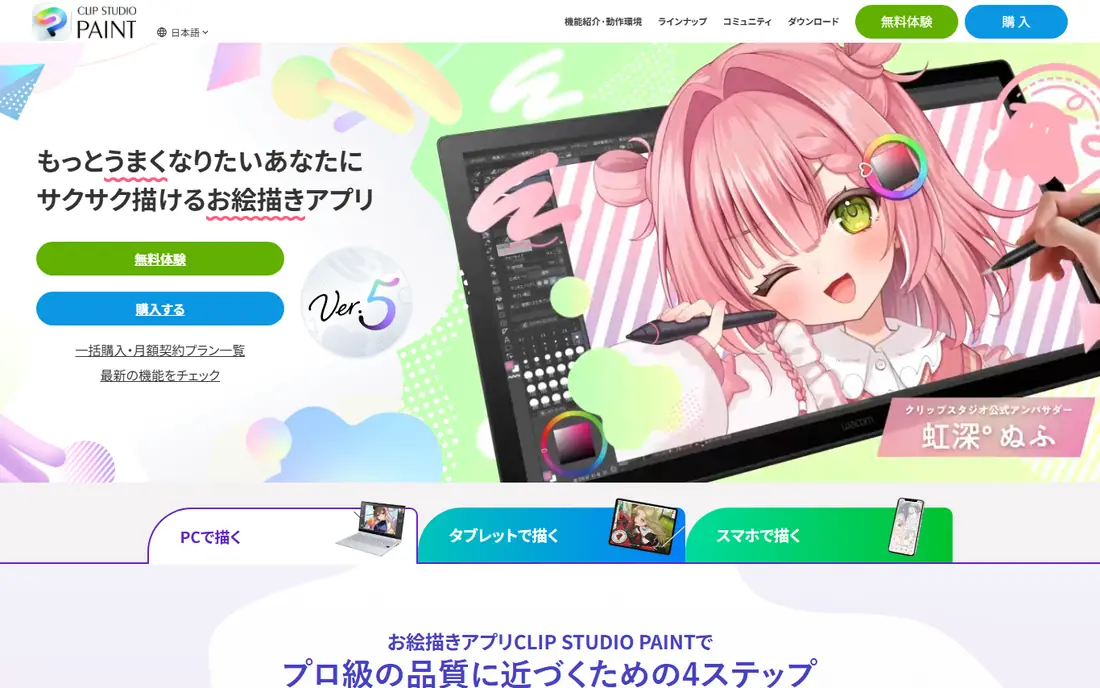
Clip Studio Paint is the standard for comic and manga artists for good reason. Page management, panel tools, speech balloons, perspective rulers and a huge asset store cover the whole comic workflow, while the painting and inking brushes suit illustration too. Many professional comic artists build their entire process around it.
Pricing needs care, since desktop perpetual licenses and tablet subscriptions differ, and the feature set can overwhelm a pure painter. For comics, manga and illustration with a publishing goal, Clip Studio Paint is the most complete tool here.
- Page and panel management for comics
- Huge asset library for brushes and materials
- Strong vector and inking tools
- Pricing varies between perpetual desktop licenses and subscriptions on tablets
- Learning curve for comic features
Adobe Photoshop
Ideal for: Professional painting plus editing
Photoshop remains the safe professional choice when painting sits alongside photo editing, retouching and design. Files open correctly across studios, brush customization runs deep, and the surrounding Adobe ecosystem covers layout and publishing. For client work where deliverables must match industry expectations, Photoshop is hard to replace.
The subscription is the catch. At a monthly price on an annual plan, the cost keeps compounding, and painters who only need painting will find Krita or Procreate cheaper. Photoshop earns its price when painting is one part of a broader professional workflow.
- Industry-standard file compatibility
- Deep brush and layer control
- Combines painting with photo editing and design
- Subscription only, so costs compound over time
- Heavier than a dedicated painting app for simple work
Corel Painter
Ideal for: Traditional media feel
Corel Painter is for artists who miss real paint. Its brush simulation for oils, watercolors, pastels and dry media is more convincing than general painting apps, with texture, blending and drying behavior that feels closer to a physical medium. The one-time purchase also appeals to artists who refuse subscriptions.
The price is high, and the app can feel heavy next to the speed of Procreate or Krita. Painter suits artists whose work depends on a traditional look and who paint often enough to justify the investment. Casual painters will get more value from cheaper options.
- The most convincing traditional media simulation
- Huge brush library for oils, watercolor and pastels
- One-time purchase
- High one-time price
- Interface and performance feel heavier than rivals
MediBang Paint
Ideal for: Free comics and manga
MediBang Paint is the best free option for comic and manga work. It runs on almost every device, includes panel tools, screentones and cloud saving, and costs nothing for the core app. Young artists and hobbyists can start a comic without paying for software, which is exactly the audience it serves best.
Depth is the trade-off. Brushes, page tools and publishing features sit below Clip Studio Paint, and serious professionals will likely upgrade eventually. For free comic creation and for learning the craft, MediBang is a generous starting point.
- Free across desktop, tablet and phone
- Comic tools including panels and tones
- Cloud saving for working across devices
- Brush and feature depth is below Clip Studio Paint
- Some features need an account
Rebelle
Ideal for: Watercolor and oil simulation
Rebelle focuses on one thing and does it beautifully: wet media. Watercolors bleed, drip and dry in ways that feel close to paper, and oils blend with a physical quality that general apps approximate but rarely match. The interface stays out of the way, which suits painters who want to focus on the canvas.
It is a specialist, not an all-rounder. Comic tools, photo editing and large illustration workflows sit elsewhere. For painters who love watercolor and oils and want that feel digitally, Rebelle is the most convincing choice at a reasonable one-time price.
- Convincing wet-media simulation with dripping and drying
- One-time purchase
- Clean interface for focused painting
- Narrower toolset than general painting apps
- Less suited to comics or photo editing
How we picked these
We compared official feature pages, pricing pages and public reviews for painting apps that are actively maintained and work in October 2026. We kept apps covering distinct needs, from free desktop painting to iPad illustration, comics and traditional media simulation, and we checked prices and free tiers as vendors state them. We did not claim hands-on testing, and we did not rank apps on review scores or user counts.
How to choose the right painting app
Start with your device, since that eliminates half the list at once. iPad painters should start with Procreate, desktop painters with Krita or Photoshop, and comic artists with Clip Studio Paint or MediBang. Then decide on price model: a one-time purchase suits occasional painters, while a subscription only makes sense if you paint professionally and use the surrounding tools.
Finally, test brushes with your own hand, not a demo video. Brush feel, pressure response and canvas performance vary by device and stylus, and they matter more than a feature count. Most paid apps offer trials, and the free apps cost nothing to try, so paint a real piece in two finalists before committing.
When testing a painting app, work on a finished piece rather than a quick sketch, and pay attention to brush lag on large canvases, layer limits, and how easily you can export layered files for print or for a client. Those practical details matter more than the size of the brush library, since most artists settle on a handful of brushes. Also check whether the app supports the stylus pressure and tilt features of your tablet, because pressure handling shapes the feel of every stroke.
Frequently asked questions
What is the best free app for digital painting?
Krita is the best free desktop painting app, with professional brushes, layers and animation at no cost. MediBang Paint is the best free option for comics, and Affinity is now free for illustration work as well. Procreate and Photoshop are paid, but Krita covers most painting needs for free.
Is Procreate only for iPad?
Yes. Procreate runs on iPad only, with no Windows, Mac or Android version. Desktop painters should look at Krita, Clip Studio Paint, Photoshop or Corel Painter instead, depending on budget and subject.
What is the best app for digital painting for beginners?
Procreate on iPad or Krita on desktop, depending on your device. Both are forgiving, well documented and widely taught, with large tutorial libraries. Beginners should avoid the most complex professional tools until basic drawing habits are comfortable.
Do I need a drawing tablet for digital painting?
A pressure-sensitive tablet or stylus helps a lot, and most serious painters use one. iPad painters use Apple Pencil, while desktop painters use a graphics tablet from brands like Wacom. A mouse works for learning, but pressure control is a major part of natural brushwork.
Is Clip Studio Paint better than Photoshop for comics?
For comic-specific work, yes. Clip Studio Paint adds page management, panels, balloons, tones and a comic asset library that Photoshop lacks. Photoshop remains stronger for photo editing and general design, so many artists use both for different stages.