Best Art Apps in 2026: 7 Apps Compared

- 1
 ProcreateiPad illustrationVisit
- 2
 Adobe FrescoNatural media brushesVisit
- 3
 Clip Studio PaintComics, manga and illustrationVisit
- 4
 ibisPaintFree mobile drawing with communityVisit
- 5
 MediBang PaintFree comics and illustrationVisit
- Procreate is the best iPad art app for most illustrators, with a one-time price and a huge brush library.
- Clip Studio Paint suits comic, manga and illustration professionals on desktop and tablet.
- Adobe Fresco offers natural watercolor and oil brushes for Creative Cloud users.
- Krita and MediBang Paint are the best free options for desktop and mobile art.
Quick comparison
| Product | Ideal for | Price from | Free version | |
|---|---|---|---|---|
| Procreate | iPad illustration | See website | No | Visit |
| Adobe Fresco | Natural media brushes | Free | Yes | Visit |
| Clip Studio Paint | Comics, manga and illustration | See website | Free trial | Visit |
| ibisPaint | Free mobile drawing with community | Free | Yes | Visit |
| MediBang Paint | Free comics and illustration | Free | Yes | Visit |
 Krita | Free professional desktop painting | Free | Yes | Visit |
 Autodesk Sketchbook | Simple sketching on any device | Free | Yes | Visit |
The best art apps
Digital art apps differ in brushes, layers, device support and price. The best ones offer natural-feeling brushes, smooth performance on large canvases, and export options for print and social. The list below covers iPad favorites, desktop professional tools and free options, so beginners and pros can both find a fit.
Procreate
Ideal for: iPad illustration
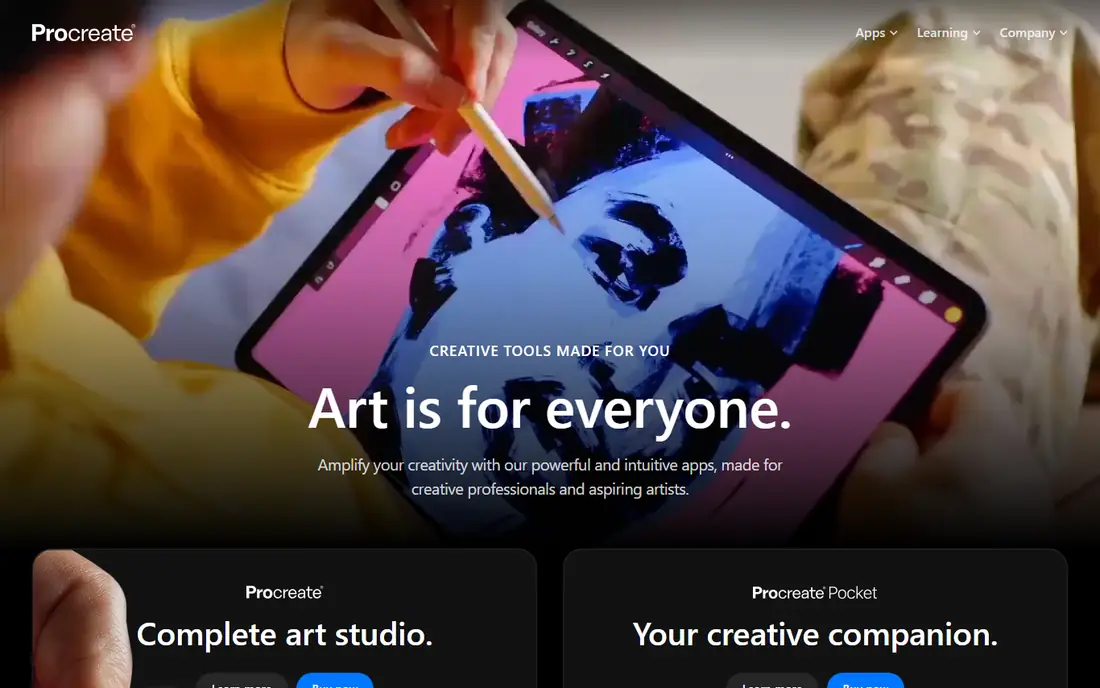
Procreate is the iPad art app most illustrators reach for, with a huge brush library, smooth performance on large canvases and a one-time purchase instead of a subscription. Its interface stays out of the way while drawing, and its community shares brushes and tutorials widely. For iPad artists, it is the default choice.
It is iPad only, with no desktop version, and it lacks vector tools and advanced text features. Animators also get only basic animation tools. For iPad illustration and painting, though, Procreate remains the best value here.
For readers focused on iPad illustration, Procreate is worth a trial before deciding, since the free tier or trial shows its real feel fast. Check the current plan details on the vendor site, since prices and limits change, and confirm that the version you need works on your devices.
- Huge brush library
- Smooth performance
- One-time purchase
- IPad only
- No vector tools
- Text tools are basic
Adobe Fresco
Ideal for: Natural media brushes
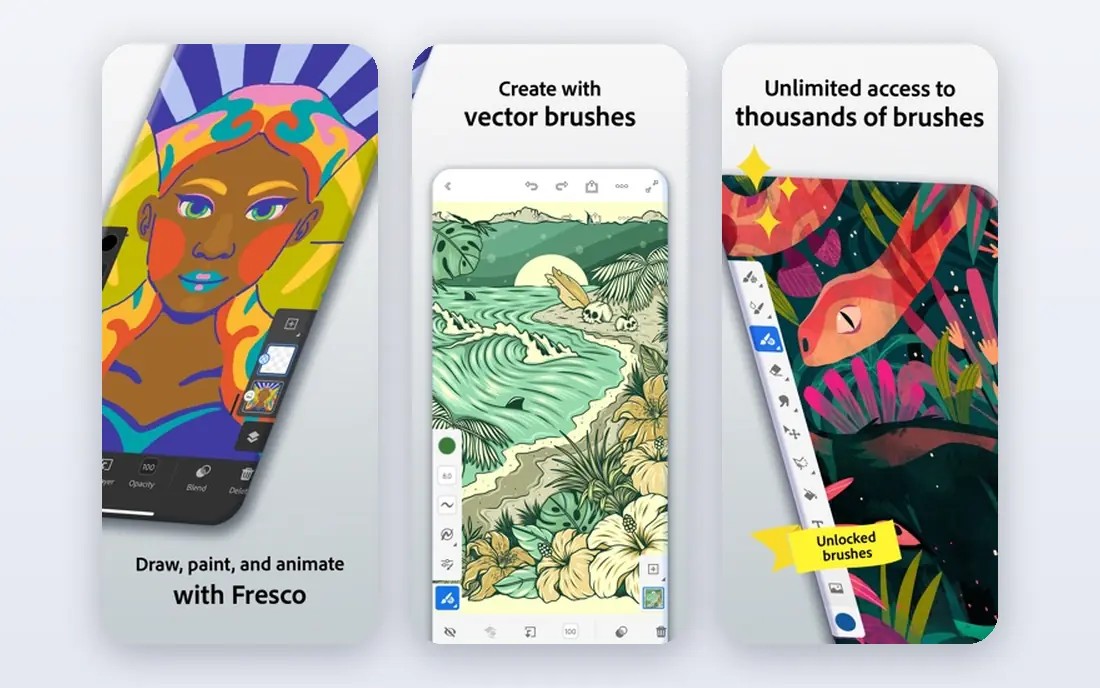
Adobe Fresco focuses on natural media, with live watercolor and oil brushes that blend and bleed like real paint, plus vector and raster tools in one app. Creative Cloud sync moves work between iPad and desktop, and its brushes suit painters who miss traditional media. The free tier covers basic drawing.
Full features need a Creative Cloud subscription, and its desktop depth trails Photoshop for photo work. Illustrators who want comic tools may prefer Clip Studio. For natural-media painting, Fresco brushes are a delight.
We would shortlist Adobe Fresco for natural media brushes, and compare it directly with the two options nearest it in price before paying. Check the current plan details on the vendor site, since prices and limits change, and confirm that the version you need works on your devices.
- Live watercolor and oil brushes
- Vector and raster together
- Creative Cloud sync
- Full features need a subscription
- Desktop depth trails Photoshop
Clip Studio Paint
Ideal for: Comics, manga and illustration
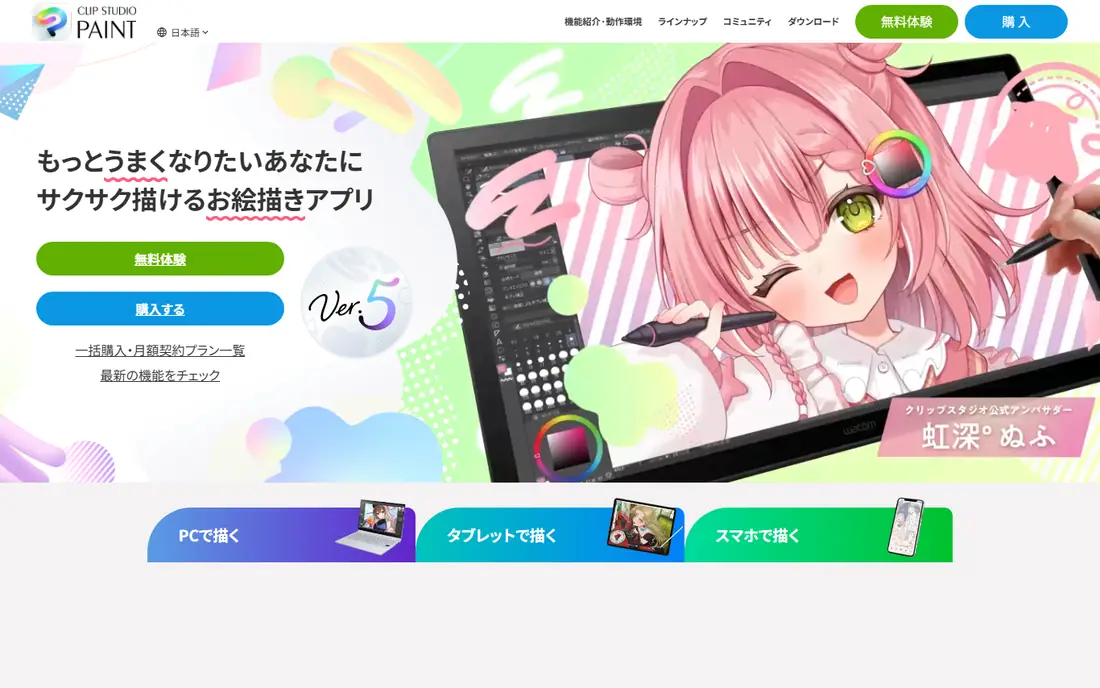
Clip Studio Paint is the professional choice for comics, manga and illustration, with panel tools, tones, lettering, 3D models and a huge brush and asset library. It runs on desktop, tablet and phone, and its community shares materials widely. Comic artists and illustrators rely on it daily.
Pricing varies by platform between subscription and one-time purchase, and its depth takes learning. Casual sketchers may find it more than they need. For comics and serious illustration, Clip Studio is the industry favorite.
If comics, manga and illustration is your main need, Clip Studio Paint deserves a place on a shortlist, provided you test the catch described above first. Check the current plan details on the vendor site, since prices and limits change, and confirm that the version you need works on your devices.
- Comic panel and tone tools
- Huge brush and asset library
- Desktop and tablet
- Subscription or one-time by platform
- Learning curve
ibisPaint
Ideal for: Free mobile drawing with community
ibisPaint is a popular free mobile drawing app with a huge brush set, layer tools, recording of drawing processes and a social community for sharing art and tutorials. Its mobile-first design suits phone and tablet artists, and its free tier is generous for beginners.
Ads appear in the free version, and advanced features such as extra storage and filters need Prime membership. Desktop artists will prefer Krita. For free mobile drawing with a community, ibisPaint is excellent.
Our view is that ibisPaint earns its place here for free mobile drawing with community, even with the limits noted above. Check the current plan details on the vendor site, since prices and limits change, and confirm that the version you need works on your devices.
- Free mobile drawing
- Huge brush set
- Social sharing and tutorials
- Ads in free version
- Advanced features need Prime
MediBang Paint
Ideal for: Free comics and illustration
MediBang Paint is a free art app with comic tools, cloud saving and cross-device sync for phone, tablet and desktop. Its panel, tone and font tools suit comic creators on a budget, and its community shares brushes and tutorials. The free price makes it easy to try.
Ads appear, cloud storage has limits, and its interface can feel busy. Professional comic artists may still prefer Clip Studio depth. For free comic and illustration work across devices, MediBang is a strong choice.
For readers focused on free comics and illustration, MediBang Paint is worth a trial before deciding, since the free tier or trial shows its real feel fast. Check the current plan details on the vendor site, since prices and limits change, and confirm that the version you need works on your devices.
- Free comic tools
- Cloud saving
- Cross-device sync
- Ads and cloud limits
- Interface is busy
Krita
Ideal for: Free professional desktop painting
Krita is a free, open-source painting app for desktop with professional brushes, layer tools, HDR support and animation features. Illustrators, concept artists and comic creators use it for finished work, and its brush engines rival paid tools. There is no subscription and no catch.
Its desktop focus means mobile use is limited, and its interface takes learning for beginners. Support comes from community docs rather than a company help desk. For free professional painting on desktop, Krita is unmatched.
We would shortlist Krita for free professional desktop painting, and compare it directly with the two options nearest it in price before paying. Check the current plan details on the vendor site, since prices and limits change, and confirm that the version you need works on your devices.
- Free open-source painting
- Professional brushes
- Animation tools
- Desktop focus
- Mobile version is limited
Autodesk Sketchbook
Ideal for: Simple sketching on any device
Autodesk Sketchbook offers a clean, simple sketching experience free on desktop and mobile, with a minimal interface that keeps the canvas front and center. Its brushes cover sketching and painting basics well, and its simplicity suits beginners and quick concept work.
It has fewer advanced features than Procreate or Krita, and development has slowed compared with rivals. Serious illustrators will want more depth. For simple, free sketching anywhere, Sketchbook remains a pleasant tool.
If simple sketching on any device is your main need, Autodesk Sketchbook deserves a place on a shortlist, provided you test the catch described above first. Check the current plan details on the vendor site, since prices and limits change, and confirm that the version you need works on your devices.
- Clean simple interface
- Free on desktop and mobile
- Good brushes
- Fewer advanced features than rivals
- Development is slower
How we picked these
We compared official feature pages, pricing pages, app store listings, privacy policies and public reviews for each option below. We checked that each product is still available and that its stated plans match what the vendor publishes. We did not run hands-on tests, so our picks rest on documented features, pricing and the fit for the reader described in each section, not on lab results. Where a price could not be confirmed on the vendor site at the time of writing, we wrote See website rather than guessing. We also looked at how each option handles the everyday details that decide whether a tool gets used: setup time, device support, what happens when you cancel or downgrade, and whether help is available when something breaks. A product that looks strong on a feature list but is hard to set up, hard to leave, or poorly supported will cost more in time than it saves, so we weighed those practical points alongside price and features. Where reviewers or users reported a recurring problem, we noted it in the honest catch for that product, rather than leaving it out because the vendor page did not mention it.
How to choose an art app for your style
Match the app to your device first, since the best iPad app helps little if you draw on Windows. Try brushes that match your style: watercolor, ink, comic or painterly work each favor different engines. Check canvas size and layer limits on your device, because large print work needs more power than social posts. Look at export options and file compatibility, especially PSD support if you share work with others. Finally, use the free trial or free version on a real piece before paying, since brush feel is personal.
A final check before you commit
Run a short trial on a real task before you pay for a year or move a whole team. Use the free plan or trial to complete one full job, from setup to export or delivery, and note where you got stuck. Check the cancellation path too: can you leave and keep your data, or does leaving mean starting over? Read the pricing page for renewal rates, not just the first-year offer, and confirm what support you get on the plan you will actually buy. Finally, ask one current user about the worst part of the product, since that answer tells you more than any feature list. If the trial feels good on a real task and the exit path is clear, the choice is much safer.
Frequently asked questions
What is the best art app?
Procreate is the best iPad art app for most illustrators, with natural brushes and a one-time price. Clip Studio Paint leads for comics and manga, while Krita is the best free desktop option.
Is Procreate free?
No, Procreate is a one-time purchase on iPad, with no subscription. It includes a large brush library and regular updates, which makes it good value compared with subscription art tools.
What is the best free art app?
Krita is the best free desktop art app, with professional brushes and tools. MediBang Paint and ibisPaint are strong free mobile options, with cloud features and large communities.
Can I use art apps for comics?
Yes. Clip Studio Paint is built for comics and manga, with panel tools, tones and lettering. MediBang Paint also offers comic tools free, while Procreate handles single illustrations well.
Do art apps work without a stylus?
Yes, but a stylus or Apple Pencil improves control greatly for drawing and painting. Finger drawing works for sketches, while detailed work benefits from pressure sensitivity.