Best child safety apps in 2026: 8 Compared

- 1
 Barkparents monitoring messages and online activityVisit
- 2
 Qustodioparents who want filtering and screen time in one appVisit
- 3
 Life360families sharing location for safetyVisit
- 4
 Google Family LinkAndroid families managing a child's deviceVisit
- 5
 Apple Screen TimeiPhone families using built in controlsVisit
- Our top choice for most readers is Bark, which balances coverage, ease of use, and clear pricing for best child safety apps.
- Qustodio is a strong alternative when parents who want filtering and screen time in one app matters more than a single all round option.
- Prices and free plans vary widely across this list, so check the vendor website for the current plan that fits your budget.
- We compared official feature pages, pricing, app-store listings, privacy policies, and public reviews for every option below.
Quick comparison
| Product | Ideal for | Price from | Free version | |
|---|---|---|---|---|
| Bark | parents monitoring messages and online activity | See website | No | Visit |
| Qustodio | parents who want filtering and screen time in one app | See website | Yes | Visit |
| Life360 | families sharing location for safety | Free | Yes | Visit |
| Google Family Link | Android families managing a child's device | Free | Yes | Visit |
| Apple Screen Time | iPhone families using built in controls | Free | Yes | Visit |
 Net Nanny | parents who want strong web filtering | See website | No | Visit |
 Aura | families who want safety plus identity protection | See website | No | Visit |
 MMGuardian | parents who want message monitoring and location | See website | No | Visit |
The best child safety apps
Child safety apps cover location, content, and screen time, so we compared monitoring features, privacy controls, ease of setup, and how clearly each app explains what parents can see. We compared official feature pages, pricing, app-store listings, privacy policies, and public reviews to build this list, and we focused on options that work in October 2026.
Bark
Ideal for: parents monitoring messages and online activity
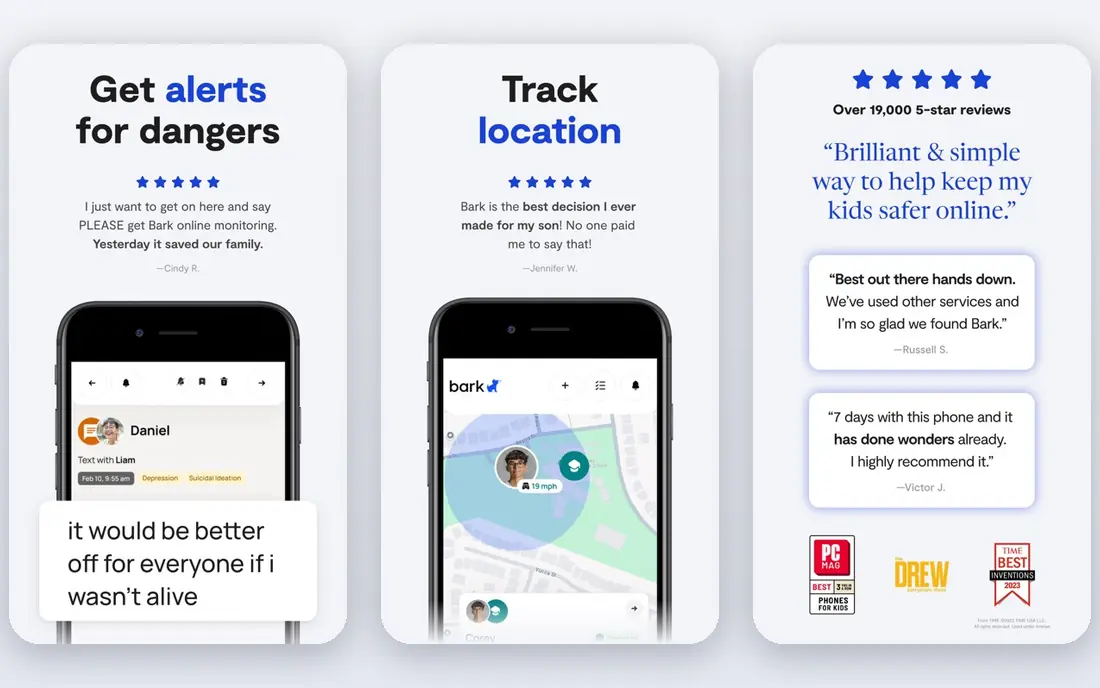
Bark fits parents monitoring messages and online activity. Bark focuses on alerts for concerning messages and content rather than giving parents a full message feed, which many families prefer. The starting price is shown on the vendor website, and there is no free plan. Its coverage differs between iOS and Android, so check the features for your child's device before subscribing.
What stood out in our comparison was message and content monitoring. The honest catch is subscription cost. Support and setup matter here too, so check help pages and onboarding before you commit to a paid plan.
If parents monitoring messages and online activity is your main need, Bark deserves a close look, but check monitoring scope varies by device before you commit. We also weighed how clearly Bark explains its pricing and privacy terms, since vague terms often hide extra costs. Our pick for most readers in this group is the option that balances price, coverage, and ease of use.
- Message and content monitoring
- Alerts for concerning content
- Screen time tools
- Subscription cost
- Monitoring scope varies by device
Qustodio
Ideal for: parents who want filtering and screen time in one app
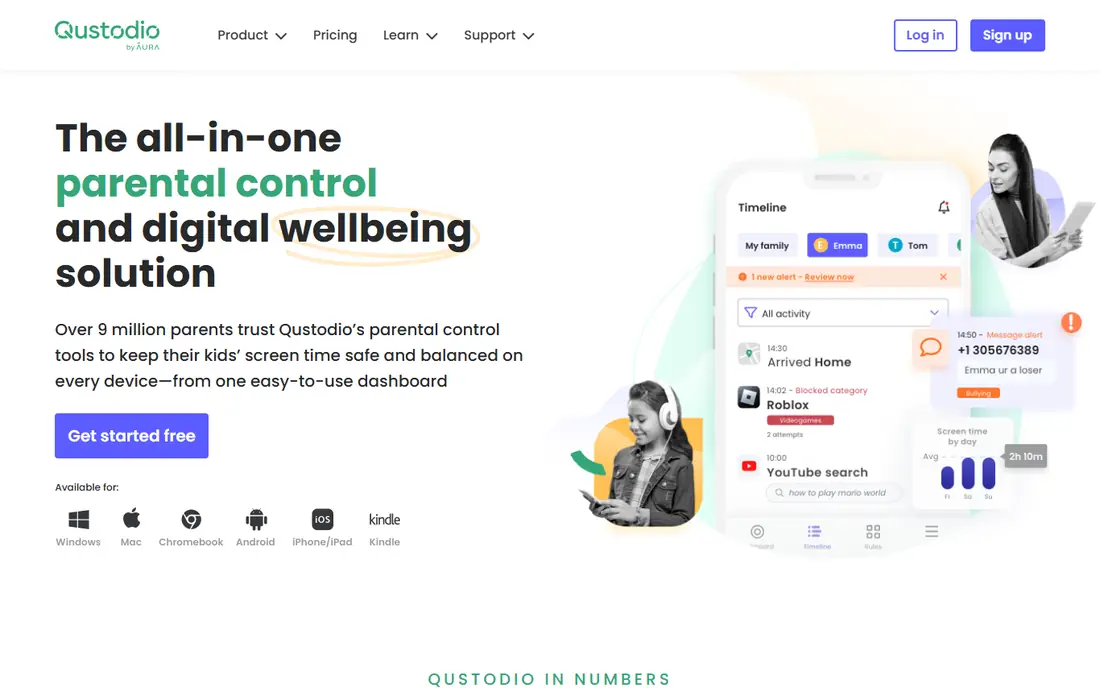
Qustodio fits parents who want filtering and screen time in one app. Qustodio covers filtering, screen time, and activity reports in one dashboard, which suits parents who want one tool. The starting price is shown on the vendor website, and a free plan is available. Full features need a paid plan, and setup across several devices takes patience the first time.
What stood out in our comparison was web filtering. The honest catch is premium features cost extra. Integration with tools you already use can matter as much as the headline feature, so confirm that link early.
If parents who want filtering and screen time in one app is your main need, Qustodio deserves a close look, but check setup takes time before you commit. We also weighed how clearly Qustodio explains its pricing and privacy terms, since vague terms often hide extra costs. We would shortlist this one beside the category leader and compare them on a real trial.
- Web filtering
- Screen time limits
- Activity reports
- Premium features cost extra
- Setup takes time
Life360
Ideal for: families sharing location for safety
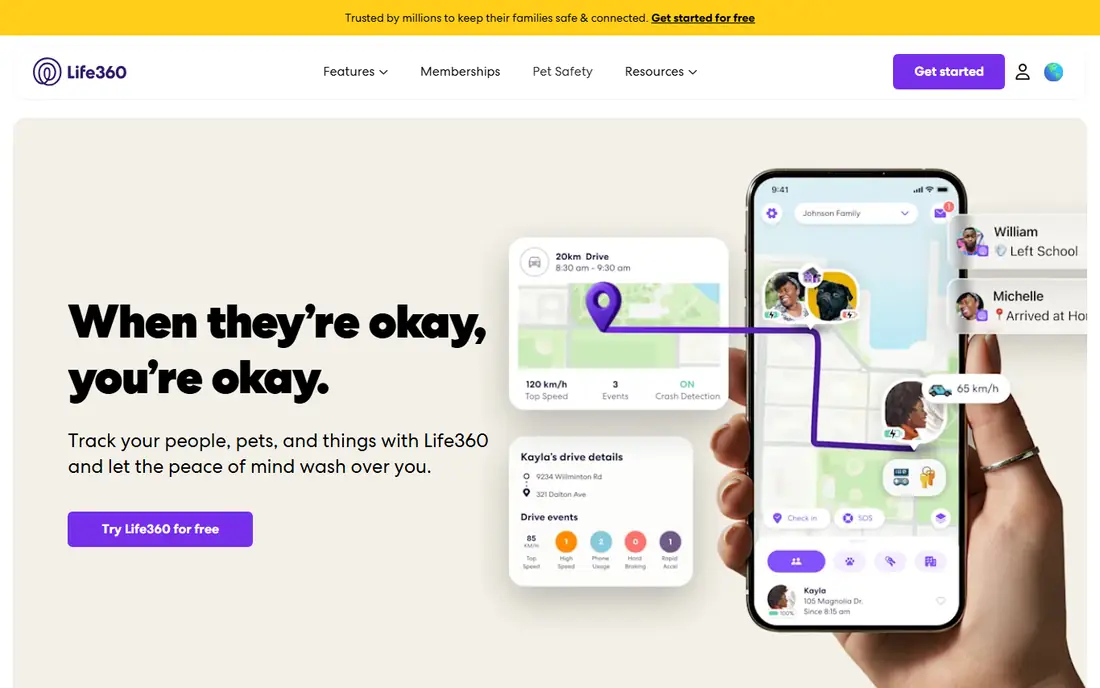
Life360 fits families sharing location for safety. Life360 is widely used for family location sharing, with place alerts that tell parents when a child arrives at school or home. The starting price is free, and a free plan is available. Families should agree location rules openly, since constant tracking can feel intrusive for older children.
What stood out in our comparison was family location sharing. The honest catch is location sharing raises privacy questions. Privacy terms deserve a read as well, especially where personal or payment data is involved.
If families sharing location for safety is your main need, Life360 deserves a close look, but check premium features cost extra before you commit. We also weighed how clearly Life360 explains its pricing and privacy terms, since vague terms often hide extra costs. This is a solid second choice when the leading option does not cover your area or budget.
- Family location sharing
- Driving reports
- Place alerts
- Location sharing raises privacy questions
- Premium features cost extra
Google Family Link
Ideal for: Android families managing a child's device
Google Family Link fits Android families managing a child's device. Google Family Link is the natural free choice for Android families, with app approvals and screen time controls built in. The starting price is free, and a free plan is available. Its controls are strongest on Android, and older teenagers have more independence under Google rules.
What stood out in our comparison was free Android controls. The honest catch is Android focused. Trial periods and free tiers are worth using first, since a short test often reveals more than a feature list.
If Android families managing a child's device is your main need, Google Family Link deserves a close look, but check older children can opt out at certain ages before you commit. We also weighed how clearly Google Family Link explains its pricing and privacy terms, since vague terms often hide extra costs. It earns a place here on the strength of its core feature, even though it is not the best all rounder.
- Free Android controls
- App approvals
- Screen time limits
- Android focused
- Older children can opt out at certain ages
Apple Screen Time
Ideal for: iPhone families using built in controls
Apple Screen Time fits iPhone families using built in controls. Apple Screen Time needs no extra install for iPhone families, and it covers app limits and content restrictions well. The starting price is free, and a free plan is available. Specialist apps offer deeper reporting and monitoring, so families with wider concerns may need more.
What stood out in our comparison was built into iOS. The honest catch is Apple only. Long term cost matters as much as the starting price, so check what happens when you add users or usage.
If iPhone families using built in controls is your main need, Apple Screen Time deserves a close look, but check reporting is basic compared with specialist apps before you commit. We also weighed how clearly Apple Screen Time explains its pricing and privacy terms, since vague terms often hide extra costs. We kept it in the list because it serves a specific need better than more general rivals.
- Built into iOS
- App limits
- Content restrictions
- Apple only
- Reporting is basic compared with specialist apps
Net Nanny
Ideal for: parents who want strong web filtering
Net Nanny fits parents who want strong web filtering. Net Nanny has a long history in web filtering, and its category controls suit families focused on web content. The starting price is shown on the vendor website, and there is no free plan. Its design feels older than newer rivals, and the subscription cost adds up across many devices.
What stood out in our comparison was strong web filtering. The honest catch is subscription cost. Customer reviews can highlight recurring problems, so look for patterns rather than single complaints.
If parents who want strong web filtering is your main need, Net Nanny deserves a close look, but check interface feels dated to some before you commit. We also weighed how clearly Net Nanny explains its pricing and privacy terms, since vague terms often hide extra costs. It is worth a trial if its main strength matches the problem you are trying to solve.
- Strong web filtering
- Screen time
- Activity reports
- Subscription cost
- Interface feels dated to some
Aura
Ideal for: families who want safety plus identity protection
Aura fits families who want safety plus identity protection. Aura bundles parental controls with identity protection and security tools, which suits families who want one subscription. The starting price is shown on the vendor website, and there is no free plan. Families who only need screen time controls may find it more expensive than a focused app.
What stood out in our comparison was parental controls plus identity protection. The honest catch is price is higher than single purpose apps. Ease of use for everyone on your team counts, since a tool only one person understands will not stick.
If families who want safety plus identity protection is your main need, Aura deserves a close look, but check features vary by plan before you commit. We also weighed how clearly Aura explains its pricing and privacy terms, since vague terms often hide extra costs. We would test it for a week on a real task before moving a whole team or household to it.
- Parental controls plus identity protection
- VPN and antivirus options
- Family plans
- Price is higher than single purpose apps
- Features vary by plan
MMGuardian
Ideal for: parents who want message monitoring and location
MMGuardian fits parents who want message monitoring and location. MMGuardian covers messages, location, and filtering in one app, which appeals to parents who want broad coverage. The starting price is shown on the vendor website, and there is no free plan. Device coverage differs, especially on iOS, so verify each feature for your child's phone before you pay.
What stood out in our comparison was message monitoring. The honest catch is coverage varies by device. Check update frequency and support responsiveness, because neglected apps fall behind quickly.
If parents who want message monitoring and location is your main need, MMGuardian deserves a close look, but check setup can be fiddly before you commit. We also weighed how clearly MMGuardian explains its pricing and privacy terms, since vague terms often hide extra costs. It stands out for value rather than breadth, which suits buyers with a clear single need.
- Message monitoring
- Location tracking
- Web filtering
- Coverage varies by device
- Setup can be fiddly
How we picked these
We started from the topic itself and shortlisted products that genuinely fit it, rather than adding well known names that only partly match. For each candidate we checked its official feature pages and pricing, looked at its app-store listing where one exists, and read its privacy terms and public reviews for recurring problems. Products that were discontinued, region locked for the stated market, or impossible to verify were left out. We then ranked the list by fit for the stated need, breadth of coverage, clarity of pricing, and ease of use for ordinary readers. No product paid for a place on this list, and our pick for most people is the one that balances those factors best, not the one with the longest feature list.
How to set up child safety tools with consent
Use the points below as a checklist before you sign up, since the right choice depends on your budget, your device, and how often you will actually use the service.
Agree the rules with your child first, including which locations, apps, and content categories you will monitor.
Check privacy settings and data retention for each app, since location and browsing data are sensitive.
Review settings as your child gets older, and loosen controls gradually rather than keeping the same rules for years.
Frequently asked questions
What is the best option for best child safety apps?
For most readers, Bark is a strong starting point because it covers parents monitoring messages and online activity well and its pricing is clear. That said, the best choice depends on your budget, your location, and how often you will use it. Shortlist two or three options from this list and test them before you commit.
Are there free options for best child safety apps?
Yes, several options in this list offer a free plan or a free tier, including Bark where a free plan is listed. Free plans usually limit features, storage, or usage, so check those limits against your needs. If you use the service daily, a paid plan often works out better than juggling free limits.
How much do these options cost?
Costs vary widely, and several vendors list pricing only on their own websites, so we mark those as See website in the comparison table. Compare the total monthly cost, including extra users, add ons, and transaction fees, rather than the headline price alone. A free trial is a good way to test value before paying.
How do I choose between the top options?
Start with the problem you need to solve, then check coverage for your area, device support, and pricing. Read the privacy terms if the service handles personal data, and look for recent public reviews that mention support quality. A short trial on a real task usually makes the choice clear.
Can I switch later if I pick the wrong one?
In most cases yes, though switching takes more effort when you have stored data, scheduled items, or a team using the service. Export your data before you cancel, and check whether the new service can import it. Keep your old account active until the new setup is working smoothly.