Best Classroom Management Software in 2026: 8 Tools Compared

- 1
 ClassDojoBehavior and family messagingVisit
- 2
 GoGuardian TeacherScreen monitoring and filteringVisit
- 3
 LanSchoolTeacher-led device controlVisit
- 4
 Google ClassroomAssignments and class organizationVisit
- 5
 NearpodInteractive lessons and checksVisit
- Classroom management tools split into two jobs: keeping students on task during lessons, and keeping teachers, students, and families in contact.
- Tools built for Google Workspace schools, such as Hapara and Google Classroom, tend to fit fastest where classes already use Google accounts.
- Screen monitoring raises privacy questions, so schools should check student data rules, parent notices, and who can see screens before buying.
- Our pick for most teachers is a tool that works on the devices already in the room, with simple controls for sharing, messaging, and redirecting students.
Quick comparison
| Product | Ideal for | Price from | Free version | |
|---|---|---|---|---|
| ClassDojo | Behavior and family messaging | Free | Yes | Visit |
| GoGuardian Teacher | Screen monitoring and filtering | See website | No | Visit |
| LanSchool | Teacher-led device control | See website | No | Visit |
| Google Classroom | Assignments and class organization | Free | Yes | Visit |
| Nearpod | Interactive lessons and checks | Free | Yes | Visit |
 Edpuzzle | Interactive video lessons | Free | Yes | Visit |
 Dyknow | Live screen views and controls | See website | No | Visit |
 Hapara | Google-based monitoring and safety | See website | No | Visit |
The best classroom management software
Classroom management software helps a teacher run a room full of devices without losing the lesson to distractions. Some tools show student screens, lock browsers, or push a web page to the whole class. Others focus on points for good behavior, messages to families, or interactive lessons that keep students responding. The best choice depends on the devices in use, the age of the students, and how much control a school wants teachers to have.
We compared official feature pages, pricing pages where available, and how each tool works with common school systems. The list below mixes free teacher tools with district-level monitoring products, so a single teacher and a whole school can both find a fit.
ClassDojo
Ideal for: Behavior and family messaging

ClassDojo connects teachers, students, and families with messaging, classroom stories, points for positive behavior, and student portfolios. Teachers can share photos and updates on a private feed, send messages that translate into many languages, and give students a place to show their own work. The site presents the core teacher service as free, which makes it an easy first step for a teacher who wants better family contact without a district purchase.
The limit is scope. ClassDojo is not designed to watch student screens or lock devices during a lesson, so it pairs better with a monitoring tool than replacing one. Teachers should also think about how points are used, because a system that leans too hard on rewards can shape behavior in ways that do not suit every class. Used for communication and encouragement, it is one of the friendliest tools on this list.
- Free for teachers
- Messages translate into many languages
- Portfolios show student work to families
- Behavior points can feel reward-driven
- School-wide features may need a paid plan
- Not a full screen monitoring tool
GoGuardian Teacher
Ideal for: Screen monitoring and filtering
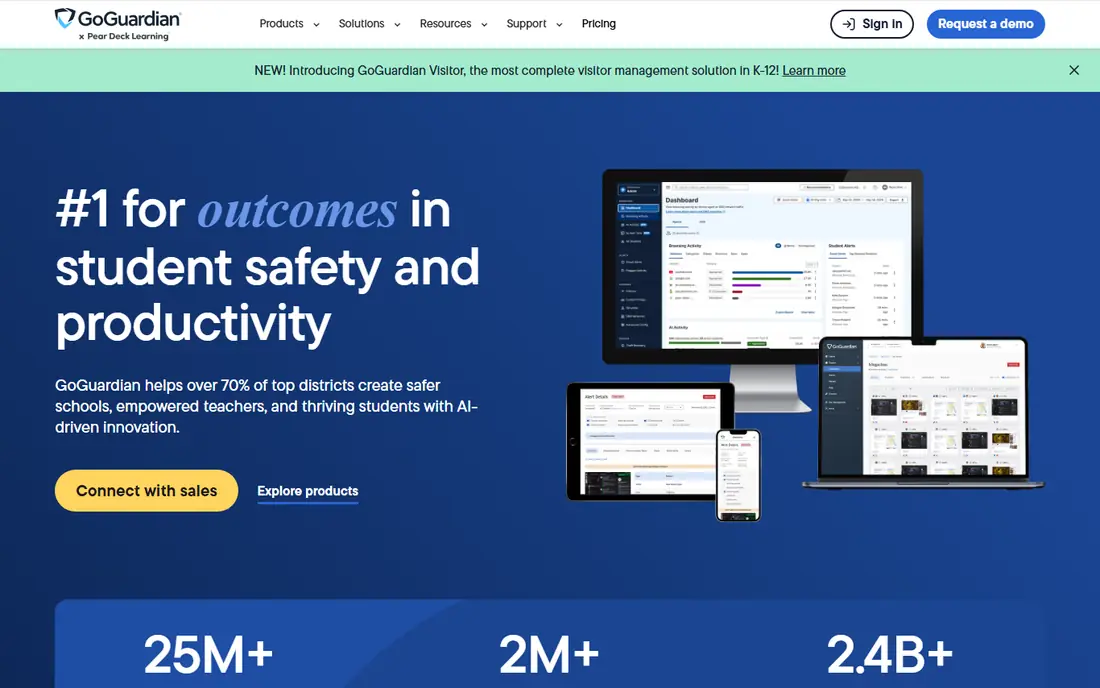
GoGuardian Teacher lets teachers see student screens, keep students on task, and chat privately with a student during a lesson. It sits inside a wider GoGuardian suite that adds web filtering, safety alerts, and device management, so a district can buy one system for classroom control and student safety together. The product supports ChromeOS, Windows, macOS, and iPadOS devices, which matters for schools with mixed fleets.
The trade-off is governance. Screen monitoring is powerful, and schools need written rules on when teachers can view screens, how alerts are handled, and how long data is kept. Pricing is also set by quote based on enrollment and bundle, so a small school should ask for a clear total before committing. For districts that want one managed system, the breadth is the main draw.
- Live classroom sessions with screen views
- Web filtering and safety alerts in the wider suite
- Works across major device types
- District-level pricing can be costly
- Monitoring needs clear school policies
- Setup is heavier than a single-teacher tool
LanSchool
Ideal for: Teacher-led device control
LanSchool gives teachers tools to share screens, send messages, push files, and guide student devices during class, with cloud-based or local hosting options. It works with Mac, Windows, and Chromebooks, which suits schools that did not standardize on one device. The focus is practical: help a teacher run a connected lesson, move students to the right resource, and spot a student who needs help without stopping the whole class.
The catch is that LanSchool is a school purchase, not a quick free signup for one teacher. Pricing depends on the school or district, and IT support may be needed to get devices enrolled. Teachers who want a tool they can try alone in an afternoon should start with a free option on this list, then bring LanSchool to their school if they need deeper device control.
- Screen sharing, messaging, and file push for teachers
- Cloud or local hosting
- Works with mixed device rooms
- Pricing is by quote
- Older interface feel in some views
- District IT help may be needed for setup
Google Classroom
Ideal for: Assignments and class organization
Google Classroom organizes classes, assignments, materials, and grades for schools using Google Workspace for Education. Teachers can post work, collect submissions, return feedback, and keep a clear record of what each student has done. Because many schools already use Google accounts, students and teachers often need little training to start, and other tools on this list, such as Hapara, build on top of it.
Google Classroom does not watch screens or lock browsers, so it answers a different question from GoGuardian or LanSchool. It is best seen as the hub for class work, with a monitoring tool added if a school needs live device control. For schools already in the Google system, it is the natural starting point, and it costs nothing extra for the core service.
- Free for schools using Google Workspace for Education
- Simple assignment and grading flow
- Wide familiarity among teachers
- Not a live screen monitoring tool
- Needs Google accounts and setup
- Behavior and messaging features are limited
Nearpod
Ideal for: Interactive lessons and checks
Nearpod turns lessons into interactive sessions with polls, quizzes, videos, and activities that let every student respond. Teachers can use ready lessons from a large library or make their own resources interactive, then watch responses come in live and adjust teaching on the spot. The site also offers AI tools to generate lessons and questions, which can save preparation time for busy teachers.
Nearpod manages engagement rather than devices. It will not lock a student browser or show a live screen, so a distracted student can still drift to another tab. The free teacher plan is a good way to test the format, but schools that want the full library and reporting should check paid pricing. For teachers who want participation data during a lesson, it is a strong pick.
- Large library of ready lessons
- Live participation and formative checks
- AI lesson creation tools
- Free plan has limits
- Full school features need a paid plan
- Best results need teacher preparation time
Edpuzzle
Ideal for: Interactive video lessons
Edpuzzle lets teachers take a video and add questions, audio notes, and checks so students cannot just press play and drift away. Teachers can draw on a library of lessons made by other teachers, use AI tools to generate questions, and see which students answered and where they struggled. The basic plan is free for teachers, which makes it easy to try with one class before asking a school to pay.
The limit is format. Edpuzzle shines for video learning, but it is not a screen monitor, a behavior system, or a full assignment hub. Teachers who teach mostly with video, flipped lessons, or homework review will get the most from it. Pair it with Google Classroom for assignments and a monitoring tool for live device control if the school needs all three jobs covered.
- Basic plan free for teachers
- Questions inside videos
- Large teacher-created lesson library
- Video-centered, so not a full lesson platform
- Advanced school features are paid
- Grading and tracking need setup
Dyknow
Ideal for: Live screen views and controls
Dyknow, now presented under Securly, focuses on live classroom control: teachers can see student screens, push web pages, lock screens, block sites, close tabs, and chat with students. It also offers class summaries, device lost mode for Chromebooks, and controls for substitute teachers and different staff roles. That depth suits schools that want teachers to manage devices actively during lessons, not just filter the web at network level.
As with other district tools, pricing is by quote and setup needs IT time to enroll devices and set permissions. Buyers should also confirm how Dyknow is packaged under Securly now, because names and bundles can change after an acquisition. For schools that want hands-on, in-lesson control, Dyknow remains a focused option.
- Live screen monitoring and tab control
- Screen lock and site blocking
- Class summaries after lessons
- Now part of Securly, so buyers should confirm current packaging
- School pricing by quote
- Needs device enrollment
Hapara
Ideal for: Google-based monitoring and safety
Hapara offers classroom management, student safety, and wellness tools built for schools using Google Workspace for Education. Teachers can see browsing activity, guide students to resources, close distracting tabs, and message learners privately, while school teams can set web filters and receive alerts about warning signs in browsing. A student dashboard also pulls Google Classroom work into one planner view.
The main limit is fit. Schools that do not use Google Workspace will get less from Hapara than a device-neutral tool such as GoGuardian or LanSchool. Pricing is tailored by school or district, so buyers should request a quote that covers the full bundle they need. For Google schools, the tight link to Classroom and Drive is the reason to shortlist it first.
- Built around Google Workspace and Classroom
- Screen monitoring with Chrome and Edge
- Student safety and wellness alerts
- Best fit is Google schools
- Pricing by quote
- Safety alerts need staff response plans
How we picked these
We compared official feature pages, pricing and free-plan statements, and device and platform support for each product. We favored tools that are actually available to US schools in October 2026, that cover at least one clear classroom job, and that work on devices schools commonly use. We also mixed free teacher tools with district systems, because a single teacher and a district buyer face different budgets and setup needs.
We did not test these tools in live classrooms, and we did not review private school contracts. Schools should trial a tool with real classes, check student privacy rules and parent communication requirements, and confirm pricing for their enrollment size before buying.
What to check before you choose
Start with devices and accounts. A tool built for Google schools will frustrate a Microsoft school, and a Chromebook monitor may not cover iPads in the same room. List every device type in use, check which browsers and operating systems each product supports, and run a trial on the oldest devices, not only the newest ones.
Next, settle privacy and policy before rollout. Decide who can view screens, when monitoring is on, how alerts reach staff, and how parents are informed. A tool with strong controls but unclear rules will create more problems than a simpler tool with clear, agreed limits. Ask vendors for data retention, student privacy commitments, and admin permission settings in writing.
Finally, weigh teacher workload. The best classroom tool is one teachers will actually use every day. A system with ten controls that needs IT help for each lesson will sit unused, while a simpler tool with screen views, messaging, and one-click redirection may change lessons fast. Pilot with a few teachers, gather honest feedback, and only then roll out school-wide.
Frequently asked questions
What is classroom management software?
Classroom management software helps teachers guide student device use during lessons, through screen views, browser controls, messaging, assignments, or interactive activities. Different products cover different jobs, so schools should pick based on whether they need monitoring, engagement, communication, or organization.
Is classroom management software the same as web filtering?
No. Web filtering blocks or allows sites at network or device level, while classroom management gives teachers live controls during a lesson, such as viewing screens or pushing a page. Many district suites bundle both, but a teacher tool may offer only one side.
Do teachers need district approval to use a free tool?
Often yes, especially if student accounts or data are involved. Check school policy on student privacy, approved apps, and parent consent before asking students to create accounts or share work on a new platform.
Which tool is best for Google Classroom schools?
Google Classroom itself handles assignments, and Hapara adds monitoring and safety built around Google Workspace. ClassDojo and Nearpod also work well alongside Classroom for family contact and interactive lessons.
How much does classroom management software cost?
Free teacher plans exist for ClassDojo, Google Classroom, Nearpod, and Edpuzzle, while district tools such as GoGuardian, LanSchool, Dyknow, and Hapara are usually priced by quote. Ask for a total that includes all schools, devices, and support, not only a per-teacher rate.