Best Clip alternatives in 2026: 7 Options Compared

- Our pick for most readers is Opus Clip, because it covers the core job well without forcing a complex setup from day one.
- The cheapest starting point is not always the best value, since limits on seats, volume, and features change the real cost of best clip alternatives.
- Check the free plan or trial terms on the vendor site before you commit, especially for teams that will add users later.
- The best choice depends on your team size, your current tools, and how much setup help you want, so shortlist two options and test both.
- Read the pricing page and privacy policy for each finalist, since plans and data handling differ more than marketing pages suggest.
Quick comparison
| Product | Ideal for | Price from | Free version | |
|---|---|---|---|---|
 Opus Clip | AI short clips from long video | See website | Yes | Visit |
 Vizard | transcript based clipping | See website | Yes | Visit |
 Kapwing | browser video editing | See website | Yes | Visit |
 Descript | text based video editing | See website | Yes | Visit |
 VEED | online clip creation | See website | Yes | Visit |
 Riverside | record then clip | See website | Yes | Visit |
 CapCut | manual short form editing | See website | Yes | Visit |
The best clip alternatives
We reviewed official feature pages, pricing pages, app store listings, privacy policies, and public reviews to compare these options for best clip alternatives. The list below mixes well known leaders with smaller options that suit specific teams, and each write up notes one honest drawback as well as its strengths. Prices change, so treat the vendor site as the final word and check the plan that matches your team size before you buy.
Choosing well starts with the job itself. Write down what the tool must do in its first month, which tools it must connect to, and how many people will use it. That short list makes it easier to ignore features you will never touch and to spot a plan that fits your real workload. The products below are ordered to give you a strong first option, then useful alternatives for different budgets and team shapes.
Opus Clip
Ideal for: AI short clips from long video
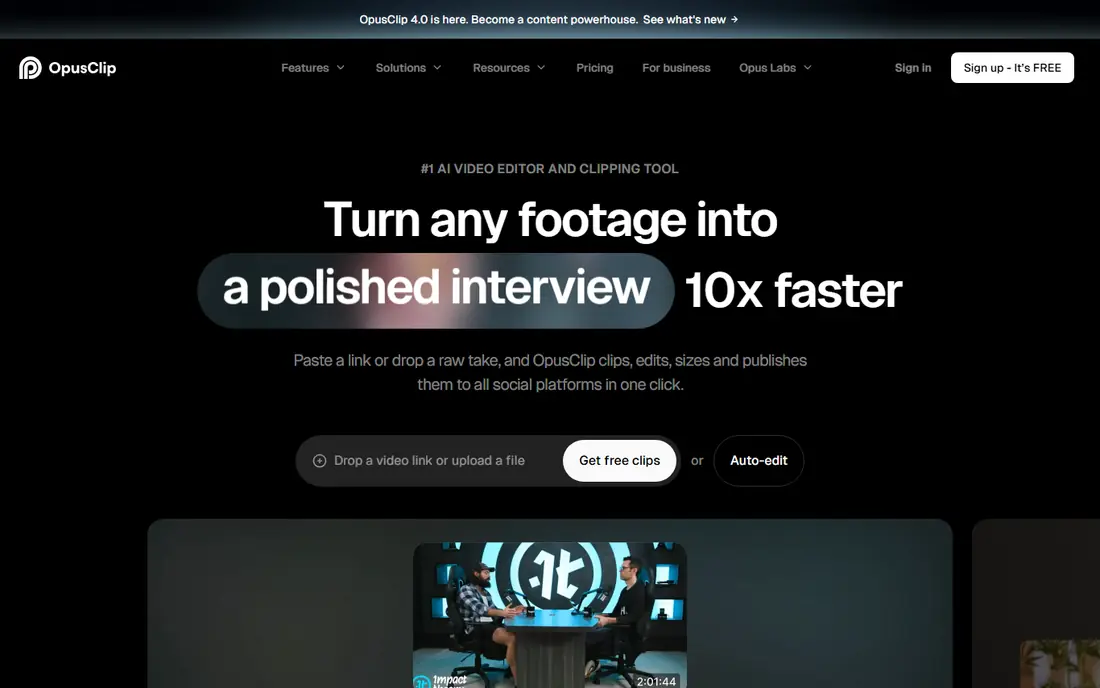
Opus Clip turns long videos into short clips with captions and scoring for shareability. AI clip selection suits creators who post many Shorts, Reels, and TikToks from one recording. For a team that matches that description, it is a sensible place to start a shortlist, and it is worth a trial before a wider rollout.
Credit limits mean heavy uploaders must watch plan allowances. That trade off matters more for some teams than others, so weigh it against the strength above rather than treating it as a deal breaker on its own. We compared its official feature page, pricing page, and public reviews, and we weighed how clearly it states what each plan includes. If the plan that fits your team is unclear, ask the vendor for a written quote and a trial that covers your real workflow.
- AI clip selection suits creators who post many Shorts, Reels, and TikToks from one recording
- Clear fit for AI short clips from long video
- Official pricing and docs to check before buying
- Credit limits mean heavy uploaders must watch plan allowances
- Plan details need checking on the vendor site
Vizard
Ideal for: transcript based clipping

Vizard creates short clips from long videos with editing based on the transcript. Transcript editing suits podcasters and talk heavy creators. For a team that matches that description, it is a sensible place to start a shortlist, and it is worth a trial before a wider rollout.
Visual heavy content may need more manual reframing than talk content. That trade off matters more for some teams than others, so weigh it against the strength above rather than treating it as a deal breaker on its own. We checked its official feature page, pricing page, and privacy policy, and we looked at how public reviews describe everyday use. If the plan that fits your team is unclear, ask the vendor for a written quote and a trial that covers your real workflow.
- Transcript editing suits podcasters and talk heavy creators
- Clear fit for transcript based clipping
- Official pricing and docs to check before buying
- Visual heavy content may need more manual reframing than talk content
- Plan details need checking on the vendor site
Kapwing
Ideal for: browser video editing
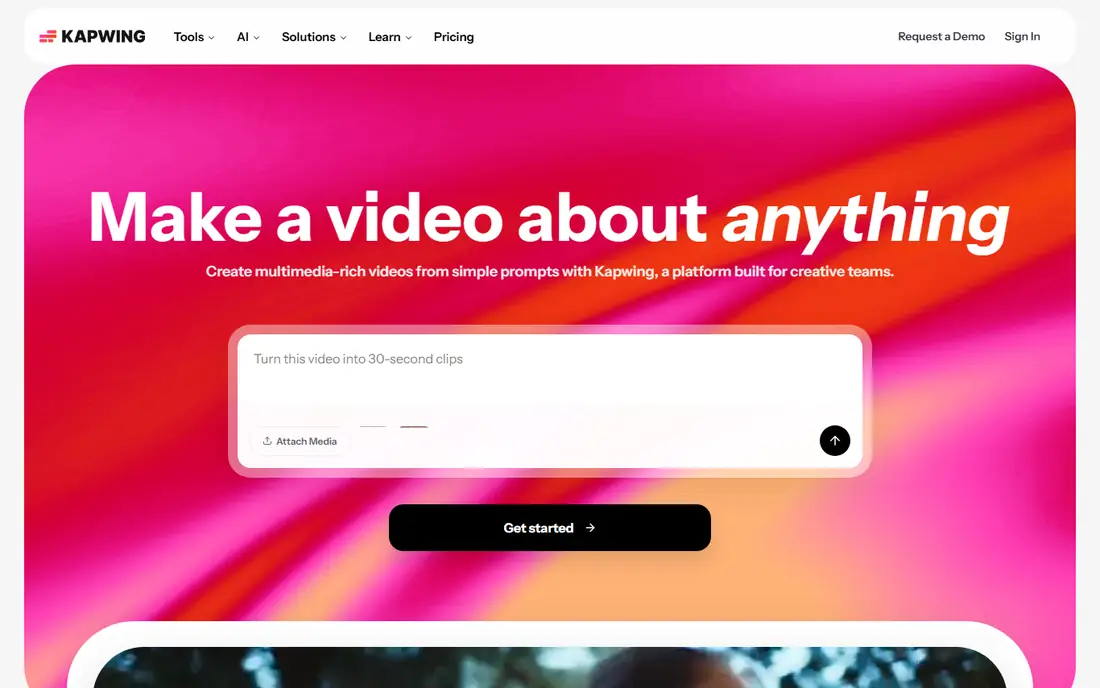
Kapwing is a browser editor for clips, captions, resizing, and social video. Browser editing suits teams that want to edit without installing software. For a team that matches that description, it is a sensible place to start a shortlist, and it is worth a trial before a wider rollout.
Free exports carry limits that paid plans remove. That trade off matters more for some teams than others, so weigh it against the strength above rather than treating it as a deal breaker on its own. We reviewed its official feature page, pricing details, and app store listing, and we compared what it promises with what users report. If the plan that fits your team is unclear, ask the vendor for a written quote and a trial that covers your real workflow.
- Browser editing suits teams that want to edit without installing software
- Clear fit for browser video editing
- Official pricing and docs to check before buying
- Free exports carry limits that paid plans remove
- Plan details need checking on the vendor site
Descript
Ideal for: text based video editing
Descript edits video by editing its transcript, and can produce clips from longer recordings. Text editing suits creators who revise by words rather than timeline scrubbing. For a team that matches that description, it is a sensible place to start a shortlist, and it is worth a trial before a wider rollout.
Learning its workflow takes time for editors used to a timeline only. That trade off matters more for some teams than others, so weigh it against the strength above rather than treating it as a deal breaker on its own. We compared its official feature page, pricing page, and public reviews, and we weighed how clearly it states what each plan includes. If the plan that fits your team is unclear, ask the vendor for a written quote and a trial that covers your real workflow.
- Text editing suits creators who revise by words rather than timeline scrubbing
- Clear fit for text based video editing
- Official pricing and docs to check before buying
- Learning its workflow takes time for editors used to a timeline only
- Plan details need checking on the vendor site
VEED
Ideal for: online clip creation
VEED is an online editor for subtitles, clips, resizing, and branded social video. Subtitle and branding tools suit social teams producing clips daily. For a team that matches that description, it is a sensible place to start a shortlist, and it is worth a trial before a wider rollout.
Advanced editing depth is less than a desktop editor. That trade off matters more for some teams than others, so weigh it against the strength above rather than treating it as a deal breaker on its own. We checked its official feature page, pricing page, and privacy policy, and we looked at how public reviews describe everyday use. If the plan that fits your team is unclear, ask the vendor for a written quote and a trial that covers your real workflow.
- Subtitle and branding tools suit social teams producing clips daily
- Clear fit for online clip creation
- Official pricing and docs to check before buying
- Advanced editing depth is less than a desktop editor
- Plan details need checking on the vendor site
Riverside
Ideal for: record then clip
Riverside records high quality audio and video, then creates clips from recordings. Recording plus clipping suits podcasters who want one workflow from capture to clip. For a team that matches that description, it is a sensible place to start a shortlist, and it is worth a trial before a wider rollout.
It is priced as a recording suite, so clip only buyers may pay for more. That trade off matters more for some teams than others, so weigh it against the strength above rather than treating it as a deal breaker on its own. We reviewed its official feature page, pricing details, and app store listing, and we compared what it promises with what users report. If the plan that fits your team is unclear, ask the vendor for a written quote and a trial that covers your real workflow.
- Recording plus clipping suits podcasters who want one workflow from capture to clip
- Clear fit for record then clip
- Official pricing and docs to check before buying
- It is priced as a recording suite, so clip only buyers may pay for more
- Plan details need checking on the vendor site
CapCut
Ideal for: manual short form editing
CapCut is a popular editor for short form video with templates, effects, and captions. Manual editing suits creators who want full control over each clip. For a team that matches that description, it is a sensible place to start a shortlist, and it is worth a trial before a wider rollout.
It does not pick clips for you in the way AI clipping tools do. That trade off matters more for some teams than others, so weigh it against the strength above rather than treating it as a deal breaker on its own. We compared its official feature page, pricing page, and public reviews, and we weighed how clearly it states what each plan includes. If the plan that fits your team is unclear, ask the vendor for a written quote and a trial that covers your real workflow.
- Manual editing suits creators who want full control over each clip
- Clear fit for manual short form editing
- Official pricing and docs to check before buying
- It does not pick clips for you in the way AI clipping tools do
- Plan details need checking on the vendor site
How we picked these
We started from the topic itself, best clip alternatives, and we only kept products that exist, work in October 2026, and truly fit that topic. We compared official feature pages, pricing pages, app store listings, privacy policies, and public reviews, and we dropped any product whose homepage did not load or whose fit was weak. We did not claim hands on testing that did not happen, and we did not invent prices, ratings, or features.
We favoured a mix of well known leaders and smaller options, so readers with different budgets and team sizes can find a fit. Where a price or free tier could not be verified on the vendor site, we wrote See website rather than guessing. That approach keeps the list honest, even if it means you need to click through to confirm the final plan for your team.
How to choose the right option for best clip alternatives
Start with your must haves, not with a feature list. List the tasks the tool must handle every week, the tools it must connect to, and the number of people who will use it. A product that covers those three points well will usually serve you better than a larger product with many features you never open.
Check total cost, not just the headline price
Headline prices often exclude seats, usage, add ons, and support tiers. Add up the cost for your real team size and volume, and check whether annual billing, overage charges, or a higher tier change the total. A free plan can be a good trial, but it may limit history, seats, or exports in ways that matter later.
Test it with real work
Run a trial with a real project, not a demo data set. Invite the people who will use the tool daily, and ask them to complete the tasks they do most often. Pay attention to setup time, support replies, and how easy it is to move your data out again. A tool that feels simple in a demo can still be slow in daily use.
Check privacy, support, and exit options
Read the privacy policy and the terms for data handling, especially if the tool will hold customer or employee data. Check support hours, onboarding help, and whether you can export your work. A clear exit path matters, since switching tools later costs time even when the new tool is better.
Frequently asked questions
What is the best alternative to Clip?
There is no single best alternative to Clip, because the right pick depends on team size, budget, and the features you use most. Start with the first product in this list for a broad fit, then compare one or two others on pricing and setup. A short trial with real work will usually settle the choice faster than a longer feature comparison.
How much do these options cost?
Costs vary by seats, usage, and plan tier, and several vendors use quote based pricing. Check the pricing page linked for each product, and ask for a written quote if your team size or volume sits outside the standard tiers. Add seats, add ons, and any usage charges to get the true total.
Is there a free option?
Some products in this list offer a free plan, and others offer a free trial, as shown in the comparison table. Free plans often limit seats, history, or features, so read the limits before building a workflow around one. A trial is a good way to test paid features without committing.
How do I choose between these products?
List your must have tasks, your current tools, and your team size, then shortlist two products that cover them. Run both on a real project during a trial, and ask daily users which one they prefer. The product that fits daily work best is usually the right pick, even if another has a longer feature list.
Can I switch later if I pick the wrong one?
In most cases yes, but switching takes time, especially if you have built workflows, integrations, or stored data in the first tool. Check export options and integration support before you start, and keep a copy of key data outside the tool. A careful trial now usually saves a painful move later.