Best Clipping Software for Low-End PCs in 2026: 8 Options Compared

- 1
 OBS Studiofree, lightweight clipping with controlVisit
- 2
 Xbox Game Barbuilt-in Windows clipping with no installVisit
- 3
 Medal.tvautomatic clips with easy sharingVisit
- 4
 Outplayedautomatic event-based clippingVisit
- 5
 NVIDIA ShadowPlayNVIDIA GPU owners wanting hardware clippingVisit
- OBS Studio leads for free, lightweight clipping with full control.
- Xbox Game Bar suits Windows users who want built-in, low-friction clipping.
- Medal.tv suits players who want automatic clips and easy sharing.
- Check the performance cost in your actual game, since specs alone do not tell the story.
Quick comparison
| Product | Ideal for | Price from | Free version | |
|---|---|---|---|---|
| OBS Studio | free, lightweight clipping with control | Free | Yes | Visit |
| Xbox Game Bar | built-in Windows clipping with no install | Free | Yes | Visit |
| Medal.tv | automatic clips with easy sharing | Free | Yes | Visit |
| Outplayed | automatic event-based clipping | Free | Yes | Visit |
| NVIDIA ShadowPlay | NVIDIA GPU owners wanting hardware clipping | Free | Yes | Visit |
 ShareX | free screen capture including video clips | Free | Yes | Visit |
 Bandicam | lightweight recording on modest PCs | See website | Free trial | Visit |
 Streamlabs Desktop | streamers wanting clipping plus streaming tools | Free | Yes | Visit |
The best clipping software for low-end PCs
Clipping software captures the last seconds of gameplay so you can save a great play without recording for hours. On a low-end PC, the wrong tool will drop frames, stutter, or crash the game, so performance matters more than features. We compared tools that run lightly or offload work well.
OBS Studio
Ideal for: free, lightweight clipping with control
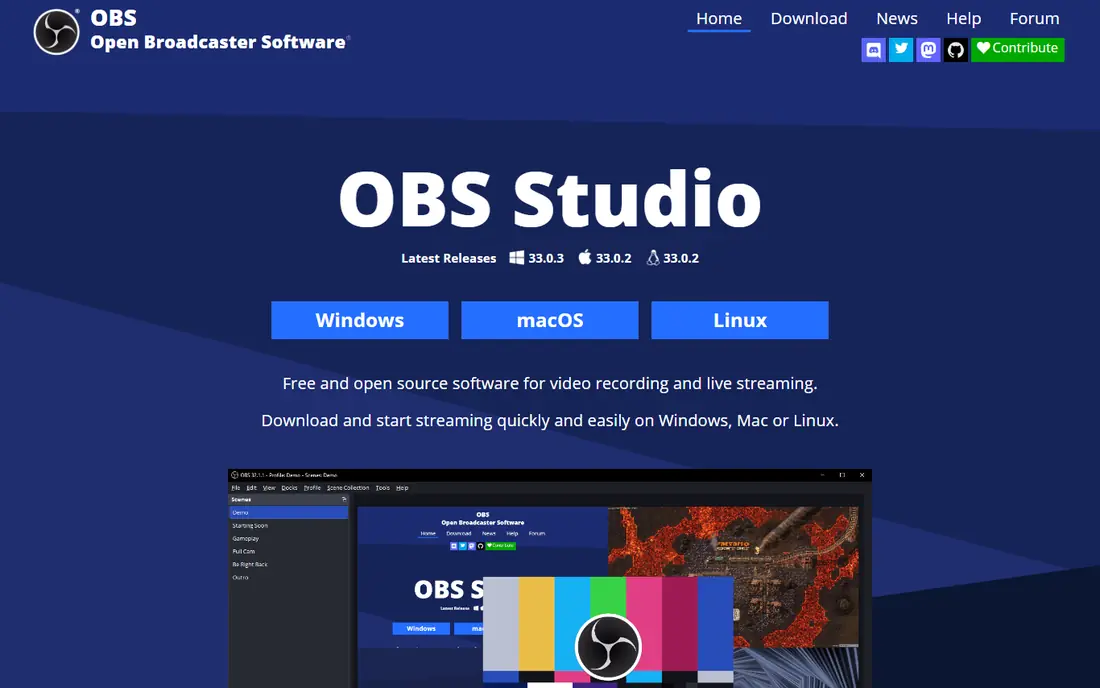
OBS Studio is free and open source, with a replay buffer that saves recent gameplay on a hotkey and hardware encoding that keeps the performance cost low. It suits players willing to configure settings for the best result on modest hardware. There is no built-in social feed for sharing. That focus makes it a practical match for free, lightweight clipping with control. On pricing, the starting point is free, and the free plan status is yes. Its strengths include free and open source; replay buffer; hardware encoding support. The trade-off to weigh is setup takes learning; no built-in sharing feed. We suggest checking the current plan limits on the vendor site before you commit, since tiers and trial terms change, and confirming that the plan you pick covers the seats, storage, or usage your team actually needs.
- Free and open source
- Replay buffer
- Hardware encoding support
- Setup takes learning
- No built-in sharing feed
Xbox Game Bar
Ideal for: built-in Windows clipping with no install

Xbox Game Bar is built into Windows and captures clips with a simple hotkey, without installing extra software. It suits casual players who want clipping with minimal setup. Editing, organization, and sharing stay basic compared with dedicated tools. That focus makes it a practical match for built-in Windows clipping with no install. On pricing, the starting point is free, and the free plan status is yes. Its strengths include built into windows; easy hotkeys; low friction. The trade-off to weigh is windows only; editing and sharing are basic. We suggest checking the current plan limits on the vendor site before you commit, since tiers and trial terms change, and confirming that the plan you pick covers the seats, storage, or usage your team actually needs.
- Built into Windows
- Easy hotkeys
- Low friction
- Windows only
- Editing and sharing are basic
Medal.tv
Ideal for: automatic clips with easy sharing
Medal.tv captures clips automatically and makes sharing easy through its platform, with a client designed to stay light during play. It suits players who want clips saved and shared without manual editing. Advanced features and higher quality sit on paid plans. That focus makes it a practical match for automatic clips with easy sharing. On pricing, the starting point is free, and the free plan status is yes. Its strengths include automatic clipping; easy sharing and clips feed; lightweight client. The trade-off to weigh is some features need a paid plan; account required. We suggest checking the current plan limits on the vendor site before you commit, since tiers and trial terms change, and confirming that the plan you pick covers the seats, storage, or usage your team actually needs.
- Automatic clipping
- Easy sharing and clips feed
- Lightweight client
- Some features need a paid plan
- Account required
Outplayed
Ideal for: automatic event-based clipping
Outplayed, from Overwolf, detects in-game events and saves clips automatically for supported games. It suits players who want highlights without pressing a hotkey every time. Performance and game support vary, so test with your main game. That focus makes it a practical match for automatic event-based clipping. On pricing, the starting point is free, and the free plan status is yes. Its strengths include event-based auto clips; game support; overwolf platform. The trade-off to weigh is overwolf platform required; performance varies by game. We suggest checking the current plan limits on the vendor site before you commit, since tiers and trial terms change, and confirming that the plan you pick covers the seats, storage, or usage your team actually needs.
- Event-based auto clips
- Game support
- Overwolf platform
- Overwolf platform required
- Performance varies by game
NVIDIA ShadowPlay
Ideal for: NVIDIA GPU owners wanting hardware clipping
NVIDIA ShadowPlay, part of GeForce Experience, uses NVIDIA hardware encoding for instant replay clips with low performance cost. It suits players with NVIDIA graphics cards who want high-quality clips. AMD and Intel GPU owners need another tool. That focus makes it a practical match for NVIDIA GPU owners wanting hardware clipping. On pricing, the starting point is free, and the free plan status is yes. Its strengths include hardware encoding on nvidia gpus; instant replay; good quality. The trade-off to weigh is nvidia gpu required; geforce experience needed. We suggest checking the current plan limits on the vendor site before you commit, since tiers and trial terms change, and confirming that the plan you pick covers the seats, storage, or usage your team actually needs.
- Hardware encoding on NVIDIA GPUs
- Instant replay
- Good quality
- NVIDIA GPU required
- GeForce Experience needed
ShareX
Ideal for: free screen capture including video clips
ShareX is a free, open-source screen capture tool that can record video clips alongside screenshots, with flexible output and upload options. It suits users who want a free, no-account tool for varied capture. Game-specific automatic clipping is less polished than dedicated tools. That focus makes it a practical match for free screen capture including video clips. On pricing, the starting point is free, and the free plan status is yes. Its strengths include free and open source; flexible capture; no account needed. The trade-off to weigh is game capture setup is less automatic; interface is utilitarian. We suggest checking the current plan limits on the vendor site before you commit, since tiers and trial terms change, and confirming that the plan you pick covers the seats, storage, or usage your team actually needs.
- Free and open source
- Flexible capture
- No account needed
- Game capture setup is less automatic
- Interface is utilitarian
Bandicam
Ideal for: lightweight recording on modest PCs
Bandicam is a lightweight recorder known for modest performance cost, with hardware encoding and simple controls. It suits players who want straightforward recording on a low-end PC. Its free version limits recording length and adds a watermark, and clipping is more manual than buffer tools. That focus makes it a practical match for lightweight recording on modest PCs. On pricing, the starting point is see website, and the free plan status is free trial. Its strengths include lightweight recorder; hardware encoding; simple controls. The trade-off to weigh is free version has limits; clipping workflow is manual. We suggest checking the current plan limits on the vendor site before you commit, since tiers and trial terms change, and confirming that the plan you pick covers the seats, storage, or usage your team actually needs.
- Lightweight recorder
- Hardware encoding
- Simple controls
- Free version has limits
- Clipping workflow is manual
Streamlabs Desktop
Ideal for: streamers wanting clipping plus streaming tools
Streamlabs Desktop builds on OBS with streaming widgets, alerts, and a simpler setup for creators who also stream. It suits players who stream and clip in one tool. On a low-end PC it can be heavier than plain OBS, so test performance carefully. That focus makes it a practical match for streamers wanting clipping plus streaming tools. On pricing, the starting point is free, and the free plan status is yes. Its strengths include streaming plus clipping; widgets and alerts; easy setup. The trade-off to weigh is heavier than obs alone; some features need a paid plan. We suggest checking the current plan limits on the vendor site before you commit, since tiers and trial terms change, and confirming that the plan you pick covers the seats, storage, or usage your team actually needs.
- Streaming plus clipping
- Widgets and alerts
- Easy setup
- Heavier than OBS alone
- Some features need a paid plan
How we picked these
We compared official feature pages, pricing pages, app store listings, privacy policies, and public reviews for each option, and we kept only products that exist, work in October 2026, and fit the topic directly. We did not claim hands-on testing we did not do, and we left out products whose fit was weak even when they are well known in a nearby category. Price and plan details change often, so where a vendor does not publish a clear price we write See website rather than guessing. The notes below reflect what each vendor publishes about its own product, not a promise about results for any single team.
How to choose clipping software for a low-end PC
Start with the performance budget: on a low-end PC, hardware encoding, low capture resolution, and short clip buffers matter more than editing features. A tool that records at high bitrates will hurt the game it is trying to capture. Test with your real game at your real settings, and watch frame rates with clipping on and off. Check storage and format, since clips fill drives fast, especially at high quality. Short buffers, lower resolutions, and automatic cleanup help, as does an editor that trims without re-encoding everything. Also check whether the tool needs an account, uploads clips automatically, or works offline. Set a short clip length, such as 30 to 60 seconds, and a modest resolution that still looks good when shared. Keep the game drive separate from the clip drive if you can, delete weak clips weekly, and update graphics drivers, since driver issues cause more capture problems than settings do.
Frequently asked questions
What is clipping software?
It saves a short buffer of recent gameplay, usually the last 30 to 60 seconds, when you press a hotkey, so you can keep a great moment without recording a whole session.
Will clipping slow down a low-end PC?
It can, especially with software encoding or high capture settings. Hardware encoding, lower resolution, and short buffers reduce the cost, but always test in your game.
Is OBS Studio good on a low-end PC?
Yes, when configured lightly, since OBS is free, flexible, and supports hardware encoding. It needs some setup, but its replay buffer is well suited to clipping.
Do I need a graphics card for clipping?
A dedicated graphics card helps through hardware encoding, but integrated graphics can still clip at modest settings. Check your hardware encoding support before choosing settings.
Where should I save clips?
Save clips to a drive with free space, ideally separate from the game drive, and clean up regularly. Cloud upload helps sharing but needs a good connection.