Best Clipping Software for PC in 2026: 8 Tools Compared

- 1
 OutplayedAutomatic highlightsVisit
- 2
 MedalSharing clipsVisit
- 3
 OBS StudioFree manual recordingVisit
- 4
 Nvidia ShadowPlayNvidia GPU ownersVisit
- 5
 AMD ReLiveAMD GPU ownersVisit
- Outplayed and Medal are our picks for automatic gaming highlights, while OBS Studio is best for free manual recording.
- Nvidia ShadowPlay suits Nvidia GPU owners, and AMD ReLive suits AMD GPU owners, since both are built into drivers.
- SteelSeries Moments and Xbox Game Bar are good free or built in options for casual clipping.
- Instant replay buffers let you save the last 30 seconds to several minutes after a great play, so set buffer length before you play.
- Check performance impact, file size and sharing options, since clipping tools vary in how much they slow games and compress video.
Quick comparison
| Product | Ideal for | Price from | Free version | |
|---|---|---|---|---|
| Outplayed | Automatic highlights | Free | Yes | Visit |
| Medal | Sharing clips | Free | Yes | Visit |
| OBS Studio | Free manual recording | Free | Yes | Visit |
| Nvidia ShadowPlay | Nvidia GPU owners | Free | Yes | Visit |
| AMD ReLive | AMD GPU owners | Free | Yes | Visit |
 SteelSeries Moments | Casual clipping | Free | Yes | Visit |
 Xbox Game Bar | Built in Windows clipping | Free | Yes | Visit |
 Streamlabs | Streaming plus clipping | Free | Yes | Visit |
The best clipping software for PC
Clipping software for PC captures gaming highlights, either automatically when you get a kill or win, or manually with instant replay that saves the last moments after they happen. We compared official feature pages, pricing, app listings and public reviews to find tools that still work well on Windows in October 2026, with attention to performance, ease of sharing and free limits.
Outplayed
Ideal for: Automatic highlights

Outplayed, from Overwolf, automatically captures highlights for supported games, such as kills, wins and key moments, without you pressing a button during play. It also offers instant replay and manual clipping, plus editing tools to trim clips and share them to social platforms or Discord. That automation is why Outplayed is popular with competitive players who cannot pause to record.
Outplayed runs on the Overwolf platform, which some users dislike, and performance impact varies by game and hardware. Game support also varies, so check that your main games are supported before relying on automatic highlights, but for supported titles, Outplayed saves the most effort.
- Automatic highlights for many games
- Instant replay
- Easy editing and sharing
- Overwolf platform required
- Performance impact varies
- Some games supported better than others
Medal
Ideal for: Sharing clips
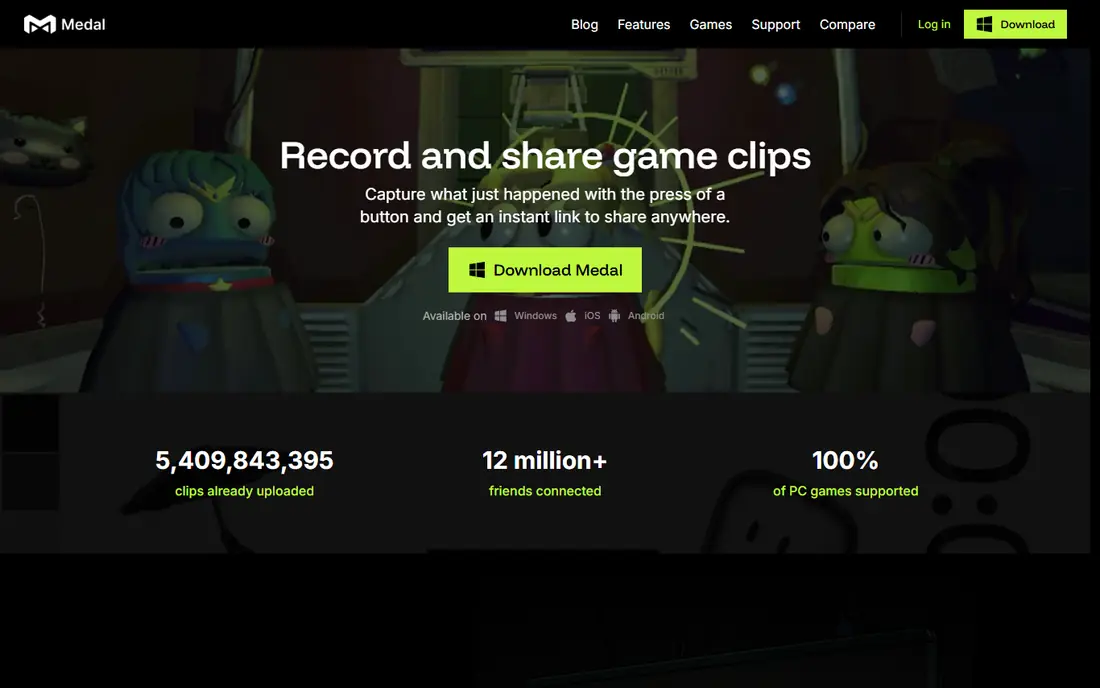
Medal makes it easy to clip, edit and share gaming moments, with a social feed where you can follow friends and creators and discover clips. Its instant replay and manual recording work across many games, and its editor lets you trim, add text and share to TikTok, YouTube and Discord quickly. That sharing focus suits creators who post clips daily.
Free storage and clip length limits apply, with Premium needed for longer clips, higher quality and more storage, so heavy creators should check Premium pricing. Performance impact is generally low, but varies by hardware, so test Medal with your main game before committing to it as your primary clipper.
- Easy clipping and sharing
- Social feed for clips
- Good editing tools
- Free storage limits
- Premium needed for longer clips and higher quality
- Performance varies
OBS Studio
Ideal for: Free manual recording
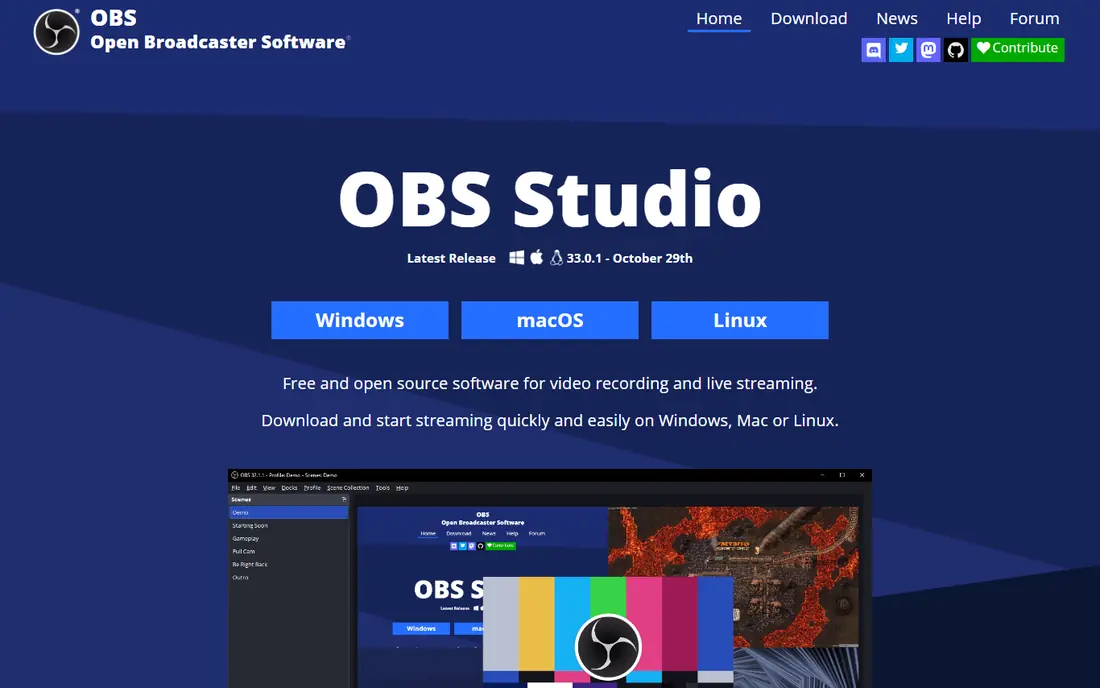
OBS Studio is a free, open source recording and streaming tool that many gamers use for manual clipping and full session recording. It offers high quality recording, multiple sources, scenes and filters, with no watermarks, storage limits or subscription. Its replay buffer feature can save the last seconds or minutes after a great play, if configured in advance.
OBS does not automatically detect highlights, so you must press a hotkey or use the replay buffer manually, and initial setup takes longer than Outplayed or Medal. For users who want free, unlimited, high quality recording and are willing to learn the settings, OBS Studio is the most powerful and flexible option.
- Free and open source
- Powerful recording and streaming
- No watermarks or limits
- No automatic highlights
- Setup takes time
- Replay buffer needs manual configuration
Nvidia ShadowPlay
Ideal for: Nvidia GPU owners
Nvidia ShadowPlay, now part of GeForce Experience and the Nvidia app, uses your Nvidia GPU hardware to record with low performance impact. Its Instant Replay buffer saves the last minutes of gameplay after a great moment, while Highlights automatically captures key events in supported games. That hardware acceleration makes ShadowPlay efficient and smooth for Nvidia owners.
It only works with Nvidia GPUs, so AMD and Intel GPU owners need another tool, and GeForce Experience or the Nvidia app is required. Highlight support varies by game, so check your titles, but for Nvidia owners who want free, low impact clipping, ShadowPlay is an excellent built in choice.
- Built into GeForce Experience
- Low performance impact
- Instant replay and highlights
- Nvidia GPU only
- GeForce Experience required
- Highlight support varies by game
AMD ReLive
Ideal for: AMD GPU owners
AMD ReLive, built into AMD Software, offers instant replay, recording and streaming using AMD GPU hardware, with low performance impact similar to ShadowPlay. It suits AMD GPU owners who want a free, built in clipping tool without installing a third party app, and it integrates with AMD's driver settings and performance tools. That integration keeps setup simple for AMD users.
ReLive only works with AMD GPUs, and its interface feels less polished than Nvidia's app or Medal's editor. Game support and highlight detection vary, so test ReLive with your main games, but for AMD owners, it is the most efficient free clipping option.
- Built into AMD drivers
- Low performance impact
- Instant replay and streaming
- AMD GPU only
- Interface less polished than ShadowPlay
- Game support varies
SteelSeries Moments
Ideal for: Casual clipping
SteelSeries Moments, part of SteelSeries GG software, offers free clipping with automatic capture for supported games and instant replay for manual saves. Its interface is simple, which suits casual players who want to save and share highlights without learning OBS or managing a complex editor. Clips can be shared to social platforms and Discord from the app.
SteelSeries GG is required, which adds software even if you do not own SteelSeries hardware, and game support is more limited than Outplayed's. Editing tools are basic compared with Medal, so creators who edit heavily should use another editor, but for casual clipping, Moments is easy and free.
- Free and easy
- Automatic clipping for supported games
- Integrates with SteelSeries GG
- SteelSeries GG required
- Game support limited
- Editing tools basic
Xbox Game Bar
Ideal for: Built in Windows clipping
Xbox Game Bar is built into Windows 10 and 11, so every PC gamer already has a clipping tool without installing anything. Pressing Windows plus G opens the overlay, where you can record, capture screenshots, check performance widgets and save the last 30 seconds with a hotkey, depending on settings. That built in convenience makes Game Bar the easiest clipping option to try first.
Performance, quality and game compatibility vary, with some games and fullscreen modes working better than others, and editing tools are minimal. For casual clips and quick captures, Game Bar is fine, but serious creators should use Outplayed, Medal or OBS for better quality and editing.
- Built into Windows
- No install needed
- Instant capture and widgets
- Performance and quality vary
- Fewer editing tools
- Game compatibility varies
Streamlabs
Ideal for: Streaming plus clipping
Streamlabs is built on OBS and adds easy overlays, alerts, chat and widgets for streamers, plus recording and clipping for highlights. That combination suits creators who stream on Twitch or YouTube and want to clip highlights from streams without switching tools. Its interface is more beginner friendly than OBS Studio, with themes and widgets that are quick to set up.
Streamlabs is heavier than OBS Studio and can impact game performance more, especially on lower end hardware, and some advanced features need a Prime subscription. If you stream regularly, Streamlabs is a convenient all in one tool, but if you only clip, Outplayed or Medal will be lighter.
- Streaming plus recording
- Easy overlays and alerts
- Good for creators who stream
- Heavier than OBS
- Some features need Prime
- Performance impact higher
How we picked these
We compared official feature pages, pricing pages and public reviews, and we only included tools that still offer PC game clipping in October 2026. We favoured tools with instant replay, automatic highlights or low performance impact, and we distinguished between built in GPU tools, automatic highlight apps and manual recorders, since each suits a different kind of player.
How to clip games without hurting performance
Use hardware encoding if your GPU supports it, since Nvidia NVENC and AMD hardware encoding record with far less CPU impact than software encoding. Set your replay buffer length before you play, such as 30 seconds to two minutes, and choose a resolution and frame rate your hardware can handle, rather than maximum quality that drops game frames. Store clips on a fast drive with enough space, since high quality clips use gigabytes quickly.
After clipping, trim ruthlessly, keeping only the best seconds, since short clips perform better on social platforms and are easier to share. Add captions or text where the game audio is unclear, and export at a size suited to your platform, such as vertical for TikTok and horizontal for YouTube, rather than uploading a huge raw file everywhere.
Frequently asked questions
What is the best clipping software for PC?
Outplayed is best for automatic highlights, Medal is best for sharing, and OBS Studio is best for free manual recording. Nvidia owners should try ShadowPlay, while AMD owners should try ReLive.
Is OBS Studio good for clipping?
Yes, OBS Studio offers free, high quality recording with a replay buffer, but it needs manual setup and does not automatically detect highlights. It suits users who want control and no limits.
Does clipping software slow down games?
It can, especially with software encoding or high resolutions, but hardware encoding on Nvidia and AMD GPUs minimises impact. Test your chosen tool with your main game and lower settings if frames drop.
How long can instant replay save?
It depends on the tool and buffer settings, from 30 seconds in Xbox Game Bar to several minutes in OBS, ShadowPlay and Outplayed. Set buffer length in settings before you play.
Where should I share gaming clips?
TikTok, YouTube Shorts, Discord and Twitter are popular for short clips, while YouTube suits longer highlights. Trim clips, add captions and export at the right size for each platform.