Best cloning software in 2026: 8 Options Compared

- 1
 Macrium ReflectWindows users wanting dependable imagingVisit
- 2
 Acronis Cyber Protect Home Officehouseholds wanting backup plus securityVisit
- 3
 Clonezillatechnicians wanting free powerful cloningVisit
- 4
 EaseUS Todo Backupbeginners wanting guided backup and cloningVisit
- 5
 AOMEI Backupperbudget users wanting free cloningVisit
- Cloning makes a bootable copy for a drive swap, while imaging makes a backup file for recovery, and the best tools do both.
- Free tools cover most home migrations well, while paid tools add scheduling and support.
- Always test rescue media before you need it.
Quick comparison
| Product | Ideal for | Price from | Free version | |
|---|---|---|---|---|
| Macrium Reflect | Windows users wanting dependable imaging | $49.99 per year | Free trial | Visit |
| Acronis Cyber Protect Home Office | households wanting backup plus security | $49.99 per year | Free trial | Visit |
| Clonezilla | technicians wanting free powerful cloning | Free | Yes | Visit |
| EaseUS Todo Backup | beginners wanting guided backup and cloning | See website | Yes | Visit |
| AOMEI Backupper | budget users wanting free cloning | See website | Yes | Visit |
 Paragon Hard Disk Manager | users wanting partitioning with cloning | See website | Free trial | Visit |
 Rescuezilla | beginners wanting free cloning with a graphical interface | Free | Yes | Visit |
 Carbon Copy Cloner | Mac users wanting cloning and backup control | See website | Free trial | Visit |
The best best cloning software
We compared official feature pages, pricing, app store listings, privacy policies and public reviews to build this list of best cloning software. Our pick for most people is listed first in each section below, but the right choice depends on your budget, team size and must-have features, so read the strengths and limits for each option before you decide.
Macrium Reflect
Ideal for: Windows users wanting dependable imaging
For readers weighing this option, the story starts with fit. Macrium Reflect is the steady choice for Windows imaging, with scheduled backups and rescue media that users trust when a drive fails. In practice, that means you should judge it on the job you need done most, not on the longest feature list, since a tool that fits your daily work beats a broader tool you rarely open. We also weighed pricing honesty, support options and how the product handles your data, because those factors shape the experience long after the first week.
The catch is the subscription, since the full version is paid and Windows-only. That trade-off is normal, since every product on this list gives up something to excel at its main job. Before you commit, use the free plan or trial with a real task from your own work, check the export and cancellation terms, and confirm the plan you need includes the features described here, since vendors move features between tiers from time to time.
- Scheduled imaging
- Rapid delta restores
- Bootable rescue media
- Paid-only for full features
- Windows only
Acronis Cyber Protect Home Office
Ideal for: households wanting backup plus security
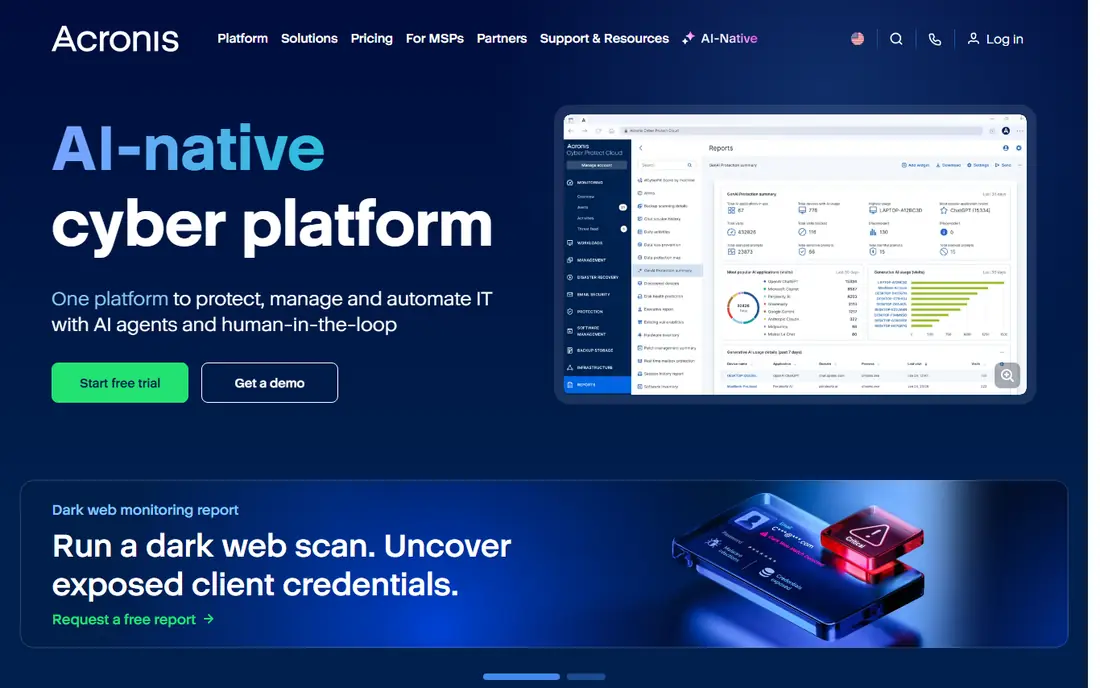
This one earns its place for a clear reason. Acronis combines imaging with cloud backup and security features, which suits households that want one package for protection. In practice, that means you should judge it on the job you need done most, not on the longest feature list, since a tool that fits your daily work beats a broader tool you rarely open. We also weighed pricing honesty, support options and how the product handles your data, because those factors shape the experience long after the first week.
The catch is the trial, since cloning is limited in trial versions, so test the paid features before you rely on them. That trade-off is normal, since every product on this list gives up something to excel at its main job. Before you commit, use the free plan or trial with a real task from your own work, check the export and cancellation terms, and confirm the plan you need includes the features described here, since vendors move features between tiers from time to time.
- Full disk imaging and cloning
- Cloud storage options
- Anti-malware features
- Trial limits cloning
- Subscription cost adds up
Clonezilla
Ideal for: technicians wanting free powerful cloning
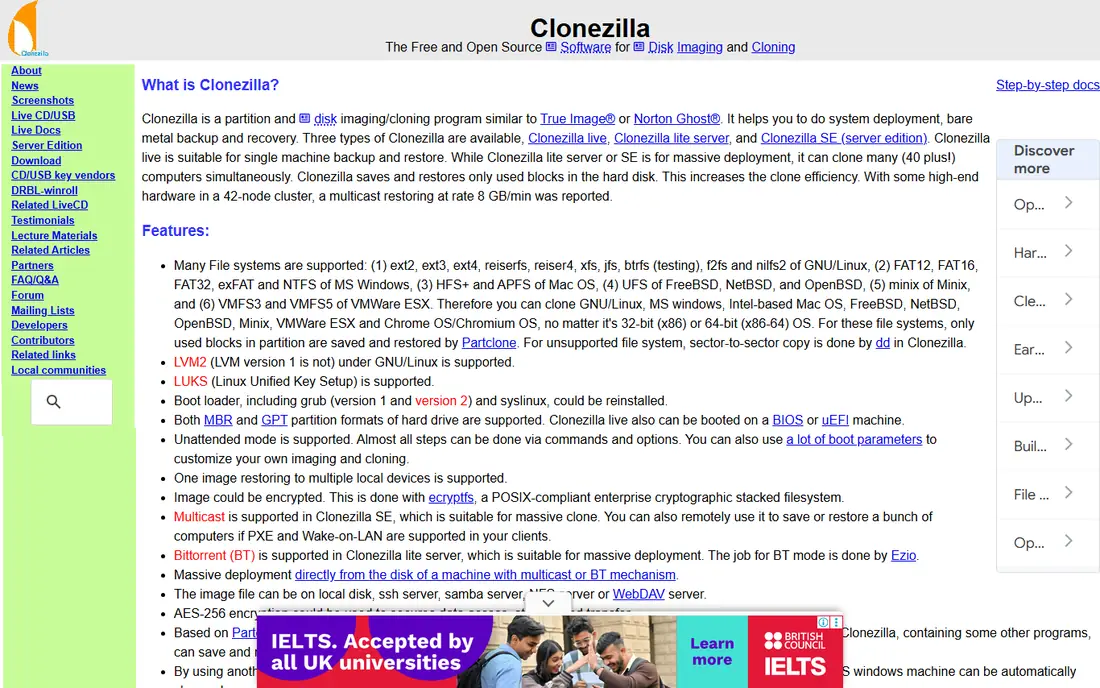
Here is where this option stands out from the rest of the list. Clonezilla is the free workhorse for technicians, handling disk and partition cloning across many file systems at no cost. In practice, that means you should judge it on the job you need done most, not on the longest feature list, since a tool that fits your daily work beats a broader tool you rarely open. We also weighed pricing honesty, support options and how the product handles your data, because those factors shape the experience long after the first week.
The catch is the interface, since its text-based menus assume comfort with bootable media and partitions. That trade-off is normal, since every product on this list gives up something to excel at its main job. Before you commit, use the free plan or trial with a real task from your own work, check the export and cancellation terms, and confirm the plan you need includes the features described here, since vendors move features between tiers from time to time.
- Free and open source
- Supports many file systems
- Disk and partition cloning
- Text-based interface
- No scheduling for casual users
EaseUS Todo Backup
Ideal for: beginners wanting guided backup and cloning
Consider this option if its strengths match your main need. EaseUS Todo Backup suits beginners, since its wizard walks through cloning step by step instead of assuming technical knowledge. In practice, that means you should judge it on the job you need done most, not on the longest feature list, since a tool that fits your daily work beats a broader tool you rarely open. We also weighed pricing honesty, support options and how the product handles your data, because those factors shape the experience long after the first week.
The catch is the free edition limits, since advanced features sit behind paid plans. That trade-off is normal, since every product on this list gives up something to excel at its main job. Before you commit, use the free plan or trial with a real task from your own work, check the export and cancellation terms, and confirm the plan you need includes the features described here, since vendors move features between tiers from time to time.
- Guided cloning wizard
- Scheduled backups
- Free edition for basic use
- Free edition limits some features
- Upsells appear in the app
AOMEI Backupper
Ideal for: budget users wanting free cloning
This entry suits a narrower audience, and that focus is its strength. AOMEI Backupper gives home users a genuinely useful free tier, with cloning and system backup included. In practice, that means you should judge it on the job you need done most, not on the longest feature list, since a tool that fits your daily work beats a broader tool you rarely open. We also weighed pricing honesty, support options and how the product handles your data, because those factors shape the experience long after the first week.
The catch is the platform, since Mac users need a different tool. That trade-off is normal, since every product on this list gives up something to excel at its main job. Before you commit, use the free plan or trial with a real task from your own work, check the export and cancellation terms, and confirm the plan you need includes the features described here, since vendors move features between tiers from time to time.
- Free cloning and system backup
- Disk and partition clone
- Scheduled tasks
- Paid tiers needed for some advanced features
- Windows only
Paragon Hard Disk Manager
Ideal for: users wanting partitioning with cloning
On value alone, this option deserves a close look. Paragon Hard Disk Manager appeals to users who also manage partitions, since cloning and partition work sit in one tool. In practice, that means you should judge it on the job you need done most, not on the longest feature list, since a tool that fits your daily work beats a broader tool you rarely open. We also weighed pricing honesty, support options and how the product handles your data, because those factors shape the experience long after the first week.
The catch is the learning curve, since its depth takes time to learn. That trade-off is normal, since every product on this list gives up something to excel at its main job. Before you commit, use the free plan or trial with a real task from your own work, check the export and cancellation terms, and confirm the plan you need includes the features described here, since vendors move features between tiers from time to time.
- Partition management during clones
- Imaging and backup
- WinPE recovery media
- Full features are paid
- Interface has a learning curve
Rescuezilla
Ideal for: beginners wanting free cloning with a graphical interface
If you want a dependable choice, start here. Rescuezilla is the friendly free option, giving Clonezilla-style power behind a graphical interface on a bootable USB. In practice, that means you should judge it on the job you need done most, not on the longest feature list, since a tool that fits your daily work beats a broader tool you rarely open. We also weighed pricing honesty, support options and how the product handles your data, because those factors shape the experience long after the first week.
The catch is support, since help comes from the community rather than a vendor support desk. That trade-off is normal, since every product on this list gives up something to excel at its main job. Before you commit, use the free plan or trial with a real task from your own work, check the export and cancellation terms, and confirm the plan you need includes the features described here, since vendors move features between tiers from time to time.
- Free and open source
- Graphical interface
- Bootable USB workflow
- Fewer scheduling features
- Community support only
Carbon Copy Cloner
Ideal for: Mac users wanting cloning and backup control
The final entry rounds out the list with a different angle. Carbon Copy Cloner is the clear Mac pick, with bootable backups and scheduling that go beyond Time Machine control. In practice, that means you should judge it on the job you need done most, not on the longest feature list, since a tool that fits your daily work beats a broader tool you rarely open. We also weighed pricing honesty, support options and how the product handles your data, because those factors shape the experience long after the first week.
The catch is the platform limit, since Windows users must look elsewhere. That trade-off is normal, since every product on this list gives up something to excel at its main job. Before you commit, use the free plan or trial with a real task from your own work, check the export and cancellation terms, and confirm the plan you need includes the features described here, since vendors move features between tiers from time to time.
- Bootable Mac backups
- Scheduled tasks
- Snapshot support
- Mac only
- Paid licence needed after trial
How we picked these
We compared official feature pages, pricing pages, app store listings, privacy policies and public reviews for each product on this list, and we checked that each product exists and works today. We favoured products that fit the topic directly, offered clear pricing or a usable free tier, and showed an honest balance of strengths and limits. We did not claim hands-on testing we did not do, and where a price could not be verified we wrote See website rather than guessing.
We also mixed well-known leaders with strong smaller options, so the list is useful whether you want the safest default or a more specialised pick. If a product changed its pricing or features after our check, the vendor website is the final word, and we recommend confirming the plan details before you buy.
How to choose the right best cloning software
Decide first whether you are swapping a drive or protecting against failure. For a one-time SSD swap, a free tool with a clear clone wizard is enough. For ongoing protection, pick a tool with scheduling, rescue media and a restore you have actually tested. Check the destination drive size, back up irreplaceable files separately before you start, and never clone a failing drive without a backup plan, since cloning can stress a dying disk.
Use the checklist below with your own shortlist, since it catches the problems that cause most regret after purchase.
- Fit first: does it solve your main job, or does it only look impressive in a demo.
- True cost: add up seats, add-ons, taxes and renewal prices, not just the headline monthly figure.
- Exit route: can you export your data and cancel without a long process or penalty.
- Support and privacy: check support hours, data handling and security practices before you rely on it daily.
Run a trial with real work, not sample data, and involve the people who will use the product every day. Their verdict after a week of real tasks tells you more than any feature table, including ours.
Frequently asked questions
What is the best cloning software?
Macrium Reflect and Acronis Cyber Protect Home Office lead for paid Windows use, Clonezilla and Rescuezilla lead for free use, and Carbon Copy Cloner is the Mac pick. The best choice depends on your operating system and whether you need scheduling.
What is the best free cloning software?
Clonezilla is the most powerful free option for technicians, while Rescuezilla is easier for beginners and AOMEI Backupper offers a strong free Windows tier. All three handle a basic drive clone without payment.
Is cloning the same as imaging?
No. Cloning copies a drive directly to another drive so the copy can boot. Imaging saves a compressed file you can restore later. Most tools on this list do both, and imaging is usually better for regular backups.
Can I clone a hard drive to an SSD?
Yes, and that is the most common use. Check that the SSD is large enough for the used data, or shrink partitions first if your tool supports it. After cloning, test booting from the SSD before you wipe the old drive.
Do I need paid cloning software?
Not always. Free tools cover a one-time migration well. Paid tools earn their price with scheduling, support, rescue media polish and extra protection features for ongoing backups.