Best Cloud Services for Sharing Large Media Files in 2026: 7 Options Compared

- 1
 DropboxTeams sharing large files every dayVisit
- 2
 Google DrivePeople already using Google toolsVisit
- 3
 WeTransferPeople sending large files without an accountVisit
- 4
 MASVVideo professionals sending huge filesVisit
- 5
 Frame.ioVideo teams that review and share footageVisit
- Our pick for most people is Dropbox, because it balances price, features and support for everyday use.
- Google Drive is the strongest alternative if you want a different balance of cost and features, so compare it directly with our top pick.
- Free plans or trials are available from several options here, including WeTransfer, but always check the limits before you rely on a free tier.
- The cheapest headline price is not always the cheapest total cost, since per-user fees, add-ons and usage limits change what you pay each month.
- Check availability, contract terms and support hours for your situation before you sign up, because those details vary more than the marketing suggests.
Quick comparison
| Product | Ideal for | Price from | Free version | |
|---|---|---|---|---|
| Dropbox | Teams sharing large files every day | See website | Yes | Visit |
| Google Drive | People already using Google tools | See website | Yes | Visit |
| WeTransfer | People sending large files without an account | See website | Yes | Visit |
| MASV | Video professionals sending huge files | See website | No | Visit |
| Frame.io | Video teams that review and share footage | See website | Yes | Visit |
 Box | Businesses sharing large files with controls | See website | Yes | Visit |
 OneDrive | Microsoft 365 users sharing large files | See website | Yes | Visit |
The best cloud services for sharing large media files
We compared the options below on official feature pages, pricing pages, app store listings and public reviews, looking at price, features, support and ease of use. The right choice depends on your budget, your team size and the tasks you will do most often, so use the comparison table and the notes under each product to narrow the list to two or three finalists.
Dropbox
Ideal for: Teams sharing large files every day

For most readers, this is a strong place to start. Dropbox is a dependable choice for sharing large media files, with fast sync, link sharing and Dropbox Transfer for one-off large sends. It suits creative teams and businesses that move video and design files daily. The catch is storage price: the free tier is small, and large teams need paid plans, so compare the cost for the storage your media library actually needs.
Before you commit, check the current pricing page and confirm what is included at the tier you actually need, since add-ons and per-user charges change the total. Support hours and setup help matter too, especially if you are moving from another provider and cannot afford downtime. Read the terms on cancellation and data export before you pay, so leaving later stays simple. For Dropbox, the main strength to weigh is fast sync and sharing, while the main drawback to accept is storage costs rise on higher tiers. If that trade-off suits you, it is worth a trial or a closer look at the current pricing page.
- Fast sync and sharing
- Large file support
- Transfer feature for one-off sends
- Storage costs rise on higher tiers
- Free tier is small
Google Drive
Ideal for: People already using Google tools
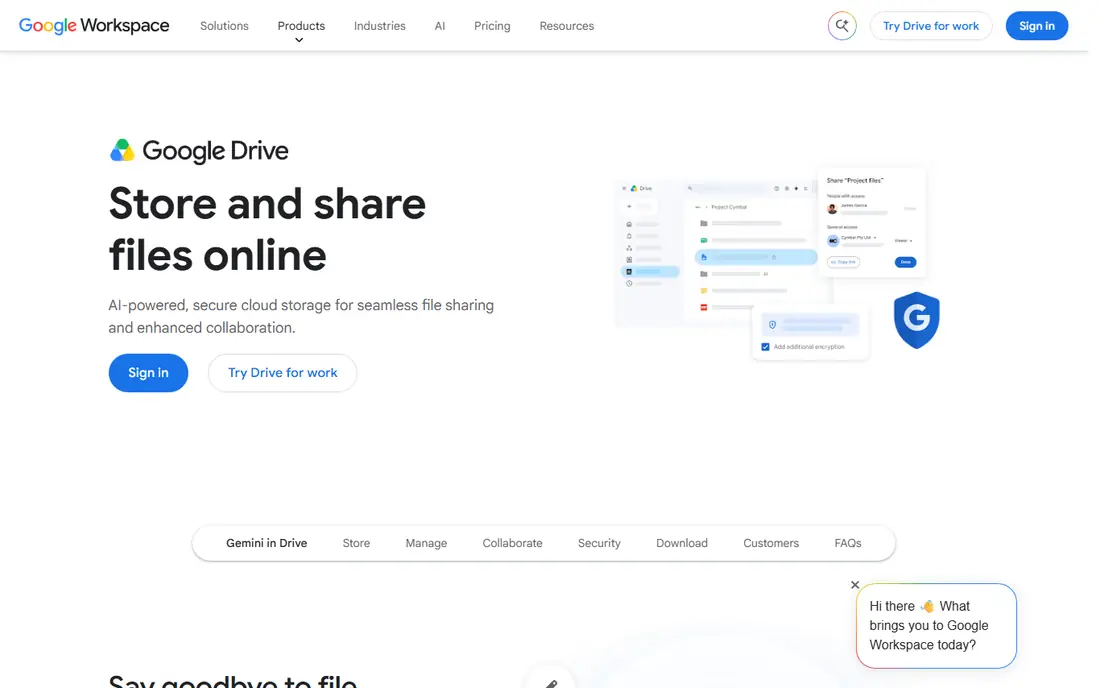
This one stands out for a specific kind of buyer. Google Drive lets users share very large files through links with permission controls, and it fits naturally with Gmail, Docs and Google Workspace. It suits individuals and teams already in the Google ecosystem. The drawback is shared storage: the free allowance covers Drive, Gmail and Photos together, so media-heavy users will need a paid Google One or Workspace plan.
The practical test is whether it fits your daily routine without extra workarounds. Look at setup steps, admin controls and the help pages for the tasks you will do most often. If a free trial is offered, use it for a real task rather than a quick tour, and note where you get stuck. That short trial usually tells you more than a feature list. For Google Drive, the main strength to weigh is large file sharing, while the main drawback to accept is free storage is shared across google services. If that trade-off suits you, it is worth a trial or a closer look at the current pricing page.
- Large file sharing
- Google Workspace integration
- Strong search
- Free storage is shared across Google services
- Large files need paid plans
WeTransfer
Ideal for: People sending large files without an account

Put this on your shortlist if the details below match your situation. WeTransfer is the simplest way to send a large file: upload, add recipients and share a link, with no account needed for basic sends. It suits one-off deliveries of video, audio and design files. The catch is that it is a transfer tool, not permanent storage: free sends expire and have size limits, so regular sharers should consider the Pro plan or a storage service.
Price alone rarely decides a good purchase, since limits on users, storage, calls or messages can push you to a higher tier quickly. Compare the total monthly cost for your real team size or usage, not the headline rate for one user. Also check contract length, renewal terms and whether support is included or billed separately. For WeTransfer, the main strength to weigh is simple large file sends, while the main drawback to accept is free tier has size and time limits. If that trade-off suits you, it is worth a trial or a closer look at the current pricing page.
- Simple large file sends
- No account needed for basic sends
- Pro for larger limits
- Free tier has size and time limits
- Not a full storage service
MASV
Ideal for: Video professionals sending huge files
This option earns its place through a clear, practical strength. MASV is built for media professionals who send huge video files, with pay-as-you-go pricing and fast delivery designed for large packages. It suits production teams and freelancers delivering finished video to clients. The drawback is cost at volume: frequent large sends add up under pay-as-you-go pricing, so compare it against a flat storage plan if you share large files every week.
A good next step is to list your must-have features and your deal-breakers before you compare plans. Then test the top two options side by side on the same task, such as setting up an account, inviting a colleague or completing a typical job. The option that feels plain and dependable in that test is usually the right one. For MASV, the main strength to weigh is very large file transfers, while the main drawback to accept is pay-as-you-go costs add up for frequent sends. If that trade-off suits you, it is worth a trial or a closer look at the current pricing page.
- Very large file transfers
- Pay-as-you-go
- Fast global delivery
- Pay-as-you-go costs add up for frequent sends
- No free tier for large work
Frame.io
Ideal for: Video teams that review and share footage
Consider this one when the more famous names do not fit your budget or workflow. Frame.io combines large file sharing with video review, letting clients and collaborators comment on exact frames. It suits video teams that need feedback, not just delivery, and it integrates with Adobe tools. The catch is purpose: it is a review platform first, so using it as cheap long-term archive storage is costly, and teams should pair it with an archive service for finished work.
Check recent user reviews and the provider's own status or help pages for signs of steady service and honest communication about outages. A provider that explains problems clearly and fixes them promptly is worth more than one with a longer feature list and slow support. Keep your own backup or exit plan, even with a provider you trust. For Frame.io, the main strength to weigh is video review and comments, while the main drawback to accept is review focus means storage costs for archives. If that trade-off suits you, it is worth a trial or a closer look at the current pricing page.
- Video review and comments
- Large file uploads
- Adobe integration
- Review focus means storage costs for archives
- Learning curve
Box
Ideal for: Businesses sharing large files with controls
This is a sensible pick for buyers who want fewer surprises. Box suits businesses that share large media files with clients and need permission controls, audit trails and security settings. It handles large uploads well and integrates with common business tools. The drawback is feel: the interface is built for business users, and the free tier is small, so individuals may find Dropbox or Google Drive friendlier.
Think about who else will use this service and how much training they will need. A tool that one person loves can fail if the rest of the team finds it confusing or if customers dislike the experience. Ask about onboarding help, documentation and whether you can adjust settings without calling support for every small change. For Box, the main strength to weigh is strong sharing permissions, while the main drawback to accept is interface is business-focused. If that trade-off suits you, it is worth a trial or a closer look at the current pricing page.
- Strong sharing permissions
- Large file support
- Business security controls
- Interface is business-focused
- Free tier is limited
OneDrive
Ideal for: Microsoft 365 users sharing large files
Shortlist this one if you value the strength described below more than a lower price. OneDrive is the natural sharing service for Microsoft 365 users, with link sharing, large file support and integration with Word, Excel and Teams. It suits offices and individuals already paying for Microsoft 365. The catch is standalone value: the free tier is small, and the best storage deal comes bundled with Microsoft 365, so users outside that ecosystem may prefer Google Drive or Dropbox.
Watch for hidden effort as well as hidden cost: migration, setup, training and ongoing admin all take time. A slightly higher price can be good value if it saves hours each week or avoids mistakes. On the other hand, a cheap plan that needs constant workarounds often costs more in staff time than it saves in fees. For OneDrive, the main strength to weigh is large file sharing, while the main drawback to accept is free storage is small. If that trade-off suits you, it is worth a trial or a closer look at the current pricing page.
- Large file sharing
- Microsoft 365 integration
- Personal Vault
- Free storage is small
- Best value inside Microsoft 365
How we picked these
We started from the official website, pricing page and help documentation for each product, then checked app store listings and public reviews for signs of steady service and common complaints. We left out products that no longer work, that did not fit the topic, or that we could not verify from a real homepage. We did not claim hands-on testing we did not do, and we kept the focus on facts a buyer can check before paying.
We also weighed total cost rather than headline price alone, since per-user charges, usage limits and add-ons change the monthly bill. Support quality, setup effort and contract terms counted too, because a cheap service that is hard to leave or hard to get help with can cost more over time. The list mixes well-known providers with smaller options that serve a clear niche well.
How to choose the right option for you
Start by writing down the job you need done, how often you will use the service, and how many people will use it. That short list keeps you from paying for features you will never open, and it makes the comparison table above much easier to use. Then check the two or three finalists against that list, not against every feature on their websites.
Check the total cost
Add up per-user fees, add-ons, taxes and any setup charges for your real usage, and compare that total across providers. Ask whether the price is locked for a term or can change at renewal, and whether a free tier or trial covers the features you actually need. A plan that looks cheap for one user can become costly for a team, so run the numbers for your full group.
Test support and setup before you commit
Use a free trial for a real task, contact support with a genuine question, and read the help pages for setup and migration. Note how long answers take and whether the guidance is clear. If setup looks long or support looks thin, factor that time into your decision, especially if you are switching from a service you already rely on.
Plan your exit before you enter
Check how you can export your data, cancel your plan and move to another provider, and whether any contract or notice period applies. Services that make leaving simple tend to treat customers better while they stay. Keep a copy of your important data outside the service, and avoid long contracts until you are sure the service fits your daily work.
Frequently asked questions
What is the best option for best cloud service for sharing large media files?
There is no single best option for everyone, because price, features and support matter differently for each buyer. Our top pick, Dropbox, suits most people, while Google Drive is a strong alternative. Compare two or three finalists on total cost and on the tasks you will do most often, then use a trial where one is offered.
How much do these services usually cost?
Prices vary widely, and many providers charge per user or per unit of usage, so the headline rate is only part of the total. Check the pricing page for the tier you need, add any required add-ons, and watch for renewal or contract terms. Where we could not verify a current price, we wrote See website so you can check the live price before buying.
Is there a free option worth trying?
Several options on this list offer a free plan or a free trial, but free tiers usually limit features, users or usage. A free plan works well for light or occasional use and for testing whether a service fits you. For regular business use, expect to pay for a plan that removes those limits and includes support.
How do I switch from my current provider?
Start by exporting your data from the old service and checking what the new provider can import. Run both services in parallel for a short period if you can, so nothing is lost during the move. Tell your team or customers about any change that affects them, and keep the old account active until the new one is working well.
What should I check before I pay?
Check the total monthly cost for your real usage, the contract and cancellation terms, support hours and response times, and how you can export your data. Read recent reviews for common complaints, and confirm availability for your location or use case where that applies. A short trial on a real task usually answers the remaining questions.