Best CNC Software for Beginners in 2026: 8 Options Compared

- 1
 Carbide CreateSimple design and CAMVisit
- 2
 EaselBrowser-based carving softwareVisit
- 3
 Fusion 360Full CAD and CAM in one toolVisit
- 4
 VCarve DesktopSign and woodworking CAMVisit
- 5
 FreeCADFree open source CADVisit
- Carbide Create and Easel are the easiest first steps, since they guide new users from design to cutting.
- Fusion 360 suits beginners who want to grow into full CAD and CAM without switching tools later.
- FreeCAD and CNCjs give capable free options for users who do not mind a steeper learning curve.
- VCarve fits sign and woodworking projects, with strong text and carving tools.
- Start with your machine's supported software, since compatibility matters more than any feature list.
Quick comparison
| Product | Ideal for | Price from | Free version | |
|---|---|---|---|---|
| Carbide Create | Simple design and CAM | Free | Yes | Visit |
| Easel | Browser-based carving software | Free | Yes | Visit |
| Fusion 360 | Full CAD and CAM in one tool | See website | Free trial | Visit |
| VCarve Desktop | Sign and woodworking CAM | See website | Free trial | Visit |
| FreeCAD | Free open source CAD | Free | Yes | Visit |
 Estlcam | Low-cost CAM and control | See website | Free trial | Visit |
 Universal Gcode Sender | Free machine control software | Free | Yes | Visit |
 CNCjs | Browser-based machine control | Free | Yes | Visit |
The best CNC software for beginners
Our comparison drew on official feature and pricing pages, app store listings, privacy policies, and public reviews. The notes below give each option a fair hearing, including where it falls short.
Carbide Create
Ideal for: Simple design and CAM
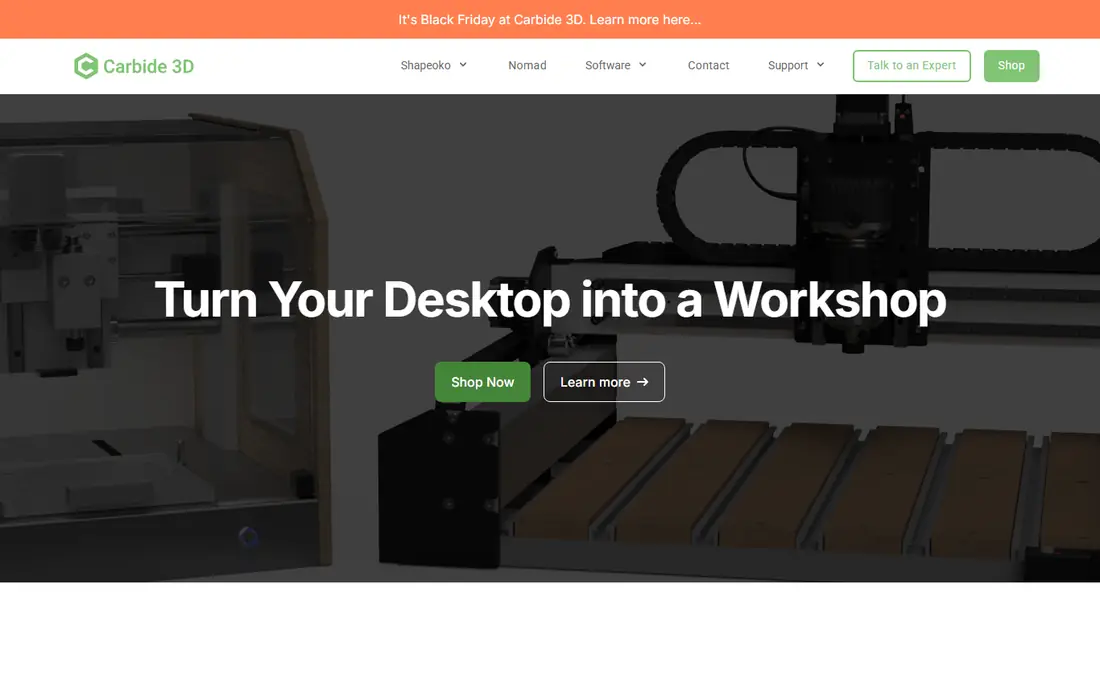
If Simple design and CAM is the job, start here: it guides new users from a simple design to toolpaths without demanding CAD experience first. That gentle path helps beginners finish a first project instead of getting stuck in settings. It fits readers who want a practical option without a long setup, and it pairs well with the other choices on this list for comparison.
The honest catch is that the free version has limits, and it works best with Carbide machines. There is no charge for the core product, though paid upgrades exist in most cases. That balance of strengths and limits is what kept it on the list, even though it is not the right pick for every reader.
- Easy learning curve
- Good for Carbide machines
- Free version
- Free version has limits
- Best with Carbide hardware
Easel
Ideal for: Browser-based carving software
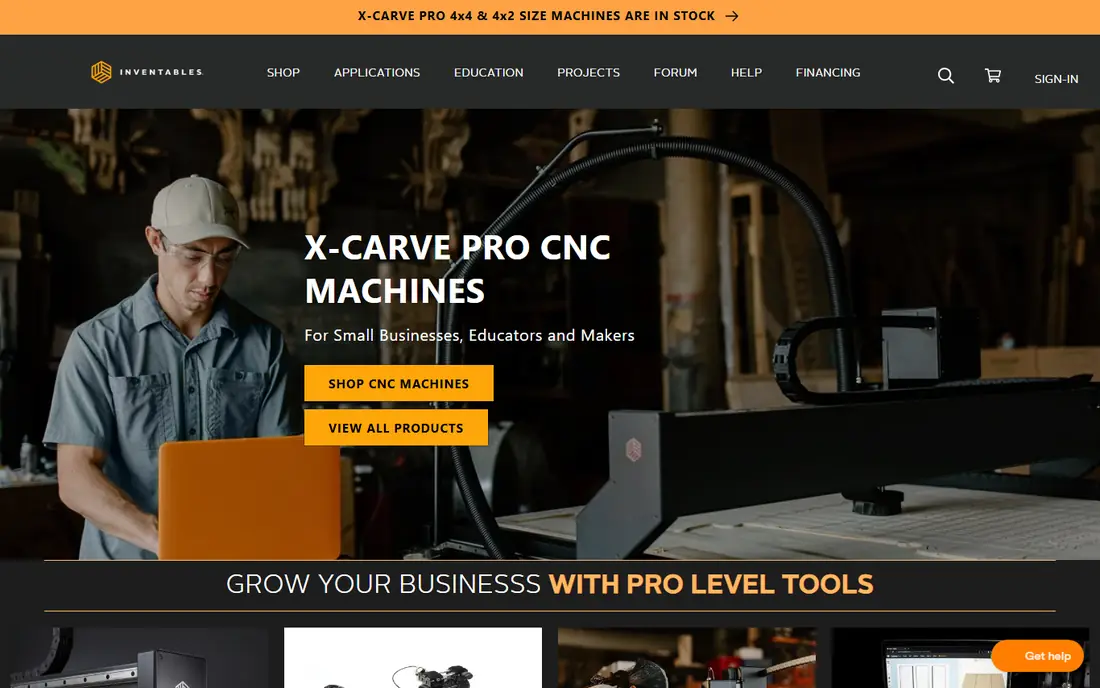
This option suits Browser-based carving software well, since it runs in a browser, so beginners can design and carve without installing heavy software. A simple workflow from design to cut keeps early projects moving. It fits readers who want a practical option without a long setup, and it pairs well with the other choices on this list for comparison.
What holds it back a little is that some features need a paid plan, and the machine range is narrower than desktop CAM tools. There is no charge for the core product, though paid upgrades exist in most cases. That balance of strengths and limits is what kept it on the list, even though it is not the right pick for every reader.
- Runs in a browser
- Simple workflow
- Inventables support
- Some features need a paid plan
- Machine range is narrower
Fusion 360
Ideal for: Full CAD and CAM in one tool
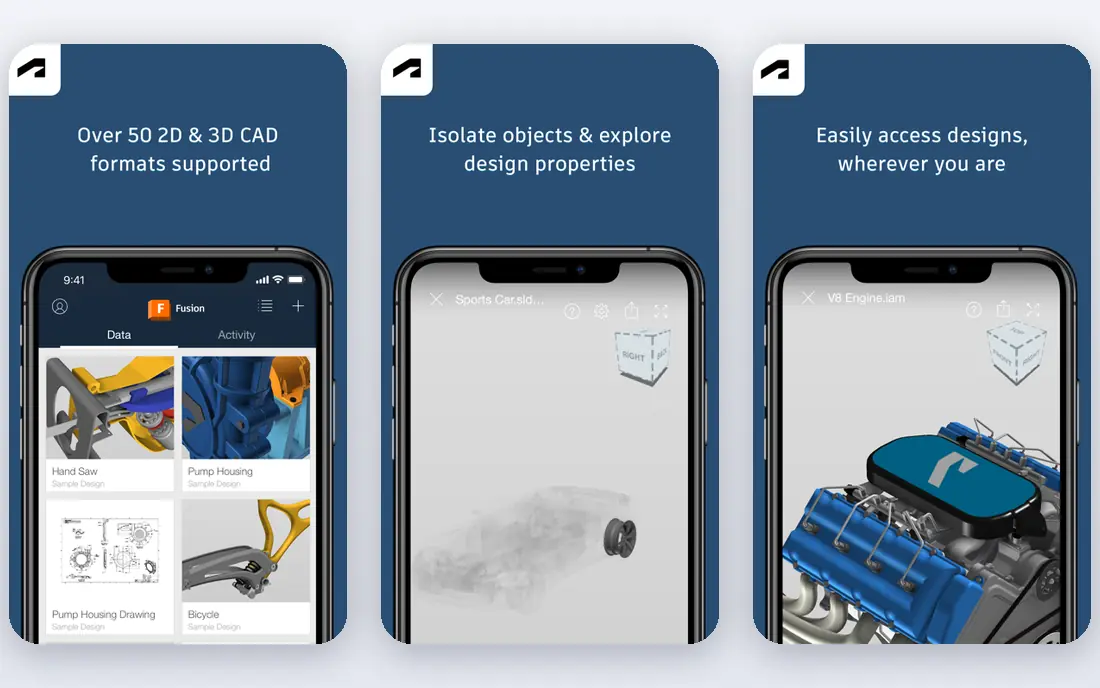
Buyers focused on Full CAD and CAM in one tool will find a lot to like, as it combines full CAD design with CAM toolpaths, so beginners can grow without switching tools later. Huge learning resources and a large community make it easier to find help for common problems. It fits readers who want a practical option without a long setup, and it pairs well with the other choices on this list for comparison.
The downside to weigh is that the learning curve is steep, and commercial use needs a subscription. Pricing is quoted rather than published as a single list price, so check the vendor site for the current figure for your setup. That balance of strengths and limits is what kept it on the list, even though it is not the right pick for every reader.
- Full CAD plus CAM
- Huge learning resources
- Personal use option
- Learning curve is steep
- Subscription for commercial use
VCarve Desktop
Ideal for: Sign and woodworking CAM
For teams or readers weighing Sign and woodworking CAM, this is a strong candidate because it excels at text, signs, and decorative carving, with previews that show the result before cutting. Woodworkers will find its toolset matches the projects they actually want to make. It fits readers who want a practical option without a long setup, and it pairs well with the other choices on this list for comparison.
Before you commit, note that it is a paid license and runs on Windows only. Pricing is quoted rather than published as a single list price, so check the vendor site for the current figure for your setup. That balance of strengths and limits is what kept it on the list, even though it is not the right pick for every reader.
- Strong text and carving tools
- Good previews
- Woodworking focus
- Paid license
- Windows only
FreeCAD
Ideal for: Free open source CAD
When Free open source CAD matters most, this option stands out for it offers parametric CAD free, so beginners can learn real design skills without a subscription. An active community produces tutorials and add-ons that extend what the base program can do. It fits readers who want a practical option without a long setup, and it pairs well with the other choices on this list for comparison.
One limitation worth knowing is that the interface takes learning, and CAM work often needs add-ons. There is no charge for the core product, though paid upgrades exist in most cases. That balance of strengths and limits is what kept it on the list, even though it is not the right pick for every reader.
- Free and open source
- Parametric design
- Active community
- Interface takes learning
- CAM needs add-ons
Estlcam
Ideal for: Low-cost CAM and control
For Low-cost CAM and control, this one earns a close look because it handles CAM and machine control in one low-cost program with a simple interface. That combination suits hobbyists who want one tool from design file to cutting. It fits readers who want a practical option without a long setup, and it pairs well with the other choices on this list for comparison.
The trade-off is that the community is smaller than bigger rivals, and it runs on Windows only. Pricing is quoted rather than published as a single list price, so check the vendor site for the current figure for your setup. That balance of strengths and limits is what kept it on the list, even though it is not the right pick for every reader.
- Low cost
- CAM plus machine control
- Simple interface
- Smaller community
- Windows only
Universal Gcode Sender
Ideal for: Free machine control software
If Free machine control software is the job, start here: it sends toolpaths to a wide range of machines free, which makes it a useful companion to design software. Simple sending controls keep the focus on the cut rather than on extra features. It fits readers who want a practical option without a long setup, and it pairs well with the other choices on this list for comparison.
The honest catch is that it handles control only, with no design tools, and setup needs care. There is no charge for the core product, though paid upgrades exist in most cases. That balance of strengths and limits is what kept it on the list, even though it is not the right pick for every reader.
- Free and open source
- Wide machine support
- Simple sending
- Control only, no design
- Setup needs care
CNCjs
Ideal for: Browser-based machine control
This option suits Browser-based machine control well, since it offers machine control through a browser interface, so a workshop computer or tablet can run the job. GRBL support covers many hobby machines. It fits readers who want a practical option without a long setup, and it pairs well with the other choices on this list for comparison.
What holds it back a little is that it handles control only, and setup takes technical care for new users. There is no charge for the core product, though paid upgrades exist in most cases. That balance of strengths and limits is what kept it on the list, even though it is not the right pick for every reader.
- Free and open source
- Browser interface
- GRBL support
- Control only
- Setup takes technical care
How we picked these
We started from the topic itself and kept only products that exist, work in October 2026, and truly fit what a reader searching this topic would want. We compared official feature pages, pricing pages, app store listings, privacy policies, and public reviews, and we left out products whose pricing or core features we could not verify. Where a price was not published clearly, we wrote See website rather than guessing a figure.
We also gave weight to fit over fame. A well-known name stayed on the list only if it matched the topic, and a smaller option earned a place when it solved the same problem well. We did not claim hands-on testing that did not happen, and we noted honest weaknesses alongside the strengths for every option.
Choosing your first CNC software
Start with your machine. Check which software your machine maker supports or recommends, since a smooth connection matters more than a long feature list. A tool that will not talk to your machine cleanly will frustrate every project.
Next, match the software to your first projects. Simple signs and carvings suit Easel or Carbide Create, while parts with precise dimensions suit Fusion 360 or FreeCAD. Buying a complex tool for simple work wastes learning time.
Finally, practice on cheap material first. Run test cuts on scrap wood or foam, check speeds and feeds for your bit, and learn safe clamping before cutting a real project. Early patience saves material and broken bits.
Frequently asked questions
What software do beginners need for CNC?
Most beginners need design software to draw the part, CAM software to create toolpaths, and control software to send the job to the machine. Some tools combine two or all three steps.
Is there good free CNC software?
Yes, FreeCAD, CNCjs, Universal Gcode Sender, and the free tiers of Carbide Create and Easel all work well. Free tools often need more learning, but they are fully usable.
What is the difference between CAD and CAM?
CAD is the design step where you draw the part, while CAM turns that design into toolpaths the machine can follow. Many modern tools include both steps.
Do I need a powerful computer?
Simple carving software runs on modest computers, while full CAD and CAM tools benefit from more memory and a better processor. Check system requirements before buying a subscription.
How do I stay safe using CNC software?
Learn your machine's safety rules, clamp material firmly, keep hands clear of moving parts, and never leave a running machine unattended. Software settings for speed and depth also affect safety.