Best Coding Software in 2026: 8 Tools Compared

- 1
 Visual Studio CodeMost developersVisit
- 2
 JetBrains IntelliJ IDEAJava and Kotlin prosVisit
- 3
 PyCharmPython developersVisit
- 4
 Sublime TextFast lightweight editingVisit
- 5
 ZedFast collaborative editingVisit
- Visual Studio Code is our pick for most people because it is free, extensible and works for almost every language.
- Beginners should start with a simple editor and a learning app, not a heavy IDE.
- JetBrains IDEs suit professional developers who want deep language support and refactoring tools.
- AI coding assistants speed up routine work, but you still need to read and test the code they produce.
- Most coding software is free for individuals, so pay only when a paid IDE clearly saves you time.
Quick comparison
| Product | Ideal for | Price from | Free version | |
|---|---|---|---|---|
| Visual Studio Code | Most developers | Free | Yes | Visit |
| JetBrains IntelliJ IDEA | Java and Kotlin pros | Free | Yes | Visit |
| PyCharm | Python developers | Free | Yes | Visit |
| Sublime Text | Fast lightweight editing | See website | Free trial | Visit |
| Zed | Fast collaborative editing | Free | Yes | Visit |
 Replit | Learning in browser | Free | Yes | Visit |
 Codecademy | Learning to code | Free | Yes | Visit |
 GitHub Copilot | AI coding assistance | See website | Yes | Visit |
The best coding software
Coding software ranges from simple text editors to full development environments with debugging, testing and AI help. We compared official feature pages, pricing, app listings and public reviews to find tools that still work well in October 2026.
Visual Studio Code
Ideal for: Most developers
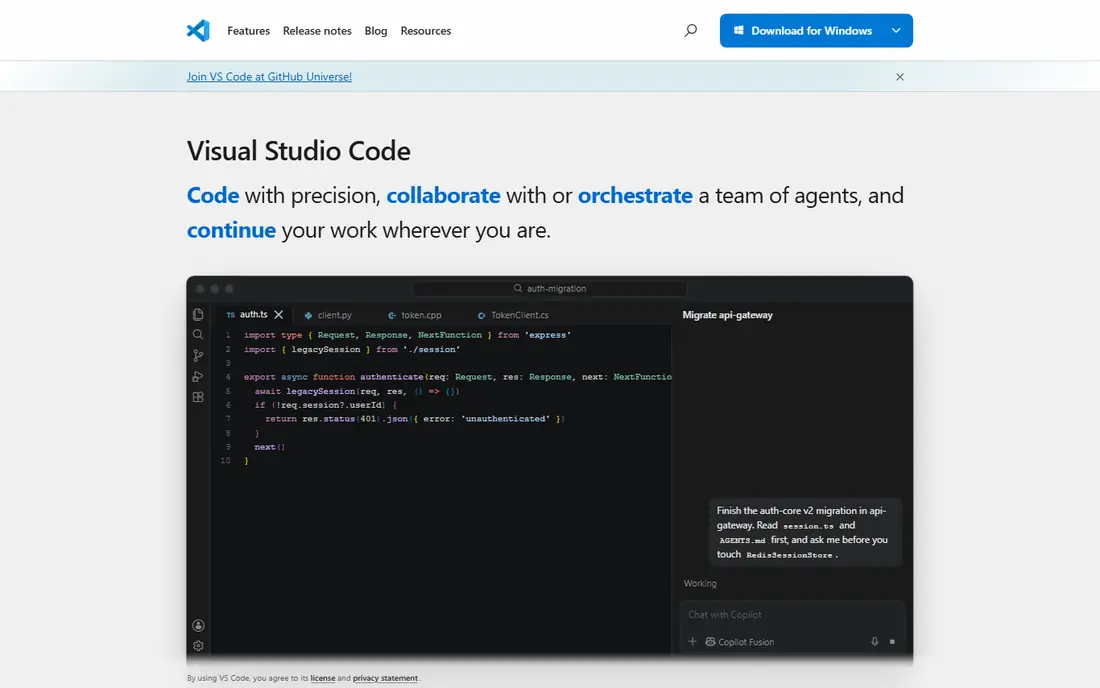
Visual Studio Code, usually called VS Code, is the best coding software for most people. It is free, runs on Windows, Mac and Linux, and supports almost every language through extensions. Built in debugging, Git integration, terminal and AI assistance through extensions like GitHub Copilot make it a complete environment without paying anything.
Beginners may find the extension choices overwhelming at first, so start with the basics and add extensions only when you need them. For learning, VS Code pairs well with a structured course, and for professional work, it scales from a single script to a large project without switching tools.
- Free and open source
- Huge extension library
- Works for almost every language
- Can feel complex for absolute beginners
- Performance varies with many extensions
JetBrains IntelliJ IDEA
Ideal for: Java and Kotlin pros

IntelliJ IDEA is the standard IDE for Java and Kotlin developers, with code completion, refactoring and debugging that go deeper than a general editor. The Community version is free and covers core Java and Kotlin work, while Ultimate adds web, database and enterprise features for a subscription price. That depth saves professional developers real time on large codebases.
The trade-off is weight and cost. IntelliJ uses more memory than VS Code, and Ultimate is paid, so casual coders may not need it. If you work in Java or Kotlin daily, though, IntelliJ is often worth the investment, and the free Community version is a good place to test it.
- Deep Java and Kotlin support
- Powerful refactoring
- Smart code completion
- Paid Ultimate version for full features
- Heavier than VS Code
- Learning curve
PyCharm
Ideal for: Python developers

PyCharm, also from JetBrains, is the most capable Python IDE, with smart completion, debugging, testing and virtual environment support built in. Data scientists benefit from its notebook and database tools, while web developers get Django and Flask support in the Professional version. The Community version is free and covers core Python work.
For a quick script, VS Code or Zed is faster and lighter, so PyCharm is best for larger Python projects where its tools pay off. Students and open source contributors may qualify for free Professional licences, so check JetBrains education terms before paying.
- Best Python specific IDE
- Strong debugging and testing
- Data science tools
- Professional version is paid
- Heavier than a simple editor
- Overkill for small scripts
Sublime Text
Ideal for: Fast lightweight editing
Sublime Text is famous for speed. It opens instantly, handles large files smoothly and offers powerful multi cursor editing that many developers love. Its interface is clean and distraction free, which suits writers and developers who want an editor, not a full IDE.
The licence model is the catch. Sublime Text can be evaluated for free, but continued use requires a paid licence, and its built in debugging and Git tools are thinner than VS Code's. If speed is your top priority and you are happy to pay, Sublime Text is excellent, but most users will get more for free from VS Code.
- Very fast startup
- Clean interface
- Powerful multi cursor editing
- Paid licence for continued use
- Fewer built in tools than VS Code
- Smaller extension library
Zed
Ideal for: Fast collaborative editing
Zed is a newer, open source editor built for speed and collaboration. It starts quickly, handles large projects smoothly and lets multiple people edit together in real time, which is useful for pair programming and teaching. Its modern interface feels cleaner than VS Code's extension heavy setup.
Being newer means fewer extensions and a smaller community than VS Code, and Windows support has lagged behind Mac and Linux. If you want a fast, modern editor and do not rely on a long list of VS Code extensions, Zed is a promising alternative, and it is free and open source.
- Very fast and lightweight
- Built in collaboration
- Modern interface
- Newer, so fewer extensions than VS Code
- Mac and Linux focus
- Windows support evolving
Replit
Ideal for: Learning in browser
Replit lets you code entirely in the browser, with no install and no setup, which makes it ideal for learning and for trying a new language quickly. You can share a project with a link, collaborate in real time and run code on Replit's servers. That low friction is why many courses and bootcamps use it for beginners.
Free tier resources are limited, and serious projects need a paid plan, while offline work is not possible. For learning, prototyping and sharing small projects, Replit is excellent, but for large professional work, a local editor like VS Code is usually better.
- No install needed
- Runs in browser
- Easy sharing and collaboration
- Free tier limits resources
- Paid plans for serious projects
- Internet required
Codecademy
Ideal for: Learning to code
Codecademy is a learning platform rather than a code editor, but it belongs on this list because many readers searching for coding software actually want to learn to code. Its interactive lessons let you write code in the browser and get immediate feedback, with courses in Python, JavaScript, SQL and more. Progress tracking helps beginners stay motivated.
The free tier covers introductory courses, while the full catalogue needs a Pro subscription. Codecademy will not replace VS Code for real projects, so use it to learn, then move to VS Code or Replit for your own work once you are comfortable with the basics.
- Structured interactive lessons
- Browser based practice
- Tracks progress
- Not a general code editor
- Full catalogue needs Pro
- Learning only, not production coding
GitHub Copilot
Ideal for: AI coding assistance
GitHub Copilot is an AI pair programmer that suggests code as you type, based on context from your project. It speeds up boilerplate, tests and common patterns, and it works inside VS Code, JetBrains IDEs and other editors. A free tier exists for some users, including students and open source maintainers, while most professionals pay a subscription.
AI suggestions are not always correct, secure or idiomatic, so you must read, test and understand every suggestion before using it. Copilot is a productivity tool, not a replacement for learning to code, and beginners should use it sparingly until they can judge its output.
- AI completions in your editor
- Speeds up routine code
- Works in VS Code and JetBrains
- Suggestions need checking
- Can produce insecure or incorrect code
- Paid for most users
How we picked these
We compared official feature pages, pricing pages, app listings and public reviews, and we only included tools that still work in October 2026. We favoured free and widely used editors for most readers, and we included professional IDEs and learning platforms where they solve a distinct need.
How to choose coding software
Beginners should start simple. Install VS Code, pick one language, and follow a structured course like Codecademy or a free tutorial series. Avoid installing dozens of extensions or buying a paid IDE before you know what you need, since a simple setup with a good course beats a complex setup with no plan.
Professional developers should choose by language and project size. Java and Kotlin developers benefit from IntelliJ, Python developers from PyCharm, and web developers from VS Code with the right extensions. Whatever you choose, learn Git early, write tests for important code, and treat AI suggestions as drafts to review, not finished code to trust blindly.
Frequently asked questions
What is the best coding software for beginners?
Visual Studio Code is the best free starting point, paired with a learning platform like Codecademy or Replit for interactive lessons. Start with one language and a simple setup.
Is Visual Studio Code free?
Yes, Visual Studio Code is free and open source for Windows, Mac and Linux. Extensions are mostly free, while AI tools like GitHub Copilot may need a separate subscription.
What is the difference between an editor and an IDE?
An editor, like VS Code or Sublime Text, focuses on writing and editing code, while an IDE, like IntelliJ or PyCharm, adds deep debugging, refactoring and project tools for a specific language. Editors are lighter, IDEs are more powerful for large projects.
Should I use AI coding tools as a beginner?
Use them sparingly, since you need to learn to read and debug code yourself first. AI tools speed up routine work for experienced developers, but they can produce incorrect code that a beginner may not spot.
Which editor should I choose if I want AI help?
GitHub Copilot works inside VS Code and JetBrains IDEs, while Cursor offers AI editing built in. Both need checking, since AI suggestions can be incorrect, so read and test every suggestion before using it.