Best design apps in 2026: 8 Options Compared

- Figma is the standard for interface and product design teams, while Illustrator leads for print-ready vector work.
- Affinity is now free and is the strongest no-subscription professional option.
- Procreate at $12.99 once is the best iPad drawing value, and Canva suits fast marketing graphics.
- Pick by output type: vector, raster, interface or print, since no single app leads them all.
Quick comparison
| Product | Ideal for | Price from | Free version | |
|---|---|---|---|---|
 Figma | interface and product design teams | $16 per editor per month | Yes | Visit |
 Adobe Illustrator | professional vector and print design | $22.99 per month | Free trial (7 days) | Visit |
 Canva | fast marketing graphics for non-designers | $18 per month | Yes | Visit |
 Procreate | iPad illustration and painting | $12.99 one-time | No | Visit |
 Sketch | Mac-based interface design teams | $9 per editor per month | Free trial | Visit |
 CorelDRAW Graphics Suite | print shops and Windows design teams | $269 per year | Free trial (15 days) | Visit |
 Inkscape | free vector editing on any desktop | Free | Yes | Visit |
 Pixlr | quick photo edits without installing anything | $1.99 per month | Yes | Visit |
The best design apps
Here is our shortlist for best design apps, ordered from the most broadly useful picks to the more specialised ones. Every entry below is a real product you can sign up for or buy today, with pricing taken from the vendor site or app store listing where we could verify it.
Figma
Ideal for: interface and product design teams

This one is aimed at interface and product design teams. Figma is the standard for interface design, with real-time collaboration, reusable components and developer handoff that product teams rely on daily. The Starter plan is free, and Professional seats start at $16 per editor a month billed annually.
It is weaker for print work and detailed illustration than Adobe tools, and AI features sit behind paid seats. For product and web teams, it remains the home base.
- Real-time collaboration
- Component and design system tools
- Developer handoff
- Weak for print and complex illustration
- AI features need paid seats
Adobe Illustrator
Ideal for: professional vector and print design
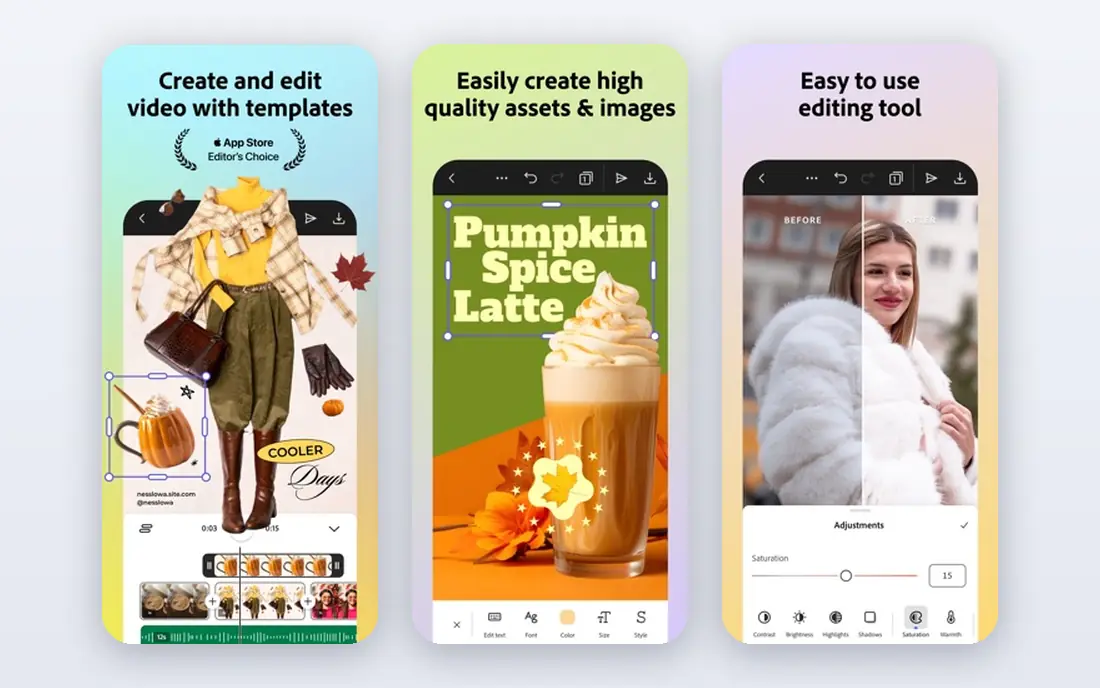
Think of Adobe Illustrator as the pick for professional vector and print design. Adobe Illustrator remains the industry standard for vector design, logos and print work, with precise path, type and colour controls that print shops expect. The single-app plan is $22.99 a month on an annual plan billed monthly.
The subscription adds up over years, and beginners face a steep learning curve. For professional vector work that must be print-ready, it is still the benchmark.
- Industry-standard vector tools
- Print-ready output
- Deep type and path controls
- Subscription adds up
- Steep learning curve for beginners
Canva
Ideal for: fast marketing graphics for non-designers
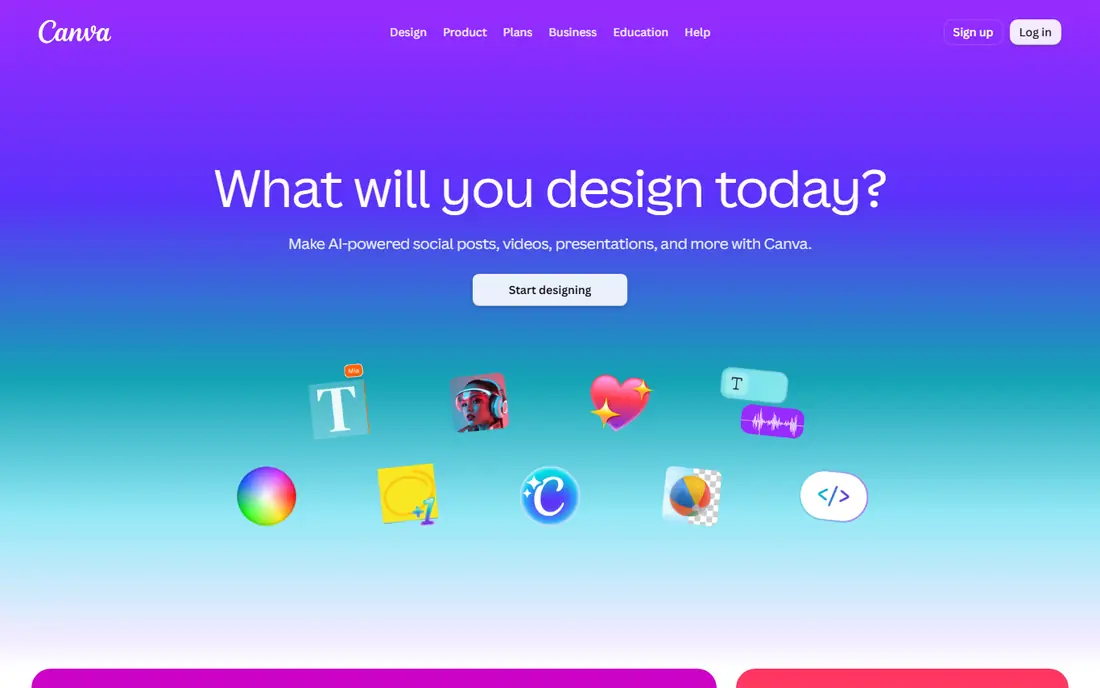
For fast marketing graphics for non-designers, Canva deserves a close look. Canva is the fastest route to social posts, flyers, decks and brand assets without design training, with templates and a drag-and-drop editor that anyone can use. Pro at $18 a month adds Brand Kit, background remover and Magic Resize.
It is limited for portfolio-grade brand systems and interface work, where Figma and Illustrator lead. For weekly marketing output, its speed is unmatched.
- Huge template library
- Drag-and-drop editor
- Brand Kit and Magic Resize on Pro
- Limited for portfolio-grade brand and UI work
- AI usage is metered
Procreate
Ideal for: iPad illustration and painting
This is the option we would point iPad illustration and painting toward first. Procreate costs $12.99 once and gives iPad artists a superb brush engine, layers and animation tools with no subscription. It is the default sketching and illustration app for iPad owners.
It is iPad only, so desktop print preparation still needs another tool, and there is no free tier. For drawing on iPad, the value is exceptional.
- One-time price with no subscription
- Excellent brush engine
- Large artist community
- IPad only
- No desktop version
- Print prep needs another tool
Sketch
Ideal for: Mac-based interface design teams
Sketch earns its place here for Mac-based interface design teams. Sketch is a native Mac interface design app with a strong plugin ecosystem and a lower seat price than Figma at $9 per editor a month, or $99 a year. Teams that prefer a desktop app over a browser tool still favour it.
It is Mac only, and its real-time collaboration is thinner than Figma. For Mac-based teams that value a native app, it remains a solid choice.
- Native Mac app with strong plugin ecosystem
- Offline-friendly
- Lower seat price than Figma
- Mac only
- Collaboration is thinner than Figma
CorelDRAW Graphics Suite
Ideal for: print shops and Windows design teams
If your shortlist is built around print shops and Windows design teams, start with CorelDRAW Graphics Suite. CorelDRAW Graphics Suite bundles vector illustration, page layout and photo editing in one package, with a subscription at $269 a year or a one-time purchase at $549. Print shops and sign makers value its production tools.
It is Windows-focused and the interface feels dated next to newer rivals. For teams that refuse to rent software forever, the purchase option is a rare advantage.
- Full vector, layout and photo tools in one suite
- One-time purchase option at $549
- Windows-focused
- Interface feels dated to some users
Inkscape
Ideal for: free vector editing on any desktop
Among the options here, Inkscape speaks most directly to free vector editing on any desktop. Inkscape is a free, open-source vector editor that handles logos, illustrations and diagrams across Windows, Mac and Linux. For hobbyists and freelancers on a budget, it covers most vector work without a subscription.
The interface is less polished than Illustrator, and very complex files can slow it down. As a free vector tool, though, it is genuinely usable rather than a teaser.
- Completely free and open source
- Capable vector tools
- Runs on Windows, Mac and Linux
- Interface is less polished
- Performance lags on very complex files
Pixlr
Ideal for: quick photo edits without installing anything
For readers focused on quick photo edits without installing anything, Pixlr is a strong match. Pixlr runs in the browser with layers, filters and adjustment tools, starting at $1.99 a month billed annually, with a free tier for basic edits. It suits quick photo fixes on shared or low-spec machines.
It lacks the depth of Photoshop or Affinity for serious retouching, and the free tier shows ads. For fast edits without an install, it is a handy tool.
- Browser-based editing with layers
- Opens common formats
- Very low starting price
- Less depth than Photoshop
- Ads on the free tier
How we picked these
We compared official feature pages, pricing pages, app store listings, privacy policies and public reviews for each product on this list, and we kept only products that exist and work today and that truly fit the topic. Where a price had changed between sources or we could not verify it on the vendor site, we wrote See website rather than print a number we could not stand behind. We also weighed who each product is really for, not just how long its feature list runs. A product with a smaller set of features can be the better buy when it matches your workflow, your budget and the size of your team, and we say so plainly in each write-up. We also checked what each product costs over a full year, not just the headline monthly price, since annual billing, seat minimums and add-on fees can change the real total by a wide margin. Free plans were judged against their limits too: a free tier that caps the exact feature you need most is not really free for your use case, and we say so in the write-up when that is the case. Where prices differed between the vendor site and review listings, we trusted the vendor site, and where we could not confirm a figure on the vendor site at all, we wrote See website rather than repeat a number from a third party. That caution is deliberate, because a wrong price is worse than no price when you are building a budget.
Match the app to the output, not the hype
Design apps split by output type, and that split should drive your choice. Interface work belongs in Figma or Sketch, vector and print work in Illustrator, CorelDRAW, Affinity or Inkscape, and drawing in Procreate or Krita. Marketing graphics belong in Canva. Buying one app for every job usually means it does one job well and the rest poorly.
If budget is the constraint, start with the free tier: Affinity is now free for professional vector, photo and layout work, Inkscape covers free vector editing, and Figma Starter covers interface basics. Add a paid tool only when a specific job, such as print-ready output or team collaboration, demands it.
Finally, before you commit to one of the options above, run it on a real task from your own work rather than a polished demo project. Use the free tier or trial for a full week, invite the people who will actually use it every day, and test the one workflow you cannot live without, whether that is exporting your data, inviting a teammate, sharing a result with a client or getting help when something breaks. Note how long each step takes and where you get stuck, since those friction points are what you will live with for months. The product that handles your real task with the least friction is the right one, even if another option looks stronger on a feature comparison page.
Frequently asked questions
What is the best design app?
Figma is best for interface design, Adobe Illustrator is best for professional vector and print work, and Canva is best for fast marketing graphics. Affinity is the best free professional option since it became free.
Is Affinity really free?
Yes, Affinity by Canva merged the former Designer, Photo and Publisher apps into one unified app that is free for all users, with all core professional features included. Some AI features are paid.
What is the best design app for beginners?
Canva is the easiest starting point for marketing graphics, while Figma Starter is free for interface basics. Procreate suits beginners who draw on iPad.
What design app do professionals use?
Professionals use Illustrator for vector and print, Photoshop for photo work, Figma for interfaces, and Procreate for iPad illustration. Most professionals use two or three tools, not one.