Best Design Software for Beginners in 2026: 8 Tools Compared

- 1
 CanvaAll-round beginner designVisit
- 2
 Adobe ExpressAdobe templates and assetsVisit
- 3
 FigmaLearning interface designVisit
- 4
 Affinity DesignerPro vector without subscriptionVisit
- 5
 PicMonkeyPhoto design and touch-upsVisit
- Canva is our pick for most beginners, with a huge template library, drag-and-drop editing and a free tier that covers most everyday design jobs.
- Adobe Express suits beginners who want Adobe polish and assets, while Figma suits beginners who want to learn real interface design with a free tier.
- Affinity Designer suits beginners who want professional vector tools without a subscription, though its learning curve is steeper than Canva.
- Start with templates, then learn one skill at a time, such as alignment, colour or type, rather than trying to master a full design suite in week one.
Quick comparison
| Product | Ideal for | Price from | Free version | |
|---|---|---|---|---|
| Canva | All-round beginner design | See website | Yes | Visit |
| Adobe Express | Adobe templates and assets | See website | Yes | Visit |
| Figma | Learning interface design | See website | Yes | Visit |
| Affinity Designer | Pro vector without subscription | See website | No | Visit |
| PicMonkey | Photo design and touch-ups | See website | No | Visit |
 Snappa | Fast social graphics | See website | Yes | Visit |
 VistaCreate | Templates and animations | See website | Yes | Visit |
 Vectr | Free simple vector editing | Free | Yes | Visit |
The best design software for beginners
Beginner design software must make a good result possible on day one, through templates, guided editing and forgiving tools, while still teaching skills that transfer to harder tools later. We compared template libraries, editing ease, export options, learning curves and pricing for tools still operating in October 2026.
Canva
Ideal for: All-round beginner design
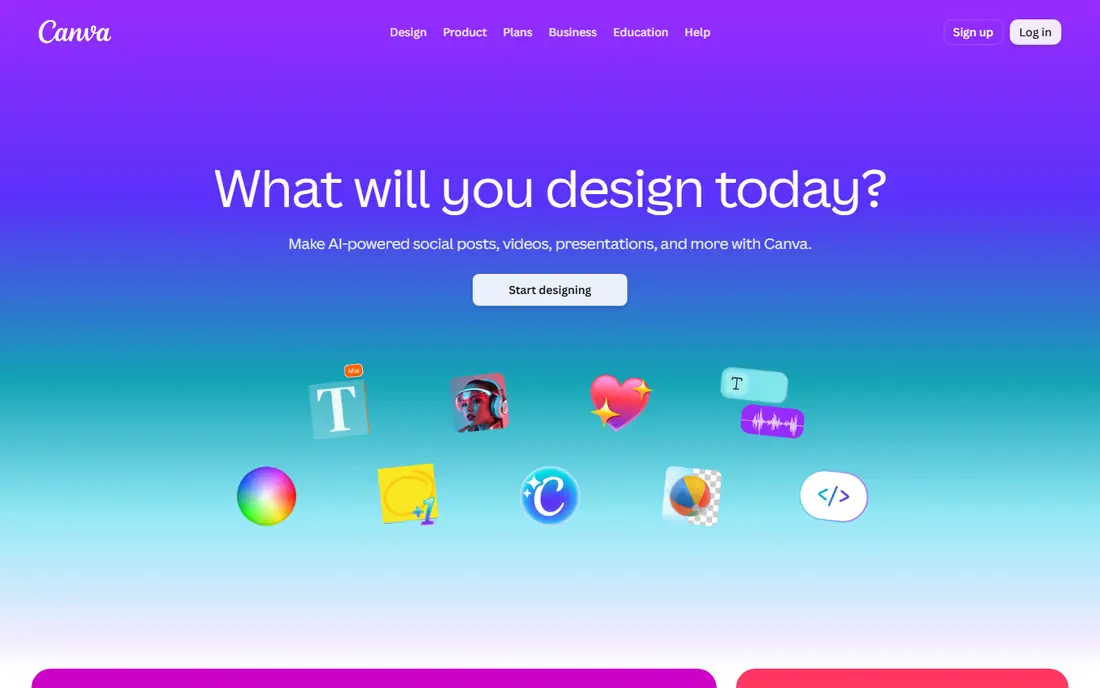
Canva is the beginner pick for most people. Its templates cover social posts, stories, presentations, flyers, logos and videos, with drag-and-drop editing, fonts, photos and elements that make a polished result possible in minutes. A free tier covers most everyday jobs, with Pro adding premium assets, brand kits and background removal.
The catch is ceiling. Canva designs start from templates, so highly original work needs more control than Canva offers, and professional print or vector work may need Affinity or Figma later. For a beginner who needs good design today, Canva is the easiest and most capable starting point.
- Huge template library for social, presentations and print
- Drag-and-drop editing
- Free tier covers most everyday jobs
- Design control is templated compared with Figma or Affinity
- Premium assets need a Pro plan
Adobe Express
Ideal for: Adobe templates and assets
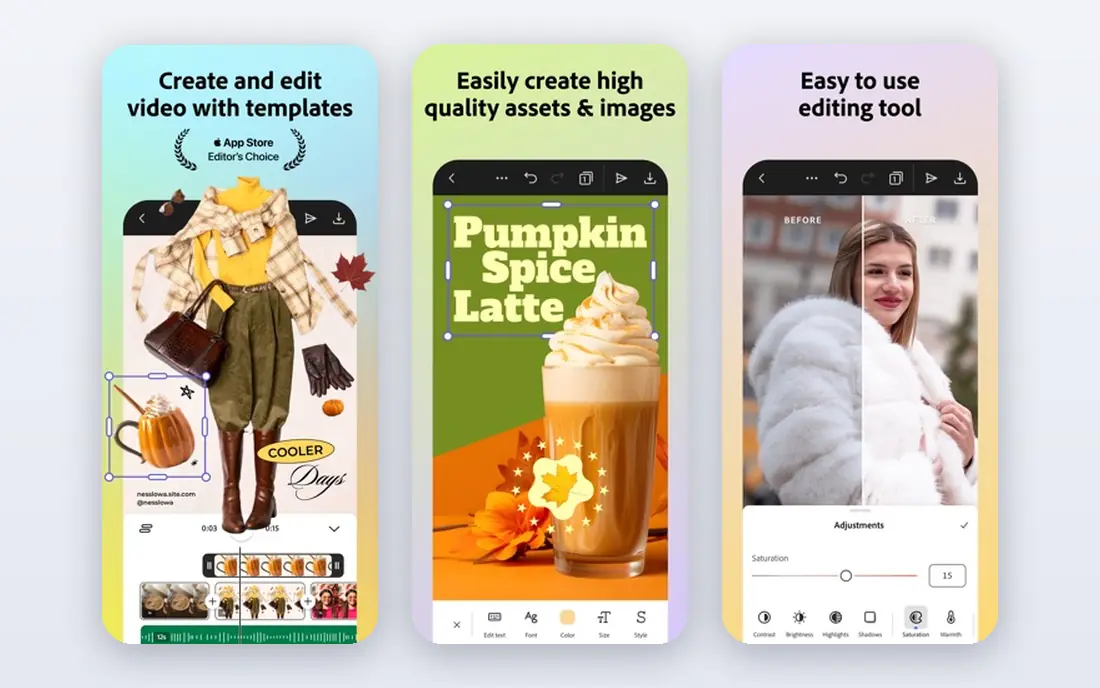
Adobe Express suits beginners who want Adobe polish without Adobe complexity. Its templates, fonts and stock assets produce clean social posts, flyers and short videos quickly, with a free tier for core use and a Premium plan for more assets and brand tools. That Adobe asset quality shows in type and imagery choices.
The weakness is scope. Adobe Express is a quick design tool, not a full vector or interface platform, so a beginner who later wants professional illustration or app design will move to Affinity or Figma. For fast, polished everyday design with Adobe assets, Express is a strong Canva alternative.
- Adobe-quality templates and assets
- Quick social and marketing designs
- Integration with Adobe fonts and stock
- Premium assets need a paid plan
- Design depth trails Figma for interface work and Affinity for vector work
Figma
Ideal for: Learning interface design
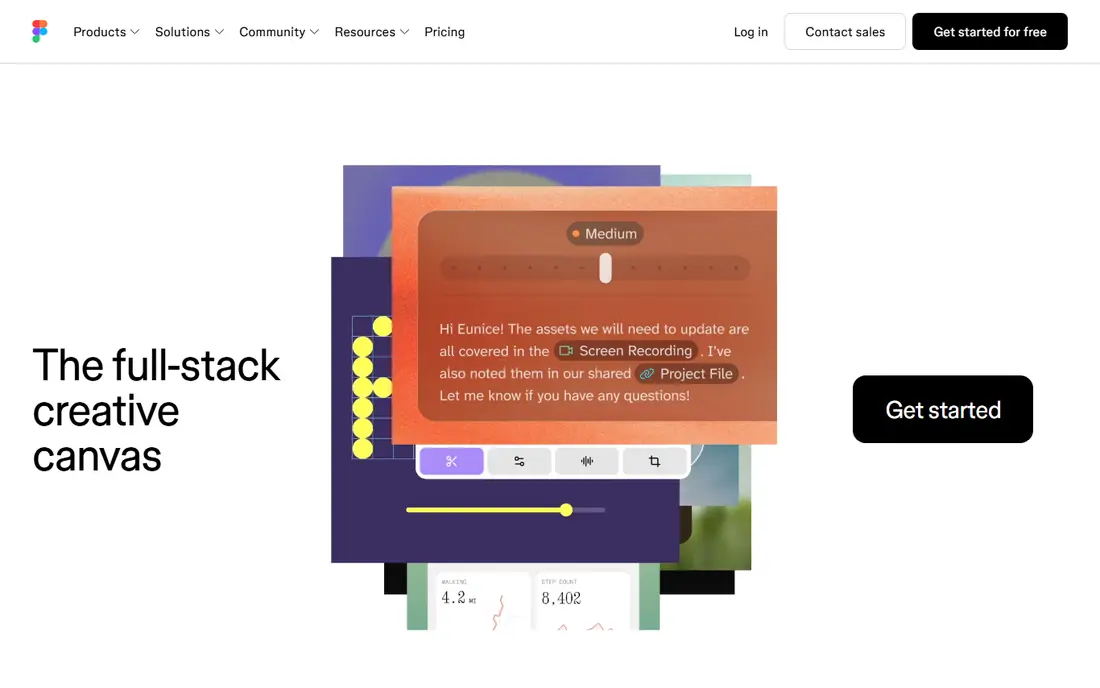
Figma suits beginners who want to learn design properly, especially interface and product design. Its free tier covers personal projects, its vector and layout tools teach real design skills, and its community files let a beginner study and remix professional work. Collaboration features let a beginner learn beside teammates in real time.
The catch is effort. Figma takes longer to learn than Canva, and it is not built for photo editing or print layout, so a beginner who only needs social posts may find Canva faster. For a beginner aiming at a design career or a startup role, Figma is the skill to learn first.
- Free tier for personal use
- Real interface design skills that transfer to jobs
- Collaboration and community files
- Learning curve is steeper than Canva
- Print and photo editing are not its focus
Affinity Designer
Ideal for: Pro vector without subscription
Affinity Designer suits beginners who want professional tools without a monthly fee. It combines vector drawing, raster painting and layout tools in one app, with a one-time purchase model that appeals to users tired of subscriptions. That depth supports logos, illustration, posters and brand work at a professional standard.
The weakness is guidance. Affinity offers fewer templates and less hand-holding than Canva, so a beginner must learn design principles through tutorials and practice. For a committed beginner who wants pro tools and no subscription, Affinity Designer is excellent long-term value.
- Professional vector and raster tools in one app
- One-time purchase with no subscription
- Strong for logos and illustration
- Learning curve is steeper than Canva
- Template library is thinner than Canva or Express
PicMonkey
Ideal for: Photo design and touch-ups
PicMonkey suits beginners who start from photos. Its editor combines photo touch-ups, filters and adjustments with design templates for social posts, invitations and marketing graphics, so a photo can become a finished design without switching apps. That photo-first flow appeals to sellers, bloggers and social creators.
The catch is free access. PicMonkey has no permanent free tier for full use, so a beginner must pay or trial to use it properly, while Canva and Adobe Express offer free tiers. For a photo-led beginner who values touch-ups beside design, PicMonkey is still worth a trial.
- Photo editing plus design templates in one tool
- Touch-up tools for portraits
- Easy social and marketing designs
- No permanent free tier for full use
- Design depth trails Canva for templates
Snappa
Ideal for: Fast social graphics
Snappa suits beginners who need a social graphic in minutes. Its preset sizes cover every major social platform, its editor is simple and fast, and its free tier covers basic use with a limited monthly download count. That speed makes Snappa a good second tool for a busy social poster.
The weakness is breadth. Snappa template library and design features are smaller than Canva, so a user who needs presentations, print or video will need another tool. For fast social graphics alone, Snappa is refreshingly quick.
- Fast social graphics with preset sizes
- Simple editor for beginners
- Free tier for basic use
- Template library is smaller than Canva
- Advanced design features are limited
VistaCreate
Ideal for: Templates and animations
VistaCreate, formerly Crello, suits beginners who want animated social designs beside static graphics. Its template library covers social posts, stories, ads and presentations, with animation tools that make a post move without video editing skills. A free tier covers basic use, with a Pro plan adding premium assets and brand tools.
The limit is pro depth. VistaCreate is template-led, so original illustration and interface design need Figma or Affinity instead. For a beginner who wants eye-catching animated posts fast, VistaCreate is a lively Canva alternative.
- Large template library with animations
- Easy editor for social and marketing designs
- Free tier for basic use
- Brand and team features need a paid plan
- Design control trails Figma and Affinity
Vectr
Ideal for: Free simple vector editing
Vectr suits beginners who want to try vector design free. Its browser editor covers shapes, paths, text and layers for simple logos, icons and illustrations, with no install and no cost for core use. That low barrier makes Vectr a good first step into vector thinking before paying for Affinity.
The weakness is depth. Vectr features trail Affinity and Figma for professional work, and collaboration tools are limited. For a beginner testing whether vector design appeals, Vectr is free, simple and sufficient, with Affinity as the natural paid step up.
- Free vector editing in a browser
- Simple tools for logos and icons
- No install needed
- Feature depth trails Affinity and Figma
- Collaboration and advanced tools are limited
How we picked these
We compared template libraries, editing ease, export options, learning curves and pricing for tools still operating in October 2026. We kept template-led, interface-led and vector tools in the list, since beginners arrive with different goals. We did not complete a design course in each tool, and we did not repeat vendor claims about ease as measured facts.
What to check before you buy
Start with the job, not the tool. A social poster needs Canva, Snappa or VistaCreate speed, a future interface designer needs Figma skills, and a logo maker needs Affinity or Vectr vector tools. Pick the tool that matches your first three projects, not the tool with the longest feature list.
Next, learn one principle at a time. Alignment, spacing, colour contrast and type hierarchy matter more than any filter or effect, so study one principle each week and apply it to real projects. Templates help, but understanding why a template works is what turns a beginner into a designer.
Finally, check export quality before sharing widely. Confirm resolution, file format and background transparency for your use, whether social, print or web, since a design that looks good on screen can print poorly at low resolution. Export a test at full size, view it on the target device or paper, and only then publish or print at scale.
Frequently asked questions
What is the best design software for beginners?
Canva is our pick for most beginners because of its huge template library, easy editing and free tier. Adobe Express suits Adobe fans, Figma suits future interface designers, and Affinity Designer suits committed beginners who want pro vector tools without a subscription.
Is Canva really free?
Yes, Canva free tier covers most everyday design jobs, including templates, basic assets and exports. Pro adds premium assets, brand kits, background removal and more storage, so upgrade only when free limits actually block your work.
Should beginners learn Figma or Canva first?
Learn Canva first if you need good designs this week for social, school or work. Learn Figma first if you aim at interface, product or UX design as a skill or career, since Figma teaches layout, components and collaboration that Canva templates hide.
Can beginners design a logo without a designer?
Yes, for a simple logo, using Canva, Vectr or Affinity Designer with clean shapes, limited colours and readable type. A professional brand identity still benefits from a designer, but a clear, simple beginner logo works well for a new project or small business.
How long does it take to learn design software?
Basic Canva or Snappa skills take hours, while Figma or Affinity proficiency takes weeks of regular practice. Focus on one tool, complete small real projects weekly, and study alignment, colour and type alongside the software itself.