Best Diagramming Software in 2026: 8 Tools Compared

- 1
 LucidchartDedicated diagrammingVisit
- 2
 MiroWhiteboards and workshopsVisit
- 3
 diagrams.netFree diagrammingVisit
- 4
 WhimsicalFast product diagramsVisit
- 5
 MuralFacilitated workshopsVisit
- Lucidchart is the most complete dedicated diagramming tool, with data linking and a large shape library.
- diagrams.net and Excalidraw are free options that cover most everyday diagram needs without a subscription.
- Miro and Mural suit workshops and whiteboard sessions, while Whimsical suits fast product diagrams and wireframes.
- Microsoft Visio remains the pick for companies already deep in Microsoft 365, especially for data-linked diagrams.
Quick comparison
| Product | Ideal for | Price from | Free version | |
|---|---|---|---|---|
| Lucidchart | Dedicated diagramming | See website | Yes | Visit |
| Miro | Whiteboards and workshops | See website | Yes | Visit |
| diagrams.net | Free diagramming | Free | Yes | Visit |
| Whimsical | Fast product diagrams | See website | Yes | Visit |
| Mural | Facilitated workshops | See website | Free trial | Visit |
 Microsoft Visio | Microsoft 365 teams | See website | Free trial | Visit |
 Creately | Data-linked business visuals | See website | Yes | Visit |
 Excalidraw | Hand-drawn style sketches | Free | Yes | Visit |
The best diagramming software
We compared official feature pages, pricing pages, and app-store listings for diagramming tools available in October 2026. The list covers dedicated diagram apps, whiteboards, and free tools, so solo users and teams can both find a fit.
Lucidchart
Ideal for: Dedicated diagramming

Lucidchart is the dedicated diagramming tool most teams reach for first. It covers flowcharts, org charts, network diagrams, UML, and process maps, with templates that give a solid starting point. Data linking ties shapes to spreadsheet rows, and layers let you show different views of the same diagram without duplicating work.
The free tier is useful for trying it out, but serious use needs a paid plan, and the interface carries more options than a casual user may want. For a team that diagrams every week and needs polished, shareable output, Lucidchart's depth is worth the cost.
- Large template and shape libraries
- Data linking and layers
- Real-time collaboration
- Full feature set needs a paid plan
- Can feel heavy for a quick sketch
Miro
Ideal for: Whiteboards and workshops

Miro is a whiteboard first and a diagram tool second, which is exactly why many teams love it. Sticky notes, frames, voting, and timers support workshops, while shapes and connectors cover flowcharts and org charts well enough for planning sessions. The template library is huge, and integrations link boards to Jira, Slack, and Google Drive.
For precise technical diagrams, Miro is less exact than Lucidchart or Visio, and a busy board can become hard to read. But when the goal is a shared session where everyone contributes at once, Miro's open canvas is the better room to work in.
- Infinite canvas for workshops
- Thousands of templates
- Strong integrations
- Diagram precision is lower than Lucidchart
- Large boards can get messy
diagrams.net
Ideal for: Free diagramming
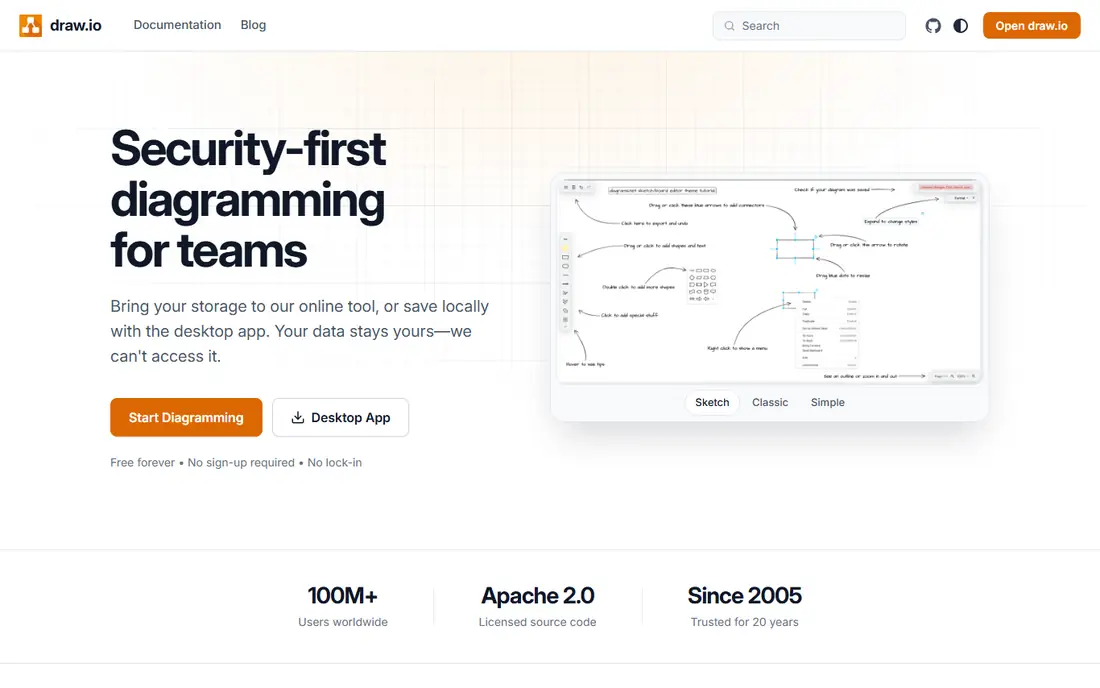
diagrams.net, also known as draw.io, is free diagramming software with no paywall for core features. You can open it in a browser, store files in Google Drive, OneDrive, or on your own device, and export to common formats. Shape libraries cover flowcharts, network diagrams, UML, and more, and files from older versions still open.
The trade-off is polish. Real-time collaboration exists but is less smooth than Miro or Lucidchart, and the interface looks more utilitarian. For individuals and small teams who want capable diagramming without a subscription, it is the best value on this list.
- Completely free
- No account needed
- Stores files where you choose
- Offline use
- Interface is plainer than paid rivals
- Collaboration is less polished
Whimsical
Ideal for: Fast product diagrams
Whimsical is built for speed. Flowcharts, wireframes, mind maps, and sticky note boards share one simple interface, and keyboard shortcuts keep diagramming quick. The output looks clean by default, which suits product teams that need to share a flow or a wireframe without styling work.
Depth is the limit. Whimsical does not match Lucidchart's shape libraries or data features, and larger companies may want stronger admin controls. For a product team that diagrams to think and to communicate, Whimsical's speed is a real advantage.
- Very fast to use
- Clean output
- Wireframes and mind maps included
- Smaller shape library than Lucidchart
- Fewer enterprise controls
Mural
Ideal for: Facilitated workshops
Mural is a visual workspace aimed at facilitated sessions: design thinking, journey mapping, and planning workshops. Facilitators can guide participants through steps, lock content, and run voting, while templates give structure to common exercises. AI tools help summarize and cluster sticky notes after a session.
For everyday flowcharts, Mural is not the sharpest tool, and its pricing reflects an enterprise audience. But for a team that runs workshops regularly and needs structure, privacy controls, and facilitation features, Mural is a strong pick.
- Strong facilitation tools
- Templates for design thinking
- Enterprise security options
- Pricing is higher than casual tools
- Diagram precision is modest
Microsoft Visio
Ideal for: Microsoft 365 teams
Visio remains the standard for formal business and engineering diagrams inside Microsoft shops. Plan 1 covers the web app, while Plan 2 adds the desktop app with data linking to Excel, Access, and SQL Server sources. Diagrams can live in SharePoint and Teams, and files use the familiar Visio format.
Buying is the awkward part, since Visio plans, Microsoft 365 bundles, and trial rules overlap. The web app also lacks some desktop features, including data linking setup. For a company already standardized on Microsoft 365, Visio's integration still makes it the natural choice.
- Data-linked diagrams from Excel and databases
- Deep shape libraries
- Microsoft 365 integration
- Windows desktop version is the fullest experience
- Plans can confuse buyers
Creately
Ideal for: Data-linked business visuals
Creately covers a wide set of visuals, from flowcharts and org charts to process maps, cloud architecture, and clinical maps. It can import data to build diagrams, and its newer products link people, processes, and systems into connected views. Collaboration, comments, and presentation mode support team review.
The product has expanded into several linked offerings, which can make it harder to see which plan covers the diagram type you need. For a team that wants one tool for many visual formats, Creately's breadth is attractive, and the free tier is a fair way to test it.
- Many diagram types and templates
- Data import
- Collaboration and presentation features
- Interface has grown complex as the product expanded
- Some features need higher plans
Excalidraw
Ideal for: Hand-drawn style sketches
Excalidraw is a free, open source whiteboard with a hand-drawn style that suits quick sketches, architecture doodles, and meeting notes. It runs in the browser, saves to local files, and offers a paid Excalidraw Plus tier for teams that want shared workspaces. The sketch style makes rough ideas feel approachable rather than final.
It is not a documentation tool. There are no deep shape libraries, data linking, or formal templates, so a polished process map belongs elsewhere. For fast thinking sketches and informal diagrams, Excalidraw is simple, free, and pleasant to use.
- Free and open source
- Hand-drawn look
- Drawings save locally
- No account needed
- No large shape libraries
- Not built for formal documentation
How we picked these
We compared official feature pages, pricing pages, and app-store listings for diagramming tools available in October 2026. We favored tools with solid shape libraries, export options, collaboration, and a working free tier or trial, and we included both dedicated diagram apps and whiteboards. We also checked export formats, template libraries, and collaboration features, since a diagram tool is only useful if others can open, edit, and comment on the result. We did not include our own product in this list.
How to choose a diagramming tool
Start with the job. Formal process documentation needs a dedicated tool such as Lucidchart or Visio, with templates, layers, and export control. Workshop and brainstorming sessions need a whiteboard such as Miro or Mural, where many people can add ideas at once. Quick personal sketches need only a free tool such as diagrams.net or Excalidraw.
Then check sharing and storage. Confirm the tool exports to the formats your team uses, stores files where your company allows, and lets guests view diagrams without a paid seat. A short trial with a real diagram from your own work will tell you more than any feature list, so test before committing a team to a plan.
When you compare diagramming tools, start with how your team actually shares diagrams. A tool with strong real-time collaboration suits a distributed team that edits together, while a file-based tool suits a team that passes diagrams around for review. Check export formats next: SVG and PDF matter for documents and presentations, PNG suits quick sharing, and Visio import matters if you already own VSDX files. Template libraries save time on flowcharts, org charts, network diagrams, and UML, but only if the templates match your work. Also check viewer pricing, since some tools charge for every editor while others let viewers comment for free. Security matters for internal architecture diagrams, so confirm sharing controls, guest access rules, and single sign-on on paid plans. Finally, test the tool with a real diagram from your own work, including a complex one with many shapes and connectors, before rolling it out. A tool that feels fast on a blank canvas can slow down on a diagram with hundreds of elements, and that slowdown only shows up in a real test.
Frequently asked questions
What is the best free diagramming software?
diagrams.net is the best free option for most people, since it covers flowcharts, org charts, and technical diagrams without a subscription. Excalidraw is a good free choice for informal sketches, while Lucidchart and Miro offer useful free tiers with limits.
Is Miro a diagramming tool?
Miro is mainly a whiteboard, but it handles flowcharts, org charts, and mind maps well enough for planning and workshops. For precise technical diagrams with data linking, a dedicated tool such as Lucidchart or Visio is a better fit.
What is the difference between Lucidchart and Visio?
Both are dedicated diagramming tools. Lucidchart is cloud-first with strong collaboration and data features, while Visio is strongest inside Microsoft 365, especially for data-linked diagrams on Windows. Teams outside Microsoft 365 usually find Lucidchart easier to adopt.
Can I use diagramming software offline?
Yes, in some cases. diagrams.net can run offline in the browser, Excalidraw saves locally, and Visio's desktop app works offline. Cloud whiteboards such as Miro and Mural need an internet connection for collaboration and saving.
Which diagramming tool is best for org charts?
Lucidchart is a strong pick for org charts, since it can import people data and build charts automatically. Visio and Creately also handle org charts well, and Whimsical suits a quick chart for a small team.
Can I import Visio files into these tools?
Yes, with varying fidelity. Lucidchart, diagrams.net, and Miro can import VSDX files, and they handle most shapes, connectors, and text well, though complex formatting, custom stencils, and some layers may need cleanup after import. Visio itself opens VSDX natively, so it needs no conversion. Before switching, import two or three of your most complex diagrams into a trial account and check that shapes, labels, and page layout survived. If a diagram uses many custom stencils, budget time to rebuild those parts, since no import is perfect for every file.