Best Digital Planner Apps: 8 Options Compared

- 1
 GoodNotesHandwritten iPad planningVisit
- 2
 NotabilityHandwriting plus audio notesVisit
- 3
 Microsoft OneNoteFree-form notes across devicesVisit
- 4
 NotionLinked planning and databasesVisit
- 5
 TickTickTasks, habits, and calendar planningVisit
- GoodNotes and Notability lead for handwritten tablet planning, while Notion and OneNote lead for typed, linked planning.
- A planner app works only if you open it daily, so pick the device and input style you already prefer.
- Free tiers cover basic planning well, but sync, templates, and collaboration usually need paid plans.
- Try one planner for a full week with real tasks before buying templates or a subscription.
Quick comparison
| Product | Ideal for | Price from | Free version | |
|---|---|---|---|---|
| GoodNotes | Handwritten iPad planning | See website | Free trial | Visit |
| Notability | Handwriting plus audio notes | See website | Free trial | Visit |
| Microsoft OneNote | Free-form notes across devices | Free | Yes | Visit |
| Notion | Linked planning and databases | Free | Yes | Visit |
| TickTick | Tasks, habits, and calendar planning | Free | Yes | Visit |
 Todoist | Simple task-based planning | Free | Yes | Visit |
 Sunsama | Guided daily planning | See website | Free trial | Visit |
 Motion | AI-scheduled calendar planning | See website | Free trial | Visit |
The best digital planner apps
A digital planner replaces paper diaries with searchable notes, reusable templates, and reminders that sync across devices. We compared eight apps that cover handwritten planning, task lists, and calendar-based planning for different work styles.
GoodNotes
Ideal for: Handwritten iPad planning
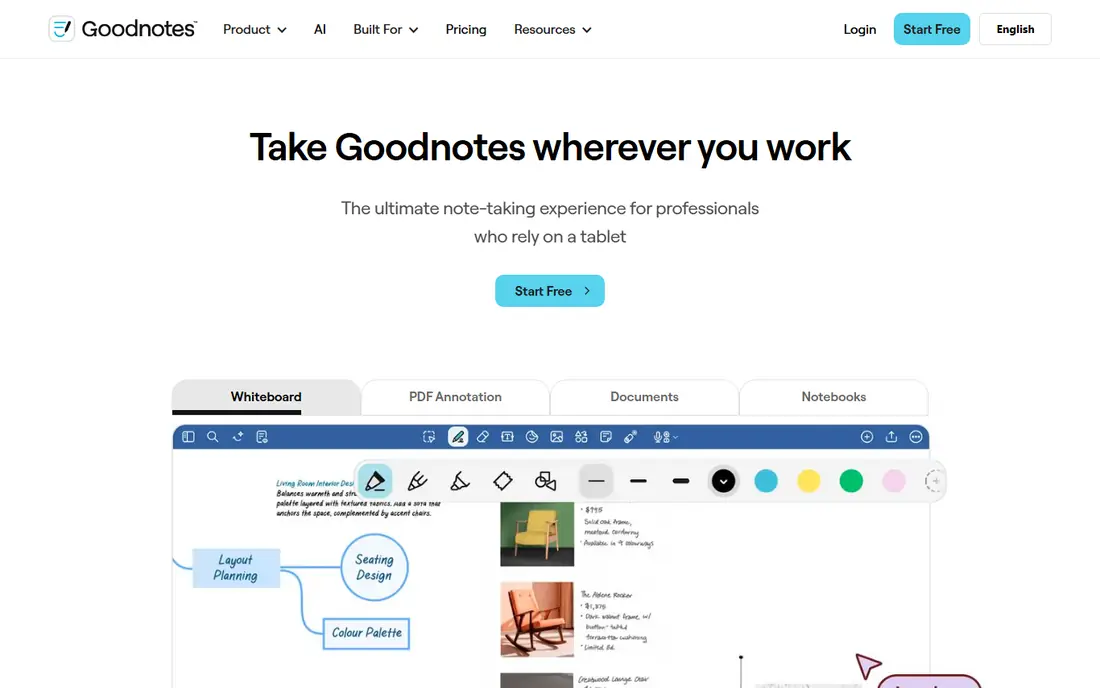
Our pick for Handwritten iPad planning is GoodNotes, and it stands out for excellent handwriting with PDF templates. Readers who want handwritten iPad planning will find its approach direct and practical. The trade-off is that Android support is newer than Apple, so weigh that before you commit.
Pricing is listed as See website below, and the free plan status is Free trial. We checked the official site and the app store listing for current plan details, and we suggest confirming the plan that fits your usage before checkout. Compared with the rest of this list, GoodNotes works best when handwritten iPad planning is your main priority.
- Excellent handwriting
- PDF templates
- Strong organization
- Best on Apple devices
- Android support is newer
Notability
Ideal for: Handwriting plus audio notes
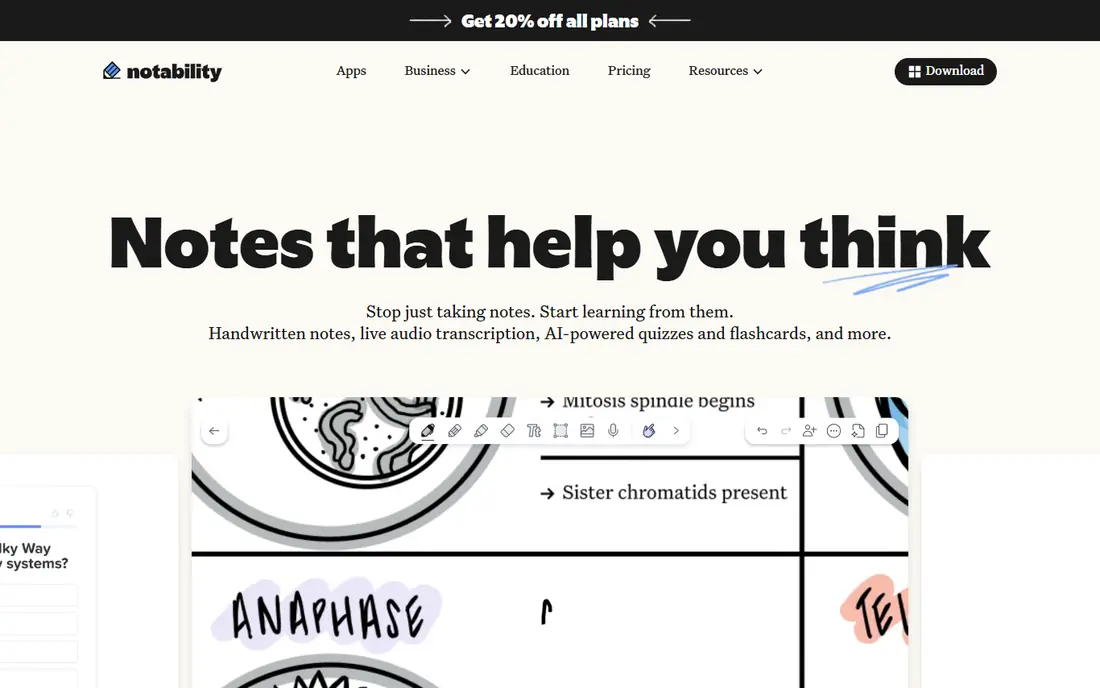
If handwriting plus audio notes matters most to you, Notability deserves a close look. It is known for handwriting paired with audio recording, which gives it a clear edge in this list. On the other hand, full features need a subscription, so it is not the right fit for everyone.
Before you choose, compare Notability with one or two others in this list on price, limits, and support. Its free plan status is Free trial and its starting price is shown as See website. In our view, it is a sensible shortlist pick for readers who value handwriting plus audio notes above extra features.
- Handwriting with audio recording
- PDF annotation
- Easy sharing
- Subscription for full features
- Best on Apple devices
Microsoft OneNote
Ideal for: Free-form notes across devices
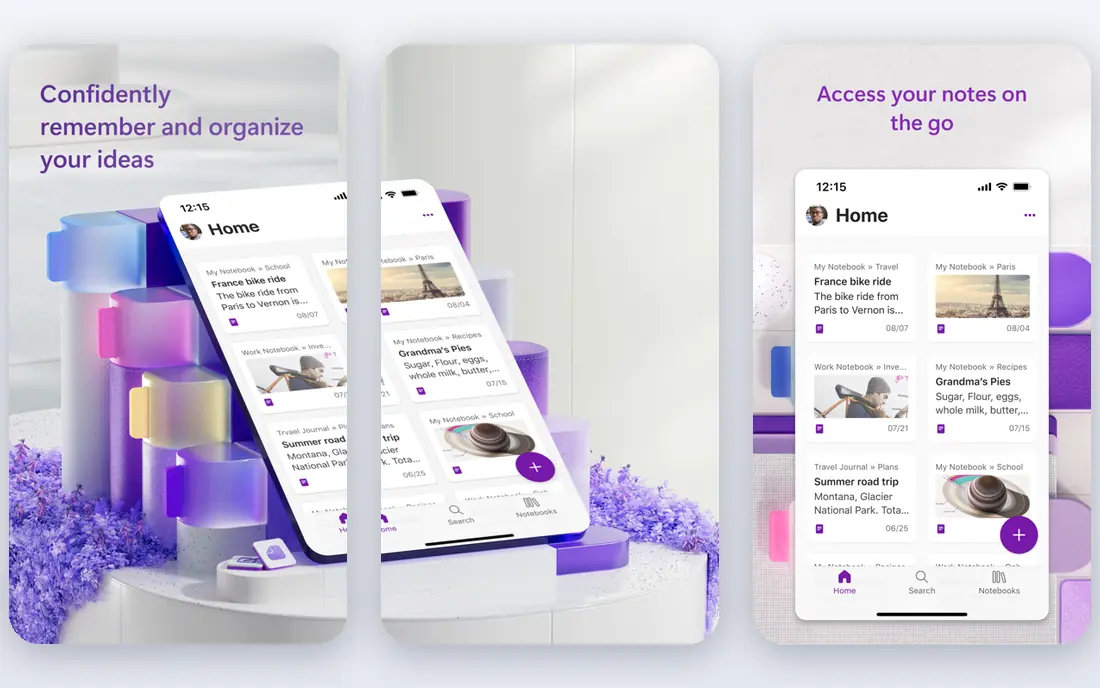
Microsoft OneNote earns its place here for free-form notes across devices. Its main strength is free flexible pages with good sync, and that makes day to day use feel focused rather than scattered. The catch is that planner templates are basic, which may matter more to some readers than others.
We would shortlist Microsoft OneNote when free-form notes across devices is the deciding factor. The starting price is Free and the free plan status is Yes, so the cost picture is clear from the official pricing page. Try the free option or trial first if one is offered, and test it on a real task.
- Free with a Microsoft account
- Flexible pages
- Good sync
- Planner templates are basic
- Organization can get messy
Notion
Ideal for: Linked planning and databases
For readers focused on linked planning and databases, Notion is a strong contender. It offers databases and calendars in one workspace, and we found that combination easy to recommend for its target audience. Still, it can feel complex for simple planning, so check that detail against your own needs.
The honest summary is this: Notion is strong on linked planning and databases and weaker where it can feel complex for simple planning. With a starting price of Free and a free plan status of Yes, it is easy to compare against the other options here. Pick it if its strength matches the job you need done most often.
- Databases, calendars, and docs in one app
- Free tier
- Templates
- Can feel complex for simple daily planning
- Offline limits exist
TickTick
Ideal for: Tasks, habits, and calendar planning
TickTick suits readers who need tasks, habits, and calendar planning without extra fuss. The headline strength is tasks, calendar, and habits in one app, which covers the core job well. The downside is that advanced calendar views need a paid plan, so a short trial is worth it before you pay.
Pricing is listed as Free below, and the free plan status is Yes. We checked the official site and the app store listing for current plan details, and we suggest confirming the plan that fits your usage before checkout. Compared with the rest of this list, TickTick works best when tasks, habits, and calendar planning is your main priority.
- Tasks plus calendar and habits
- Clean apps
- Free tier
- Advanced calendar views need a paid plan
Todoist
Ideal for: Simple task-based planning
Our pick for Simple task-based planning is Todoist, and it stands out for fast task capture with reliable sync. Readers who want simple task-based planning will find its approach direct and practical. The trade-off is that calendar planning is basic, so weigh that before you commit.
Before you choose, compare Todoist with one or two others in this list on price, limits, and support. Its free plan status is Yes and its starting price is shown as Free. In our view, it is a sensible shortlist pick for readers who value simple task-based planning above extra features.
- Fast task capture
- Natural language dates
- Reliable sync
- Calendar planning is basic
- Labels and filters need paid plans
Sunsama
Ideal for: Guided daily planning
If guided daily planning matters most to you, Sunsama deserves a close look. It is known for a guided daily planning ritual, which gives it a clear edge in this list. On the other hand, the monthly price is higher than rivals, so it is not the right fit for everyone.
We would shortlist Sunsama when guided daily planning is the deciding factor. The starting price is See website and the free plan status is Free trial, so the cost picture is clear from the official pricing page. Try the free option or trial first if one is offered, and test it on a real task.
- Guided daily planning ritual
- Calendar integration
- Focus mode
- Higher monthly price
- Fewer note features than Notion
Motion
Ideal for: AI-scheduled calendar planning
Motion earns its place here for aI-scheduled calendar planning. Its main strength is auto-scheduling tasks into your calendar, and that makes day to day use feel focused rather than scattered. The catch is that the price is high for individuals, which may matter more to some readers than others.
The honest summary is this: Motion is strong on aI-scheduled calendar planning and weaker where the price is high for individuals. With a starting price of See website and a free plan status of Free trial, it is easy to compare against the other options here. Pick it if its strength matches the job you need done most often.
- Auto-schedules tasks into your calendar
- Project views
- Team features
- Price is high for individuals
- Setup takes time
How we picked these
We compared official feature pages, pricing pages, app store listings, privacy policies, and public reviews for each option in this list. We kept only products that exist and work in October 2026 and that truly fit the topic, and we dropped anything whose official homepage did not load or did not match the product. Where we could not verify a current price from the vendor, we wrote See website rather than guessing a figure.
We also weighed who each product is really for, not just how many features it lists. A strong pick for a large team can be a poor pick for one person, and the reverse is true too. That is why each write-up names a best fit and an honest weakness, so you can match the product to your own situation instead of chasing the longest feature list.
Finally, we checked renewal and trial terms where the vendor publishes them, since first-year prices and trial limits can change the real cost. When a vendor did not publish a clear price, we left the field as See website and said so plainly, rather than filling the gap with an estimate. That approach keeps every price claim in this list traceable to the vendor's own pages.
How to choose a digital planner app
Start with how you like to plan. Handwriting fans should look at tablet apps with pen support and PDF templates, while typists benefit from linked notes, databases, and calendar views. Mixing the two styles in one app often means neither feels quite right.
Check sync and offline access. A planner that does not sync reliably between phone, tablet, and computer will be abandoned fast, especially if you plan on one device and check tasks on another. Also check template options, since a good template library saves setup time.
Compare the real cost, including templates and subscriptions. Some apps charge once, others charge yearly, and template packs can add up. Trial the app with your real schedule for a week, including recurring tasks and notes, before committing.
Before you pay, run a short checklist against your top two picks: confirm the plan limits, test the feature you will use most, check support hours, and confirm cancellation terms. A product that passes that checklist on a real task is usually the right choice, even if a rival lists more features on paper. Keep notes from your trial so the decision stays based on evidence, not marketing.
Frequently asked questions
What is the best digital planner app?
GoodNotes is the top pick for handwritten iPad planning, while Notion suits typed, linked planning across devices. Notability is a strong middle ground for handwriting plus audio notes.
Can I use a digital planner on Android?
Yes. OneNote, Notion, TickTick, and Todoist work well on Android, while GoodNotes and Notability are strongest on Apple devices. Check pen support on your specific tablet.
Are digital planner templates free?
Many apps include basic templates, and communities share free PDF templates for GoodNotes and Notability. Premium template packs are usually paid, so check what is included before buying.
Is a digital planner better than paper?
Digital planners add search, reminders, sync, and reusable templates, but paper suits people who focus better without screens. The best planner is the one you will actually use every day.
Do I need a stylus for a digital planner?
Only for handwritten apps like GoodNotes and Notability, where a stylus makes writing natural. Typed planners like Notion and Todoist work fine with a keyboard or touchscreen.