Best Disk Imaging Software in 2026: 8 Tools Compared

- 1
 Macrium ReflectReliable Windows disk imagingVisit
- 2
 Acronis True ImageBackup and imaging suiteVisit
- 3
 ClonezillaFree open-source imagingVisit
- 4
 EaseUS Todo BackupSimple imaging for home usersVisit
- 5
 AOMEI BackupperAffordable imaging and cloningVisit
- Our pick for most people is Macrium Reflect, because it balances price, features and ease of use for the widest group of readers.
- Free plans and trials are real here, but the limits matter: check what Acronis True Image and Clonezilla actually include before you commit.
- Prices in this guide come from vendor pricing pages and current comparisons checked in October 2026, and they can change, so confirm the plan on the vendor site before you buy.
- The best choice depends on your budget, your experience level and how much support you want, not on which brand is most famous.
- If you are short on time, start with Macrium Reflect and EaseUS Todo Backup, then compare one specialist option before deciding.
Quick comparison
| Product | Ideal for | Price from | Free version | |
|---|---|---|---|---|
| Macrium Reflect | Reliable Windows disk imaging | See website | Free trial | Visit |
| Acronis True Image | Backup and imaging suite | See website | Free trial | Visit |
| Clonezilla | Free open-source imaging | Free | Yes | Visit |
| EaseUS Todo Backup | Simple imaging for home users | See website | Free trial | Visit |
| AOMEI Backupper | Affordable imaging and cloning | See website | Free trial | Visit |
 Rescuezilla | Free imaging with friendly interface | Free | Yes | Visit |
 Paragon Hard Disk Manager | Advanced disk management suite | See website | Free trial | Visit |
 Veeam Agent | Free and business backup agents | See website | Yes | Visit |
The best Disk Imaging Software in 2026
We compared official feature pages, pricing pages, app store listings, privacy policies and public reviews to build this list for best disk imaging software. Every option below exists and works today, and each one earns its place for a different kind of reader.
Macrium Reflect
Ideal for: Reliable Windows disk imaging
Here is the short version. Macrium Reflect is a trusted Windows disk imaging tool, creating full images and clones with scheduling and rescue media for recovery. Its reliability has made it a favourite for backups and system migration. It fits readers who want reliable windows disk imaging, and its published feature set matches that promise rather than trying to cover every possible use case at once. When we weighed it against the rest of this list, the balance of price, scope and support stood out for that group. The price picture is see website, with a free plan status of free trial. The catch is platform: it is Windows-focused, so Mac and Linux users need other tools. For Windows imaging, its track record is strong. Before you sign up, check the current plan limits on the official site, because caps on users, usage or features are where most buyers get surprised after the first month.
- Reliable disk imaging and cloning for Windows
- Rescue media
- Scheduling
- Windows focus
- Free edition limits vary
Acronis True Image
Ideal for: Backup and imaging suite
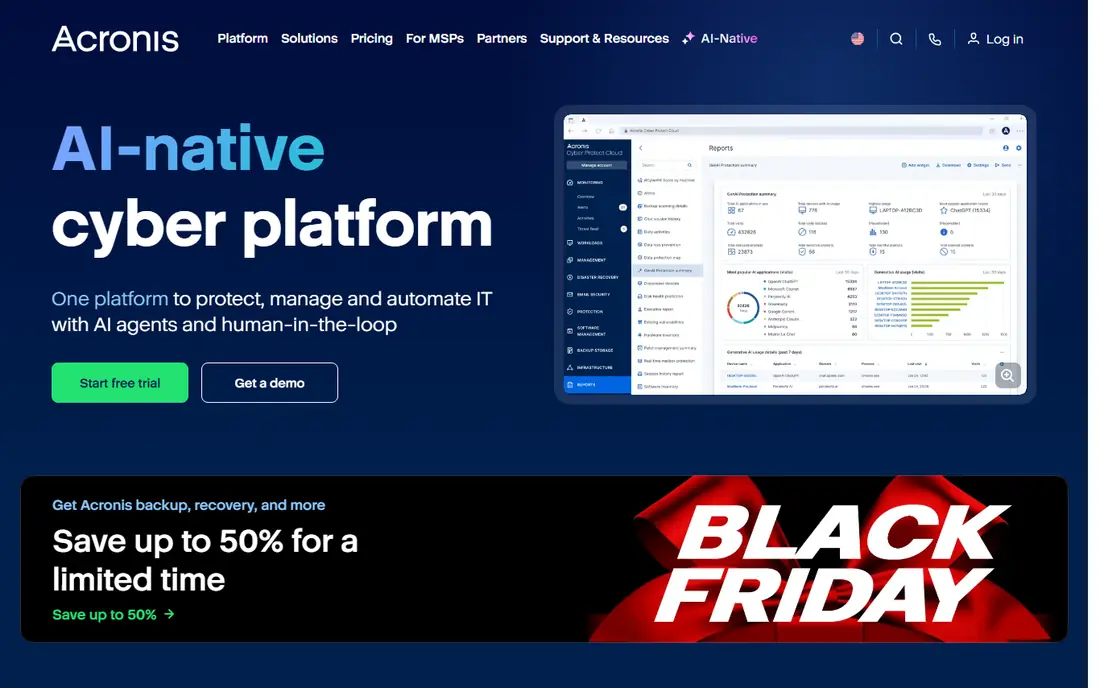
Start here if you want the safe default. Acronis True Image, now Acronis Cyber Protect Home Office, combines disk imaging with cloud backup and security tools in an easy interface. It suits home and small office users who want imaging plus broader protection. It fits readers who want backup and imaging suite, and its published feature set matches that promise rather than trying to cover every possible use case at once. When we weighed it against the rest of this list, the balance of price, scope and support stood out for that group. The price picture is see website, with a free plan status of free trial. The trade-off is subscription cost and breadth: users wanting only imaging may find it more than they need. For all-in-one backup, its package is convenient. Before you sign up, check the current plan limits on the official site, because caps on users, usage or features are where most buyers get surprised after the first month.
- Full backup suite with imaging, cloud backup and security tools
- Easy interface
- Subscription pricing
- Suite breadth adds cost
Clonezilla
Ideal for: Free open-source imaging
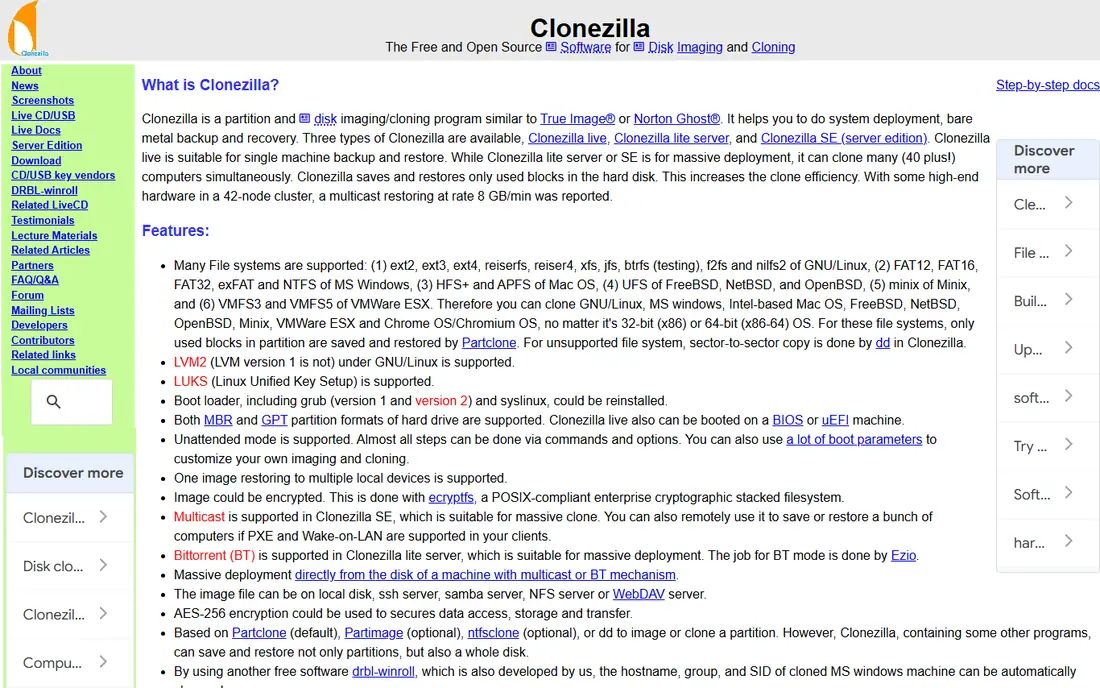
This one suits a specific kind of reader. Clonezilla is a free, open-source disk imaging and cloning tool that supports many file systems and deployment scenarios. IT teams use it for mass deployment and backup without licence costs. It fits readers who want free open-source imaging, and its published feature set matches that promise rather than trying to cover every possible use case at once. When we weighed it against the rest of this list, the balance of price, scope and support stood out for that group. The price picture is free, with a free plan status of yes. The honest limit is usability: its technical interface assumes IT knowledge, and support comes from community resources. For skilled IT teams on a budget, it is unmatched value. Before you sign up, check the current plan limits on the official site, because caps on users, usage or features are where most buyers get surprised after the first month.
- Free open-source disk imaging and cloning
- Supports many file systems
- No licence cost
- Technical interface
- No commercial support by default
EaseUS Todo Backup
Ideal for: Simple imaging for home users
Consider this if the top picks do not fit. EaseUS Todo Backup offers simple disk imaging, cloning and scheduling for home and small office users, with an interface that non-experts can follow. Its simplicity suits users who want a backup image without technical detail. It fits readers who want simple imaging for home users, and its published feature set matches that promise rather than trying to cover every possible use case at once. When we weighed it against the rest of this list, the balance of price, scope and support stood out for that group. The price picture is see website, with a free plan status of free trial. The catch is tiering: free and basic versions limit features. For simple imaging, its ease of use is a plus. Before you sign up, check the current plan limits on the official site, because caps on users, usage or features are where most buyers get surprised after the first month.
- Simple disk imaging and backup
- Cloning
- Scheduling
- Free version limits features
- Advanced tools need paid tiers
AOMEI Backupper
Ideal for: Affordable imaging and cloning
A strong option for a narrower need. AOMEI Backupper covers disk imaging, cloning and backup at affordable prices, with system migration tools that help move Windows to a new drive. Its value suits home and small business users. It fits readers who want affordable imaging and cloning, and its published feature set matches that promise rather than trying to cover every possible use case at once. When we weighed it against the rest of this list, the balance of price, scope and support stood out for that group. The price picture is see website, with a free plan status of free trial. The trade-off is polish: the interface is functional rather than refined. For affordable imaging, its feature set is strong. Before you sign up, check the current plan limits on the official site, because caps on users, usage or features are where most buyers get surprised after the first month.
- Disk imaging, cloning and backup
- Affordable tiers
- System migration tools
- Free version limits
- Interface is functional
Rescuezilla
Ideal for: Free imaging with friendly interface
Worth a close look before you decide. Rescuezilla is a free, open-source imaging tool that aims for a friendlier interface than Clonezilla, covering imaging, cloning and restore. It suits users who want free imaging without a steep learning curve. It fits readers who want free imaging with friendly interface, and its published feature set matches that promise rather than trying to cover every possible use case at once. When we weighed it against the rest of this list, the balance of price, scope and support stood out for that group. The price picture is free, with a free plan status of yes. The honest limit is project size: support is community-based and features are narrower than commercial suites. For free imaging with a gentler interface, it is a good pick. Before you sign up, check the current plan limits on the official site, because caps on users, usage or features are where most buyers get surprised after the first month.
- Free open-source imaging with a friendlier interface than Clonezilla
- Cloning and restore
- Smaller project
- Support is community-based
Paragon Hard Disk Manager
Ideal for: Advanced disk management suite
This belongs on the shortlist for a reason. Paragon Hard Disk Manager combines disk imaging with partitioning, migration and advanced disk tools for Windows users. Its depth suits IT users who manage disks regularly, not just for backup. It fits readers who want advanced disk management suite, and its published feature set matches that promise rather than trying to cover every possible use case at once. When we weighed it against the rest of this list, the balance of price, scope and support stood out for that group. The price picture is see website, with a free plan status of free trial. The catch is complexity: casual users may find it more than they need. For advanced disk management, its suite is comprehensive. Before you sign up, check the current plan limits on the official site, because caps on users, usage or features are where most buyers get surprised after the first month.
- Disk imaging plus partitioning and migration
- Advanced tools
- Windows focus
- Pricing by licence
- Interface is technical
Veeam Agent
Ideal for: Free and business backup agents
Do not overlook this one. Veeam Agent provides backup for Windows and Linux machines, with imaging-style full backups that integrate into the wider Veeam ecosystem. Businesses already using Veeam get consistent backup across servers and endpoints. It fits readers who want free and business backup agents, and its published feature set matches that promise rather than trying to cover every possible use case at once. When we weighed it against the rest of this list, the balance of price, scope and support stood out for that group. The price picture is see website, with a free plan status of yes. The trade-off is ecosystem: full features need paid Veeam products. For Veeam shops and IT teams, its agent backup is a strong choice. Before you sign up, check the current plan limits on the official site, because caps on users, usage or features are where most buyers get surprised after the first month.
- Backup agents for Windows and Linux
- Imaging-style backups
- Veeam ecosystem
- Full features need paid Veeam products
- Setup needs IT knowledge
How we picked these
We started from official feature pages and pricing pages, then checked app store listings, privacy policies and public reviews to confirm each product still works and still fits the topic. Products that could not be verified, or that only partly matched the topic, were left out, even when they were well known. We favoured a mix of established leaders and strong smaller options, and we weighted price transparency, a usable free tier or trial, and honest limits more heavily than marketing claims. No product on this list paid for its place, and our pick for most people is the one we would suggest to a friend with ordinary needs and an ordinary budget.
How to use disk imaging without losing your backup
Start with the 3-2-1 idea: keep more than one copy, on different media, with one copy off-site, because an image on the same failed drive helps no one. Test restores regularly: an image you have never restored is a hope, not a backup, so restore to a spare drive or virtual machine at least once. Also check image type: full images are simplest to restore, while incremental images save space but need the full chain intact. Next, confirm compatibility: does the tool support your disks, file systems and boot modes, and can its rescue media boot your machine. For system migration, check cloning to smaller or larger drives and SSD alignment. Finally, schedule images automatically and verify them after creation, since a failed or corrupt image discovered during a crisis is too late.
Frequently asked questions
What is disk imaging software?
It creates a complete copy, or image, of a disk or partition, including operating system, apps and files, for backup, cloning or deployment. Images can restore a whole system after failure or migrate it to a new drive. Good tools verify images and offer bootable rescue media.
What is the best disk imaging software?
Macrium Reflect suits Windows imaging, Clonezilla and Rescuezilla suit free imaging, and Acronis suits all-in-one backup. The best choice depends on your operating system, budget and whether you need cloning, deployment or full backup.
What is the difference between imaging and cloning?
Imaging creates a compressed file containing a disk copy, while cloning copies a disk directly to another disk. Imaging suits backup and storage, cloning suits moving to a new drive. Many tools offer both.
How often should I image my disk?
For system drives, a regular schedule, such as weekly full images with daily incrementals, suits most users, plus a fresh image before major changes. Data files may need more frequent backup. Test restores to confirm images work.
Is free disk imaging software good enough?
For many users, yes: Clonezilla and Rescuezilla offer reliable imaging without cost, though interfaces are more technical. Commercial tools add scheduling, support and easier restore. Choose based on your skill and support needs, and always test restores.