Best Editing Software for Photography in 2026: 7 Tools Compared

- 1
 Adobe LightroomBatch RAW editingVisit
- 2
 Capture OneProfessional color and tetheringVisit
- 3
 DxO PhotoLabRAW processingVisit
- 4
 Luminar NeoCreative AI editsVisit
- 5
 Affinity PhotoOne-time purchase editingVisit
- Adobe Lightroom suits photographers who edit many RAW photos with presets, masking, and organization.
- Capture One suits professionals who want top color control and tethered shooting.
- DxO PhotoLab suits photographers who want superb RAW processing and lens corrections.
- Luminar Neo suits enthusiasts who want creative AI looks fast, while Affinity Photo suits one-time purchase retouching.
- ON1 Photo RAW and Darktable suit photographers who want full editing without a subscription.
Quick comparison
| Product | Ideal for | Price from | Free version | |
|---|---|---|---|---|
| Adobe Lightroom | Batch RAW editing | See website | Free trial | Visit |
| Capture One | Professional color and tethering | See website | Free trial | Visit |
| DxO PhotoLab | RAW processing | See website | Free trial | Visit |
| Luminar Neo | Creative AI edits | See website | Free trial | Visit |
| Affinity Photo | One-time purchase editing | See website | Free trial | Visit |
 ON1 Photo RAW | All-in-one without subscription | See website | Free trial | Visit |
 Darktable | Free open-source editing | Free | Yes | Visit |
The best editing software for photography
We compared official feature pages, pricing pages, and public reviews for seven photo editors. Our pick for most photographers is Adobe Lightroom for its speed and organization, with Capture One close behind for professionals who need color precision.
Adobe Lightroom
Ideal for: Batch RAW editing
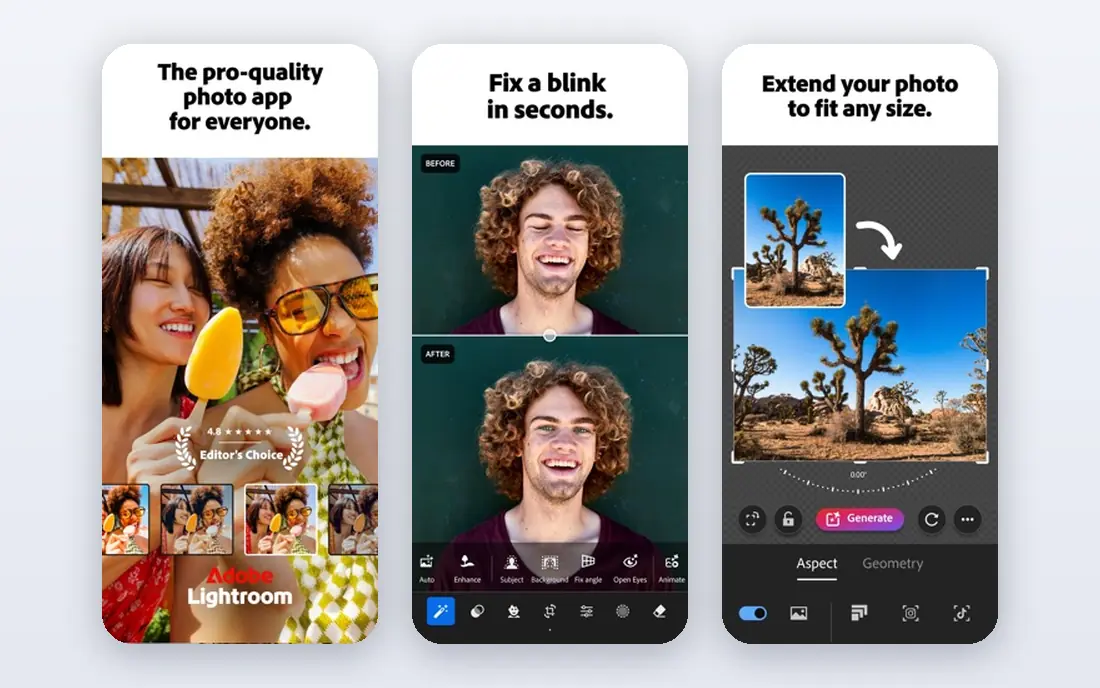
Lightroom is the everyday editor for many photographers because it combines RAW processing, presets, masking, and library organization in one workflow. You can cull, edit, and export hundreds of photos with consistent color, and AI masking selects skies, subjects, and backgrounds fast. Cloud sync keeps edits available on desktop and mobile.
Pixel-level retouching is thinner than in Photoshop or Affinity Photo, so complex object removal needs another tool. The subscription also adds up over years. For photographers who shoot often and need speed plus organization, Lightroom remains the best all-round choice.
- Fast batch edits
- AI masking
- Cloud sync and organization
- Subscription cost
- Weaker pixel retouching than Photoshop
Capture One
Ideal for: Professional color and tethering
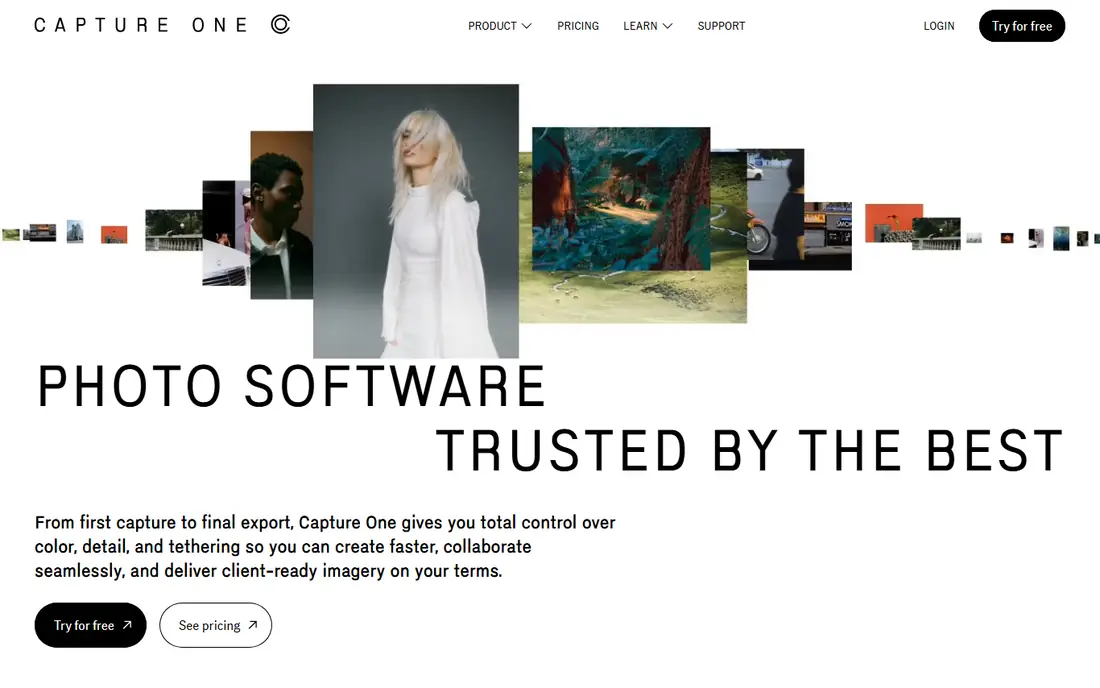
Capture One is favored by studio and commercial photographers for its color editing, tethered shooting, and layer-based adjustments. Tethered capture lets you shoot straight into the software and judge images on a large screen, which matters for studio work. Color tools give fine control over skin tones and product colors that clients notice.
The price is higher than Lightroom, and the interface takes time to learn. For professionals who live by color accuracy and tethered workflows, Capture One earns its cost. Enthusiasts may find Lightroom simpler and cheaper.
- Excellent color tools
- Tethered shooting
- Layer-based edits
- Higher price
- Steeper learning curve
DxO PhotoLab
Ideal for: RAW processing
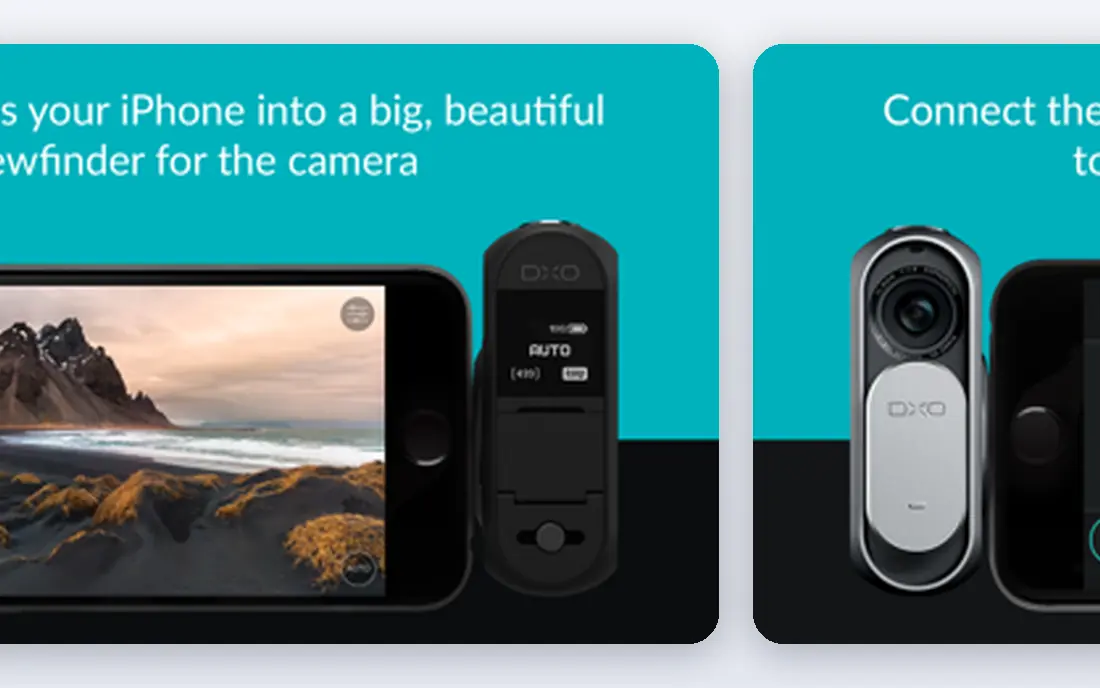
DxO PhotoLab stands out for RAW processing quality, with DeepPRIME denoising and lens corrections based on lab-tested camera and lens profiles. Photos from high-ISO shoots or older cameras gain visible detail and cleaner shadows. Local adjustments and color tools cover most editing needs without leaving the app.
Library and organization tools are thinner than Lightroom, and there is no full cloud sync system. For photographers who prioritize image quality over catalog features, DxO PhotoLab is a top choice, especially paired with a separate organizer.
- Superb denoising and lens corrections
- RAW detail
- Local adjustments
- Library tools are thinner
- No cloud sync like Lightroom
Luminar Neo
Ideal for: Creative AI edits
Luminar Neo uses AI for sky replacement, portrait enhancement, relighting, and object removal, with templates that give a finished look fast. Enthusiasts who want striking edits without manual masking will like its speed. The interface is friendly for casual editors who do not want Photoshop complexity.
Large catalogs can feel slow, and some extensions cost extra. Luminar is also less suited to heavy batch work than Lightroom. For creative single-image edits, it is fun and capable.
- AI sky, portrait, and relight tools
- Templates
- Easy interface
- Slower with large catalogs
- Some tools need extra purchases
Affinity Photo
Ideal for: One-time purchase editing
Affinity Photo offers full photo retouching, layers, masks, and compositing for a one-time purchase, without a subscription. It handles RAW files, frequency separation, and complex edits that rival Photoshop for many photographers. PSD support helps teams that share files with Adobe users.
There is no Lightroom-style catalog, so organization needs another tool or a folder system. The tutorial base is smaller than Adobe, though it grows each year. For photographers who want pro retouching without a subscription, Affinity Photo is the best value here.
- Full retouching tools
- One-time purchase
- PSD support
- No catalog like Lightroom
- Smaller tutorial base
ON1 Photo RAW
Ideal for: All-in-one without subscription
ON1 Photo RAW combines RAW editing, browsing, effects, and portrait tools in one app without requiring a subscription. You can organize, edit, and export from a single workflow, with presets and AI masking for common tasks. That all-in-one design suits photographers who want Lightroom-style work without monthly payments.
Performance can lag Lightroom on large catalogs, and the interface is dense for beginners. For photographers who want a complete editor with a purchase option, ON1 Photo RAW is a strong alternative.
- RAW editing plus effects
- Browsing and organization
- No subscription needed
- Slower than Lightroom at times
- Interface is dense
Darktable
Ideal for: Free open-source editing
Darktable is a free, open-source RAW editor with non-destructive editing, masking, color tools, and tethering support. It suits photographers on Linux, Windows, or Mac who want professional RAW processing without paying. The module-based workflow gives deep control once you learn it.
The learning curve is steeper than Lightroom, and preset and tutorial resources are thinner. For budget-conscious photographers willing to learn, Darktable gives remarkable power for free. It is the best no-cost editor in this list.
- Free and open source
- Strong RAW tools
- Non-destructive editing
- Steeper learning curve
- Fewer presets and tutorials
How we picked these
We compared official feature pages, pricing pages, and public reviews for each tool, and we favored tools that still work in October 2026 and edit real photos, not just apply filters. We did not claim hands-on testing, and we weighed RAW quality, retouching depth, organization, and price. Where a price was unclear at writing time we wrote "See website" rather than guessing.
What to check before you choose
Start with volume. High-volume shooters need Lightroom or Capture One for speed and organization, while occasional editors can use Affinity or Darktable. Check RAW support for your camera, since new cameras need updates before a tool reads their files well. Test presets and masking on your own photos, since marketing samples flatter every editor.
Think about subscription tolerance. Adobe tools cost monthly forever, while Affinity, ON1, and Darktable offer purchase or free options. Check export quality, print support, and whether your editor keeps originals safe. A trial with a real shoot, from import to export, will show which workflow fits you fastest.
Also build a backup and file routine before your library grows. Photo editors can organize thousands of images, but a single drive failure can erase years of work if backups are missing. Keep at least two copies of originals plus edits, with one copy offsite or in cloud storage, and test restoring a file twice a year. Use a clear folder and naming routine by date, client, or project, so you can find a shoot without relying on memory. Edit non-destructively where possible, keeping originals untouched and edits as instructions, so you can revisit a photo years later with fresh eyes. Export finished images in the right format for each use: high-quality JPEG or TIFF for print, smaller JPEG for web, and full-resolution files for clients who need them.
Color and print checks complete the editing workflow. Work on a calibrated monitor, use the correct color profile for your output, and soft-proof prints before sending them to a lab. Test your editor with a real client shoot from import to delivery, timing each stage, since a tool that feels fast on ten photos may crawl on a thousand. Learn keyboard shortcuts for culling and rating, since those small savings add up across a large shoot. Keep presets organized and pruned, since a hundred unused presets slow you down more than they help. Finally, protect client work with clear contracts and delivery records, and keep finished galleries available for the period you promised, not just until disk space runs low.
One more skill lifts photo editing more than new tools: learning to judge an edit away from the screen where you made it. After finishing an edit, view the photo on a phone, a tablet, and, for important work, a test print, since each display reveals different problems with brightness, color, and sharpness. Step away for a day before final delivery when deadlines allow, since fresh eyes catch over-editing, such as skin that looks too smooth or skies that look unnatural. Compare your edit with the original side by side, and ask whether each change serves the photo or just shows off a tool. Restraint is a hallmark of strong editing: the best edits often look like no edit at all, just a better version of the scene as it felt.
Frequently asked questions
What is the best editing software for photography?
Adobe Lightroom is our pick for most photographers, thanks to batch speed and organization. Capture One suits professionals who need color precision, DxO suits RAW quality fans, and Affinity suits buyers who dislike subscriptions. Match the tool to your volume and budget.
Is Lightroom or Photoshop better for photography?
Lightroom suits organizing and editing many photos fast, while Photoshop suits deep retouching and compositing on single images. Most photographers use Lightroom daily and Photoshop for special edits. Adobe bundles both in photography plans for that reason.
Can I edit photos without a subscription?
Yes. Affinity Photo and ON1 Photo RAW offer purchase options, and Darktable is free and open source. These tools cover RAW editing and retouching without monthly fees, though updates and support models differ from subscription tools.
What is the best free photo editing software?
Darktable is the best free RAW editor for serious photographers, with deep non-destructive tools. For quick social edits, free tools like Canva or phone editors may be enough. Darktable suits photographers willing to learn a professional workflow for free.
Does editing software matter for RAW files?
Yes. RAW converters differ in noise handling, color, lens corrections, and detail, so the same RAW file can look different across tools. Test your camera files in two editors before committing, since RAW quality matters more than filter counts.