Best email cleaner app in 2026: 7 Options Compared

- 1
 Clean Emailusers who want bulk cleaning rulesVisit
- 2
 SaneBoxprofessionals who want automatic sortingVisit
- 3
 Unroll.Meusers who want subscriptions in one digestVisit
- 4
 Mailstromusers who want bulk delete by senderVisit
- 5
 Leave Me Aloneusers who want a privacy focused cleanerVisit
- Clean Email suits users who want bulk cleaning rules and a clear dashboard.
- SaneBox suits busy professionals who want automatic sorting without changing apps.
- Unroll.Me suits users who mainly want to roll up subscriptions into one digest.
- Mailstrom, Leave Me Alone and Cleanfox suit focused unsubscribing and bulk delete.
Quick comparison
| Product | Ideal for | Price from | Free version | |
|---|---|---|---|---|
| Clean Email | users who want bulk cleaning rules | See website | Free trial | Visit |
| SaneBox | professionals who want automatic sorting | See website | Free trial | Visit |
| Unroll.Me | users who want subscriptions in one digest | See website | Yes | Visit |
| Mailstrom | users who want bulk delete by sender | See website | Free trial | Visit |
| Leave Me Alone | users who want a privacy focused cleaner | See website | Free trial | Visit |
 Cleanfox | users who want a free unsubscribe tool | See website | Yes | Visit |
 Superhuman | professionals who want a faster inbox | See website | Free trial | Visit |
The best email cleaner app
An email cleaner app helps you unsubscribe, bulk delete and organise a crowded inbox, but it needs access to your mail, so privacy terms matter. We compared official product pages, pricing pages, app listings and public reviews, focusing on unsubscribing, bulk actions, sorting, privacy and pricing model. Before you connect any cleaner, back up important mail and check what data the app can read and keep.
Clean Email
Ideal for: users who want bulk cleaning rules
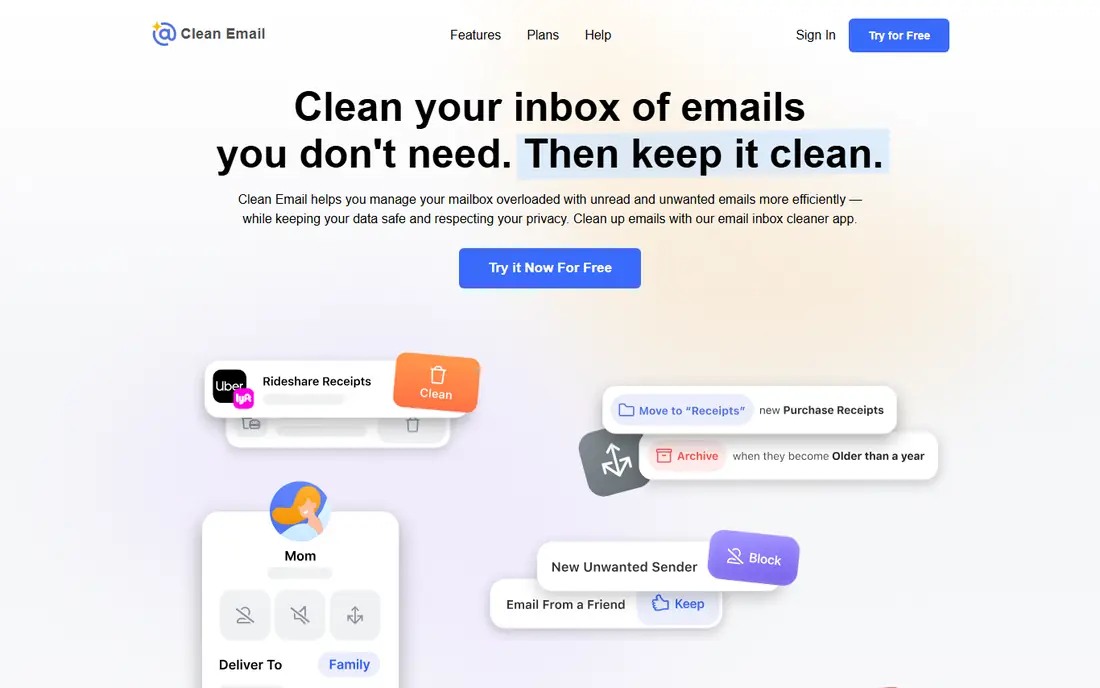
Clean Email offers bulk cleaning, smart folders, unsubscribe tools and auto clean rules for Gmail, Outlook and other providers. Its dashboard groups similar mail, such as newsletters and notifications, so you can act on hundreds of messages at once. That suits an inbox with thousands of unread messages that need a first deep clean.
Before you pay, check the limits that apply to your own use, including seats, storage, monthly usage and support hours. A plan that looks generous on the headline page can still cap the one feature you rely on most, so read the plan comparison page rather than the marketing summary. A trial or free tier is the safest way to test this, and it also shows whether support answers promptly when you need help.
It is subscription priced, and the first clean takes time to review groups before deleting. Check its privacy policy, start with a small group, and never bulk delete without checking the sender list first.
- Bulk actions
- Smart folders
- Unsubscribe tools
- Subscription priced
- Setup takes a first pass
SaneBox
Ideal for: professionals who want automatic sorting
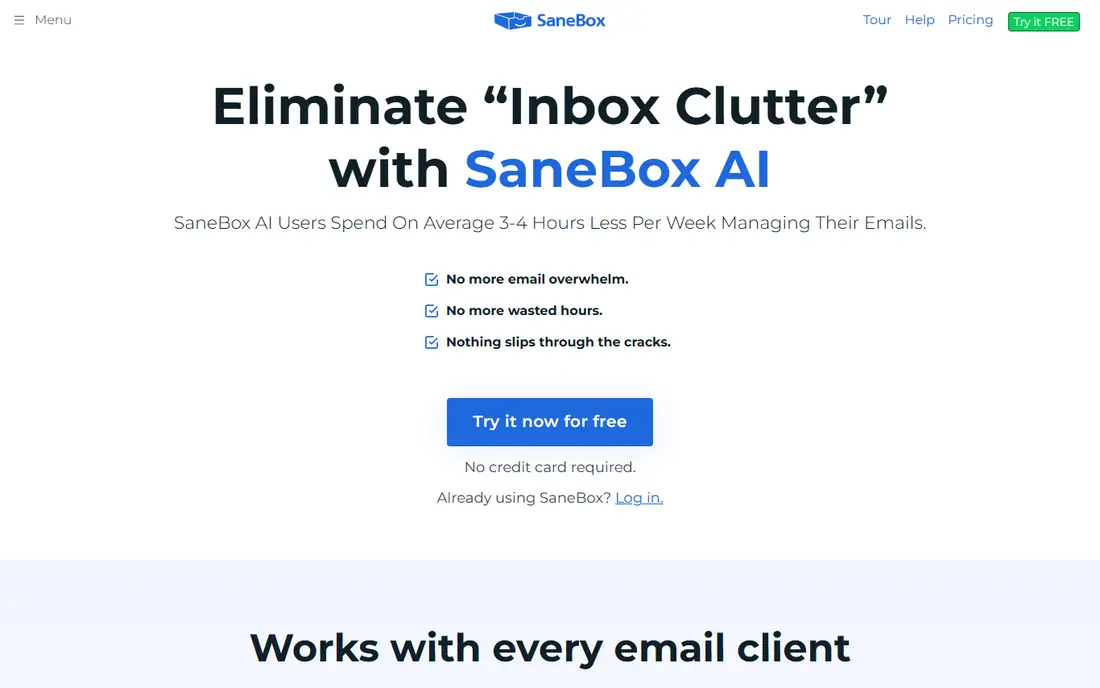
SaneBox works inside your existing mail app, sorting less important mail into folders such as SaneLater and training itself from your actions. Busy professionals benefit because the inbox itself becomes calmer without learning a new app. Features include snooze, reminders and attachment handling.
The price on the headline page is only part of the cost, so check renewal pricing, per-seat charges and any paid add-ons before you commit. Free tiers help for light use, but they often cap the features that matter once work grows, and trials end on a fixed date whether you have finished testing or not. Set a reminder before a trial ends, and confirm cancellation steps in advance so you are not locked into a plan you no longer need.
It is subscription priced, and sorting needs a training period before it feels accurate. Check which folders it creates, review the SaneLater folder daily at first, and confirm pricing per mailbox if you manage several accounts.
- Automatic sorting
- Works inside your mail app
- Snooze and reminders
- Subscription priced
- Sorting needs training
Unroll.Me
Ideal for: users who want subscriptions in one digest
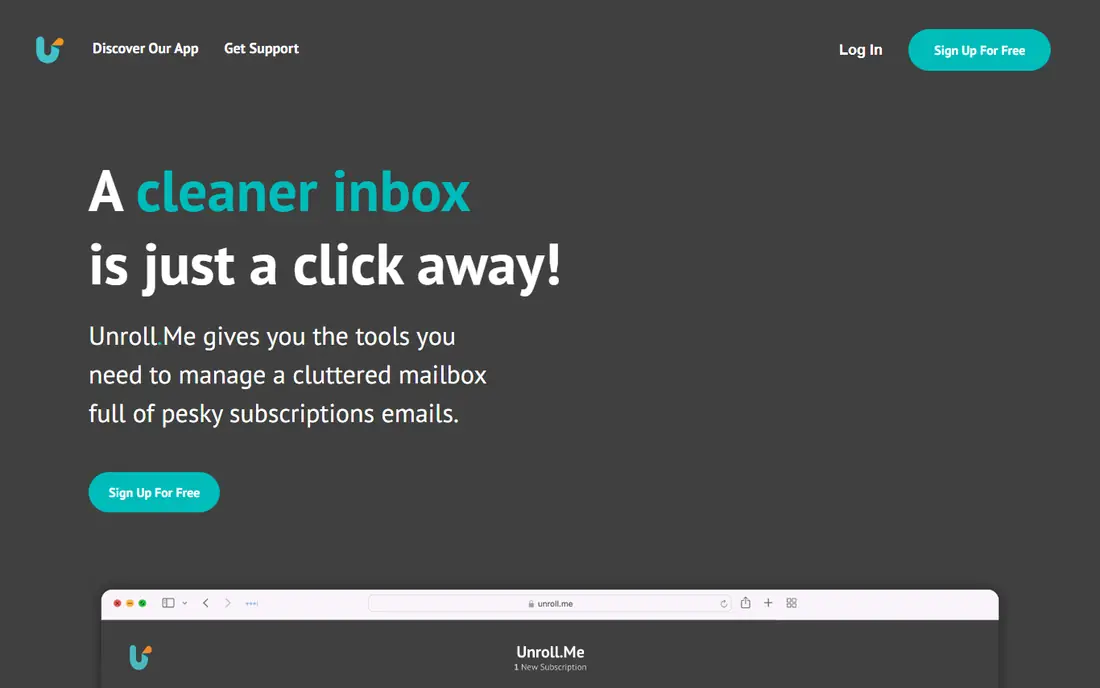
Unroll.Me scans your subscriptions and lets you unsubscribe with a swipe, keep the ones you want, or roll the rest into a single daily digest called the Rollup. That suits users whose main problem is newsletter volume rather than general clutter. The service is free for its core features.
Pricing is where many readers get caught out, so look past the headline figure and check what the plan actually includes for your level of use. Seats, usage limits, add-ons and renewal terms can change the real monthly cost, and a cheaper plan that lacks one feature you need is not a saving. If a free tier or trial is offered, use it for real work before paying, and confirm how cancellation works while you still have time to change your mind.
Read its privacy terms carefully, since a free service that reads mail needs a clear data model, and check whether your provider is supported. Start by unsubscribing from the clearest junk, and keep the Rollup for newsletters you still want to skim.
- Free
- Rollup digest
- Quick unsubscribe
- Privacy model needs reading
- Gmail and Outlook focus
Mailstrom
Ideal for: users who want bulk delete by sender
Mailstrom groups mail by sender, subject and size, letting you block, unsubscribe or delete hundreds of messages from one sender at once. That sender view suits inboxes flooded by a few lists or notification senders. Its dashboard keeps the most useful actions, such as bulk delete and unsubscribe, close at hand.
Before you pay, check the limits that apply to your own use, including seats, storage, monthly usage and support hours. A plan that looks generous on the headline page can still cap the one feature you rely on most, so read the plan comparison page rather than the marketing summary. A trial or free tier is the safest way to test this, and it also shows whether support answers promptly when you need help.
Its interface is functional rather than polished, and full use needs a subscription. Review each sender group before deleting, since a bulk delete can remove order confirmations mixed with marketing from the same sender.
- Sender based bulk actions
- Block and unsubscribe
- Simple dashboard
- Interface is functional
- Pricing is subscription based
Leave Me Alone
Ideal for: users who want a privacy focused cleaner
Leave Me Alone focuses on unsubscribing and rolling up subscriptions with a privacy conscious pitch, showing which senders fill your inbox and letting you act on them quickly. Its simple flow suits users who want a focused clean without a large dashboard. The service covers major providers including Gmail and Outlook.
The price on the headline page is only part of the cost, so check renewal pricing, per-seat charges and any paid add-ons before you commit. Free tiers help for light use, but they often cap the features that matter once work grows, and trials end on a fixed date whether you have finished testing or not. Set a reminder before a trial ends, and confirm cancellation steps in advance so you are not locked into a plan you no longer need.
Its feature range is narrower than Clean Email, so users who want deep sorting rules may need another tool. Check the free tier limits, read the privacy terms, and test unsubscribe accuracy on a few lists first.
- Unsubscribe and rollup
- Privacy focus
- Simple flow
- Smaller feature range
- Subscription for full use
Cleanfox
Ideal for: users who want a free unsubscribe tool
Cleanfox offers a free way to see newsletter statistics and unsubscribe from lists you no longer read, with a simple interface for Gmail and Outlook users. It suits a quick unsubscribe pass when you do not want a subscription cleaner. Its stats view shows which newsletters arrive most often, which helps prioritise the clean.
Pricing is where many readers get caught out, so look past the headline figure and check what the plan actually includes for your level of use. Seats, usage limits, add-ons and renewal terms can change the real monthly cost, and a cheaper plan that lacks one feature you need is not a saving. If a free tier or trial is offered, use it for real work before paying, and confirm how cancellation works while you still have time to change your mind.
Its feature range is basic compared with paid cleaners, and availability and features can vary by region and provider. Use it for unsubscribing, and pair it with your mail app built in filters for ongoing sorting.
- Free unsubscribe
- Newsletter stats
- Simple interface
- Feature range is basic
- Availability varies
Superhuman
Ideal for: professionals who want a faster inbox
Superhuman is a fast email client with a split inbox, keyboard shortcuts, send later, reminders and read statuses, which helps professionals process mail quickly rather than only cleaning it once. Its workflow suits users who spend hours in email daily and want speed above all. It works with Gmail and Outlook accounts.
Before you pay, check the limits that apply to your own use, including seats, storage, monthly usage and support hours. A plan that looks generous on the headline page can still cap the one feature you rely on most, so read the plan comparison page rather than the marketing summary. A trial or free tier is the safest way to test this, and it also shows whether support answers promptly when you need help.
It is priced well above a cleaner app, and it replaces your mail client rather than simply cleaning the inbox. Trial it for a full work week, and check whether the speed gain justifies the monthly cost for your mail volume.
- Very fast keyboard workflow
- Split inbox
- Send later and reminders
- High price
- Email client, not just a cleaner
How we picked these
We compared official feature pages, pricing pages, app store listings, privacy policies and public reviews for each option in this guide. We kept only products that exist and work in October 2026 and that fit the topic directly, and we checked that each official homepage loads and belongs to the product named. Prices and free tiers are taken from the vendor site where we could verify them, and we wrote See website where a price could not be confirmed, rather than guessing. Our pick in each guide reflects fit for ordinary readers, not a claim of hands-on testing, and we note the honest limits of each option alongside its strengths.
How to clean your inbox without losing important mail
Start by backing up or archiving important mail, then unsubscribe from the clearest junk before you bulk delete anything. Work sender by sender, checking for order confirmations, account notices or school mail mixed with marketing from the same address. Set up filters for newsletters you keep, so they skip the inbox into a reading folder.
Read the privacy policy of any cleaner before connecting it, and check what it reads, stores and shares. Prefer tools with a clear paid model over vague free models when privacy matters, and revoke access once the clean is done if you do not need ongoing sorting. A weekly ten minute inbox habit keeps the clean from unravelling.
Frequently asked questions
What is the best email cleaner app?
Clean Email suits bulk cleaning rules, SaneBox suits automatic sorting inside your mail app, and Unroll.Me suits subscription rollups. Mailstrom, Leave Me Alone and Cleanfox suit focused unsubscribing, while Superhuman suits professionals who want a faster client.
Is it safe to give an app access to my email?
It carries risk, so read the privacy policy, check what data is stored and shared, and prefer reputable tools with a clear model. Revoke access when you no longer need the tool, use two factor authentication on your mail account, and never use a cleaner that asks for your mail password directly.
How do I unsubscribe from all newsletters at once?
Cleaners such as Unroll.Me, Clean Email and Leave Me Alone list your subscriptions and let you unsubscribe in bulk. In your mail app, you can also search for unsubscribe and work through senders manually. Always check for newsletters you still want before bulk unsubscribing.
What is the difference between archiving and deleting email?
Archiving removes mail from the inbox but keeps it searchable, while deleting moves it to trash and then removes it permanently after a set period. For uncertain mail, archive rather than delete, and use bulk delete only for clearly identified junk.
Can I clean my inbox for free?
Yes, Unroll.Me and Cleanfox offer free core features, and built in mail filters and search can handle much of the work. Paid tools add bulk rules, automatic sorting and deeper dashboards. Start free, and pay only if the time saved justifies the subscription.