Best Email Client Software in 2026: 8 Clients Compared

- 1
 Sparksmart inbox for teams and individualsVisit
- 2
 Superhumanfast email for heavy sendersVisit
- 3
 Thunderbirdfree open source email clientVisit
- 4
 OutlookMicrosoft 365 users and office teamsVisit
- 5
 Apple MailApple device usersVisit
- Our pick for most readers is Spark, because it fits smart inbox for teams and individuals and keeps its core pitch easy to understand.
- Prices in this category vary widely, so check the vendor pricing page and confirm what is included before you pay.
- A free plan or free trial is worth testing with your own data, since a demo with sample data can hide daily friction.
- The right choice depends on team size, budget, and how much setup help you need, not on the longest feature list.
- Read the privacy and support terms for best email client software tools carefully, especially if you will store customer or financial data in them.
Quick comparison
| Product | Ideal for | Price from | Free version | |
|---|---|---|---|---|
| Spark | smart inbox for teams and individuals | Free | Yes | Visit |
| Superhuman | fast email for heavy senders | See website | Free trial | Visit |
| Thunderbird | free open source email client | Free | Yes | Visit |
| Outlook | Microsoft 365 users and office teams | See website | Free trial | Visit |
| Apple Mail | Apple device users | Free | Yes | Visit |
 eM Client | Windows and Mac users who want an all-in-one client | Free | Yes | Visit |
 Mailbird | Windows users who want a clean inbox | See website | Free trial | Visit |
 Proton Mail | privacy-focused email users | Free | Yes | Visit |
The best email client software
We compared official feature pages, pricing pages, app store listings, privacy policies, and public reviews to put this list together for readers looking for best email client software. Each option below is a real product that works in October 2026, with a clear note on who it suits and where it falls short.
Spark
Ideal for: smart inbox for teams and individuals

Spark suits readers who want a smart inbox with team features. It sorts mail into personal, newsletter, and notification groups, and teams can discuss an email privately beside the thread. That focus matters most in the first weeks, when a team either settles into a tool or quietly stops opening it.
Its strength is inbox clarity. Sorting and snooze tools help busy inboxes feel manageable without constant manual filing. It also matters for teams that need to show results to a manager or a client without extra reporting work.
The drawback is paid features. Some AI and team tools need a paid plan, so free users should check which features they actually get. It is worth weighing against the strengths above, especially if you plan to use the tool for years.
- Smart inbox sorting
- Team collaboration
- Snooze and send later
- Some AI features need a paid plan
- Desktop and mobile parity varies
Superhuman
Ideal for: fast email for heavy senders
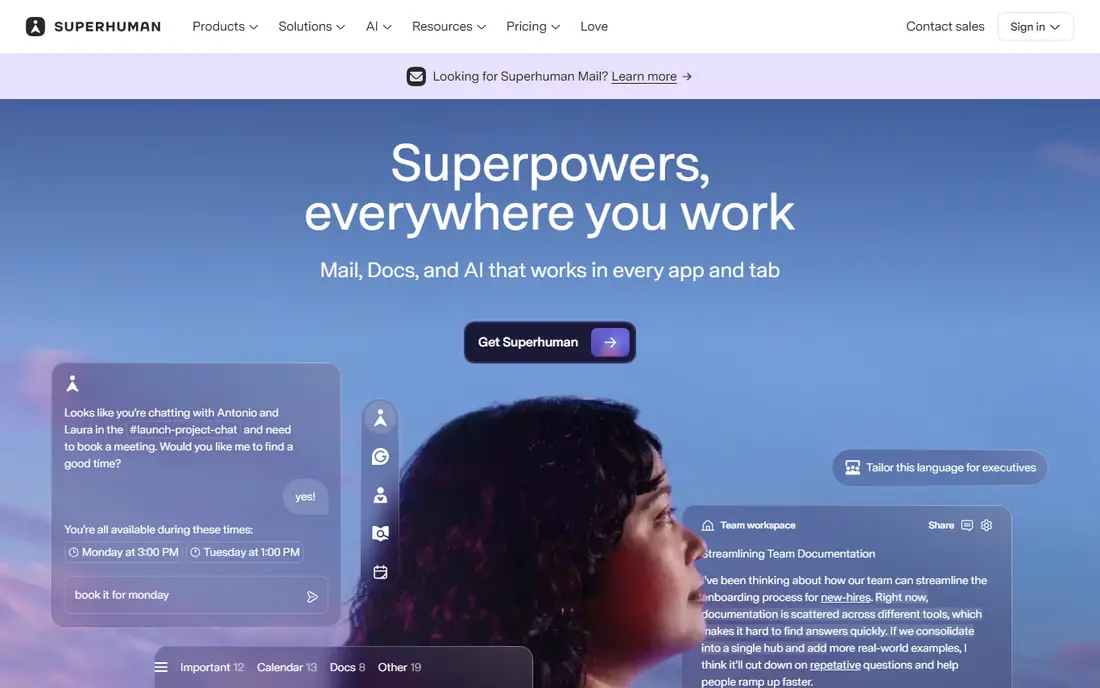
Superhuman suits professionals who live in email and want speed above all. Its keyboard-first workflow, split inbox, and reminders aim to cut the time spent triaging mail. We gave extra weight to tools that explain their limits plainly instead of hiding them behind a sales call.
Its strength is speed. For heavy email users, shaving seconds per message adds up to real time each week. We checked this against the vendor's own feature page and public reviews, not just marketing copy.
The drawback is price. It costs far more than most email clients and has no free plan, so casual users will struggle to justify it. Teams with strict requirements should test this exact point before signing a contract.
- Very fast keyboard workflow
- Send later and reminders
- Split inbox
- High monthly price
- No free plan
Thunderbird
Ideal for: free open source email client
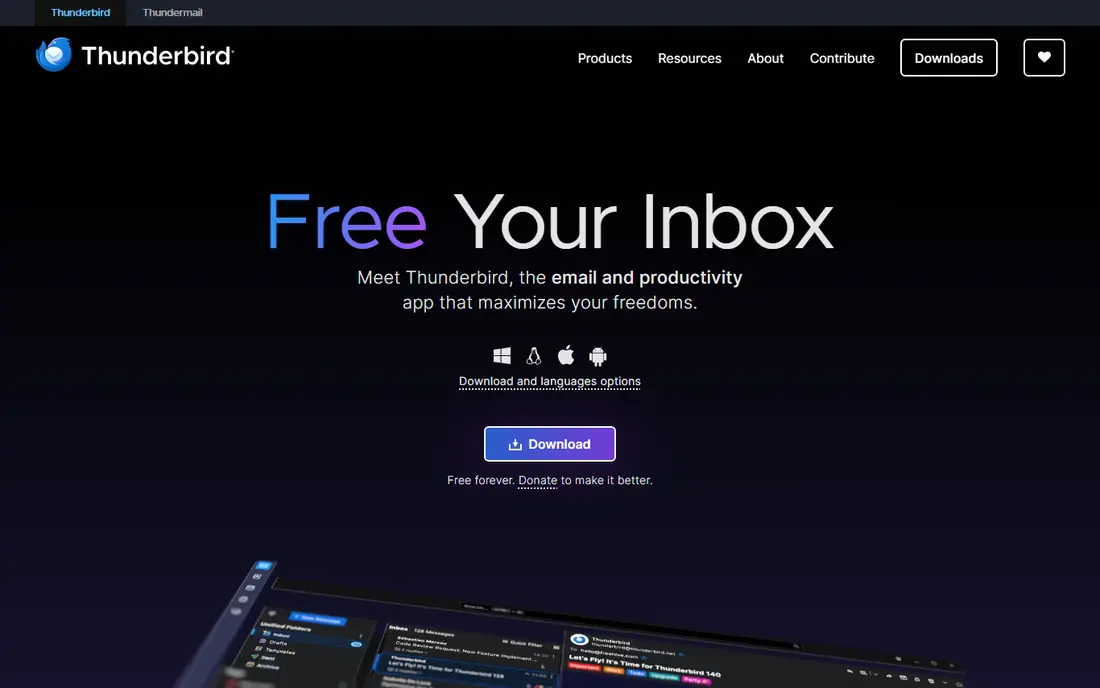
Thunderbird suits readers who want a free, open source email client with strong multi-account support. It handles many providers, offers add-ons, and stores mail locally. The best fit is often the tool your team will actually use every day, not the one with the longest list of features.
Its strength is freedom. No subscription is needed, and users can customise the client with add-ons and local folders. Look for this in the trial, and check how it behaves with your own data rather than sample data.
The drawback is polish. The interface feels dated beside newer clients, and account setup needs more manual steps. If this point is a deal breaker for you, the next options on this list handle it differently.
- Free and open source
- Multi-account support
- Add-ons and customisation
- Interface feels dated
- Setup needs manual account work
Outlook
Ideal for: Microsoft 365 users and office teams
Outlook suits office teams and Microsoft 365 users who want mail and calendar together. Its focused inbox, scheduling, and Teams links fit workplace routines. Setup effort, daily friction, and the clarity of the pricing page shaped how we weighed that fit.
Its strength is workplace fit. Calendar, contacts, and mail share one workspace, which suits teams already on Microsoft tools. That strength shows up in daily work, not just in a demo, which is why we ranked it highly.
The drawback is scope. The free version is lighter, and the full value comes with a Microsoft 365 subscription. That drawback may not matter for a small team, but it can grow into a real problem as usage grows.
- Calendar and mail in one place
- Focused inbox
- Microsoft 365 integration
- Best value inside Microsoft 365
- Free version is lighter
Apple Mail
Ideal for: Apple device users
Apple Mail suits readers who live on iPhone, iPad, and Mac and want mail built into the system. It sets up accounts easily, offers privacy features such as Mail Privacy Protection, and syncs across Apple devices. A short trial with real data tells you more than a feature list, so plan one before you commit.
Its strength is integration. Mail works with the system share sheet, contacts, and calendar without extra apps. This kind of strength tends to save time week after week, which adds up faster than a small price difference.
The drawback is platform lock. It is Apple-only, and power features such as advanced snooze rules are lighter than in specialist clients. Ask about it on a sales call or in the trial, and get the answer in writing if it affects your budget.
- Built into Apple devices
- Privacy features
- Simple multi-account setup
- Apple-only
- Fewer power features than specialist clients
eM Client
Ideal for: Windows and Mac users who want an all-in-one client
eM Client suits Windows and Mac users who want mail, calendar, contacts, and chat in one desktop app. It supports many providers and offers encryption for privacy-minded users. That focus matters most in the first weeks, when a team either settles into a tool or quietly stops opening it.
Its strength is all-in-one depth. A single window covers mail and calendar, which suits desktop-first workers. It also matters for teams that need to show results to a manager or a client without extra reporting work.
The drawback is free limits. The free plan caps accounts, and the interface takes a day or two to learn. It is worth weighing against the strengths above, especially if you plan to use the tool for years.
- Mail, calendar, contacts, and chat
- PGP encryption
- Multi-account support
- Free plan limits accounts
- Interface takes learning
Mailbird
Ideal for: Windows users who want a clean inbox
Mailbird suits Windows users who want a clean unified inbox with app integrations. It brings mail, calendar, and apps such as messaging tools into one window. We gave extra weight to tools that explain their limits plainly instead of hiding them behind a sales call.
Its strength is workspace feel. Integrations let users check other apps without leaving the inbox, which suits multitaskers. We checked this against the vendor's own feature page and public reviews, not just marketing copy.
The drawback is platform focus. It is Windows-first, and the Mac version is newer, so Mac users should trial it carefully. Teams with strict requirements should test this exact point before signing a contract.
- Clean unified inbox
- App integrations
- Snooze and speed reader
- Windows-focused
- Mac version is newer
Proton Mail
Ideal for: privacy-focused email users
Proton Mail suits readers who put privacy first. Its end-to-end encryption protects mail content, and its design avoids tracking and ads. The best fit is often the tool your team will actually use every day, not the one with the longest list of features.
Its strength is privacy. Encryption and a privacy-first policy make it a strong choice for sensitive mail. Look for this in the trial, and check how it behaves with your own data rather than sample data.
The drawback is encrypted search limits. Searching encrypted mail is more limited than in plain mail clients, and the free plan caps storage. If this point is a deal breaker for you, the next options on this list handle it differently.
- End-to-end encryption
- Privacy-first design
- Bridge for desktop clients
- Free plan limits storage and features
- Search limits on encrypted mail
How we picked these
We started from the main keyword for this article and checked each candidate against official feature pages, pricing pages, app store listings, privacy policies, and public reviews. We kept only products that exist and work in October 2026 and that truly fit best email client software, and we left out options that did not fit even when they looked popular in a general search.
We did not claim hands-on testing that did not happen. Where a price or a free tier could not be confirmed from the vendor's own site, we wrote See website rather than guessing a number. That approach keeps the list honest, and it means you should still confirm current pricing before you buy.
How to choose an email client
Start by writing down the one job this tool must do well for you. For best email client software, that job might be daily use by a small team, reporting for a manager, or handling a larger volume without constant manual work. A tool that does that one job well is usually a better buy than a tool that does many jobs in a shallow way.
Next, run a short trial with real data and the people who will use the tool every day. Watch how long setup takes, how clear the billing is, and how fast support answers a real question. If the trial feels confusing, that confusion rarely disappears after you pay, so take it as a useful warning.
Finally, check the terms that matter after the first month: renewal pricing, data export, cancellation, and what happens to your data if you leave. A tool with a clear export path and plain renewal terms is easier to live with, even if a rival looks slightly cheaper on the first invoice.
Frequently asked questions
What is the best option for best email client software?
For most readers, Spark is a strong starting point because it fits smart inbox for teams and individuals. The best choice still depends on your budget and team size, so compare the top three on this list in a trial before you decide.
Is there a free option for best email client software?
Some options on this list offer a free plan, and others offer a free trial, as shown in the comparison table. Free plans usually cover basic use, while paid plans add reporting, integrations, and support, so check the limits before you rely on a free tier.
How much do best email client software tools cost?
Pricing varies widely in this category, and some vendors only quote after a sales call. Where we could confirm a starting price, we listed it in the table, and where we could not, we wrote See website so you can check the vendor page directly.
Can I switch tools later if I pick the wrong one?
In most cases, yes, but switching takes more work than people expect. Before you commit, check how to export your data, whether integrations carry over, and how long a migration would take for your team.
How should I test a tool before buying?
Use a short trial with real data, invite the people who will use it daily, and test support with a genuine question. Keep notes on setup time, billing clarity, and any feature that was promised but hard to find in the product itself.