Best File Sharing Apps for Laptops in 2026: 7 Apps Compared

- 1
 DropboxEveryday sharingVisit
- 2
 Google DriveGoogle Workspace usersVisit
- 3
 Microsoft OneDriveWindows usersVisit
- 4
 BoxEnterprise contentVisit
- 5
 Send AnywhereQuick transfersVisit
- Dropbox suits everyday sharing, with more than 700 million registered users, synced team folders, previews for more than 175 file types and transfers up to 250GB.
- Google Drive suits Google Workspace users, with migration tools, shared drives for teams and flexible business storage options.
- Microsoft OneDrive suits Windows and Microsoft 365 users, with 5GB free, 100GB on Basic, 1TB on Personal and up to 6TB on Family plans.
- Box suits enterprise content, with AI insights, extraction agents, workflow automation and compliance for GDPR, HIPAA and FINRA.
- Send Anywhere suits quick device-to-device transfers, with a free starting price and a 4.8 rating from more than 267,000 ratings.
- Resilio suits fast business sync, with local-disk-speed access at 200 Gbps and higher, no VPN required and no data migration.
- Syncthing suits private sync, with continuous, real-time synchronization between computers and no third-party cloud storage.
- For one-off large files, use a transfer service; for ongoing work, use a synced cloud folder; for privacy, use Syncthing or Resilio on your own storage.
Quick comparison
| Product | Ideal for | Price from | Free version | |
|---|---|---|---|---|
| Dropbox | Everyday sharing | Free | Yes | Visit |
| Google Drive | Google Workspace users | See website | Yes | Visit |
| Microsoft OneDrive | Windows users | Free, 5GB | Yes | Visit |
| Box | Enterprise content | See website | No | Visit |
| Send Anywhere | Quick transfers | Free | Yes | Visit |
 Resilio | Fast business sync | See website | No | Visit |
 Syncthing | Private sync | Free | Yes | Visit |
The best file sharing apps for laptops
File sharing apps for laptops fall into three types: cloud storage with sync folders, one-off transfer tools, and peer-to-peer sync that skips the cloud. The apps below cover all three, so you can match the tool to whether you share occasionally, collaborate daily or keep data private. We checked each app's official homepage before listing it.
Dropbox
Ideal for: Everyday sharing
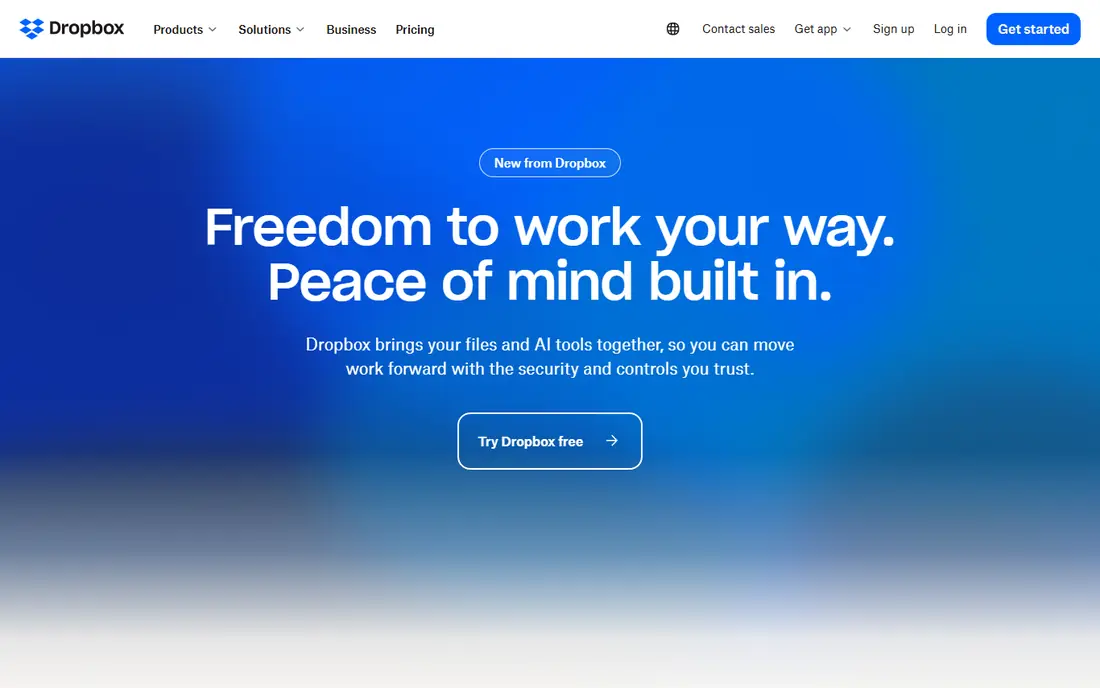
Dropbox is a home for all of your work, where you can store and share files, collaborate on projects and bring ideas to life alone or as part of a team. Its homepage highlights finding files fast, organizing with synced team folders and previews for more than 175 file types, and sharing instantly and securely with real-time syncing and large file transfers up to 250GB. AI integrations connect Dropbox with leading AI platforms to summarize content, create shared links and save work back to Dropbox without switching tools.
Dropbox suits most laptop users for everyday sharing, since its sync folder works on Windows and Mac, its links are easy to send, and its large transfer limit covers video and design files. Teams benefit from shared folders and version control, while individuals get a simple free start. For deep Google or Microsoft integration, Drive or OneDrive fit better, but for general sharing Dropbox remains the most widely used pick here.
- Trusted by more than 700 million registered users
- Synced team folders with previews for more than 175 file types
- Share files with real-time syncing and large file transfers up to 250GB
- AI integrations to bring Dropbox content into AI tools
- 4.8 rating from 424,618 reviews
- Full feature set needs a paid plan
- Large transfers and advanced controls vary by tier
Google Drive
Ideal for: Google Workspace users
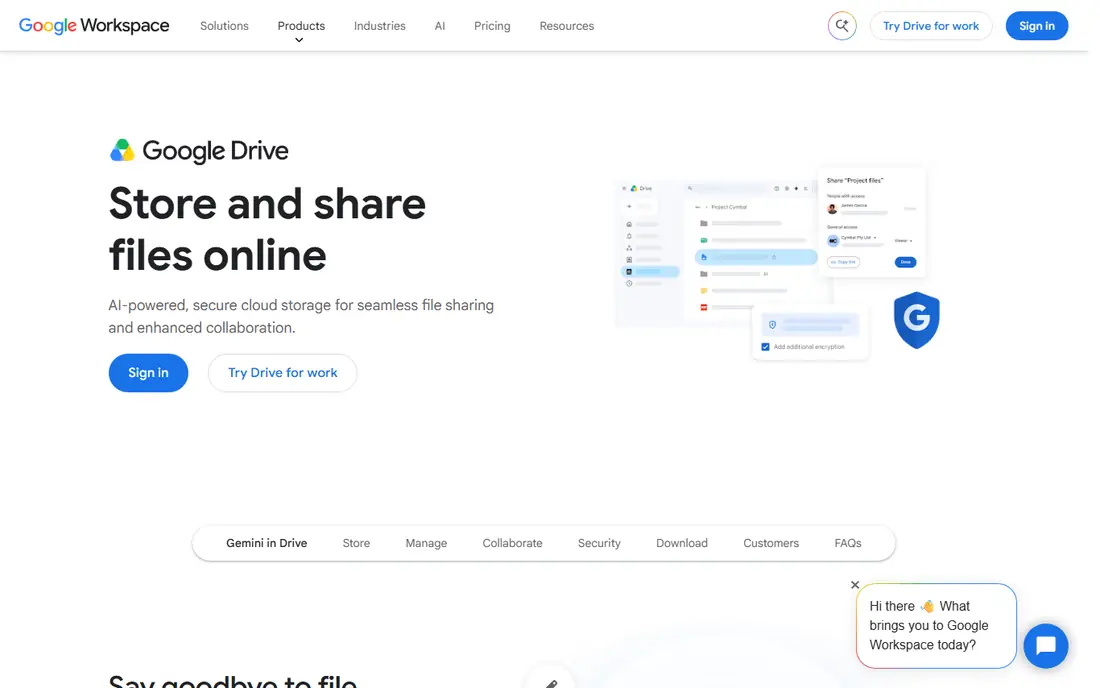
Google Drive lets users share files online with secure cloud storage as part of Google Workspace. Its homepage FAQ confirms migration tools and services to move an organization's important data to Google Workspace from current storage solutions, flexible storage options across Business and Enterprise editions, and a business version with more storage, stronger support and shared drives for teams. Drive integrates with Google's editors, so shared documents open for real-time collaboration without downloads.
Google Drive suits laptop users already in Google Workspace, students and teams that collaborate in Docs and Sheets. Its shared drives give teams a stable home for files that does not depend on one person's account. For Windows-centered work, OneDrive integrates better, but for Google-centered teams Drive is the natural sharing hub.
- Share files online with secure cloud storage
- Migration tools to move organizational data from current storage solutions
- Business version with more storage, stronger support and shared drives for teams
- Flexible Business and Enterprise storage options
- Deep integration with Google Docs, Sheets and Slides
- Business pricing needs a plans page visit
- Free personal storage is shared across Google services
Microsoft OneDrive
Ideal for: Windows users
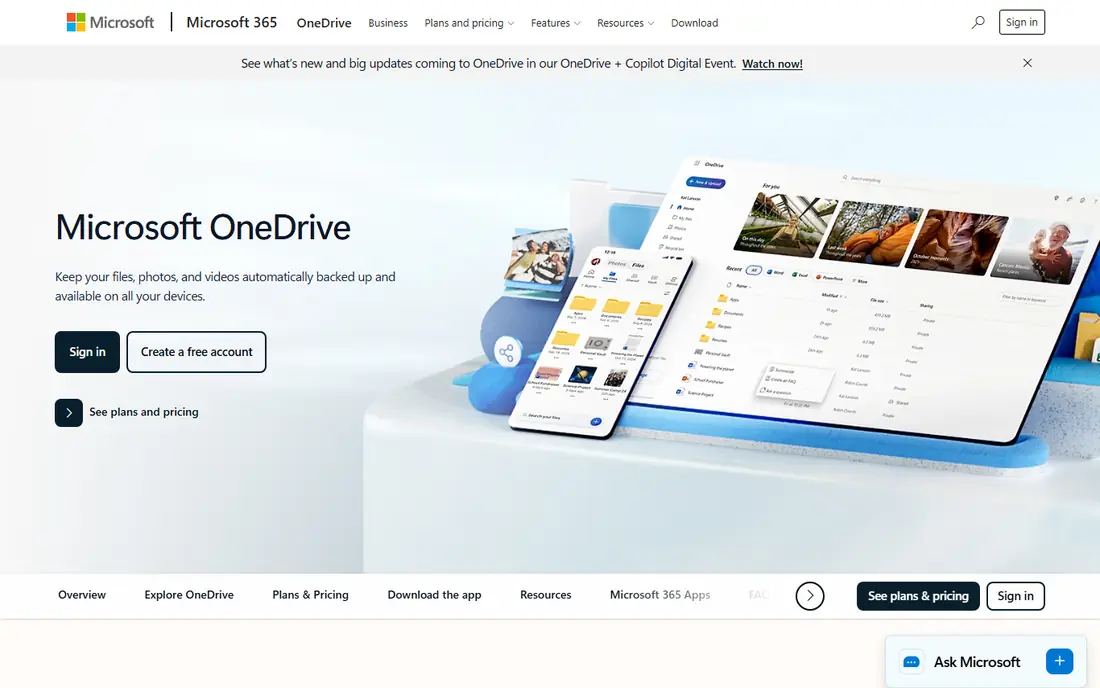
OneDrive is Microsoft's cloud storage service for backing up, accessing, editing, sharing and syncing files from any device, with real-time collaboration in Microsoft 365 documents. Its homepage notes 5GB free with a Microsoft 365 account, upgrades to 100GB on Basic, 1TB on Personal for one person and up to 6TB on Family, plus Windows Backup for PC folders, Mac folder backup and mobile photo backup. Security features include Personal Vault behind multifactor authentication, ransomware detection and recovery, expiring and password-protected sharing links and offline folders.
OneDrive suits Windows laptop users and Microsoft 365 subscribers, since it backs up Desktop, Documents and Pictures automatically and syncs Office files with version history. Its Personal Vault adds protection for sensitive files. For Google-centered teams, Drive fits better, but for Windows and Office work OneDrive is the most integrated sharing app here.
- Cloud storage to back up, access, edit, share and sync files from any device
- Real-time collaboration with Microsoft 365 documents
- Free Microsoft 365 account includes 5GB
- Basic subscription adds 100GB, Personal adds 1TB and Family adds up to 6TB
- Personal Vault with multifactor authentication
- Ransomware detection and recovery with Microsoft 365 subscriptions
- Windows Backup for PC folders
- Free tier is only 5GB
- Best value requires a Microsoft 365 subscription
Box
Ideal for: Enterprise content
Box offers intelligent content management, secure collaboration and agentic workflow, where teams access, share, edit and co-create content with AI while enterprise-grade security keeps sensitive data protected inside and outside the organization. Its homepage highlights AI insights across any amount of content, extraction of structured data from contracts and financial documents, workflow automation with agents for loan processing and onboarding, and security with deep learning-based malware detection, timely alerts, automated classification and granular access controls.
Box suits enterprises and regulated teams that share sensitive documents and need compliance, audit trails and AI-assisted processing in the same platform. Its e-signature integration closes deals without leaving the content system. Individuals and small teams may find Dropbox or Drive simpler and cheaper, but for enterprise content sharing Box leads.
- Intelligent content management with secure collaboration and agentic workflow
- AI insights from content using models from OpenAI, Anthropic and Google
- Extraction agents for contracts, bank statements and bills of lading
- Drag-and-drop workflow automation
- AI-driven security with malware detection and granular access controls
- Compliance for GDPR, HIPAA and FINRA
- Unlimited e-signatures free within its e-signature solution
- Enterprise focus and pricing
- More platform than individuals need for simple sharing
Send Anywhere
Ideal for: Quick transfers
Send Anywhere is a file transfer service for sending files between devices, with a free starting price and a strong app-store rating of 4.8 from more than 267,000 ratings. Its approach suits quick, one-off transfers: send a file from one laptop to another or to a phone without setting up shared folders or a long-term cloud library. Its mobile apps extend the same transfer workflow beyond laptops.
Send Anywhere suits occasional transfers where you do not need storage or collaboration, such as sending a large video to a colleague or moving files to a new laptop. Its simplicity is its strength: no folder structure to manage and no subscription for basic use. For ongoing collaboration, choose Dropbox, Drive or OneDrive, but for fast one-off sends Send Anywhere is handy.
- Simple device-to-device file transfer
- Free starting price
- 4.8 rating from more than 267,000 ratings
- Works across laptops, phones and other devices without a full cloud account setup
- Homepage content is thin, with limited feature detail
- Transfer-focused, so no synced folders or long-term storage
Resilio
Ideal for: Fast business sync
Resilio, formerly Resilio Active Everywhere and Connect, gives people, servers and remote locations fast access to the same files on the storage you already own, with no VPN required, no data to migrate and no second permission model to maintain. Its homepage highlights LAN-speed access at 200 Gbps and higher, so a large project file opens from home the way it opens at the desk, identity through Entra ID, Okta or Active Directory with existing file-server permissions enforced, and one deployment covering hybrid work, server sync and edge file sync. It notes that Resilio Sync is a separate app for personal and home sync, while Resilio itself is the enterprise product for IT teams.
Resilio suits engineering, media and manufacturing teams that sync huge files across sites and need local-disk speed without moving data to a cloud. Its use of existing storage avoids migration cost and keeps permissions intact. For personal laptop sync, Syncthing is simpler and free, but for business-scale fast sync Resilio is the strongest option here.
- Fast file access and sync everywhere, now part of Nasuni
- Local-disk-speed access at 200 Gbps and higher
- No VPN required and no data to migrate
- Runs on storage you already own including NetApp, Azure Files, Windows Server and NAS appliances
- Per-user sign-in through Entra ID, Okta or Active Directory
- Hybrid work, server sync and edge file sync on one deployment
- Typical site up in about an hour
- Enterprise product, so pricing and setup suit IT teams more than individuals
- Personal sync is a separate Resilio Sync app
Syncthing
Ideal for: Private sync
Syncthing is a continuous file synchronization program that synchronizes files between two or more computers in real time, safely protected from prying eyes. Its homepage stresses that your data is your data alone and you deserve to choose where it is stored, whether it is shared with a third party and how it is transmitted over the internet. Downloads and a getting-started guide cover setup, while Kastelo provides commercial support and sponsors development resources.
Syncthing suits privacy-conscious laptop users who want folders synced between their own devices without a cloud provider holding their files. It works well for syncing work between a desktop and a laptop, or for a small team with a shared server. The trade-off is responsibility: if all your devices fail, there is no cloud copy unless you arrange one. For private, free sync, Syncthing is unmatched here.
- Continuous file synchronization program
- Syncs files between two or more computers in real time
- Data stays under your control with no third-party cloud
- You choose where data is stored, whether it is shared and how it is transmitted
- Free and open source
- Commercial support available from Kastelo
- No cloud backup by itself, so you need your own devices online
- Setup needs more technical comfort than Dropbox or Drive
How we picked these
We compared official homepages, storage and transfer limits, sync models, platform support, security and price, favoring apps that are actively available for laptops in 2026. We covered everyday cloud sharing, Google and Microsoft ecosystems, enterprise content, quick transfers, fast business sync and private peer-to-peer sync, because the best app depends on whether you share once, collaborate daily or keep data private. We checked each app's own site before listing it.
How to choose a file sharing app for laptops
Start with how you share. For one-off large files, use a transfer tool such as Send Anywhere or a cloud link from Dropbox, which supports transfers up to 250GB. For ongoing collaboration, use a synced folder from Dropbox, Drive or OneDrive so files stay current across laptops. For private sync between your own devices, use Syncthing, and for business-scale sync across sites, use Resilio.
Next, check ecosystem and storage. Windows and Office users get the most from OneDrive, Google Workspace users from Drive, and mixed teams from Dropbox or Box. Compare free storage: OneDrive offers 5GB free, while Dropbox and Drive offer free tiers with their own limits, and paid plans scale to terabytes for families and teams. Confirm file size limits and version history for your largest files before committing.
Finally, check security for sensitive files. Use password-protected and expiring links, Personal Vault or equivalent protected folders, and multifactor authentication on your account. For regulated work, Box offers compliance for GDPR, HIPAA and FINRA, while Syncthing and Resilio keep data on storage you control. Avoid sharing sensitive files through unprotected public links, and remove access when a project ends.
Frequently asked questions
What is the best file sharing app for laptops overall?
Dropbox suits most laptop users overall, with synced folders, easy links and transfers up to 250GB. Google Drive suits Google Workspace teams, OneDrive suits Windows and Microsoft 365 users, and Syncthing suits private sync.
How can I send a very large file from my laptop?
Use a cloud link from Dropbox, which supports transfers up to 250GB, or a transfer tool such as Send Anywhere for a one-off send. For repeated large-file work, a synced folder or Resilio's fast sync handles big files more reliably than repeated manual sends.
Is there a free file sharing app for laptops?
Yes, Dropbox, Google Drive, OneDrive with 5GB free, Send Anywhere and Syncthing all offer free starts. Free tiers suit occasional sharing, while regular large-file or team use usually needs a paid plan for more storage and controls.
What is the difference between cloud storage and peer-to-peer sync?
Cloud storage keeps a copy on a provider's servers and syncs it to your devices, while peer-to-peer sync such as Syncthing moves files directly between your own devices without a third-party cloud. Cloud storage adds backup and easy links, while peer-to-peer sync adds privacy and control.
Can I share files between Windows and Mac laptops?
Yes, all apps here work across Windows and Mac, with Dropbox, Drive, OneDrive, Box, Send Anywhere, Resilio and Syncthing offering laptop apps for both platforms. Check each app's download page for your operating system version before installing.
How do I share files securely from my laptop?
Use password-protected and expiring links where available, enable multifactor authentication, and use protected folders such as OneDrive Personal Vault for sensitive files. For regulated or highly sensitive work, Box offers enterprise compliance, while Syncthing and Resilio keep data on storage you control.