Best Screen Record Apps in 2026: 8 Apps Compared

- OBS Studio is the best free screen recorder, with unlimited, open-source recording and live streaming at no cost.
- Loom is the best pick for quick team videos, with a record-and-share-by-link workflow and a usable free tier.
- Camtasia suits polished tutorials and courses, combining recording with a full editing timeline.
- Snagit is the best choice for quick captures and short how-to clips, with strong screenshot tools alongside video.
- Match the tool to the job: free tools cover most recording needs, while paid editors pay off only when you edit often.
Quick comparison
| Product | Ideal for | Price from | Free version | |
|---|---|---|---|---|
 OBS Studio | Free unlimited recording | Free | Yes | Visit |
 Loom | Quick team video messages | See website | Yes | Visit |
 Camtasia | Polished tutorials with editing | $179.88 per year | Free trial | Visit |
 Snagit | Quick captures and short clips | $39 per year | Free trial | Visit |
 ScreenPal | Budget all-in-one recording | $4 per month | Yes | Visit |
 Screencastify | Browser-based classroom recording | $7 per user per month | Yes | Visit |
 ScreenFlow | Mac creators who edit | $129 one-time | Free trial | Visit |
 ShareX | Free capture for technical users | Free | Yes | Visit |
The best screen record apps
These eight apps cover free recording, team sharing, tutorial editing and browser capture. We compared official pricing pages, feature pages and public reviews, focusing on recording limits, editing depth and the true cost of each plan.
OBS Studio
Ideal for: Free unlimited recording
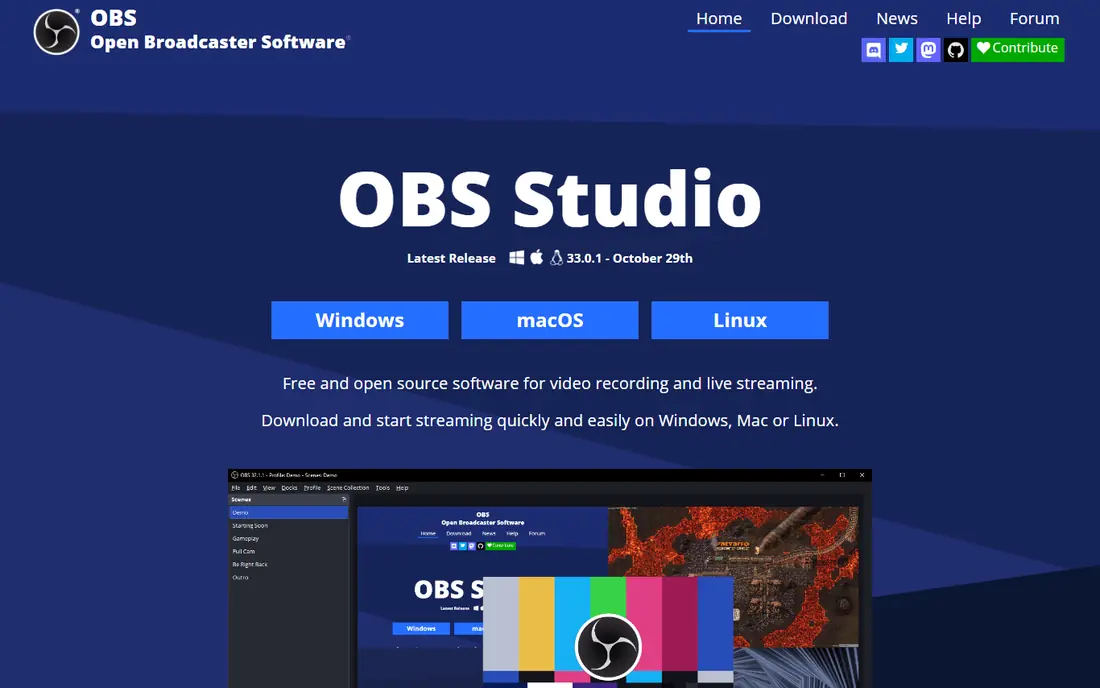
OBS Studio is the best free screen recorder, full stop. It records screen, webcam and audio on separate tracks, supports scenes and sources for polished layouts, and streams live to major platforms, all without cost, watermark or time limit. It runs on Windows, Mac and Linux.
The trade-off is setup. OBS assumes you will configure scenes, sources and output settings yourself, and it has no built-in editor or share-by-link workflow. For a user willing to learn the basics, it outperforms most paid recorders at recording itself. For quick team messages, pair it with Loom or a simple editor.
- Completely free and open source
- Multi-track recording
- Live streaming built in
- Setup takes effort
- No built-in video editor or sharing links
Loom
Ideal for: Quick team video messages
Loom wins for workplace video messages. Record your screen and webcam, get a link instantly, and teammates watch without downloading anything, with comments and reactions built in. The free Starter tier covers 25 videos at up to 5 minutes each in 720p, which suits occasional use.
Heavy users need a paid plan, listed at $15 per user per month on annual billing or $18 monthly, for unlimited videos, 4K and advanced features. For a team replacing long emails and status meetings with short videos, Loom's speed is hard to beat.
- Record and share by link in seconds
- Webcam and screen together
- AI summaries on newer plans
- Free tier limits videos and length
- Paid plans from $15 to $18 per user per month
Camtasia
Ideal for: Polished tutorials with editing
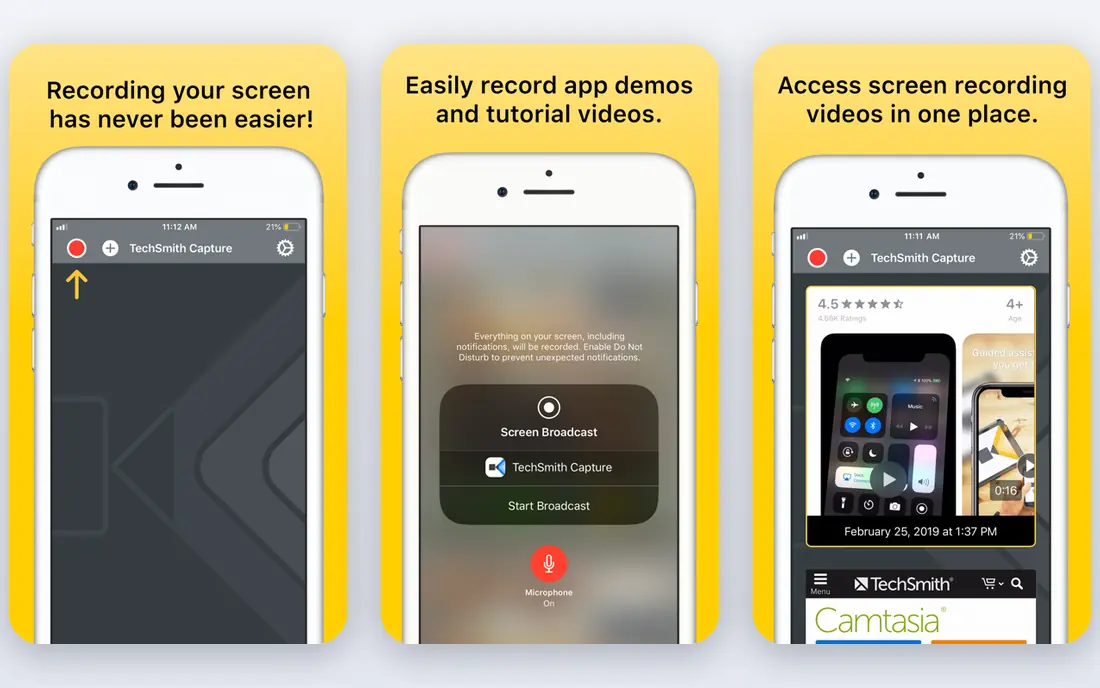
Camtasia is the tutorial-making suite in this list. It combines a capable recorder with a full editing timeline, so you can record a lesson, cut mistakes, add zooms, callouts and captions, and export directly, all in one app. Multi-track recording keeps narration, screen and webcam separate for easier fixes.
Essentials pricing is $179.88 per year, with a free trial that exports with a watermark, and the app needs decent hardware for smooth editing. For teams producing training videos weekly, the bundled editing pays for itself. For a one-off clip, a free recorder is enough.
- Full editing timeline
- Callouts, zooms and templates
- Multi-track recording
- Essentials costs $179.88 per year
- Heavier system requirements than light recorders
Snagit
Ideal for: Quick captures and short clips
Snagit, also from TechSmith, is the quick-capture tool for support teams and technical writers. It captures screenshots and short videos, annotates them with arrows, text and steps, and shares them fast. That combination makes it ideal for bug reports, how-to replies and short demos.
It is not a video editor, so polished tutorials need Camtasia or another editor. At $39 per year for individuals, with a 15-day trial, Snagit is a low-cost tool that saves time every day for anyone who explains things on screen.
- Excellent screenshots plus video
- Annotation tools
- Fast sharing
- Video editing is light
- $39 per year for the individual plan
ScreenPal
Ideal for: Budget all-in-one recording
ScreenPal, formerly Screencast-O-Matic, is the budget all-rounder. It records, edits and hosts videos in one tool, with a free tier covering 15-minute recordings and basic editing, and Solo Deluxe from $4 per month on annual billing. That price makes it accessible for teachers and small teams.
Editing depth is lighter than Camtasia, and the free tier's limits will push regular users to paid plans. For a teacher or small team that wants one affordable tool for recording and sharing, ScreenPal is a practical choice.
- Recording, editing and hosting in one low-cost tool
- Solo Deluxe from $4 per month
- Free tier limits recordings and hosted videos
- Editing is lighter than Camtasia
Screencastify
Ideal for: Browser-based classroom recording
Screencastify is the browser-based pick, popular with teachers and Chromebook teams. It runs as a Chrome extension, records screen, webcam or both, and shares directly to Google Drive and YouTube. The free tier covers limited videos and recording length, while paid plans start at $7 per user per month on annual billing.
It is Chrome-focused, so users on other browsers or offline workflows should look elsewhere. For a classroom or a team that lives in Chrome and Google Workspace, Screencastify's simplicity is a real advantage.
- Runs in Chrome with no install
- Classroom friendly
- Easy sharing to Drive and YouTube
- Chrome-focused
- Free tier limits video count and length
ScreenFlow
Ideal for: Mac creators who edit
ScreenFlow is the Mac creator's recorder and editor. It captures screen, webcam and audio with low overhead, then edits on a timeline built for Mac workflows, with titles, transitions and annotations. A one-time purchase at $129 covers the app, with a free trial to test it.
There is no Windows version, so mixed-device teams need another tool. For a Mac user who records and edits demos, lessons or product videos regularly, ScreenFlow's speed and polish make it the best Mac-native choice.
- Fast Mac-native recording and editing
- Polished output
- One-time purchase
- Mac only
- $129 one-time cost
ShareX
Ideal for: Free capture for technical users
ShareX is the free power tool for Windows users. It captures screenshots, GIFs and screen video, annotates them, automates uploads to many destinations, and costs nothing. Technical users who want keyboard-driven capture and custom workflows will find it remarkably capable.
It runs only on Windows, and the interface packs many options that can overwhelm a casual user. For a Windows user who wants free, flexible capture without a subscription, ShareX is an excellent complement to OBS Studio.
- Free and open source
- Screenshots, GIFs and video
- Powerful automation and upload options
- Windows only
- Interface can overwhelm casual users
How we picked these
We compared official pricing pages, feature pages and public reviews for screen recording tools available in October 2026. We favored tools with a working free tier or trial, a current version and a real user base, and we weighed recording quality, editing depth, sharing workflow and price, since different jobs need different combinations.
What to check before you pick a screen recorder
Start with the job. A quick team update needs Loom's share-by-link speed, a polished course needs Camtasia's editor, a live stream needs OBS, and a bug report needs Snagit's annotation. Buying a full editor for quick messages wastes money, while using a light recorder for a course wastes time in a second app.
Then test the limits that matter to you: recording length, resolution, watermarking, file size and export formats. Free tiers often cap one of these, and a cap you hit weekly is a reason to pay. Record a real session, not a test clip, and check audio quality, cursor visibility and system performance.
Finally, check where videos go. Confirm sharing links, privacy settings and storage limits, and make sure recordings do not expose sensitive information such as passwords, customer data or private messages visible on screen. A quick review before sharing prevents an embarrassing leak.
If you are still unsure, trial the top two options from this list with a real project before committing to a paid plan, since hands-on use reveals fit faster than any feature list. Check how each option handles your everyday tasks, how quickly support answers a question, and how easy it is to export your data if you later switch. A short trial with real work gives you evidence that no comparison table can, and it protects you from paying for features you will never use.
Frequently asked questions
What is the best free screen recorder?
OBS Studio is the best free screen recorder, with unlimited, watermark-free recording and live streaming. ShareX is also free for Windows users, and Loom offers a usable free tier for short team videos.
Is Loom free?
Yes, Loom offers a free Starter tier covering 25 videos at up to 5 minutes each in 720p. Paid plans from $15 per user per month on annual billing add unlimited videos, 4K and advanced features.
Which screen recorder is best for tutorials?
Camtasia is the best tutorial tool, since it combines recording with a full editing timeline, callouts and captions. ScreenFlow is the best Mac alternative, while OBS Studio plus a separate editor suits budget-conscious creators.
Can I record my screen without installing software?
Yes, Screencastify runs in Chrome as an extension, and Loom offers a browser recorder. For a full desktop recording without install, browser tools work well for short clips, while desktop apps suit longer sessions.
What is the best screen recorder for Mac?
ScreenFlow is the best Mac-native recorder and editor, with a one-time purchase. OBS Studio and Loom also run on Mac, with OBS free and Loom best for quick sharing.