Best Free Caption Apps for YouTube Videos in 2026: 7 Apps Compared

- CapCut suits quick captions, with a free video editor that adds auto captions and exports for YouTube.
- Kapwing suits browser captioning, with a modern video platform used by more than 30 million creators and a 4.88 rating from 5,231 ratings.
- VEED suits subtitle workflows, with an AI video platform that creates, edits and adds subtitles in one workflow and a 4.6 rating from 2,139 ratings.
- Descript suits transcript-based captions, with a free plan that needs no credit card and text-based editing.
- Clipchamp suits Windows creators, with a free browser editor and auto captions for YouTube uploads.
- Subtitle Edit suits precise manual captions, with an offline, open-source subtitle editor that runs entirely on your device.
- Canva suits styled captions for Shorts, with a free plan and templates for social video.
- For burned-in captions, use CapCut, Kapwing or VEED; for uploadable subtitle files, use Subtitle Edit or export an SRT from your editor; always proofread auto captions before publishing.
Quick comparison
| Product | Ideal for | Price from | Free version | |
|---|---|---|---|---|
 CapCut | Quick captions | Free | Yes | Visit |
 Kapwing | Browser captioning | Free | Yes | Visit |
 VEED | Subtitle workflows | Free | Yes | Visit |
 Descript | Transcript captions | Free | Yes | Visit |
 Clipchamp | Windows creators | Free | Yes | Visit |
 Subtitle Edit | Precise manual captions | Free | Yes | Visit |
 Canva | Styled Shorts captions | Free | Yes | Visit |
The best free caption apps for YouTube videos
Captions help viewers watch with sound off, follow accents, and find your video through search. Free caption apps differ in how they create captions: some auto-generate them from speech, some let you type and time them by hand, and some do both. The apps below all offer a free start, and we checked each app's official homepage before listing it.
CapCut
Ideal for: Quick captions
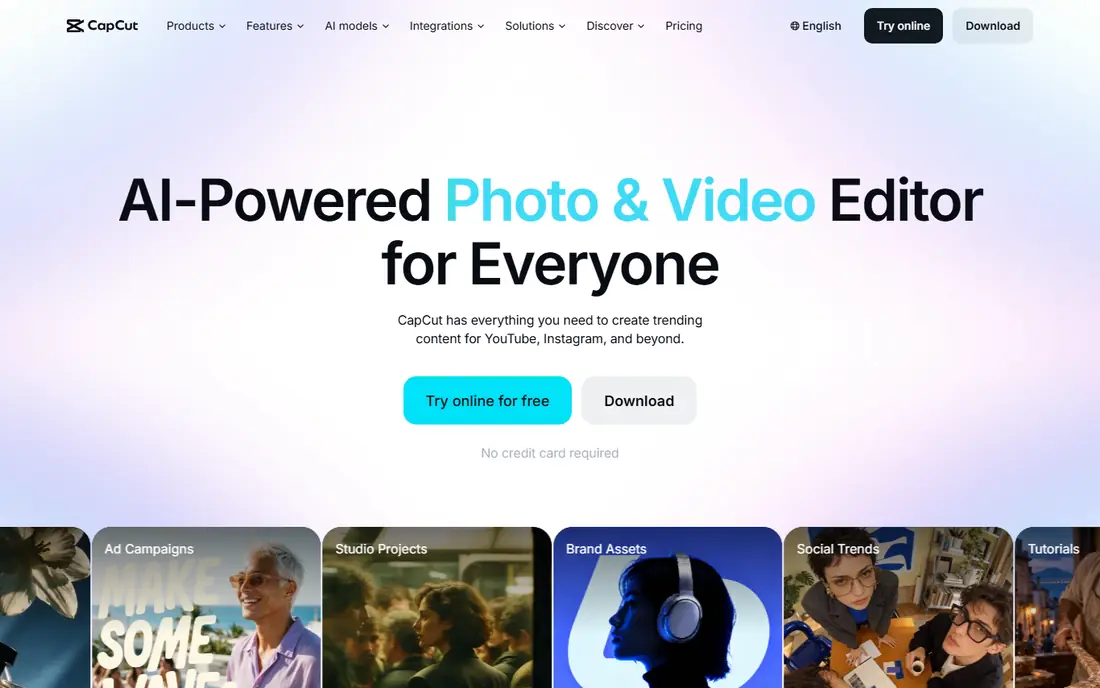
CapCut is a free video editor that adds auto captions to YouTube videos and Shorts, letting creators generate captions from speech, style them and export a captioned video in minutes. Its browser and mobile editors suit quick turnaround, while its desktop editor handles longer videos. CapCut's templates and text styles help Shorts captions look polished without manual design work.
CapCut suits creators who want captions fast and do not need frame-perfect timing. Auto captions save time on talking-head videos, vlogs and tutorials, though proofreading remains important for names, terms and numbers. For precise subtitle files, pair CapCut with Subtitle Edit, but for everyday YouTube captioning CapCut is the fastest free start.
- Free video editor with auto captions
- Simple workflow for YouTube videos and Shorts
- Templates and effects for social video
- Works in browser and on desktop and mobile
- Advanced features need a paid plan
- Free exports may carry watermarks on some assets
Kapwing
Ideal for: Browser captioning
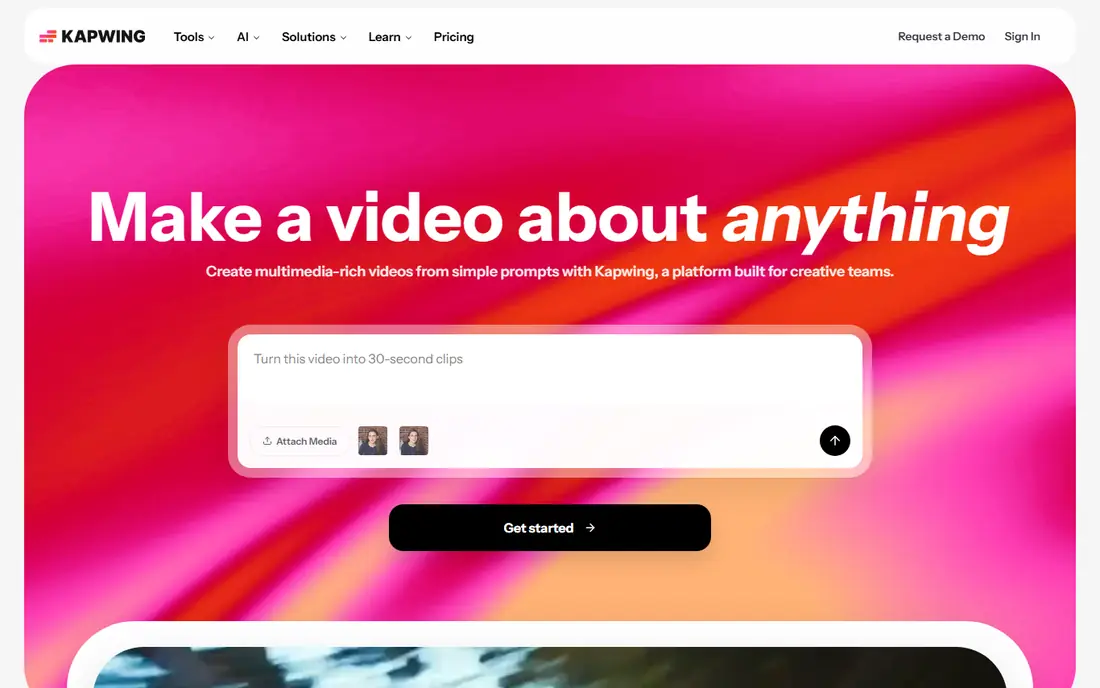
Kapwing is a modern video platform for creative teams, where creators turn rough ideas into polished videos with templates, quick exports and collaboration built in. Its browser editor adds captions to YouTube videos without installing software, and its team tools suit channels with editors and reviewers. Kapwing's homepage notes more than 30 million creators across the globe and a 4.88 rating from 5,231 ratings.
Kapwing suits creators who edit in a browser and want captions plus full video editing in one place. Its collaboration features help teams review caption wording before publishing. For offline caption work, Subtitle Edit fits better, but for browser-first YouTube captioning Kapwing is a strong free pick.
- Modern video platform used by more than 30 million creators
- 4.88 rating from 5,231 ratings
- No downloads needed
- Templates and collaboration built in
- AI tools to turn ideas into projects with layers, timing and sound
- Free plan limits exports and features
- Long videos need a paid plan for smooth work
VEED
Ideal for: Subtitle workflows
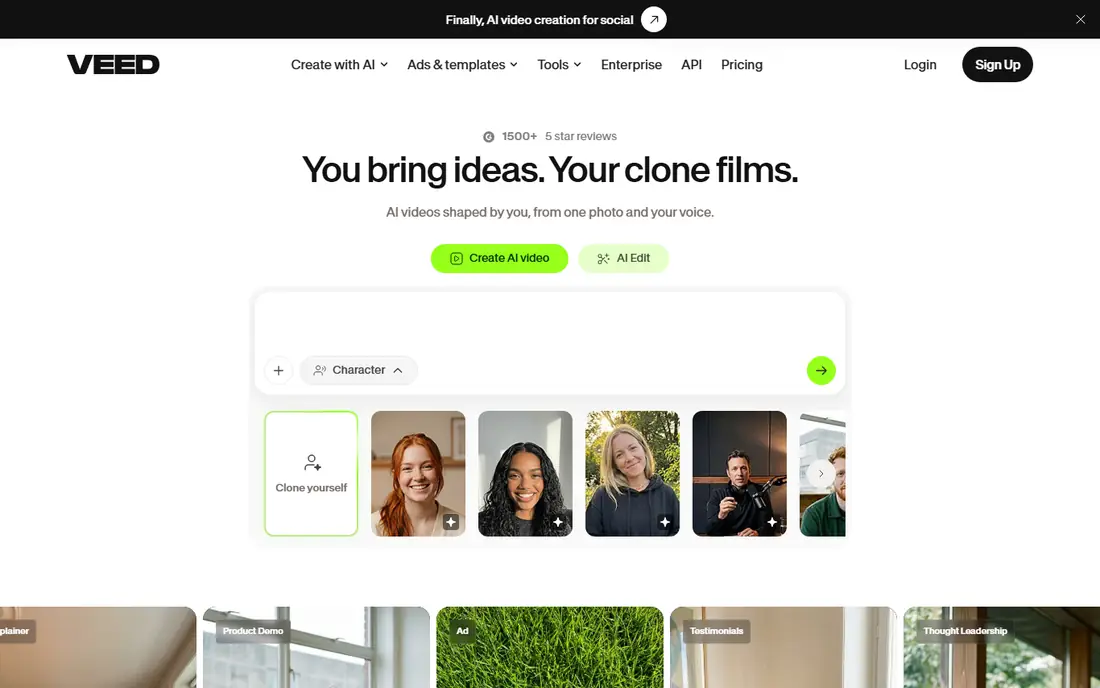
VEED is an AI video creation platform that generates and edits video in one workflow, letting users create talking-head videos, edit with AI, dub videos and add subtitles, all in VEED. Its homepage describes it as built for marketers and solopreneurs, with a 4.6 rating from 2,139 ratings and recognition as a G2 Best AI software company in 2026. Subtitle tools sit inside the editor, so captions are part of the same workflow as cuts, titles and exports.
VEED suits YouTubers who want subtitles as part of a full editing workflow, especially for business and marketing videos. Its subtitle handling pairs well with dubbing for multilingual channels. For a fully free desktop tool, Subtitle Edit wins, but for browser subtitle workflows VEED is a solid free start.
- AI video platform that creates, edits and adds subtitles in one workflow
- 4.6 rating from 2,139 ratings
- Built for marketers and solopreneurs
- Dubbing and subtitle tools alongside editing
- More than 1,500 five-star reviews
- Free plan limits video length and features
- Subtitle styling options vary by plan
Descript
Ideal for: Transcript captions
Descript is an AI video and audio editor that lets you edit by editing text: record or upload, get an instant transcript, then cut, trim and rearrange video by changing the transcript. Its homepage confirms a free plan with no credit card required, where users record, edit and publish for free and upgrade only when they outgrow the limits. Captions follow naturally from the transcript, so fixing a caption means fixing the text.
Descript suits YouTubers who script, record and edit talking-head videos, podcasts and tutorials, since the transcript doubles as the caption source. Its text editing makes caption corrections fast: edit a word and the video follows. For burned-in styled captions, CapCut or Kapwing add more visual flair, but for accurate, editable captions Descript is excellent.
- Free plan with no credit card required
- Text-based editing where deleting a word deletes that moment of video
- Instant transcript from recordings or uploads
- Studio Sound for noise removal and voice enhancement
- SOC 2 Type II certified and GDPR compliant
- 4.6 average rating from 837 reviews
- Caption styling is tied to its editor workflow
- Advanced AI features need a paid plan
Clipchamp
Ideal for: Windows creators
Clipchamp is Microsoft's free browser video editor, where creators trim, caption and export YouTube videos without installing desktop software. Its auto caption tool generates timed captions from speech, which creators can edit, style and export as burned-in captions or subtitle files. Integration with Microsoft accounts and OneDrive suits Windows creators who already store footage in the Microsoft ecosystem.
Clipchamp suits Windows YouTubers who want a free, no-install caption workflow with Microsoft integration. Its templates speed up intros, outros and Shorts. For offline captioning, Subtitle Edit is better, but for browser captioning on Windows, Clipchamp is a convenient free choice.
- Free browser video editor from Microsoft
- Auto captions for YouTube videos
- Templates and stock assets
- Integrates with OneDrive and Microsoft accounts
- No desktop install needed for browser editing
- Some features and exports need a paid plan
- Best experience needs a modern browser and stable connection
Subtitle Edit
Ideal for: Precise manual captions
Subtitle Edit is an offline, open-source subtitle editor that does not collect, store, transmit or analyze the content of subtitle or media files. Its project page confirms builds for Windows, macOS and Linux, with Windows 10 version 22H2 or newer as the minimum, macOS 12 or newer, and Flatpak or native builds for Linux. All core features, including editing, converting, video playback and local auto-backup, run entirely on your device, while optional online services such as translation or speech-to-text send only the minimal data needed for that request.
Subtitle Edit suits creators who want precise, uploadable subtitle files for YouTube, with full control over timing, line breaks and formatting. It is the best free choice for correcting auto captions from other tools, since you can import, fix and export SRT files for YouTube's subtitle upload. Its learning curve is higher, but for accuracy and privacy it leads this list.
- Free, open-source subtitle editor
- Offline, so subtitle and media files stay on your device
- Works on Windows, macOS and Linux
- Supports many subtitle formats for YouTube upload
- Optional speech-to-text, translation and OCR through third-party services
- MIT licence
- 14,726 stars on its project page
- Interface is more technical than browser editors
- Auto captioning depends on optional third-party services
Canva
Ideal for: Styled Shorts captions
Canva is a design platform with a free video editor that suits styled captions for YouTube Shorts and social clips. Creators add text overlays, animate them and time them to speech, using templates that keep a channel's look consistent. Its drag-and-drop editor suits beginners who want captions that look designed rather than plain.
Canva suits Shorts creators and channels that prioritize visual style, where captions act as on-screen text rather than accessibility subtitles. For full-length videos with accurate subtitles, use Subtitle Edit or Descript alongside Canva. For quick, good-looking Shorts captions, Canva's free plan is an easy start.
- Free plan with templates for social video
- Easy text styling for captions on Shorts
- Drag-and-drop editor that suits beginners
- Brand kits and templates for consistent channel looks
- Not a dedicated caption tool, so timing control is more limited than Subtitle Edit
- Some caption and video features need a paid plan
How we picked these
We compared official homepages, free plans, caption creation methods, export options and YouTube fit, favoring apps with a genuinely free start for captioning. We covered auto captions, transcript-based captions, browser editors and a precise manual editor, because the best app depends on whether you want speed, accuracy or style. We checked each app's own site before listing it.
How to choose a free caption app for YouTube videos
Start with your caption type. For burned-in captions that appear in the video itself, use CapCut, Kapwing, VEED or Canva, which style and render captions into the export. For uploadable subtitles that viewers can turn on or off, use Subtitle Edit or export an SRT from Descript or Clipchamp, then upload it in YouTube Studio. For accessibility, uploadable subtitles are better, since viewers can adjust size and language.
Next, check accuracy and effort. Auto captions save time but need proofreading for names, brand terms and numbers, while manual captions in Subtitle Edit take longer but give exact timing. Descript's transcript workflow sits between the two: fix the text and the captions follow. Test each app on a short clip before committing to a full video, and confirm the free plan covers your video length and export needs.
Finally, check export and style. Confirm the app exports in a format YouTube accepts, whether burned-in video or an SRT file, and that caption styles stay readable on small screens. Keep captions to two lines, avoid covering faces or key visuals, and review them on a phone before publishing, since many viewers watch on mobile.
Frequently asked questions
What is the best free caption app for YouTube videos?
CapCut suits most creators for quick auto captions, while Subtitle Edit suits precise subtitle files and Descript suits transcript-based captions. For browser editing, Kapwing and VEED are strong free starts, and Clipchamp suits Windows creators.
Can I add captions to YouTube videos for free?
Yes, all apps here offer a free start. You can also upload subtitle files in YouTube Studio at no cost. Free plans may limit video length, exports or features, so check limits before starting a long video.
Are auto captions accurate enough for YouTube?
Auto captions are a good starting point but need proofreading, especially for names, technical terms and numbers. Descript and Subtitle Edit make corrections easy, and reviewing captions once before publishing catches most errors.
What is the difference between burned-in captions and subtitles?
Burned-in captions are part of the video image and cannot be turned off, while subtitles are a separate file viewers can toggle and YouTube can translate. For accessibility, uploadable subtitles are better, while burned-in captions suit Shorts and social clips.
Can I caption YouTube Shorts for free?
Yes, CapCut, Canva and Kapwing offer free plans with templates and text styling suited to Shorts. Keep captions short, large and centered so they stay readable on phones.
How do I upload captions to YouTube?
In YouTube Studio, open your video, go to Subtitles, and upload an SRT file made in Subtitle Edit or exported from Descript or Clipchamp. You can also edit captions directly in YouTube Studio after upload.