Best Free Drawing Apps for Beginners in 2026: 8 Apps Compared

- 1
 KritaDesktop paintingVisit
- 2
 MediBang PaintManga and comicsVisit
- 3
 Ibis PaintMobile drawingVisit
- 4
 Autodesk SketchbookSimple sketchingVisit
- 5
 FireAlpacaSimple desktop drawingVisit
- Krita is our pick for desktop beginners who want a full free painting app, while MediBang Paint suits manga and comic beginners.
- Ibis Paint and Autodesk Sketchbook are best for phone and tablet drawing on the go.
- Procreate is paid, but it is worth mentioning as the upgrade path for iPad artists who outgrow free apps.
- Free apps cover brushes, layers and basic animation, so you do not need to pay to learn drawing.
- A stylus helps, but you can start with a finger or mouse and upgrade later when drawing becomes a habit.
Quick comparison
| Product | Ideal for | Price from | Free version | |
|---|---|---|---|---|
| Krita | Desktop painting | Free | Yes | Visit |
| MediBang Paint | Manga and comics | Free | Yes | Visit |
| Ibis Paint | Mobile drawing | Free | Yes | Visit |
| Autodesk Sketchbook | Simple sketching | Free | Yes | Visit |
| FireAlpaca | Simple desktop drawing | Free | Yes | Visit |
 Clip Studio Paint | Manga pros (trial) | See website | Free trial | Visit |
 Procreate | iPad upgrade | See website | No | Visit |
 Tayasui Sketches | Simple iPad sketching | Free | Yes | Visit |
The best free drawing apps for beginners
Free drawing apps for beginners should be easy to start, forgiving to learn and powerful enough to grow with you. We compared official feature pages, pricing, app listings and public reviews to find apps that still offer a usable free tier in October 2026, across desktop, tablet and phone, since beginners draw on many devices.
Krita
Ideal for: Desktop painting

Krita is a free, open source painting app for Windows, Mac and Linux, with professional brushes, layers, blending modes and animation tools that rival paid apps. It suits beginners who want to learn digital painting seriously on a computer, since its brush engines, stabilisers and colour tools are genuinely powerful. Tutorials and community resources are plentiful, which helps new users learn the interface.
The interface can feel overwhelming at first, with many panels and options, so beginners should start with a basic brush set and hide panels they do not need. Krita needs a reasonably capable computer for large canvases, but for desktop painting, it is the best free app available, and it stays free forever.
- Free and open source
- Professional brushes and layers
- Animation tools
- Desktop only for full features
- Interface can overwhelm beginners
- Needs a decent computer
MediBang Paint
Ideal for: Manga and comics
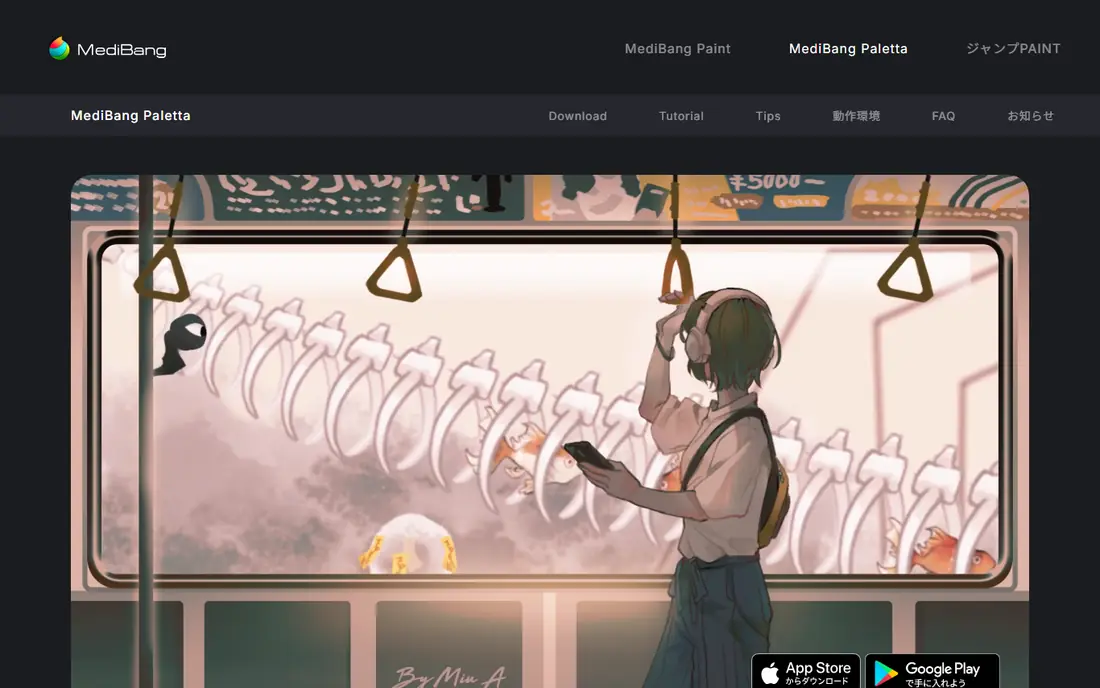
MediBang Paint is a free drawing app for Windows, Mac, iOS and Android, built with manga and comic creators in mind. It offers panel creation, screentones, comic fonts and cloud saving, which makes it ideal for beginners who want to make comics, not just single illustrations. Collaboration features let multiple users work on a project, which suits school and club projects.
Ads appear in the free version, and the interface is less polished than Krita or Procreate, but the comic tools are genuinely useful and hard to find free elsewhere. If your goal is manga or comics, MediBang Paint is the best free starting point, and its cross platform support means you can draw on a phone and finish on a computer.
- Free for manga and comics
- Panel tools
- Cloud saving and collaboration
- Ads on free version
- Interface less polished than Krita
- Comic focus
Ibis Paint
Ideal for: Mobile drawing

Ibis Paint is one of the most popular mobile drawing apps, with thousands of brushes, layers, filters and a recording feature that lets you share your drawing process as a video. Its large community shares tutorials, brushes and artworks, which helps beginners learn techniques and stay motivated. The app works on iOS and Android phones and tablets, so you can draw anywhere.
Ads appear on the free version, and drawing on a phone screen limits detail compared with a tablet or computer, though a stylus helps. Some advanced features need a Prime subscription, but the free tier is generous enough for learning and regular mobile drawing.
- Free with many brushes
- Recording and sharing
- Huge mobile community
- Ads on free version
- Small screen limits detail
- Some features need Prime
Autodesk Sketchbook
Ideal for: Simple sketching
Autodesk Sketchbook is completely free on desktop and mobile, with a clean, minimal interface that hides tools until you need them. That simplicity makes it ideal for beginners who want to sketch without learning a complex app, while still offering layers, brushes, blending and perspective guides for more advanced work. Its scan and photo sketch features are also handy for turning paper sketches into digital art.
Development has slowed compared with Krita or MediBang, and advanced features like animation and comic panels are missing. For pure sketching and learning to draw digitally, though, Sketchbook's simplicity is a strength, and its free price makes it an easy first app to try.
- Completely free
- Clean, simple interface
- Good brushes and layers
- Fewer advanced features than Krita
- Development slowed
- No animation tools
FireAlpaca
Ideal for: Simple desktop drawing
FireAlpaca is a free, lightweight drawing app for Windows and Mac, designed to be easy for beginners with a simple interface and fast performance on older computers. It offers layers, brushes, onion skin for simple animation reference and a clean workspace that does not overwhelm new users. That lightness makes it a good choice for school computers or older laptops that struggle with Krita.
Brush variety and advanced painting tools are thinner than Krita's, and there is no full animation timeline, so FireAlpaca is best for illustration and sketching rather than painting or animation. If your computer is old or you want the simplest possible desktop drawing app, FireAlpaca is an excellent free start.
- Free and lightweight
- Easy interface
- Good for beginners on older computers
- Fewer brushes than Krita
- No animation
- Windows and Mac only
Clip Studio Paint
Ideal for: Manga pros (trial)
Clip Studio Paint is the industry standard for manga, comics and illustration, with powerful brushes, panel tools, 3D models for posing, animation timelines and a huge asset store. Many professional manga artists use it, which means tutorials and community resources are abundant. Its trial lets beginners test the full app before paying, which is useful for judging whether its depth is worth the subscription.
After the trial, Clip Studio Paint needs a paid subscription or perpetual licence, depending on platform, so it is not a permanent free app. Beginners who fall in love with manga should try the trial, then decide whether to pay or stick with MediBang Paint free, since both cover comic creation, with Clip Studio offering more professional depth.
- Industry standard for manga and comics
- Powerful brushes and 3D models
- Animation
- Paid subscription after trial
- Learning curve
- Overkill for casual sketching
Procreate
Ideal for: iPad upgrade
Procreate is included here as the upgrade path, not a free app, because many beginners who start free on iPad eventually move to it. It offers the best iPad drawing experience, with a huge brush library, intuitive gestures, animation assist and a one time purchase rather than a subscription. That one time price makes it affordable over time compared with subscription apps.
Procreate is iPad only and paid, so it does not belong as a free recommendation, but it is worth knowing about if you draw on iPad and want more power than free apps offer. Start free with Ibis Paint or MediBang, then consider Procreate once drawing is a regular habit.
- Best iPad drawing experience
- Huge brush library
- One time purchase, not subscription
- IPad only
- Paid, not free
- No desktop version
Tayasui Sketches
Ideal for: Simple iPad sketching
Tayasui Sketches offers a beautiful, minimal drawing experience on iOS, with realistic watercolour, oil and pencil brushes that feel natural for sketching and art journaling. Its interface hides complexity, which suits beginners who want to draw without learning a full painting app, and its community shares sketches for inspiration. The free version covers basic brushes and layers for casual drawing.
Advanced brushes, layers and tools need a Pro purchase, and Tayasui is iOS focused, so Android and desktop users should choose another app. For iPad and iPhone users who want a calm, simple sketching app, Tayasui Sketches is a lovely free starting point.
- Beautiful, simple interface
- Realistic brushes
- Good for sketching and journaling
- Fewer layers and tools on free plan
- IOS focused
- Pro features need payment
How we picked these
We compared official feature pages, pricing pages, app listings and public reviews, and we only included apps that still offer a free tier, trial or completely free model in October 2026. We favoured apps that are easy for beginners, offer brushes and layers, and cover different devices, since a beginner on a phone needs a different app from a beginner on a desktop computer. Procreate and Clip Studio Paint are included as trial and upgrade paths, clearly marked as paid, not as free apps.
How to start drawing digitally for free
Pick one app for your main device and stick with it for a month, since switching apps constantly slows learning. Start with basic brushes, a few layers and simple subjects, and use tutorials from the app's community or YouTube to learn one technique at a time, such as shading, colour or line work. A cheap stylus helps on tablets and phones, but a finger or mouse is fine for your first sketches.
Save your work regularly and compare early drawings with later ones, since progress in drawing is gradual and easy to miss day to day. Join a community, share work for feedback and draw a little most days, rather than a long session once a month, since consistency builds skill faster than intensity.
Frequently asked questions
What is the best free drawing app for beginners?
Krita is best for desktop painting, MediBang Paint is best for manga, and Ibis Paint is best for mobile drawing. Choose based on your device and whether you want painting, comics or sketching.
Is Krita really free?
Yes, Krita is free and open source for Windows, Mac and Linux, with no subscription or locked features. It is developed by a nonprofit foundation and community donations.
Can I draw without a stylus?
Yes, you can start with a finger on a touchscreen or a mouse on a computer, though a stylus gives more control for detail and pressure. Buy a cheap stylus first, then upgrade if drawing becomes a habit.
Is Procreate free?
No, Procreate is a paid, one time purchase app for iPad only. It is worth considering as an upgrade once you draw regularly, but free apps like Ibis Paint and MediBang cover learning well.
Which free drawing app is best for manga?
MediBang Paint is best for free manga creation, with panel tools and screentones, while Clip Studio Paint offers a trial of the professional standard. Start with MediBang free, then try Clip Studio's trial.