Best free pdf extract tool in 2026: 8 Options Compared

- PDF24 and PDFgear are the best fully free all-rounders for everyday extraction.
- Tabula is the specialist for tables, while browser OCR tools handle scanned pages without uploads.
- Scanned PDFs need OCR, not text extraction: if you cannot select the words, extraction alone will return nothing.
- Never upload sensitive documents to an online extractor you do not trust; use a local tool instead.
Quick comparison
| Product | Ideal for | Price from | Free version | |
|---|---|---|---|---|
 PDF24 Tools | free everyday PDF text and file work | Free | Yes | Visit |
 iLovePDF | free online PDF tools with extraction | Free | Yes | Visit |
 Smallpdf | polished free PDF extraction and conversion | Free | Yes | Visit |
 Sejda | free extraction with generous task limits | Free | Yes | Visit |
 Tabula | extracting tables from PDFs accurately | Free | Yes | Visit |
 PDFgear | free PDF editor with extraction | Free | Yes | Visit |
 Adobe Acrobat Reader | basic text extraction from any PDF | Free | Yes | Visit |
 Tesseract Online OCR | OCR for scanned PDFs in the browser | Free | Yes | Visit |
The best free pdf extract tools
Here is our shortlist for best free pdf extract tool, ordered from the most broadly useful picks to the more specialised ones. Every entry below is a real product you can sign up for or buy today, with pricing taken from the vendor site or app store listing where we could verify it.
PDF24 Tools
Ideal for: free everyday PDF text and file work
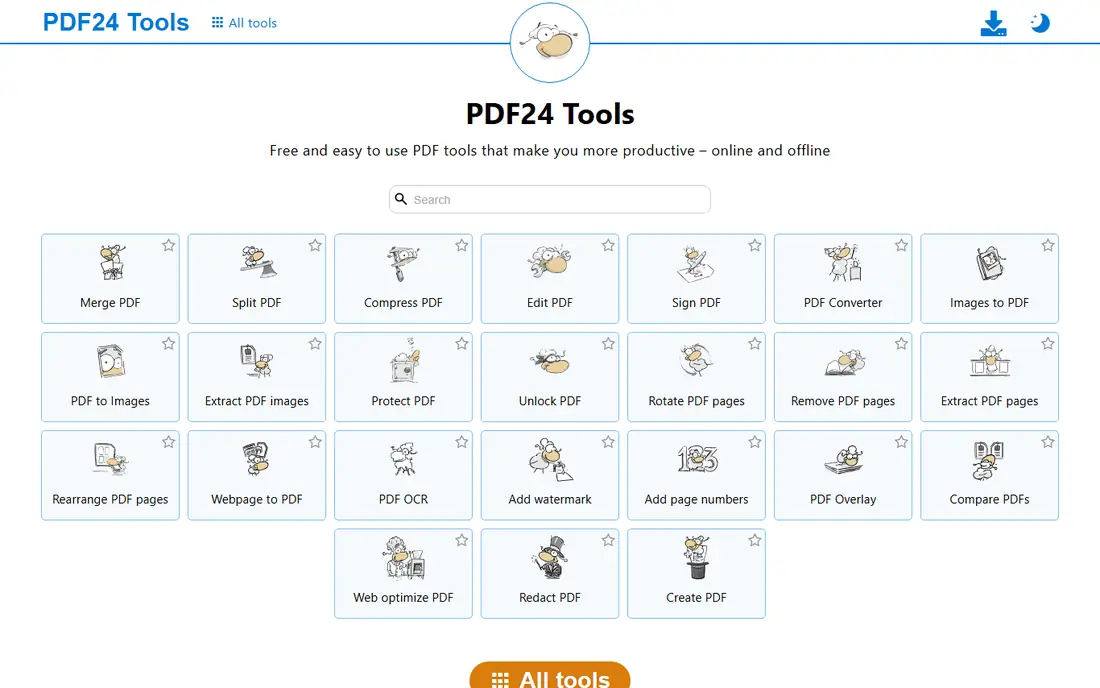
This one is aimed at free everyday PDF text and file work. PDF24 Tools is a free suite that extracts text from PDFs and covers the surrounding jobs, such as splitting, merging and converting files, without an account. A desktop app is available for users who prefer local processing.
Table extraction is basic compared with a specialist like Tabula, and the interface is functional rather than polished. For everyday free extraction, it is the most complete no-cost option.
- Completely free with no account
- Extract text and split, merge and convert PDFs
- Desktop app available
- Table extraction is basic
- Interface is utilitarian
iLovePDF
Ideal for: free online PDF tools with extraction

Think of iLovePDF as the pick for free online PDF tools with extraction. iLovePDF offers a free tier for extracting text and converting PDFs to Word, Excel and other formats through a simple browser interface. It suits occasional users who want one site for most PDF jobs.
Daily limits apply on the free tier, and heavy or batch work needs Premium. For a few files a week, the free tier is enough.
- Free tier for common PDF tasks
- Extract text and convert to Word or Excel
- Simple interface
- Free tier has daily limits
- Batch work needs Premium
Smallpdf
Ideal for: polished free PDF extraction and conversion

For polished free PDF extraction and conversion, Smallpdf deserves a close look. Smallpdf gives a polished browser experience for extracting text and converting PDFs, with a free tier that covers occasional use. Its conversion quality is generally good for standard documents.
The free tier limits daily tasks, and OCR for scanned pages needs the Pro plan. For clean, occasional extraction, it is a pleasant tool.
- Clean interface
- Extract text and convert PDFs
- OCR on paid plans
- Free tier limits tasks per day
- OCR needs Pro
Sejda
Ideal for: free extraction with generous task limits
This is the option we would point free extraction with generous task limits toward first. Sejda offers a free tier covering several tasks a day, including text extraction and table work, without an account for basic use. It suits users who need a few extractions a week with table support.
Free pages and tasks are capped, and larger files need Premium. For moderate use with tables, it is a strong free option.
- Free tier with several tasks per day
- Extract text and tables
- No account for basic use
- Free tier caps pages and tasks
- Larger files need Premium
Tabula
Ideal for: extracting tables from PDFs accurately
Tabula earns its place here for extracting tables from PDFs accurately. Tabula is the specialist for tables: it lets you draw the table region on a PDF page and exports clean CSV or spreadsheet data, which beats generic text extraction for reports and statements. It is open source and free.
It is a desktop Java app rather than a browser tool, so setup takes a few minutes. For anyone extracting tables regularly, that setup pays off fast.
- Open source and free
- Lets you select table regions manually
- Exports to CSV and Excel
- Desktop Java app, not a browser tool
- Needs some setup
PDFgear
Ideal for: free PDF editor with extraction
If your shortlist is built around free PDF editor with extraction, start with PDFgear. PDFgear is a free desktop PDF editor that extracts text, converts files and edits PDFs without watermarking the free tier. It suits users who want extraction plus light editing in one free install.
OCR support varies by version, so check scanned-page handling before relying on it. For free desktop extraction and editing, it is a generous package.
- Free desktop editor
- Extract text and convert files
- No watermark on the free tier
- OCR features vary by version
- Smaller brand than Adobe
Adobe Acrobat Reader
Ideal for: basic text extraction from any PDF
Among the options here, Adobe Acrobat Reader speaks most directly to basic text extraction from any PDF. Adobe Acrobat Reader is the free, universal PDF reader, and for real text PDFs it is often all you need: select the text and copy it out. Rendering is reliable, and the app is available everywhere.
The free Reader does not extract tables cleanly or OCR scanned pages, and editing needs a paid plan. For simple copy-out extraction, it is the baseline tool.
- Free and universal
- Select and copy text from real PDFs
- Reliable rendering
- No table extraction or OCR in the free Reader
- Editing needs a paid plan
Tesseract Online OCR
Ideal for: OCR for scanned PDFs in the browser
For readers focused on OCR for scanned PDFs in the browser, Tesseract Online OCR is a strong match. Tesseract Online OCR runs entirely in your browser using Tesseract.js, so scanned PDFs and images never leave your device. It supports over 100 languages and exports plain text or a searchable PDF.
The online version caps PDFs at 20 pages, and output is plain text rather than rebuilt tables. For private scanned-page extraction, the no-upload design is a major advantage.
- Runs in the browser with no upload
- Supports 100-plus languages
- Free with no signup
- PDFs capped at 20 pages online
- Layout is plain text only
How we picked these
We compared official feature pages, pricing pages, app store listings, privacy policies and public reviews for each product on this list, and we kept only products that exist and work today and that truly fit the topic. Where a price had changed between sources or we could not verify it on the vendor site, we wrote See website rather than print a number we could not stand behind. We also weighed who each product is really for, not just how long its feature list runs. A product with a smaller set of features can be the better buy when it matches your workflow, your budget and the size of your team, and we say so plainly in each write-up. We also checked what each product costs over a full year, not just the headline monthly price, since annual billing, seat minimums and add-on fees can change the real total by a wide margin. Free plans were judged against their limits too: a free tier that caps the exact feature you need most is not really free for your use case, and we say so in the write-up when that is the case. Where prices differed between the vendor site and review listings, we trusted the vendor site, and where we could not confirm a figure on the vendor site at all, we wrote See website rather than repeat a number from a third party. That caution is deliberate, because a wrong price is worse than no price when you are building a budget.
Text PDF or scanned PDF: the distinction that decides the tool
First check whether your PDF has real text: try selecting a sentence and copying it. If it copies, any extractor here will work, and Tabula is best for tables. If nothing selects, the PDF is a scan, and you need OCR, not extraction, so use Tesseract Online OCR or another OCR tool.
For sensitive documents, prefer local tools over uploads: PDFgear, Tabula and browser-based Tesseract keep files on your device, while online converters send files to a server. Whatever you use, proofread numbers and names against the original, since OCR can misread similar characters.
Finally, before you commit to one of the options above, run it on a real task from your own work rather than a polished demo project. Use the free tier or trial for a full week, invite the people who will actually use it every day, and test the one workflow you cannot live without, whether that is exporting your data, inviting a teammate, sharing a result with a client or getting help when something breaks. Note how long each step takes and where you get stuck, since those friction points are what you will live with for months. The product that handles your real task with the least friction is the right one, even if another option looks stronger on a feature comparison page.
Frequently asked questions
What is the best free PDF extract tool?
PDF24 Tools is the best fully free all-rounder, Tabula is best for tables, and Tesseract Online OCR is best for scanned pages without uploads. iLovePDF and Smallpdf suit occasional browser use.
How do I extract text from a scanned PDF for free?
Use an OCR tool, since scanned pages are images, not text. Tesseract Online OCR runs free in your browser with no upload, and several online OCR tools offer free tiers for scanned PDFs.
Can I extract tables from a PDF for free?
Yes, Tabula is a free open-source tool built for table extraction, exporting to CSV and Excel. Sejda and iLovePDF also offer table-related conversion on their free tiers.
Is it safe to upload PDFs to online extractors?
Avoid uploading sensitive or confidential documents to online tools you do not trust, since files are processed on a server. For private documents, use a local tool such as PDFgear, Tabula or browser-based Tesseract.