Best Free Tools to Enlarge Photos in 2026: 8 Options Compared

- 1
 Upscaylfree desktop upscaling without uploadsVisit
- 2
 Topaz Gigapixelhighest quality enlargements for printVisit
- 3
 Bigjpgquick browser enlargementsVisit
- 4
 VanceAI Image Upscalerbrowser upscaling with extra editing toolsVisit
- 5
 LetsEnhancebatch upscaling for online sellersVisit
- Upscayl is the best free desktop option, since it keeps files private and has no upload step.
- Bigjpg and Img.Upscaler suit quick browser enlargements for social use.
- Topaz Gigapixel and ON1 Resize AI suit print work where detail at large sizes matters.
- Enlarging cannot invent detail that was never in the photo, so start with the best original you have.
Quick comparison
| Product | Ideal for | Price from | Free version | |
|---|---|---|---|---|
| Upscayl | free desktop upscaling without uploads | Free | Free | Visit |
| Topaz Gigapixel | highest quality enlargements for print | See website | Free trial | Visit |
| Bigjpg | quick browser enlargements | Free | Free | Visit |
| VanceAI Image Upscaler | browser upscaling with extra editing tools | See website | Free trial | Visit |
| LetsEnhance | batch upscaling for online sellers | See website | Free trial | Visit |
 ON1 Resize AI | print enlargements inside a photo editor | See website | Free trial | Visit |
 Img.Upscaler | simple free browser upscaling | Free | Free | Visit |
 PicWish | upscaling plus background and cleanup tools | Free | Free | Visit |
The best free tools to enlarge photos
We compared official feature pages, pricing, app store listings, privacy policies and public reviews for this list. The options below cover different budgets and needs, so read the best for line first and then the full write up for the products that match your situation.
Upscayl
Ideal for: free desktop upscaling without uploads
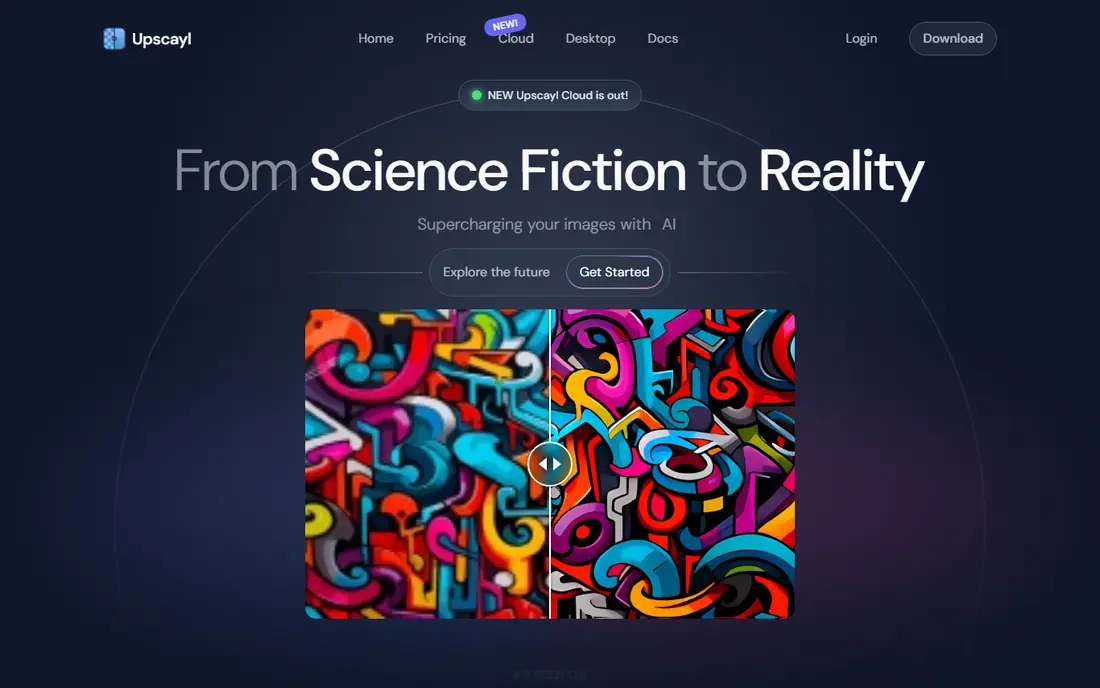
Upscayl fits free desktop upscaling without uploads. Its free desktop app enlarges photos without uploading them, which suits private images. The strengths we noted were free desktop upscaling; ai models for different image types; files stay on your computer. For many readers, that mix makes it worth a close look before deciding.
The honest catch is that older computers may process large images slowly, so test with a sample first. Pricing is listed as Free, with a free plan status of Free. Before you commit, try the free tier or trial with your real work, and check the limits that matter for your use. That short test will tell you more than any feature list.
- Free desktop upscaling
- AI models for different image types
- Files stay on your computer
- Processing speed depends on your computer
- Interface is functional rather than polished
Topaz Gigapixel
Ideal for: highest quality enlargements for print
For highest quality enlargements for print, Topaz Gigapixel is a natural first candidate. It is the reference choice when print quality matters and detail must hold up at large sizes. In practice, that means strong ai enlargement for print and detail; batch handling; face and texture controls. It is not perfect for everyone, but the fit is clear for this use.
On the downside, the price and hardware needs mean casual users should try free tools first. The starting price is See website, and the free plan status is Free trial. We suggest testing it with a real task, checking support and export options, and confirming that the plan you need covers your team or household size.
- Strong AI enlargement for print and detail
- Batch handling
- Face and texture controls
- Paid license, not free
- Needs a capable computer for large files
Bigjpg
Ideal for: quick browser enlargements
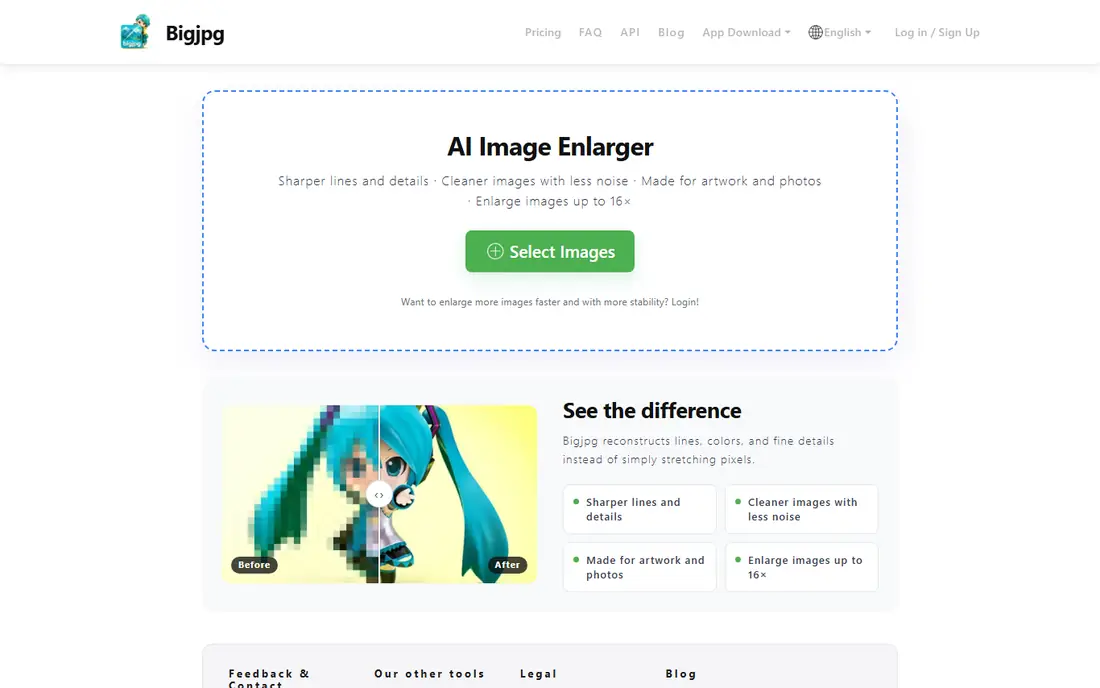
Bigjpg is aimed at quick browser enlargements, and the fit shows in daily use. Its browser tool enlarges a photo in minutes with no install. Readers who value browser upscaling without install; simple controls; free tier for small jobs will see the appeal quickly.
The trade off is that large prints and batch jobs will hit free limits quickly. Starting price is Free, with free plan status Free. A trial with your own data is the best next step, since it reveals setup time, limits and everyday friction that a sales page hides.
- Browser upscaling without install
- Simple controls
- Free tier for small jobs
- Free tier limits size and speed
- Larger jobs need a paid plan
VanceAI Image Upscaler
Ideal for: browser upscaling with extra editing tools
If you need a tool for browser upscaling with extra editing tools, start with VanceAI Image Upscaler. It pairs upscaling with cleanup tools that help older or noisy photos. The result is a product that covers ai upscaling plus denoise and sharpening tools; browser access without forcing a complex setup.
Keep in mind that free credits run out fast, so check how many images a plan covers. It lists a starting price of See website and a free plan status of Free trial. Compare the total cost for your real use, including any add ons, before you settle on it.
- AI upscaling plus denoise and sharpening tools
- Browser access
- Free credits are limited
- Full quality needs a paid plan
LetsEnhance
Ideal for: batch upscaling for online sellers
LetsEnhance fits batch upscaling for online sellers. Its batch tools suit sellers who need many product photos enlarged to one standard. The strengths we noted were batch processing; api for shops; controls for detail and light. For many readers, that mix makes it worth a close look before deciding.
The honest catch is that occasional users may find the paid structure more than they need. Pricing is listed as See website, with a free plan status of Free trial. Before you commit, try the free tier or trial with your real work, and check the limits that matter for your use. That short test will tell you more than any feature list.
- Batch processing
- API for shops
- Controls for detail and light
- Paid plans for regular use
- Free trial is limited
ON1 Resize AI
Ideal for: print enlargements inside a photo editor
For print enlargements inside a photo editor, ON1 Resize AI is a natural first candidate. It gives print focused controls, including tiling for very large output. In practice, that means ai resize with print controls; works as a photo editor and plugin; tiling for large prints. It is not perfect for everyone, but the fit is clear for this use.
On the downside, buyers who only enlarge one photo may prefer a simpler free tool. The starting price is See website, and the free plan status is Free trial. We suggest testing it with a real task, checking support and export options, and confirming that the plan you need covers your team or household size.
- AI resize with print controls
- Works as a photo editor and plugin
- Tiling for large prints
- Paid product
- Learning curve for new photo editors
Img.Upscaler
Ideal for: simple free browser upscaling
Img.Upscaler is aimed at simple free browser upscaling, and the fit shows in daily use. Its free browser tool is a quick check for social images and small prints. Readers who value free browser upscaling; no install; quick results for social images will see the appeal quickly.
The trade off is that print work should be tested at full size before relying on it. Starting price is Free, with free plan status Free. A trial with your own data is the best next step, since it reveals setup time, limits and everyday friction that a sales page hides.
- Free browser upscaling
- No install
- Quick results for social images
- Free tier limits resolution and daily use
- Quality varies by image type
PicWish
Ideal for: upscaling plus background and cleanup tools
If you need a tool for upscaling plus background and cleanup tools, start with PicWish. It bundles upscaling with cleanup tools that help product and portrait photos. The result is a product that covers image upscaling with background removal and enhancement; browser and app access without forcing a complex setup.
Keep in mind that credit limits mean regular users should compare paid plans early. It lists a starting price of Free and a free plan status of Free. Compare the total cost for your real use, including any add ons, before you settle on it.
- Image upscaling with background removal and enhancement
- Browser and app access
- Free credits are limited
- Some tools need a paid plan
How we picked these
We compared official feature pages, pricing pages, app store listings, privacy policies and public reviews. We checked that each product exists and works today, that it truly fits the topic, and that its official homepage loads. We favoured products with clear pricing or a clear free tier, honest limits, and a distinct use case, rather than listing near duplicates.
We did not claim hands on testing that did not happen. Where pricing was quoted rather than listed, we wrote See website rather than guessing a number. Where a product had a known limit, such as a watermark on a free plan or a state limit on cover, we stated it plainly so readers can judge the trade off. Readers should also check the current plan details on the vendor site before buying, since prices and free tiers change over time.
How to choose a photo enlarger
Start with the final use. A social post tolerates a modest enlargement, while a large print needs careful detail handling and a test print. Judge results at full size on screen, not just in a small preview, and look closely at faces, text and edges.
Next, consider privacy and batch size. Desktop tools keep private photos off servers, while browser tools are faster for one off jobs. If you enlarge many images, batch handling and credit limits matter more than a single image result.
Finally, check the original. A sharp, well lit photo enlarges far better than a blurry or heavily compressed one. No tool can fully restore detail that was lost, so keep expectations realistic for very small originals.
Frequently asked questions
Can I enlarge a photo for free?
Yes. Upscayl offers free desktop upscaling, and Bigjpg and Img.Upscaler offer free browser tiers with limits. Paid tools add higher quality and batch handling.
How large can I enlarge a photo without losing quality?
It depends on the original. A sharp photo can often double or triple in size with AI tools, but small or blurry originals will soften sooner. Test at your target print size before ordering.
Is it safe to upload photos to an online enlarger?
Browser tools process your image on a server, so check the privacy policy. For private photos, use a desktop tool such as Upscayl so files stay on your computer.
What is the best tool for print enlargements?
Topaz Gigapixel and ON1 Resize AI are strong for print, with detail and tiling controls. Try a sample at your print size and check the result closely before buying.
Do AI enlargers work on old photos?
They can improve sharpness and detail, especially when paired with denoise tools. Very damaged or tiny originals will still show limits, so results vary by photo.