Best Free Tools to Invert Image Color in 2026: 8 Tools Compared

- PineTools is the best pick for a one-click inversion, with no account and no install.
- LunaPic suits users who also want color replacement and other photo effects.
- Pixelied is best for a fuller free editor that includes an invert filter.
- GIMP is best for desktop users who want full control over inversion and layers.
Quick comparison
| Product | Ideal for | Price from | Free version | |
|---|---|---|---|---|
 PineTools | one-click inversion with no account | Free | Yes | Visit |
 LunaPic | color replacement plus inversion effects | Free | Yes | Visit |
 Pixelied | a fuller free editor with an invert filter | Free | Yes | Visit |
 Photopea | Photoshop-like editing in the browser | Free | Yes | Visit |
 ImageOnline | simple browser filters with no signup | Free | Yes | Visit |
 Online PNG Tools | PNG-specific inversion and utilities | Free | Yes | Visit |
 Ezgif | GIF and image inversion with effects | Free | Yes | Visit |
 GIMP | desktop control with layers and batch options | Free | Yes | Visit |
The best free tools to invert image color
Inverting image colors turns a picture into its negative, which is useful for dark-mode graphics, print checks, and creative effects. The tools here are all free, and most run in the browser with no install, though desktop editors give more control for larger files.
PineTools
Ideal for: one-click inversion with no account
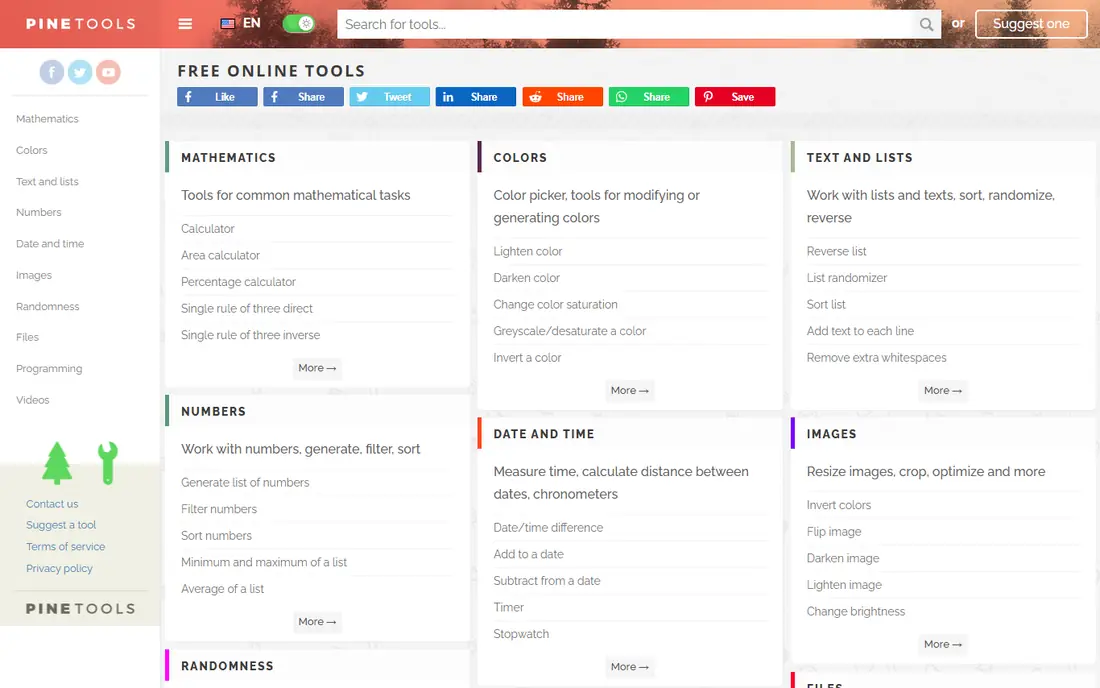
PineTools works best for one-click inversion with no account. PineTools inverts image colors in one click after upload, with downloads in JPG, PNG, and WEBP and no account required. Pricing starts at Free, and a free plan is available. This is the option to look at first if that description matches your situation.
It is a basic tool only, so users needing layers, masks, or batch work should use a full editor instead. That trade-off matters most if you were hoping for a single tool that covers every situation without compromise. Compared with the other options here, PineTools stands out for one-click inversion with no account, while asking you to accept that Basic tool only. Weigh that honestly against your budget and your patience for setup before you commit.
- No account needed
- Fast
- JPG, PNG, and WEBP downloads
- Basic tool only
- No advanced editing
LunaPic
Ideal for: color replacement plus inversion effects
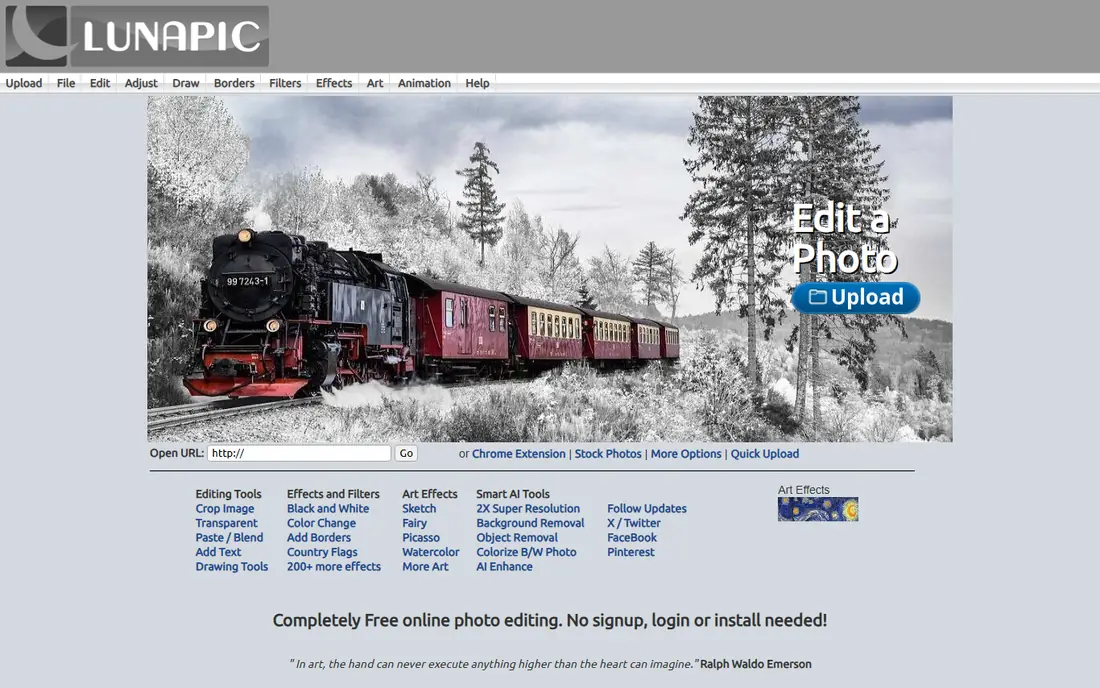
LunaPic works best for color replacement plus inversion effects. LunaPic is a free web photo editor with color replacement, tolerance controls, and many effects beyond simple inversion. Pricing starts at Free, and a free plan is available. Put this one near the top of your shortlist when the fit sounds right.
The interface looks older than modern editors, and ads may appear, but the toolset is broad for a free site. That trade-off matters most if you were hoping for a single tool that covers every situation without compromise. Compared with the other options here, LunaPic stands out for color replacement plus inversion effects, while asking you to accept that Older interface. Weigh that honestly against your budget and your patience for setup before you commit.
- Free web editor
- Color replacement
- Many effects
- Older interface
- Ads may appear
Pixelied
Ideal for: a fuller free editor with an invert filter
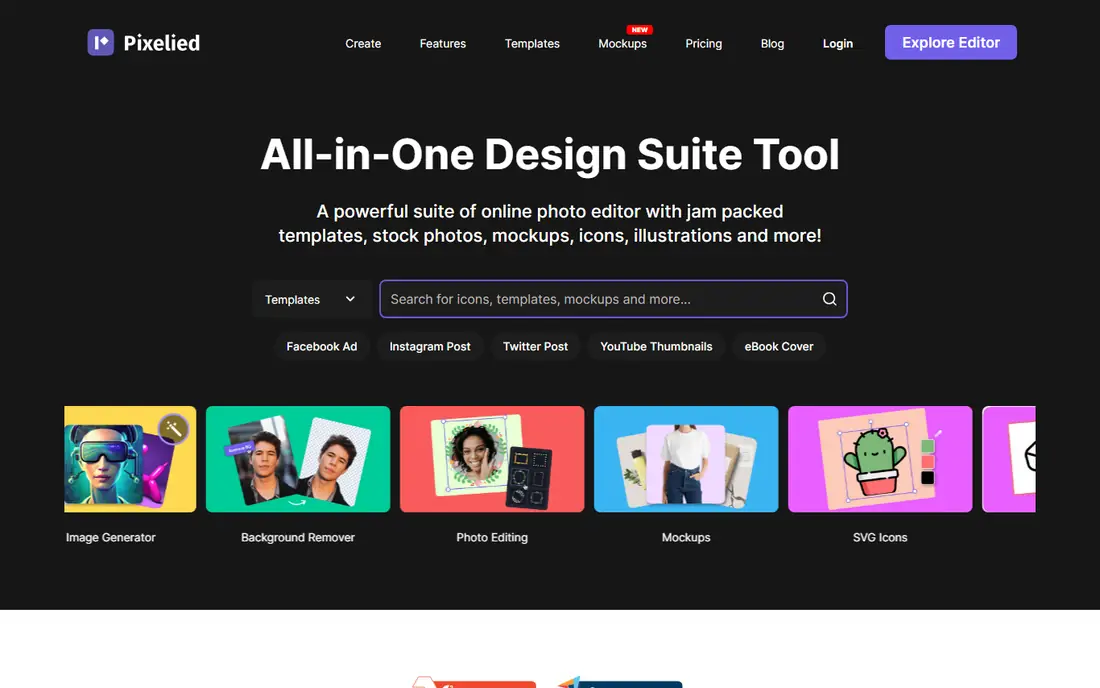
Pixelied works best for a fuller free editor with an invert filter. Pixelied adds an invert filter inside a fuller free editor, with blur, text, brightness, and contrast tools. Pricing starts at Free, and a free plan is available. This choice makes the most sense for readers who match the description above.
The free plan limits monthly downloads and cloud storage, so heavy users may need a paid plan. That trade-off matters most if you were hoping for a single tool that covers every situation without compromise. Compared with the other options here, Pixelied stands out for a fuller free editor with an invert filter, while asking you to accept that Free plan limits downloads. Weigh that honestly against your budget and your patience for setup before you commit.
- Invert filter
- Blur, text, and adjustments
- Multiple export formats
- Free plan limits downloads
- Cloud storage is limited
Photopea
Ideal for: Photoshop-like editing in the browser
Photopea works best for Photoshop-like editing in the browser. Photopea offers Photoshop-like editing in the browser, where inverting via curves or adjustments gives precise control. Pricing starts at Free, and a free plan is available. Consider this option closely if you want the balance it offers.
The free version shows ads, and the learning curve is steeper than one-click tools, so beginners should start with PineTools. That trade-off matters most if you were hoping for a single tool that covers every situation without compromise. Compared with the other options here, Photopea stands out for Photoshop-like editing in the browser, while asking you to accept that Ads in free version. Weigh that honestly against your budget and your patience for setup before you commit.
- Layer editing
- Curves inversion
- PSD support
- Ads in free version
- Learning curve for beginners
ImageOnline
Ideal for: simple browser filters with no signup
ImageOnline works best for simple browser filters with no signup. ImageOnline offers browser-based image filters and converters with no signup and no usage restrictions on basic tools. Pricing starts at Free, and a free plan is available. This is a strong candidate when your priorities line up with its strengths.
The interface is basic, and advanced editing features are limited, so it suits quick jobs. That trade-off matters most if you were hoping for a single tool that covers every situation without compromise. Compared with the other options here, ImageOnline stands out for simple browser filters with no signup, while asking you to accept that Basic interface. Weigh that honestly against your budget and your patience for setup before you commit.
- Browser filters
- No signup
- Many conversion tools
- Basic interface
- Limited advanced features
Online PNG Tools
Ideal for: PNG-specific inversion and utilities
Online PNG Tools works best for PNG-specific inversion and utilities. Online PNG Tools offers simple PNG utilities including color inversion, with no signup and a very simple interface. Pricing starts at Free, and a free plan is available. Keep this one in mind if the trade-offs below are acceptable to you.
Most tools handle PNG only, so users with JPG or WEBP files should use PineTools or Photopea. That trade-off matters most if you were hoping for a single tool that covers every situation without compromise. Compared with the other options here, Online PNG Tools stands out for PNG-specific inversion and utilities, while asking you to accept that PNG only for most tools. Weigh that honestly against your budget and your patience for setup before you commit.
- PNG-focused tools
- No signup
- Simple interface
- PNG only for most tools
- No batch editing
Ezgif
Ideal for: GIF and image inversion with effects
Ezgif works best for GIF and image inversion with effects. Ezgif offers a free invert effect for images and GIFs in the browser, with no account needed. Pricing starts at Free, and a free plan is available. This option earns its place for the specific audience named above.
The interface looks dated and ads appear, so it suits quick jobs rather than polished editing. That trade-off matters most if you were hoping for a single tool that covers every situation without compromise. Compared with the other options here, Ezgif stands out for GIF and image inversion with effects, while asking you to accept that Ads. Weigh that honestly against your budget and your patience for setup before you commit.
- Free
- Invert effect
- GIF support
- Ads
- Dated interface
GIMP
Ideal for: desktop control with layers and batch options
GIMP works best for desktop control with layers and batch options. GIMP is a free open-source desktop editor with full color tools, layers, and batch options for serious image work. Pricing starts at Free, and a free plan is available. Round out your shortlist with this option if its approach appeals to you.
It needs a desktop install, and the learning curve is steeper than browser tools, but the control is unmatched for free. That trade-off matters most if you were hoping for a single tool that covers every situation without compromise. Compared with the other options here, GIMP stands out for desktop control with layers and batch options, while asking you to accept that Desktop install needed. Weigh that honestly against your budget and your patience for setup before you commit.
- Free open source
- Layers
- Full color tools
- Desktop install needed
- Learning curve
How we picked these
We compared official feature pages, pricing pages, app store listings, privacy policies, and public reviews for each option, and we kept only products that exist and work today and that truly fit the topic. We gave weight to clear pricing, a usable free or trial option where one is offered, and honest limits stated on the vendor site. We did not claim hands-on testing we did not do, and where a price could not be verified on the vendor site we wrote See website instead of guessing. Our pick for most people is usually the option that covers the core job well at a fair price, not the one with the longest feature list. That said, the right answer depends on your situation, so use the comparison table to narrow the list to two or three options, then check the current pricing page before you pay.
How to invert image colors free
For a single image, use PineTools: upload the file, click Invert, and download the result as JPG, PNG, or WEBP. The whole job takes under a minute with no account.
For a photo that also needs edits, use Pixelied or Photopea, where the invert filter or curves tool sits alongside brightness, contrast, and text tools.
For repeated work, use GIMP on desktop, where inversion can be scripted and applied to layers or batches. Check the result at full size, since inversion can reveal noise or banding hidden in the original.
Frequently asked questions
What is the best free tool to invert image color?
PineTools is best for a one-click inversion with no account, while LunaPic and Pixelied add more editing. GIMP is best for desktop control.
How do I invert image colors online free?
Upload your image to PineTools, click Invert, and download the result. LunaPic, Pixelied, and ImageOnline offer similar free browser workflows.
Can I invert image colors on my phone?
Yes. Browser tools like PineTools and Ezgif work on mobile browsers, and Photopea runs in a mobile browser too.
Does inverting colors damage image quality?
Inversion itself is lossless for the color values, but saving as JPG can add compression artifacts. Download as PNG if you need the cleanest result.
What is image color inversion used for?
Inversion creates negative images for dark-mode graphics, print checks, X-ray style effects, and creative edits. It also helps check contrast and hidden details.