Best Free Video Editing Software With AI Features in 2026: 8 Options Compared

- 1
 CapCutfast social video with AI toolsVisit
- 2
 DaVinci Resolveserious editing quality on a free tierVisit
- 3
 Clipchampquick AI-assisted edits on WindowsVisit
- 4
 Canva Videosimple video from templates and brand kitsVisit
- 5
 Kapwingbrowser editing with AI captions and repurposingVisit
- CapCut leads for fast social video with AI captions and effects.
- DaVinci Resolve leads for serious editing quality on a free tier.
- Clipchamp suits Windows users who want quick AI-assisted edits.
- Check export limits and watermarks before you invest hours in a project.
Quick comparison
| Product | Ideal for | Price from | Free version | |
|---|---|---|---|---|
| CapCut | fast social video with AI tools | Free | Yes | Visit |
| DaVinci Resolve | serious editing quality on a free tier | Free | Yes | Visit |
| Clipchamp | quick AI-assisted edits on Windows | Free | Yes | Visit |
| Canva Video | simple video from templates and brand kits | Free | Yes | Visit |
| Kapwing | browser editing with AI captions and repurposing | Free | Yes | Visit |
 Descript | text-based editing and AI voices | Free | Yes | Visit |
 FlexClip | simple browser video with AI tools | Free | Yes | Visit |
 VEED | online video with AI subtitles and translation | Free | Yes | Visit |
The best free video editing software with AI features
Free video editors with AI features now cover captions, background removal, silence cutting, and text-based editing that once needed paid tools. Free tiers differ sharply in exports, watermarks, and AI minutes, so the best pick depends on how you publish. We compared tools you can actually use free in October 2026.
CapCut
Ideal for: fast social video with AI tools
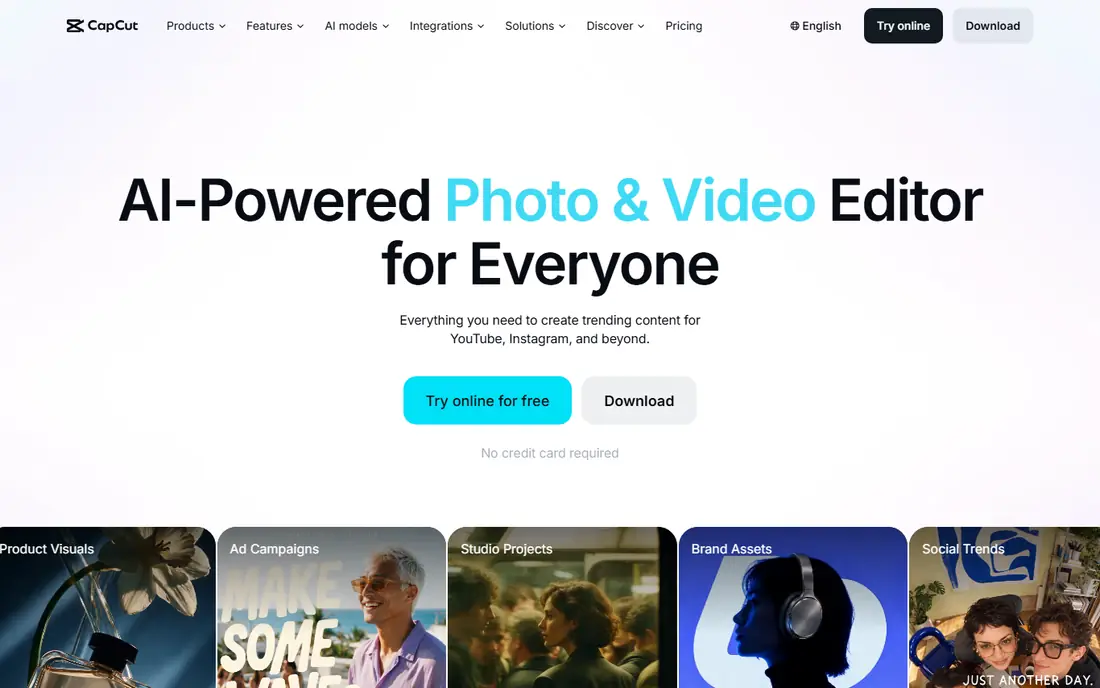
CapCut combines timeline editing with AI captions, background removal, and a large template library for social video. It suits creators publishing short vertical clips quickly on phone or desktop. The free tier covers a lot, but premium effects and higher limits sit behind a subscription. That focus makes it a practical match for fast social video with AI tools. On pricing, the starting point is free, and the free plan status is yes. Its strengths include strong ai captions and effects; templates; mobile and desktop apps. The trade-off to weigh is advanced features need a paid plan; free-tier limits change. We suggest checking the current plan limits on the vendor site before you commit, since tiers and trial terms change, and confirming that the plan you pick covers the seats, storage, or usage your team actually needs.
- Strong AI captions and effects
- Templates
- Mobile and desktop apps
- Advanced features need a paid plan
- Free-tier limits change
DaVinci Resolve
Ideal for: serious editing quality on a free tier
DaVinci Resolve offers a remarkably complete free editor with professional color grading, audio, and effects, and it has become a standard recommendation for serious creators on a budget. AI features include voice isolation and smart tools in the Studio version, while the free version still covers most editing needs. The learning curve is real. That focus makes it a practical match for serious editing quality on a free tier. On pricing, the starting point is free, and the free plan status is yes. Its strengths include professional color and editing tools; no watermark on free exports; strong audio tools. The trade-off to weigh is needs a capable computer; learning curve is steep. We suggest checking the current plan limits on the vendor site before you commit, since tiers and trial terms change, and confirming that the plan you pick covers the seats, storage, or usage your team actually needs.
- Professional color and editing tools
- No watermark on free exports
- Strong audio tools
- Needs a capable computer
- Learning curve is steep
Clipchamp
Ideal for: quick AI-assisted edits on Windows
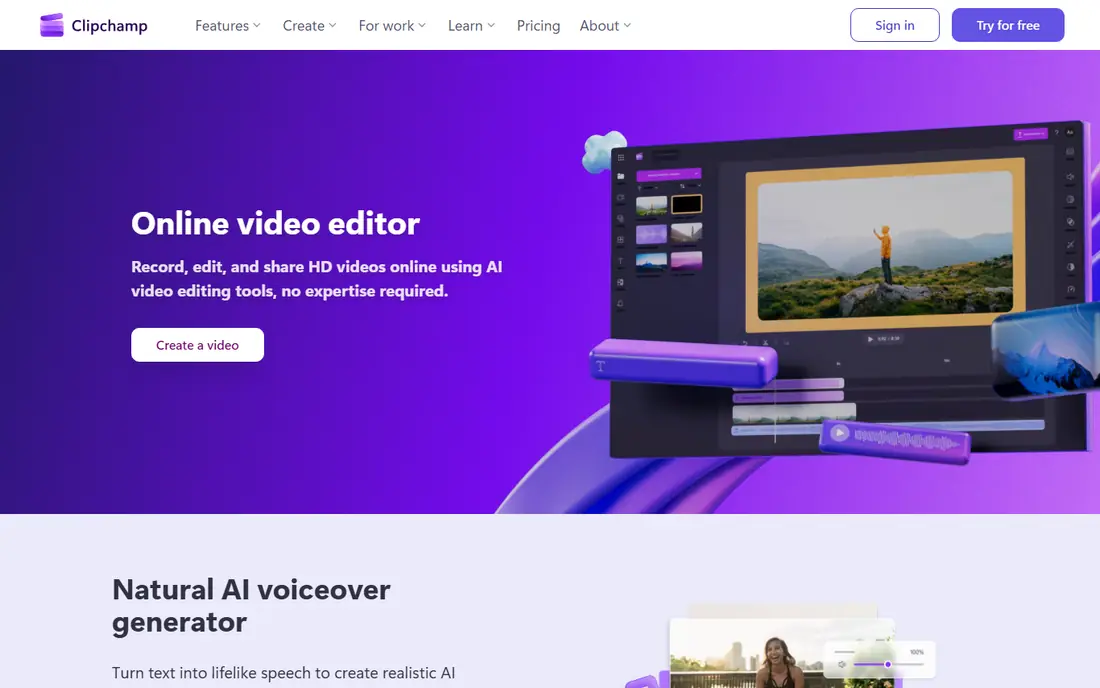
Clipchamp runs in the browser and suits Windows users who want quick edits with AI captions, text-to-speech, and templates. Microsoft 365 integration helps teams already on that platform. Heavy projects may run better in a desktop editor. That focus makes it a practical match for quick AI-assisted edits on Windows. On pricing, the starting point is free, and the free plan status is yes. Its strengths include browser-based and easy; ai captions and text-to-speech; microsoft integration. The trade-off to weigh is advanced features need a paid plan; browser performance varies. We suggest checking the current plan limits on the vendor site before you commit, since tiers and trial terms change, and confirming that the plan you pick covers the seats, storage, or usage your team actually needs.
- Browser-based and easy
- AI captions and text-to-speech
- Microsoft integration
- Advanced features need a paid plan
- Browser performance varies
Canva Video
Ideal for: simple video from templates and brand kits
Canva Video turns templates into polished social and presentation videos fast, with brand colors, fonts, and stock footage built in. It suits marketers and small teams that need consistent, simple videos without learning a full editor. Editors who need precise timeline control will feel limited. That focus makes it a practical match for simple video from templates and brand kits. On pricing, the starting point is free, and the free plan status is yes. Its strengths include very easy templates; brand kits; huge stock library. The trade-off to weigh is timeline control is basic; advanced ai sits on paid plans. We suggest checking the current plan limits on the vendor site before you commit, since tiers and trial terms change, and confirming that the plan you pick covers the seats, storage, or usage your team actually needs.
- Very easy templates
- Brand kits
- Huge stock library
- Timeline control is basic
- Advanced AI sits on paid plans
Kapwing
Ideal for: browser editing with AI captions and repurposing
Kapwing is a browser editor built for teams that repurpose content, with AI captions, subtitle styling, and tools that turn long videos into clips. Collaboration and sharing are straightforward. Free-tier export limits and watermarks mean creators should test before committing to a series. That focus makes it a practical match for browser editing with AI captions and repurposing. On pricing, the starting point is free, and the free plan status is yes. Its strengths include browser-based collaboration; ai captions; smart clip tools. The trade-off to weigh is free exports have limits; watermarks on some free exports. We suggest checking the current plan limits on the vendor site before you commit, since tiers and trial terms change, and confirming that the plan you pick covers the seats, storage, or usage your team actually needs.
- Browser-based collaboration
- AI captions
- Smart clip tools
- Free exports have limits
- Watermarks on some free exports
Descript
Ideal for: text-based editing and AI voices
Descript lets creators edit video and audio by editing a transcript, which makes cutting interviews and podcasts fast. AI features include filler-word removal, studio sound, and voice cloning on paid plans. It suits spoken-word content more than cinematic editing. That focus makes it a practical match for text-based editing and AI voices. On pricing, the starting point is free, and the free plan status is yes. Its strengths include edit video by editing text; ai transcription; filler-word removal. The trade-off to weigh is free tier limits transcription hours; video editing is less timeline-focused. We suggest checking the current plan limits on the vendor site before you commit, since tiers and trial terms change, and confirming that the plan you pick covers the seats, storage, or usage your team actually needs.
- Edit video by editing text
- AI transcription
- Filler-word removal
- Free tier limits transcription hours
- Video editing is less timeline-focused
FlexClip
Ideal for: simple browser video with AI tools
FlexClip offers browser-based editing with templates, AI subtitles, and text-to-video tools for marketers and educators. It suits quick promotional and instructional videos. Free export limits, including resolution and length, are the main constraint. That focus makes it a practical match for simple browser video with AI tools. On pricing, the starting point is free, and the free plan status is yes. Its strengths include easy browser editing; ai text-to-video and subtitles; templates. The trade-off to weigh is free exports are limited; advanced features need paid plans. We suggest checking the current plan limits on the vendor site before you commit, since tiers and trial terms change, and confirming that the plan you pick covers the seats, storage, or usage your team actually needs.
- Easy browser editing
- AI text-to-video and subtitles
- Templates
- Free exports are limited
- Advanced features need paid plans
VEED
Ideal for: online video with AI subtitles and translation
VEED focuses on online video with AI subtitles, translation, and one-click formatting for social platforms. It suits creators and teams that publish captioned clips regularly. The free tier is useful for testing, but watermarks and limits push serious users toward a paid plan. That focus makes it a practical match for online video with AI subtitles and translation. On pricing, the starting point is free, and the free plan status is yes. Its strengths include strong ai subtitles; translation tools; browser-based workflow. The trade-off to weigh is free tier adds watermarks and limits; advanced ai needs paid plans. We suggest checking the current plan limits on the vendor site before you commit, since tiers and trial terms change, and confirming that the plan you pick covers the seats, storage, or usage your team actually needs.
- Strong AI subtitles
- Translation tools
- Browser-based workflow
- Free tier adds watermarks and limits
- Advanced AI needs paid plans
How we picked these
We compared official feature pages, pricing pages, app store listings, privacy policies, and public reviews for each option, and we kept only products that exist, work in October 2026, and fit the topic directly. We did not claim hands-on testing we did not do, and we left out products whose fit was weak even when they are well known in a nearby category. Price and plan details change often, so where a vendor does not publish a clear price we write See website rather than guessing. The notes below reflect what each vendor publishes about its own product, not a promise about results for any single team.
How to choose a free AI video editor
Start with where the video will be published, since social clips, YouTube videos, and client work need different export quality and aspect ratios. A tool built for vertical social video may frustrate a creator editing a long horizontal documentary. Check export resolution, watermark rules, and whether AI features such as captions and background removal sit on the free tier or a paid plan. Test the AI features on your own footage, not a demo clip, since caption accuracy, background removal, and silence detection vary with audio quality and lighting. Also check your machine, since desktop editors need a capable computer, while browser editors need a stable connection and upload time. Keep original footage backed up outside the editor. Learn the keyboard shortcuts and the template or preset system early, since those save more time than any single AI feature. Export a short test video before a big project to confirm quality, captions, and audio, and keep an eye on free-tier AI minute limits across a month.
Frequently asked questions
What AI features do free video editors offer?
Common free AI features include auto captions, background removal, silence removal, text-based editing, and smart reframing for vertical video. The depth and monthly limits vary by tool and plan.
Is CapCut really free?
CapCut has a free tier with many editing and AI features, while advanced effects, templates, and higher limits sit on a paid plan. Check the current free-tier terms, since they change.
Can free editors export without a watermark?
Some can, including DaVinci Resolve and Clipchamp for many exports, while other free tiers add watermarks or limit resolution. Always test an export before starting a serious project.
Do I need a powerful computer for free video editing?
Desktop editors such as DaVinci Resolve benefit from a capable machine, while browser editors shift work to the cloud but need good upload speeds. Check system requirements for your chosen tool.
Are AI captions accurate enough to publish?
AI captions are a strong starting point, but accuracy drops with accents, background noise, and technical terms. Review and correct captions before publishing, especially for accessibility.