Best hard drive recovery software in 2026: 8 Options Compared

- 1
 Disk Drilleasy recovery for most usersVisit
- 2
 Recuvafree recovery on WindowsVisit
- 3
 EaseUS Data Recoveryguided recovery for beginnersVisit
- 4
 R-Studioadvanced users and techniciansVisit
- 5
 Stellar Data Recoveryphoto and video recoveryVisit
- Our pick for most people in this list is Disk Drill, for easy recovery for most users, based on its balance of features and availability.
- Recuva is the strongest alternative when you need a different focus, for free recovery on Windows.
- Prices and free plans change often, so confirm the current plan on the vendor site before you buy, and use a free plan or trial where one is offered.
- The main trade-off across this list is between depth of features and simplicity, and Wondershare Recoverit shows the simpler end of that range for recovery with a simple interface.
Quick comparison
| Product | Ideal for | Price from | Free version | |
|---|---|---|---|---|
| Disk Drill | easy recovery for most users | See website | Yes | Visit |
| Recuva | free recovery on Windows | Free | Yes | Visit |
| EaseUS Data Recovery | guided recovery for beginners | See website | Yes | Visit |
| R-Studio | advanced users and technicians | See website | Free trial | Visit |
| Stellar Data Recovery | photo and video recovery | See website | Free trial | Visit |
 PhotoRec | free open-source recovery | Free | Yes | Visit |
 DMDE | low-cost advanced recovery | See website | Yes | Visit |
 Wondershare Recoverit | recovery with a simple interface | See website | Yes | Visit |
The best best hard drive recovery software
Data recovery software scans a drive for deleted or lost files, and the first rule is to stop writing to that drive, since new writes can overwrite the files you want back. We compared official feature pages, pricing pages, app-store listings, privacy policies, and public reviews, and we did not claim hands-on testing we did not do. Read the list in order, since we start with the broadest picks and move toward more specialised options.
Disk Drill
Ideal for: easy recovery for most users
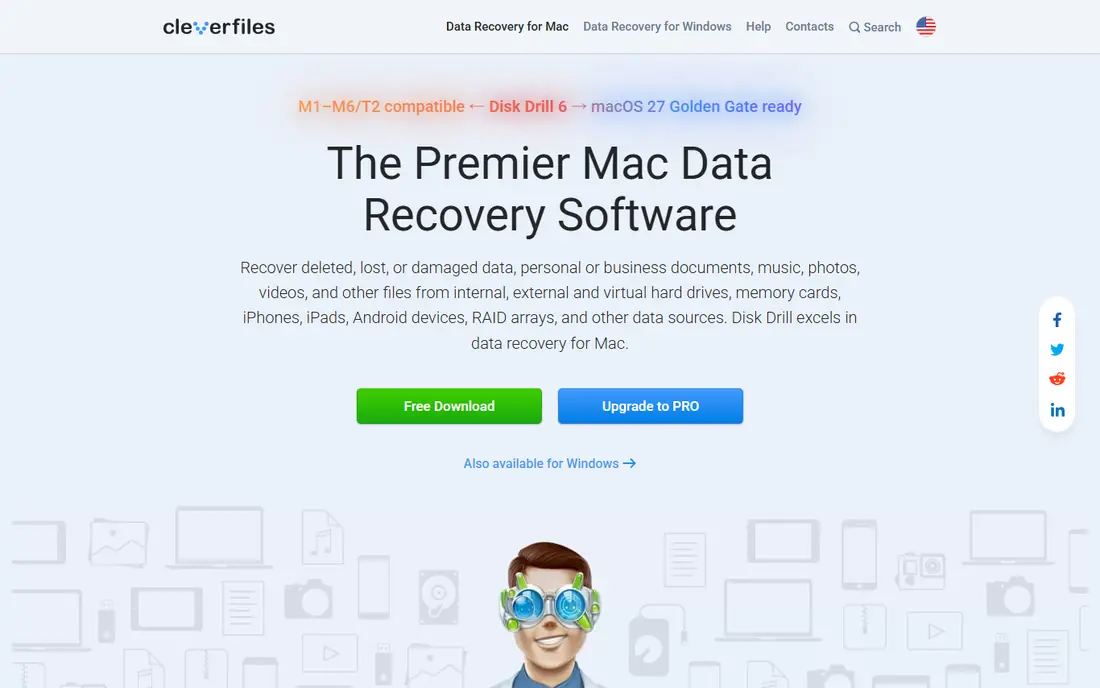
For easy recovery for most users, Disk Drill is a strong candidate. Disk Drill is a friendly first stop, with previews that show what can be saved before you pay. The official pages stress the same strengths we list above, and the pricing page is the place to confirm what your plan actually includes before you commit.
Watch out for free plan limits recovery size, which is the main drawback in our comparison. If that drawback touches your main use case, look at the next product in this list instead of forcing a fit.
- Clear preview before recovery
- Many file types
- Mac and Windows versions
- Free plan limits recovery size
- Deep scans take time
Recuva
Ideal for: free recovery on Windows

Recuva is aimed at free recovery on Windows, and that focus shows in how it is sold. Recuva is the free Windows option to try first for recently deleted files. Buyers who match that profile tend to get the most from it, while buyers outside it may find a simpler tool a better fit.
Before you choose, check the drawback we note: windows only. A short trial on your own work will tell you faster than any review whether that drawback matters to you.
- Free basic recovery
- Simple wizard
- Deep scan option
- Windows only
- Interface feels old
- Fewer advanced features
EaseUS Data Recovery
Ideal for: guided recovery for beginners
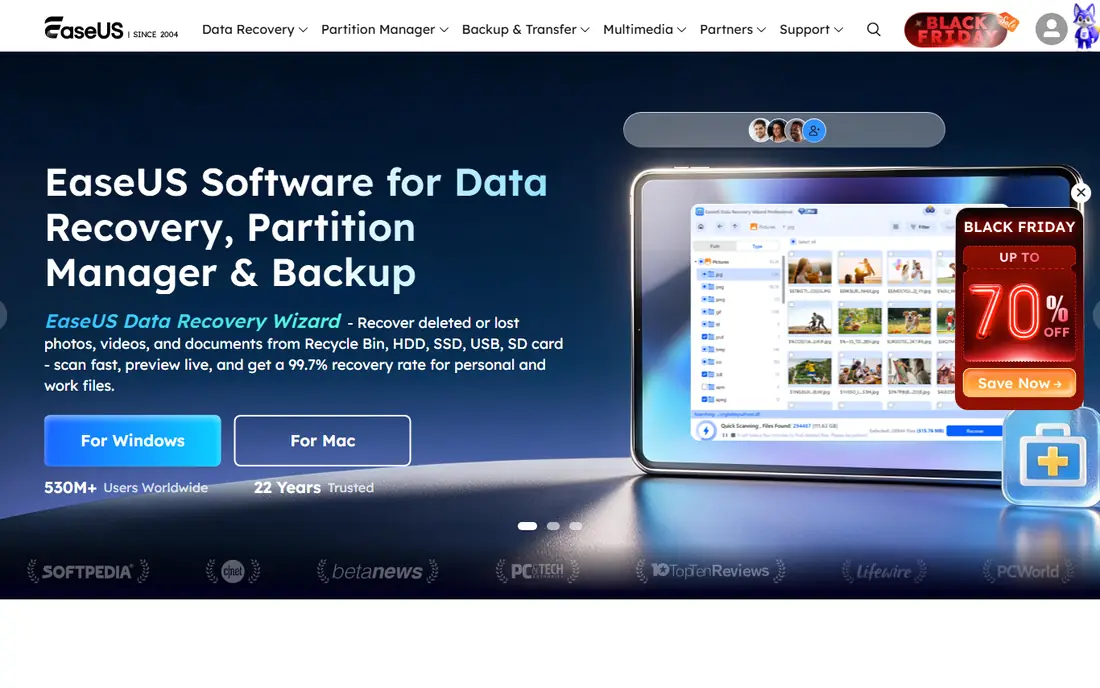
Start with EaseUS Data Recovery if you need a tool for guided recovery for beginners. EaseUS guides beginners through recovery with clear steps and file previews. We compared its official features, pricing, and public reviews, and the picture that emerges is a product with a clear strength and a clear trade-off.
The trade-off to keep in mind is free plan limits recovery size. For many buyers that is a fair price for the strengths on offer, but it is worth naming plainly so you are not surprised later.
- Simple step-by-step recovery
- Preview
- Many file systems
- Free plan limits recovery size
- Full version is a paid upgrade
R-Studio
Ideal for: advanced users and technicians
R-Studio fits advanced users and technicians. R-Studio is the technician-grade choice, with RAID and network recovery that simpler tools lack. Our review of its official feature pages and pricing shows a tool that is clear about its main job, and that clarity is part of its appeal for buyers who do not want a long setup.
The honest catch is this: complex interface. That matters most when you use the tool every day, so weigh it against the strengths above and try a free plan or trial where one is offered before you pay.
- Supports many file systems
- RAID recovery
- Network recovery
- Complex interface
- Best for experienced users
Stellar Data Recovery
Ideal for: photo and video recovery
For photo and video recovery, Stellar Data Recovery is a strong candidate. Stellar is a good pick when lost photos and videos matter most. The official pages stress the same strengths we list above, and the pricing page is the place to confirm what your plan actually includes before you commit.
Watch out for free plan limits recovery, which is the main drawback in our comparison. If that drawback touches your main use case, look at the next product in this list instead of forcing a fit.
- Strong media recovery
- Preview
- Monitor drive health tools
- Free plan limits recovery
- Scans can be slow on large drives
PhotoRec
Ideal for: free open-source recovery
PhotoRec is aimed at free open-source recovery, and that focus shows in how it is sold. PhotoRec is free and powerful, but its command-line style suits users comfortable with technical tools. Buyers who match that profile tend to get the most from it, while buyers outside it may find a simpler tool a better fit.
Before you choose, check the drawback we note: command-line interface. A short trial on your own work will tell you faster than any review whether that drawback matters to you.
- Free and open source
- Many file formats
- Works on several systems
- Command-line interface
- No file names in recovered files
DMDE
Ideal for: low-cost advanced recovery
Start with DMDE if you need a tool for low-cost advanced recovery. DMDE gives advanced users strong recovery tools at a lower price than most rivals. We compared its official features, pricing, and public reviews, and the picture that emerges is a product with a clear strength and a clear trade-off.
The trade-off to keep in mind is interface is technical. For many buyers that is a fair price for the strengths on offer, but it is worth naming plainly so you are not surprised later.
- Low cost for advanced features
- Partition tools
- Many file systems
- Interface is technical
- Learning curve for beginners
Wondershare Recoverit
Ideal for: recovery with a simple interface
Wondershare Recoverit fits recovery with a simple interface. Recoverit suits users who want a simple interface and video repair alongside file recovery. Our review of its official feature pages and pricing shows a tool that is clear about its main job, and that clarity is part of its appeal for buyers who do not want a long setup.
The honest catch is this: free plan limits recovery size. That matters most when you use the tool every day, so weigh it against the strengths above and try a free plan or trial where one is offered before you pay.
- Simple interface
- Video repair tools
- Preview before recovery
- Free plan limits recovery size
- Higher plans needed for full use
How we picked these
We started with the topic and the related keywords for this article, then we searched for products that exist and work in October 2026 and truly fit that topic. We checked each product official homepage, feature pages, and pricing, and we dropped products we could not verify or that did not fit the topic. We favoured a mix of well-known leaders and strong smaller options, and we noted honest drawbacks rather than listing only strengths.
We did not test every product hands-on, and we do not claim otherwise. Our comparison rests on official pages, app-store listings, privacy policies, and public reviews, which is the fairest basis for a roundup of this size. Where a price could not be confirmed from the vendor, we wrote See website rather than guessing a number.
What to check before you choose
Start with your main job, not the longest feature list. Write down the one task you will do most often, then check which products handle that task well on their official pages. A product with many features you never use is a worse buy than a simpler product that does your main job well.
Price and free plans
Check the current price, the renewal price, and what the free plan actually includes. Free plans often limit storage, seats, or exports, and those limits matter more than the headline price. If a paid plan is needed for your main job, compare that plan across two or three products before you commit.
Fit for your situation
Check device support, platform coverage, and whether the product works in your country or region. Some products in this list have limited coverage outside their home market, and that limit can matter more than any feature. A short trial on your own work will reveal fit problems faster than a feature table.
Privacy and support
Read the privacy policy for products that handle personal data, photos, or messages, and check what support is offered when something goes wrong. Clear privacy practices and reachable support are worth real weight in a decision, especially for tools you will use every day.
Frequently asked questions
What is the best option for best hard drive recovery software?
For most people, Disk Drill is a solid starting point, for easy recovery for most users. Your own main job matters more than any single ranking, so compare two or three products from this list on that job before you decide.
Is there a free option for best hard drive recovery software?
Yes, several products in this list offer a free plan or trial, and the comparison table shows which ones. Free plans usually limit features, storage, or usage, so check those limits against your needs before you rely on a free plan.
How much do best hard drive recovery software cost?
Prices vary widely across this list, and many vendors price by quote or by plan tier. Where we could not confirm a current price from the vendor, we wrote See website, and you should check the vendor pricing page for the latest figure.
How should I choose between these options?
Start with your main task, then check device support, coverage in your area, and the free plan or trial. A short trial on your own work will show fit problems that a feature list cannot.
Do these products work in October 2026?
We selected products that exist and work in October 2026 based on their official pages and listings. Features and prices still change, so confirm the current details on the vendor site before you buy.