Best image editing software in 2026: 8 Options Compared

- 1
 Adobe Photoshopprofessionals needing the full editing standardVisit
- 2
 Affinity Photoeditors wanting professional tools without a subscriptionVisit
- 3
 GIMPusers wanting free open-source editingVisit
- 4
 Adobe Lightroomphotographers editing raw photos in batchesVisit
- 5
 Capture Oneprofessional photographers wanting colour controlVisit
- Photoshop remains the professional standard, while Affinity Photo and GIMP suit buyers who dislike subscriptions.
- Photopea is the strongest free browser option for layered editing.
- Raw photo editing and layered design are different jobs, so pick for the work you actually do.
Quick comparison
| Product | Ideal for | Price from | Free version | |
|---|---|---|---|---|
| Adobe Photoshop | professionals needing the full editing standard | See website | Free trial | Visit |
| Affinity Photo | editors wanting professional tools without a subscription | See website | Free trial | Visit |
| GIMP | users wanting free open-source editing | Free | Yes | Visit |
| Adobe Lightroom | photographers editing raw photos in batches | See website | Free trial | Visit |
| Capture One | professional photographers wanting colour control | See website | Free trial | Visit |
 Luminar Neo | photographers wanting AI-assisted editing | See website | Free trial | Visit |
 Photopea | users wanting free layered editing in a browser | Free | Yes | Visit |
 Pixlr | casual editors wanting quick browser edits | Free | Yes | Visit |
The best best image editing software
We compared official feature pages, pricing, app store listings, privacy policies and public reviews to build this list of best image editing software. Our pick for most people is listed first in each section below, but the right choice depends on your budget, team size and must-have features, so read the strengths and limits for each option before you decide.
Adobe Photoshop
Ideal for: professionals needing the full editing standard
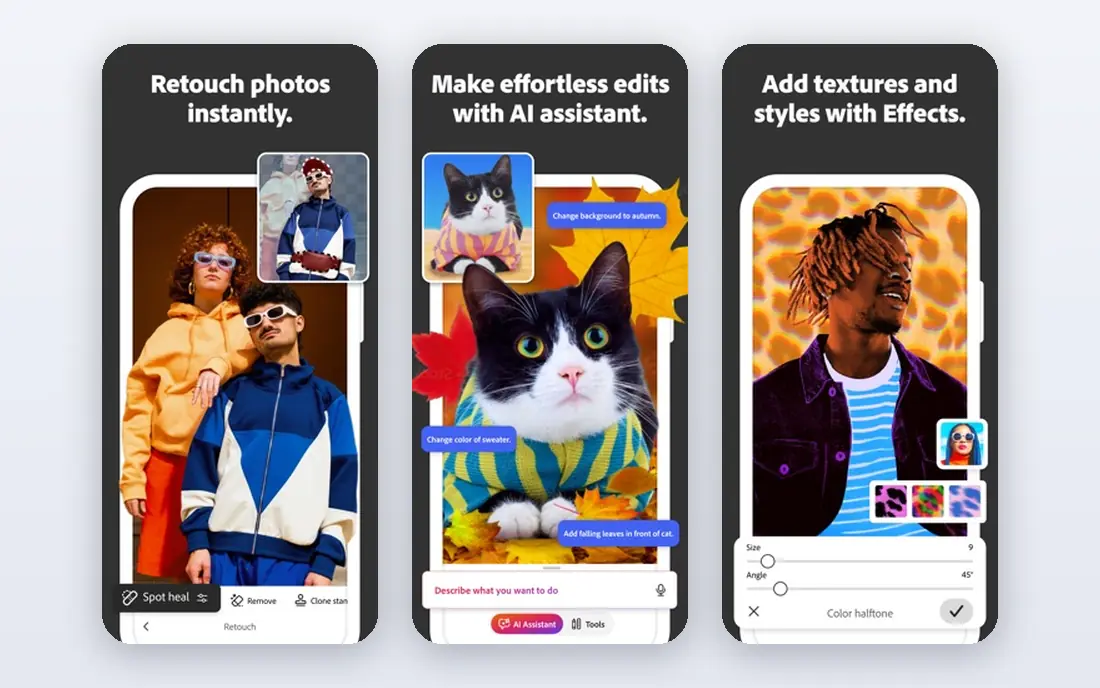
For readers weighing this option, the story starts with fit. Photoshop is the professional standard for layered image editing, with tools, plugins and tutorials that no rival matches in breadth. In practice, that means you should judge it on the job you need done most, not on the longest feature list, since a tool that fits your daily work beats a broader tool you rarely open. We also weighed pricing honesty, support options and how the product handles your data, because those factors shape the experience long after the first week.
The catch is the subscription, since there is no one-time purchase, and beginners face a steep learning curve. That trade-off is normal, since every product on this list gives up something to excel at its main job. Before you commit, use the free plan or trial with a real task from your own work, check the export and cancellation terms, and confirm the plan you need includes the features described here, since vendors move features between tiers from time to time.
- Industry-standard tools
- Layers and masks
- Vast plugin and tutorial range
- Subscription only
- Learning curve for beginners
Affinity Photo
Ideal for: editors wanting professional tools without a subscription
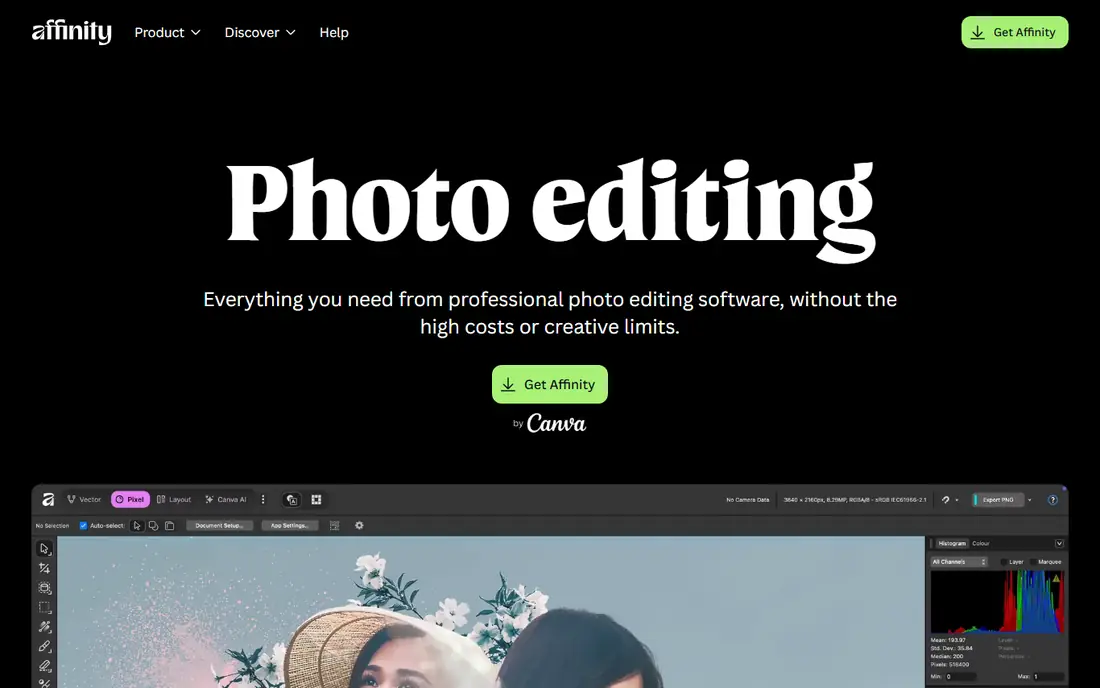
This one earns its place for a clear reason. Affinity Photo gives professional layered editing for a one-time purchase, which appeals strongly to buyers tired of subscriptions. In practice, that means you should judge it on the job you need done most, not on the longest feature list, since a tool that fits your daily work beats a broader tool you rarely open. We also weighed pricing honesty, support options and how the product handles your data, because those factors shape the experience long after the first week.
The catch is ecosystem, since plugins and tutorials are fewer than for Photoshop. That trade-off is normal, since every product on this list gives up something to excel at its main job. Before you commit, use the free plan or trial with a real task from your own work, check the export and cancellation terms, and confirm the plan you need includes the features described here, since vendors move features between tiers from time to time.
- Professional layered editing
- One-time purchase
- Fast performance
- Smaller plugin range than Photoshop
- Fewer tutorials
GIMP
Ideal for: users wanting free open-source editing
Here is where this option stands out from the rest of the list. GIMP is the free open-source standard, with layered editing and a large community behind it at no cost. In practice, that means you should judge it on the job you need done most, not on the longest feature list, since a tool that fits your daily work beats a broader tool you rarely open. We also weighed pricing honesty, support options and how the product handles your data, because those factors shape the experience long after the first week.
The catch is polish, since the interface feels less refined than paid rivals. That trade-off is normal, since every product on this list gives up something to excel at its main job. Before you commit, use the free plan or trial with a real task from your own work, check the export and cancellation terms, and confirm the plan you need includes the features described here, since vendors move features between tiers from time to time.
- Free and open source
- Layers and masks
- Wide plugin community
- Interface feels dated
- Raw workflow needs extra tools
Adobe Lightroom
Ideal for: photographers editing raw photos in batches
Consider this option if its strengths match your main need. Lightroom is the photographer pick for raw editing and batch work, with presets that speed up large photo sets. In practice, that means you should judge it on the job you need done most, not on the longest feature list, since a tool that fits your daily work beats a broader tool you rarely open. We also weighed pricing honesty, support options and how the product handles your data, because those factors shape the experience long after the first week.
The catch is scope, since layered compositing belongs in Photoshop, not Lightroom. That trade-off is normal, since every product on this list gives up something to excel at its main job. Before you commit, use the free plan or trial with a real task from your own work, check the export and cancellation terms, and confirm the plan you need includes the features described here, since vendors move features between tiers from time to time.
- Raw photo editing
- Batch presets
- Cloud sync
- Subscription needed for full features
- Weaker for layered design
Capture One
Ideal for: professional photographers wanting colour control
This entry suits a narrower audience, and that focus is its strength. Capture One suits professional photographers who prize colour control and tethered shooting in studio work. In practice, that means you should judge it on the job you need done most, not on the longest feature list, since a tool that fits your daily work beats a broader tool you rarely open. We also weighed pricing honesty, support options and how the product handles your data, because those factors shape the experience long after the first week.
The catch is price and learning, since both are higher than for casual editors. That trade-off is normal, since every product on this list gives up something to excel at its main job. Before you commit, use the free plan or trial with a real task from your own work, check the export and cancellation terms, and confirm the plan you need includes the features described here, since vendors move features between tiers from time to time.
- Strong colour tools
- Tethered shooting
- Raw processing
- Higher price
- Learning curve for new users
Luminar Neo
Ideal for: photographers wanting AI-assisted editing
On value alone, this option deserves a close look. Luminar Neo speeds up common photo fixes with AI tools, from sky replacement to portrait enhancement, in a few clicks. In practice, that means you should judge it on the job you need done most, not on the longest feature list, since a tool that fits your daily work beats a broader tool you rarely open. We also weighed pricing honesty, support options and how the product handles your data, because those factors shape the experience long after the first week.
The catch is control, since AI edits still need a human check before they look natural. That trade-off is normal, since every product on this list gives up something to excel at its main job. Before you commit, use the free plan or trial with a real task from your own work, check the export and cancellation terms, and confirm the plan you need includes the features described here, since vendors move features between tiers from time to time.
- AI editing tools
- Sky replacement
- Simple sliders
- AI results need checking
- Subscription or purchase options vary
Photopea
Ideal for: users wanting free layered editing in a browser
If you want a dependable choice, start here. Photopea is the best free browser editor, opening PSD files and offering layered editing without installing anything. In practice, that means you should judge it on the job you need done most, not on the longest feature list, since a tool that fits your daily work beats a broader tool you rarely open. We also weighed pricing honesty, support options and how the product handles your data, because those factors shape the experience long after the first week.
The catch is ads, since the free tier shows them, and heavy work benefits from a paid account. That trade-off is normal, since every product on this list gives up something to excel at its main job. Before you commit, use the free plan or trial with a real task from your own work, check the export and cancellation terms, and confirm the plan you need includes the features described here, since vendors move features between tiers from time to time.
- Free browser editing
- PSD support
- Layers and masks
- Ads on free tier
- Needs internet access for full use
Pixlr
Ideal for: casual editors wanting quick browser edits
The final entry rounds out the list with a different angle. Pixlr suits quick edits and social graphics, with templates and AI tools that keep simple jobs fast. In practice, that means you should judge it on the job you need done most, not on the longest feature list, since a tool that fits your daily work beats a broader tool you rarely open. We also weighed pricing honesty, support options and how the product handles your data, because those factors shape the experience long after the first week.
The catch is depth, since serious layered work belongs in a desktop editor. That trade-off is normal, since every product on this list gives up something to excel at its main job. Before you commit, use the free plan or trial with a real task from your own work, check the export and cancellation terms, and confirm the plan you need includes the features described here, since vendors move features between tiers from time to time.
- Quick browser editing
- AI tools
- Templates
- Free tier has ads and limits
- Less depth than desktop editors
How we picked these
We compared official feature pages, pricing pages, app store listings, privacy policies and public reviews for each product on this list, and we checked that each product exists and works today. We favoured products that fit the topic directly, offered clear pricing or a usable free tier, and showed an honest balance of strengths and limits. We did not claim hands-on testing we did not do, and where a price could not be verified we wrote See website rather than guessing.
We also mixed well-known leaders with strong smaller options, so the list is useful whether you want the safest default or a more specialised pick. If a product changed its pricing or features after our check, the vendor website is the final word, and we recommend confirming the plan details before you buy.
How to choose the right best image editing software
Decide between photo correction and layered design first. For raw photos and batches, Lightroom or Capture One will save the most time. For composites, retouching and design, Photoshop or Affinity Photo are the serious picks. For occasional edits, Photopea or GIMP cost nothing and cover most needs. Trial the interface with your own photos before you pay, since workflow comfort matters more than any single feature.
Use the checklist below with your own shortlist, since it catches the problems that cause most regret after purchase.
- Fit first: does it solve your main job, or does it only look impressive in a demo.
- True cost: add up seats, add-ons, taxes and renewal prices, not just the headline monthly figure.
- Exit route: can you export your data and cancel without a long process or penalty.
- Support and privacy: check support hours, data handling and security practices before you rely on it daily.
Run a trial with real work, not sample data, and involve the people who will use the product every day. Their verdict after a week of real tasks tells you more than any feature table, including ours.
Frequently asked questions
What is the best image editing software?
Photoshop leads for professional layered work, Affinity Photo is the best one-time purchase alternative, and Lightroom leads for raw photo batches. GIMP and Photopea are the best free options.
What is the best free image editing software?
GIMP is the strongest free desktop editor, while Photopea is the best free browser editor with PSD support. Pixlr suits quick casual edits. Free tools cover most everyday editing without payment.
Is Affinity Photo a good Photoshop alternative?
Yes, for many editors. Affinity Photo offers professional layered editing for a one-time purchase. Photoshop still leads on plugins, tutorials and industry compatibility, so check file compatibility if you work with Photoshop users.
Do I need Photoshop or Lightroom?
Photographers usually need Lightroom for raw batches and Photoshop only for retouching and composites. Many photographers use both, while casual editors may need neither if a free tool covers their edits.
Can I edit photos in a browser?
Yes. Photopea and Pixlr both edit in a browser, with Photopea offering the deepest layered editing. Browser editors suit quick work and computers where installing software is not possible.