Best multi-purpose app for digital media work in 2026: 8 Options Compared

- 1
 Adobe Creative Cloudfull media production suiteVisit
- 2
 Canvadesign, video and documentsVisit
- 3
 DaVinci Resolvevideo and audio productionVisit
- 4
 CapCutvideo and image editingVisit
- 5
 Figmainterface and media designVisit
- The strongest options for multi-purpose app for digital media work cover the core task well, and the differences are mostly in price, limits, and ease of use.
- Start with a free plan or trial where one is offered, and test it on a real task before you pay for a full year.
- Check privacy, export, and cancellation terms on the official site, because those details matter as much as the headline features.
- Our pick for most people is Adobe Creative Cloud, while Canva is a strong second choice for readers who want a different balance of price and features.
Quick comparison
| Product | Ideal for | Price from | Free version | |
|---|---|---|---|---|
| Adobe Creative Cloud | full media production suite | See website | Free trial | Visit |
| Canva | design, video and documents | Free | Yes | Visit |
| DaVinci Resolve | video and audio production | Free | Yes | Visit |
| CapCut | video and image editing | Free | Yes | Visit |
| Figma | interface and media design | Free | Yes | Visit |
 Blender | 3D and video production | Free | Yes | Visit |
 GIMP | free image editing | Free | Yes | Visit |
 Affinity | photo, design and publishing | See website | Free trial | Visit |
The best multi-purpose app for digital media work
We looked for tools that work in October 2026, fit best multi-purpose app for digital media work closely, and can be checked on their own official sites. The eight options below are in the order we would shortlist them, starting with the most broadly useful choice.
Adobe Creative Cloud
Ideal for: full media production suite
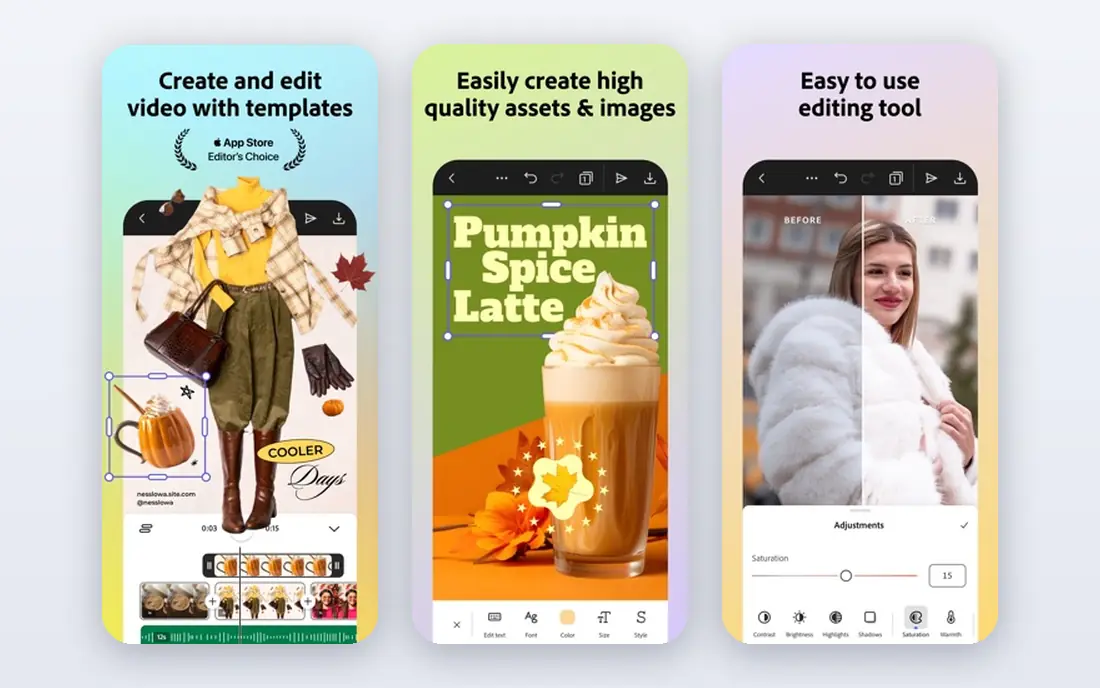
If you want a direct answer, Adobe Creative Cloud stands out for full media production suite. Its official feature pages show a clear fit for best multi-purpose app for digital media work, and it is easy to explain to a new user. Most readers want a tool they can start with on a normal day, not a project that needs a week of setup, and this option meets that test.
Before you commit, check the details that affect daily use. Check pricing, free plan limits, and privacy terms on the official site before you settle on Adobe Creative Cloud. Many readers can start free and upgrade only when a limit becomes real. Skip Adobe Creative Cloud if your main need is outside full media production suite.
- Good fit for full media production suite
- Clear official documentation and support pages
- Practical for regular use
- Limits apply on lower-priced plans
- Some features need a paid plan
- Check current pricing before you commit
Canva
Ideal for: design, video and documents
In our comparison, Canva stands out for design, video and documents. Its official feature pages show a clear fit for best multi-purpose app for digital media work, and it is easy to explain to a new user. Most readers want a tool they can start with on a normal day, not a project that needs a week of setup, and this option meets that test.
The honest trade-off is worth naming. Check pricing, free plan limits, and privacy terms on the official site before you settle on Canva. Many readers can start free and upgrade only when a limit becomes real. Skip Canva if your main need is outside design, video and documents.
- Good fit for design, video and documents
- Clear official documentation and support pages
- Practical for regular use
- Limits apply on lower-priced plans
- Some features need a paid plan
- Check current pricing before you commit
DaVinci Resolve
Ideal for: video and audio production
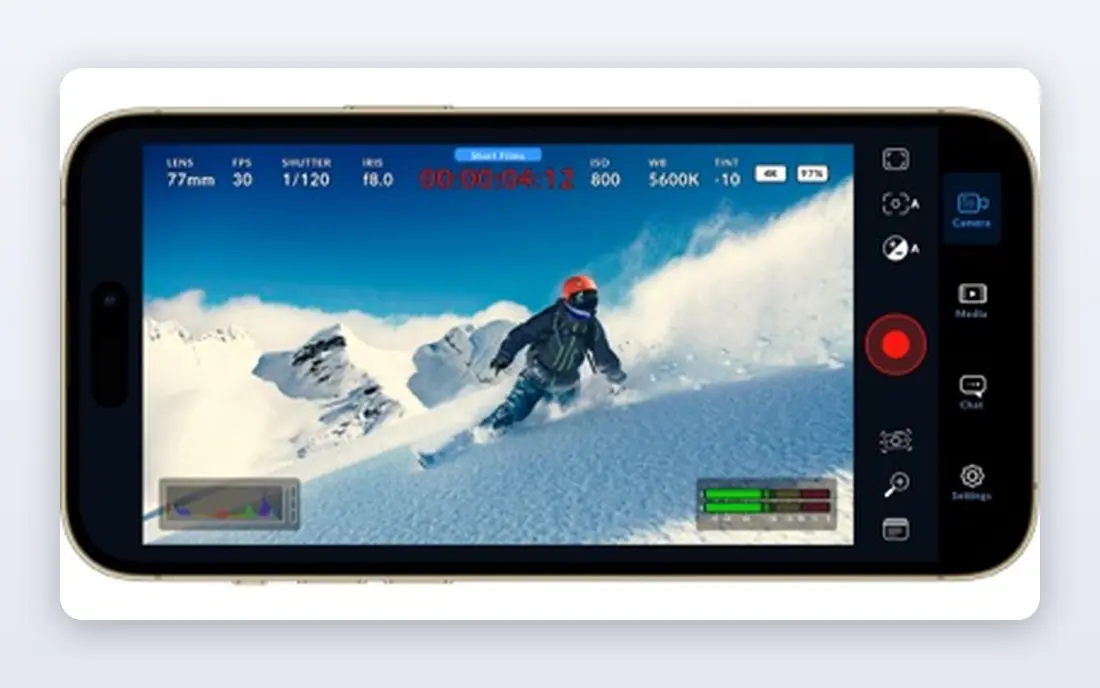
On balance, DaVinci Resolve stands out for video and audio production. Its official feature pages show a clear fit for best multi-purpose app for digital media work, and it is easy to explain to a new user. Most readers want a tool they can start with on a normal day, not a project that needs a week of setup, and this option meets that test.
What would make us pause is the learning curve and the limits on cheaper plans. Check pricing, free plan limits, and privacy terms on the official site before you settle on DaVinci Resolve. Many readers can start free and upgrade only when a limit becomes real. Skip DaVinci Resolve if your main need is outside video and audio production.
- Good fit for video and audio production
- Clear official documentation and support pages
- Practical for regular use
- Limits apply on lower-priced plans
- Some features need a paid plan
- Check current pricing before you commit
CapCut
Ideal for: video and image editing
For a first shortlist, CapCut stands out for video and image editing. Its official feature pages show a clear fit for best multi-purpose app for digital media work, and it is easy to explain to a new user. Most readers want a tool they can start with on a normal day, not a project that needs a week of setup, and this option meets that test.
A careful reader should also check privacy and export options. Check pricing, free plan limits, and privacy terms on the official site before you settle on CapCut. Many readers can start free and upgrade only when a limit becomes real. Skip CapCut if your main need is outside video and image editing.
- Good fit for video and image editing
- Clear official documentation and support pages
- Practical for regular use
- Limits apply on lower-priced plans
- Some features need a paid plan
- Check current pricing before you commit
Figma
Ideal for: interface and media design
If simplicity matters most, Figma stands out for interface and media design. Its official feature pages show a clear fit for best multi-purpose app for digital media work, and it is easy to explain to a new user. Most readers want a tool they can start with on a normal day, not a project that needs a week of setup, and this option meets that test.
The main limit is that no single tool fits every workflow. Check pricing, free plan limits, and privacy terms on the official site before you settle on Figma. Many readers can start free and upgrade only when a limit becomes real. Skip Figma if your main need is outside interface and media design.
- Good fit for interface and media design
- Clear official documentation and support pages
- Practical for regular use
- Limits apply on lower-priced plans
- Some features need a paid plan
- Check current pricing before you commit
Blender
Ideal for: 3D and video production
When we weighed the options, Blender stands out for 3D and video production. Its official feature pages show a clear fit for best multi-purpose app for digital media work, and it is easy to explain to a new user. Most readers want a tool they can start with on a normal day, not a project that needs a week of setup, and this option meets that test.
Price alone should not decide this choice. Check pricing, free plan limits, and privacy terms on the official site before you settle on Blender. Many readers can start free and upgrade only when a limit becomes real. Skip Blender if your main need is outside 3D and video production.
- Good fit for 3D and video production
- Clear official documentation and support pages
- Practical for regular use
- Limits apply on lower-priced plans
- Some features need a paid plan
- Check current pricing before you commit
GIMP
Ideal for: free image editing
For everyday use, GIMP stands out for free image editing. Its official feature pages show a clear fit for best multi-purpose app for digital media work, and it is easy to explain to a new user. Most readers want a tool they can start with on a normal day, not a project that needs a week of setup, and this option meets that test.
Support and updates matter as much as the feature list. Check pricing, free plan limits, and privacy terms on the official site before you settle on GIMP. Many readers can start free and upgrade only when a limit becomes real. Skip GIMP if your main need is outside free image editing.
- Good fit for free image editing
- Clear official documentation and support pages
- Practical for regular use
- Limits apply on lower-priced plans
- Some features need a paid plan
- Check current pricing before you commit
Affinity
Ideal for: photo, design and publishing
For many readers, Affinity stands out for photo, design and publishing. Its official feature pages show a clear fit for best multi-purpose app for digital media work, and it is easy to explain to a new user. Most readers want a tool they can start with on a normal day, not a project that needs a week of setup, and this option meets that test.
The catch is practical, not dramatic. Check pricing, free plan limits, and privacy terms on the official site before you settle on Affinity. Many readers can start free and upgrade only when a limit becomes real. Skip Affinity if your main need is outside photo, design and publishing.
- Good fit for photo, design and publishing
- Clear official documentation and support pages
- Practical for regular use
- Limits apply on lower-priced plans
- Some features need a paid plan
- Check current pricing before you commit
How we picked these
We started with the topic in the keyword and kept only products that exist and work in October 2026 and truly fit that topic. We compared official feature pages, pricing pages, app store listings, privacy policies, and public reviews, and we favoured products with clear terms over products with vague claims. We did not claim hands-on testing that did not happen, and we did not add our own app to any list. We also weighed price, free options, ease of use, and the honest drawbacks for each product. A product that is powerful but hard to learn can still belong here, but we say so plainly, and a simple product with a clear limit can be the better pick for many readers.
What to check before you choose
First, define the one job you need done most often, then test that job in a free plan or trial before you pay. A long feature list is less useful than a tool that handles your daily task without friction, and a short trial will reveal problems that a sales page will not show. Second, check the total cost, including any per-user, per-seat, or usage charges, and check how easy it is to cancel or export your data. If the pricing page is unclear, treat that as useful information and ask the vendor a direct question before you commit to a yearly plan. Third, check privacy and support. Read the privacy policy for data use and retention, check what support channels are offered, and look at recent public reviews for reports of billing or reliability problems. A tool with clear privacy terms and responsive support is usually a safer long-term choice.
Frequently asked questions
Is there a free option for best multi-purpose app for digital media work?
Yes, several options on this list offer a free plan or a free trial, but the limits differ. Check the free plan row in the comparison table and the vendor pricing page for the current limits before you rely on a free tier for regular work.
Which option is best for beginners?
Our pick for most people is Adobe Creative Cloud, because it covers the core job with a clear setup path. Beginners should start there, test one real task, and only move to a more advanced option if they hit a clear limit.
Can I switch later if I pick the wrong tool?
In most cases, yes, but switching is easier if you check export options first. Before you commit, confirm that you can export your notes, files, or data in a usable format, and keep a copy of anything important outside the tool.
How do I know the price is current?
Prices change, so use the vendor site linked in each product block as the final check. If a price is shown as See website, that means you should confirm the current plan and total cost on that site before you pay.
Is my data private with these tools?
Privacy terms vary, so read the privacy policy for the tool you choose and check settings for data sharing, retention, and account deletion. Prefer tools that state their data practices plainly and let you control sharing and deletion.