Best Noise Suppression Software in 2026: 8 Tools Compared

- 1
 KrispStandalone call noise removalVisit
- 2
 NVIDIA BroadcastStreamers with NVIDIA GPUsVisit
- 3
 NoiseGatorFree open source noise gateVisit
- 4
 SoliCallLow-cost call noise reductionVisit
- 5
 Adobe PodcastAI speech enhancementVisit
- Krisp is the best standalone noise suppression app for most callers, working across meeting apps without special hardware.
- NVIDIA Broadcast leads for streamers and creators with supported NVIDIA graphics cards, adding camera and audio AI effects.
- NoiseGator and SoliCall suit users who want free or low-cost options, though setup and polish vary.
- Built-in suppression in Zoom, Teams, and Discord is often enough for casual calls, so try those first before paying for a separate app.
Quick comparison
| Product | Ideal for | Price from | Free version | |
|---|---|---|---|---|
| Krisp | Standalone call noise removal | Free | Yes | Visit |
| NVIDIA Broadcast | Streamers with NVIDIA GPUs | Free | Yes | Visit |
| NoiseGator | Free open source noise gate | Free | Yes | Visit |
| SoliCall | Low-cost call noise reduction | See website | Free trial | Visit |
| Adobe Podcast | AI speech enhancement | See website | Free trial | Visit |
 Auphonic | Audio post-processing cleanup | See website | Free trial | Visit |
 Discord | Built-in call noise suppression | Free | Yes | Visit |
 Zoom | Built-in meeting noise suppression | Free | Yes | Visit |
The best noise suppression software
Noise suppression software removes background sounds, such as keyboards, dogs, traffic, and fans, from your microphone, so calls, streams, and recordings sound cleaner. Tools range from standalone apps that work with any meeting software to built-in features and post-processing services. We compared official feature pages, pricing pages, and public reviews, focusing on suppression quality, voice clarity, ease of use, and cost.
Krisp
Ideal for: Standalone call noise removal
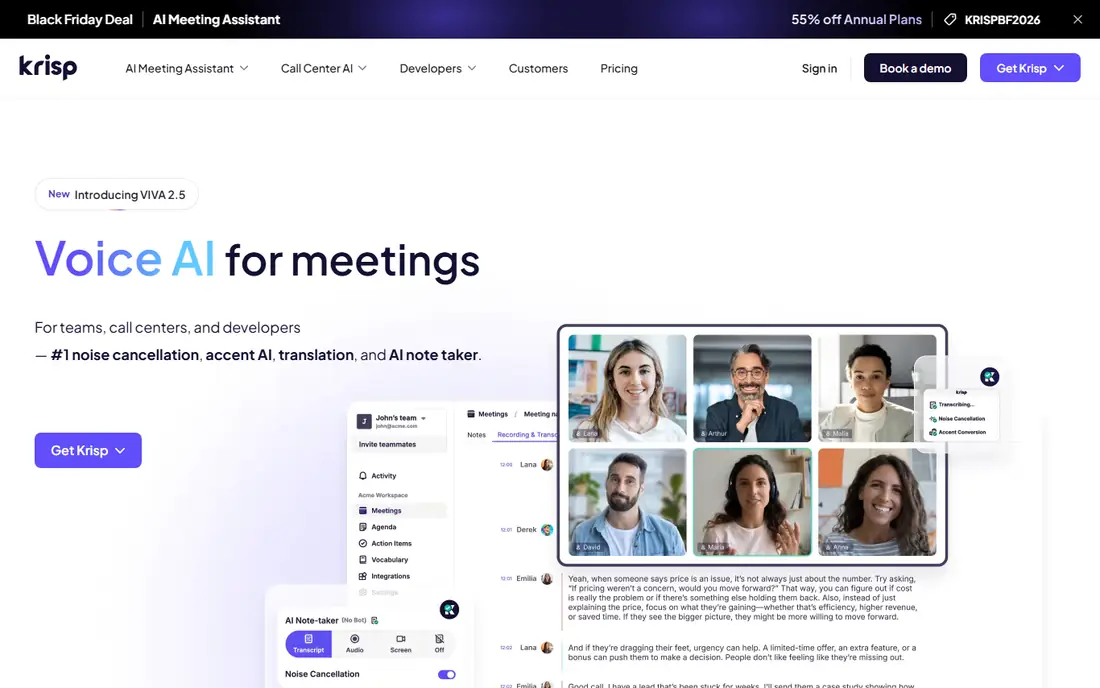
Krisp is a standalone app that sits between your microphone and any call, meeting, or streaming app, removing background noise in real time. Because it works at the system level, you do not need each meeting app to support suppression, and it also offers echo removal and, on some plans, accent and transcription features. For remote workers on many different call platforms, that universality is the main appeal.
The free plan limits noise-cancellation minutes, so heavy users need a paid plan, and aggressive settings can make voices sound slightly processed. For most callers, Krisp is our pick for standalone noise suppression, and it is easy to test with its free tier.
- Works with any meeting or call app
- Removes background noise and echo
- Easy setup
- Free plan limits minutes
- Voice can sound processed on aggressive settings
NVIDIA Broadcast
Ideal for: Streamers with NVIDIA GPUs
NVIDIA Broadcast is a free app for Windows users with supported NVIDIA RTX graphics cards, offering AI noise removal and echo removal for microphones, plus camera effects such as background removal and auto framing. For streamers and creators already using RTX hardware, it is a powerful free addition that improves both audio and video without extra software costs.
The hardware requirement is the limit: without a supported RTX card, Broadcast will not run, and it is Windows-only. For RTX owners who stream or record, NVIDIA Broadcast is an excellent free choice.
- Free for supported NVIDIA GPUs
- Strong noise and echo removal
- Camera AI effects included
- Needs a supported NVIDIA RTX graphics card
- Windows only
NoiseGator
Ideal for: Free open source noise gate
NoiseGator is a free, open source noise gate that opens your microphone only when sound passes a threshold, cutting constant background noise between speech. It is lightweight and free, which appeals to users who want a no-cost solution and are comfortable setting up virtual audio routing. For steady background hums, a gate can help noticeably.
A gate is not AI suppression: it will not remove noise that occurs while you speak, and setup needs virtual audio cables or similar tools. For technically comfortable users on a budget, NoiseGator is a useful free option, but most callers will prefer Krisp.
- Free and open source
- Simple noise gate for microphone input
- Lightweight
- Noise gate, not AI suppression
- Setup needs virtual audio tools
- Windows focus
SoliCall
Ideal for: Low-cost call noise reduction
SoliCall offers noise reduction software for calls on Windows, aimed at users and businesses that want cleaner call audio without a large subscription. It works with common call applications and focuses on the core job: reducing background noise so the other side hears speech more clearly. That narrow focus keeps it approachable.
The vendor is smaller than Krisp, the interface feels older, and features such as echo removal and transcription are less developed. For Windows callers who want a low-cost, focused tool, SoliCall is worth a trial, though Krisp is the stronger all-round pick.
- Noise reduction for calls on Windows
- Low-cost approach
- Works with common call apps
- Smaller vendor and older interface
- Feature range is narrower than Krisp
Adobe Podcast
Ideal for: AI speech enhancement
Adobe Podcast, including its Enhance Speech tool, uses AI to clean recorded speech, removing background noise and echo and making voices sound studio-like. It runs in the browser, which makes it easy for podcasters and video creators to improve recordings without desktop software. For recorded content, the quality jump can be striking.
Enhance Speech is for recordings, not live calls, so it will not help a noisy meeting in real time. Free processing time is limited. For creators cleaning recordings, Adobe Podcast is a strong tool, best paired with Krisp or Broadcast for live calls.
- Strong AI speech enhancement for recordings
- Easy browser workflow
- Adobe ecosystem
- Post-processing, not live call suppression
- Free tier limits processing time
Auphonic
Ideal for: Audio post-processing cleanup
Auphonic is an automated audio post-production service that levels audio, reduces noise and hum, and prepares podcasts and videos for publishing. It suits podcasters and video teams that want consistent, broadcast-ready audio without manual editing in a digital audio workstation. Batch processing and integrations support regular publishing workflows.
Auphonic works on recordings, not live calls, and credit-based pricing needs planning for high volumes. For post-production cleanup, it is a reliable and well-regarded service.
- Automated audio post-production
- Noise and hum reduction
- Podcast and video workflows
- Post-processing only
- Credit-based pricing needs planning
Discord
Ideal for: Built-in call noise suppression
Discord includes built-in noise suppression, powered by Krisp technology, in voice calls and streams, which users can enable in voice settings. For gamers, communities, and teams that already meet on Discord, that built-in option removes the need for a separate app, and it works well for common background noise such as keyboards and fans.
Suppression only helps inside Discord, so Zoom, Teams, and phone callers need another tool. Quality also varies with settings. For Discord users, built-in suppression is the simplest free starting point.
- Built-in Krisp-powered suppression in voice calls
- Free for most users
- Easy to enable
- Only helps inside Discord
- Quality depends on Discord settings and plan
Zoom
Ideal for: Built-in meeting noise suppression
Zoom includes built-in background noise suppression with adjustable levels, from low to high, in meeting audio settings. For most office calls, the default or medium setting handles fans, typing, and street noise well enough, and high suppression helps in very noisy environments. Since Zoom is already the meeting platform for many teams, there is nothing extra to install.
Suppression only applies inside Zoom, and the highest setting can sometimes clip softer speech. For Zoom-first teams, built-in suppression is often enough, and a standalone app such as Krisp is only needed for cross-platform calls or very noisy spaces.
- Built-in background noise suppression with adjustable levels
- Familiar meeting platform
- Free basic plan
- Only helps inside Zoom
- Aggressive settings can affect voice quality
How we picked these
We compared official feature pages, pricing pages, and public reviews for software that reduces microphone noise, including standalone apps, GPU tools, open source gates, post-processing services, and built-in platform features. We looked at suppression quality, voice clarity, ease of setup, and cost, and we distinguished live suppression from post-processing, since buyers often confuse the two.
What to check before you choose noise suppression software
Start with where you call. If you use one platform, such as Zoom or Discord, try its built-in suppression first, since it is free and already installed. If you switch between platforms, a standalone app such as Krisp is worth paying for, since it follows you everywhere. Streamers with RTX hardware should test NVIDIA Broadcast before buying anything.
Next, test in your real noise environment, not a quiet room. Record a call with a fan, keyboard, or street noise in the background, and listen for both noise removal and voice naturalness, since aggressive suppression can make speech sound thin. Finally, check CPU use and compatibility with your headset and meeting apps, since real-time audio processing can affect performance on older machines.
Also consider your microphone and room, since software cannot fully fix a poor mic or a very echoey space. A decent headset microphone, a quieter room, and soft furnishings often improve call quality more than upgrading suppression software. Test your setup with a colleague before buying, and check whether your meeting platform already applies suppression that conflicts with a standalone app, since double processing can distort voices.
Frequently asked questions
What is the best noise suppression software?
Krisp is the best standalone option for most callers, NVIDIA Broadcast leads for RTX streamers, and built-in Zoom or Discord suppression is often enough for casual calls. For recordings, Adobe Podcast and Auphonic lead on post-processing cleanup.
Is Krisp free?
Krisp offers a free plan with limited noise-cancellation minutes, with paid plans for unlimited use and extra features. Check the current pricing page for minute limits and plan details.
What is the difference between a noise gate and AI noise suppression?
A noise gate mutes the microphone below a volume threshold, cutting noise between speech, while AI suppression identifies and removes noise even while you speak. AI tools such as Krisp and NVIDIA Broadcast handle noisy speech better than a simple gate such as NoiseGator.
Does noise suppression work on Mac and Windows?
Krisp works on both Mac and Windows, NVIDIA Broadcast is Windows-only with RTX hardware, and NoiseGator is Windows-focused. Built-in Zoom and Discord suppression works across desktop platforms, so check each tool's system requirements before buying.
Can noise suppression remove echo?
Yes, Krisp and NVIDIA Broadcast offer echo removal alongside noise suppression, which helps in rooms with hard surfaces or when speakers play call audio aloud. Using headphones remains the simplest way to prevent echo in the first place.