Best OCR Software in 2026: 8 Tools Compared

- 1
 ABBYY FineReaderAccuracy-critical document conversionVisit
- 2
 Adobe Acrobat ProOCR inside a full PDF workflowVisit
- 3
 ReadirisOne-time purchase OCR for office scansVisit
- 4
 TesseractFree open-source OCR for developersVisit
- 5
 PDFgearFree PDF reading, editing and OCRVisit
- ABBYY FineReader suits accuracy-critical work, while Adobe Acrobat Pro suits teams that also need full PDF workflows.
- Tesseract and PDFgear cover free OCR, with Tesseract best for developers and PDFgear best for casual users.
- Handwriting recognition is still weaker than printed text recognition, so test your actual documents before buying.
- Cloud OCR charges per page, which suits variable volume, while desktop licenses suit steady daily scanning.
Quick comparison
| Product | Ideal for | Price from | Free version | |
|---|---|---|---|---|
| ABBYY FineReader | Accuracy-critical document conversion | $99 per year | Free trial | Visit |
| Adobe Acrobat Pro | OCR inside a full PDF workflow | $19.99 per month | Free trial | Visit |
| Readiris | One-time purchase OCR for office scans | $99 one-time | Free trial | Visit |
| Tesseract | Free open-source OCR for developers | Free | Yes | Visit |
| PDFgear | Free PDF reading, editing and OCR | Free | Yes | Visit |
 Nanonets | Structured extraction from invoices and forms | See website | Free trial | Visit |
 Google Document AI | Cloud OCR and extraction for developers | See website | Free trial | Visit |
 Apple Live Text | Quick free OCR on Apple devices | Free | Yes | Visit |
The best OCR software
We compared official feature pages, pricing pages, app store listings, privacy policies and public reviews to build this list of 8 options for best ocr software. Prices were checked in October 2026 and can change, so confirm the current price on the vendor site before you buy. Our pick for most people is the first option that fits your budget and workflow, not necessarily the most expensive tool on the list. Read the quick comparison first to narrow the field, then read the full write-ups for the two or three options that fit your needs best.
ABBYY FineReader
Ideal for: Accuracy-critical document conversion

ABBYY FineReader is the accuracy pick for legal, finance and compliance work. It converts scans to searchable PDFs, Word and Excel with layout preserved, and supports a very wide range of languages. For firms that process documents daily, accuracy saves more time than a cheaper tool costs.
The interface is dense, and the subscription adds up for occasional users. Mac and Windows versions also differ, so check the version for your system. For accuracy-critical work, FineReader is worth the price.
- High accuracy on printed text
- Wide language support
- Strong PDF editing and conversion
- Subscription cost
- Interface is dense
- Mac version differs from Windows
Adobe Acrobat Pro
Ideal for: OCR inside a full PDF workflow

Adobe Acrobat Pro adds OCR to the PDF suite most offices already use. Scanned documents become searchable and editable, and signing, sharing and commenting sit in the same app. For teams that live in PDFs, that integration beats a standalone OCR tool.
For OCR alone, Acrobat Pro is expensive, and the subscription never ends. Some AI document features are also separate add-ons. Pick Acrobat when PDF workflows are the main job and OCR is one part of it.
- OCR plus editing, signing and sharing
- Strong cloud sync
- Familiar to most offices
- Costly for OCR alone
- Subscription only
- Some AI features are add-ons
Readiris
Ideal for: One-time purchase OCR for office scans
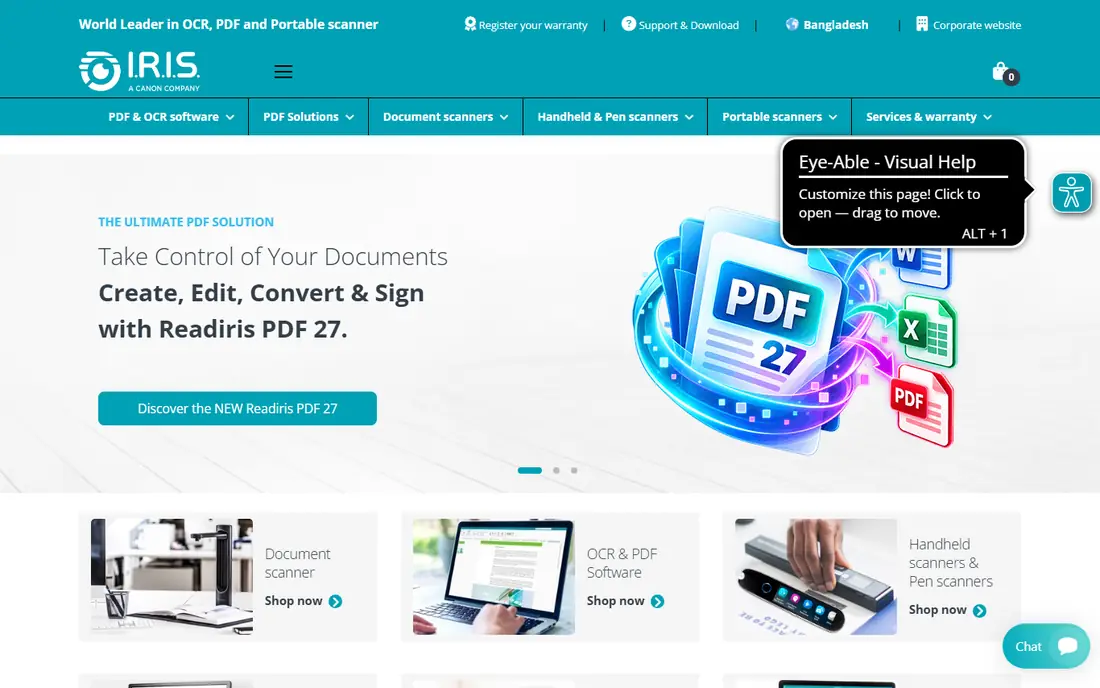
Readiris suits users who want OCR without a subscription. A one-time license covers office scans, supports many languages, and adds barcode and audio conversion that rivals lack. For steady, moderate-volume scanning, the lifetime cost is attractive.
Accuracy on complex layouts trails ABBYY, and the interface feels older than modern rivals. Support is also thinner. For clean office documents on a one-time budget, Readiris is a sensible pick.
- One-time license
- Wide language support
- Barcode and audio conversion options
- Less accurate than ABBYY on complex layouts
- Interface feels dated
- Support is thinner
Tesseract
Ideal for: Free open-source OCR for developers
Tesseract is the free engine behind many OCR products, and developers can embed it in custom apps at no license cost. It handles printed text in many languages well, and tuning options suit technical users. For research, automation and internal tools, it is unmatched on price.
There is no polished app: setup, preprocessing and output formatting are the user's job. Handwriting and complex tables also need extra work. Tesseract suits developers and technical teams, not casual users who want a simple scan button.
- Free and open source
- Wide language support
- Embeddable in custom apps
- Needs technical setup
- No polished interface
- Handwriting and tables are weak
PDFgear
Ideal for: Free PDF reading, editing and OCR
PDFgear offers free PDF reading, editing and OCR without a subscription, which suits students and casual users. The interface is simple, and core tasks such as merging, compressing and converting work without payment. For occasional OCR, it removes the cost barrier entirely.
Accuracy trails ABBYY and Acrobat on difficult scans, and automation features are limited. Support is mainly community based. For free, everyday PDF work with occasional OCR, PDFgear is a strong pick.
- Free core features
- OCR included
- Simple interface
- Accuracy below paid leaders
- Fewer automation features
- Support is community led
Nanonets
Ideal for: Structured extraction from invoices and forms
Nanonets goes beyond raw OCR to structured extraction: it pulls fields from invoices, receipts and forms into usable data. An API lets teams automate intake, which suits finance and operations workflows with steady document volume. Accuracy on structured documents is a real strength.
It is priced for business use, and setup needs sample documents to train models. Casual users who scan a few pages will find it overkill. For automated document processing, Nanonets is a specialist worth shortlisting.
- AI models for invoices, receipts and forms
- API for automation
- High accuracy on structured docs
- Priced for business volume
- Setup needs document samples
- Not a casual desktop scanner
Google Document AI
Ideal for: Cloud OCR and extraction for developers
Google Document AI brings Google's OCR to developers through an API, with parsers for forms, invoices and identity documents. It scales for variable volume and integrates with Google Cloud storage and workflows. For apps that need OCR as a service, it is a strong backend choice.
Pricing is per page, so high volume needs budgeting, and setup is developer work. Sensitive documents also need a clear cloud data agreement. For product teams building OCR into an app, Document AI is a solid platform.
- Google-scale OCR
- Form and invoice parsers
- Integrates with Google Cloud
- Cloud pricing per page
- Needs developer setup
- Sensitive data needs a cloud agreement
Apple Live Text
Ideal for: Quick free OCR on Apple devices
Apple Live Text is built into iPhone, iPad and Mac, so users can copy text from photos, screenshots and camera views without installing anything. It suits quick captures: a sign, a page, a whiteboard note. Because it is free and local, there is no subscription or upload step for basic use.
It is Apple only, with no batch processing or structured extraction for business workflows. Export controls are also basic. For occasional text capture on Apple devices, Live Text is the fastest free option.
- Built into iOS and macOS
- No install
- Works on photos and screenshots
- Apple only
- No batch or structured extraction
- Limited export controls
How we picked these
We started from the topic and shortlisted products that exist and work today, then checked each vendor homepage, pricing page and free tier. We compared feature pages, app store listings, privacy policies and public reviews, and we dropped any product whose homepage could not be verified or whose price could not be checked. Where a price was unclear or varied by region, we wrote See website rather than guessing a number. That rule kept the list honest, even where a neat price would have made the comparison table look tidier.
We also weighed fit over fame. A well-known product stayed on the list only if it truly fits the topic, and smaller tools earned a place when they served a clear use case better. No product here was tested hands-on for this article, and no vendor paid for placement.
Price and free-tier details matter most when plans change often, so we favoured products with clear published pricing and a trial or free tier where one exists. If a vendor changed a plan after our check, the vendor site is the correct source, and the ranking here still reflects fit, not just price. That check takes extra time, but it prevents a shortlist built on outdated pricing or a product that no longer exists.
Choosing OCR software by document type and volume
Test with your worst documents, not your cleanest. Faded scans, tables, handwriting and multilingual pages expose accuracy gaps that marketing pages hide. Then compare cost on your real monthly page count, because per-page cloud pricing and desktop licenses cross over at different volumes.
Before you pay, run a trial on a real task from your own work, not a demo file. Check export formats, mobile access and support hours, because those details decide whether a tool survives daily use. Also check renewal terms and cancellation steps, since a cheap first year can become an expensive second year if renewal jumps. Finally, ask who will own setup and training, because a tool nobody is responsible for tends to fall out of use within a few months. Keep a short note on why you picked the winner, so a future review can judge it against the same criteria instead of starting from scratch.
A useful final test is to imagine the tool in six months, when the first excitement has faded and the work is routine. If the daily steps are still quick, the cost is still clear, and the support route is still obvious, the choice is likely sound. If any of those three answers is unclear, use the trial period to get a clear answer before committing to an annual plan.
Frequently asked questions
What is the best free OCR software?
Tesseract is free and open source for developers and technical users, while PDFgear offers free OCR for casual PDF users. Apple Live Text is free and built into Apple devices for quick text capture.
Can OCR read handwriting accurately?
Some tools handle neat handwriting, but accuracy is lower than for printed text, especially for cursive or messy writing. Test handwriting samples in a trial before committing.
Is Adobe Acrobat good for OCR?
Yes, Acrobat Pro includes OCR as part of a full PDF suite, which suits teams that also edit, sign and share PDFs. For OCR alone, ABBYY FineReader is usually cheaper and more focused.
Should I use desktop or cloud OCR?
Desktop OCR keeps documents local, which suits sensitive files. Cloud OCR scales for variable volume and adds structured extraction, but sensitive documents need a clear data agreement.