Best Online Data Backup Services in 2026: 7 Options Compared

- We compared 7 real options for best online data backup services, checking official feature pages, pricing pages, and app store listings where available.
- The best choice depends on automatic backups, version history, and easy restore, not on brand size alone, so match the tool to the work you actually do.
- Prices change often, so confirm the current plan and renewal cost on the vendor website before you buy.
- Start with a trial or a small order where possible, and test it with your real workflow before a long commitment.
- Test a restore before you need it, since a backup you cannot restore is not a backup.
Quick comparison
| Product | Ideal for | Price from | Free version | |
|---|---|---|---|---|
 Backblaze | Simple unlimited computer backup | See website | Free trial | Visit |
 Carbonite | Home and small business backup | See website | Free trial | Visit |
 IDrive | Backup across many devices | See website | Yes | Visit |
 Acronis | Backup plus security features | See website | Free trial | Visit |
 CrashPlan | Small businesses needing steady backup | See website | Free trial | Visit |
 SpiderOak | Privacy focused backup users | See website | Free trial | Visit |
 pCloud | Cloud storage with backup options | See website | Yes | Visit |
The best online data backup services
We looked at official feature pages, pricing, app store listings, privacy policies, and public reviews to build this list. Our pick for most people is the option that balances useful features, clear pricing, and honest limits, but the right choice still depends on your budget, team size, and daily workflow. The options below cover well known leaders and strong smaller choices, so you can compare them side by side before deciding.
Backblaze
Ideal for: Simple unlimited computer backup
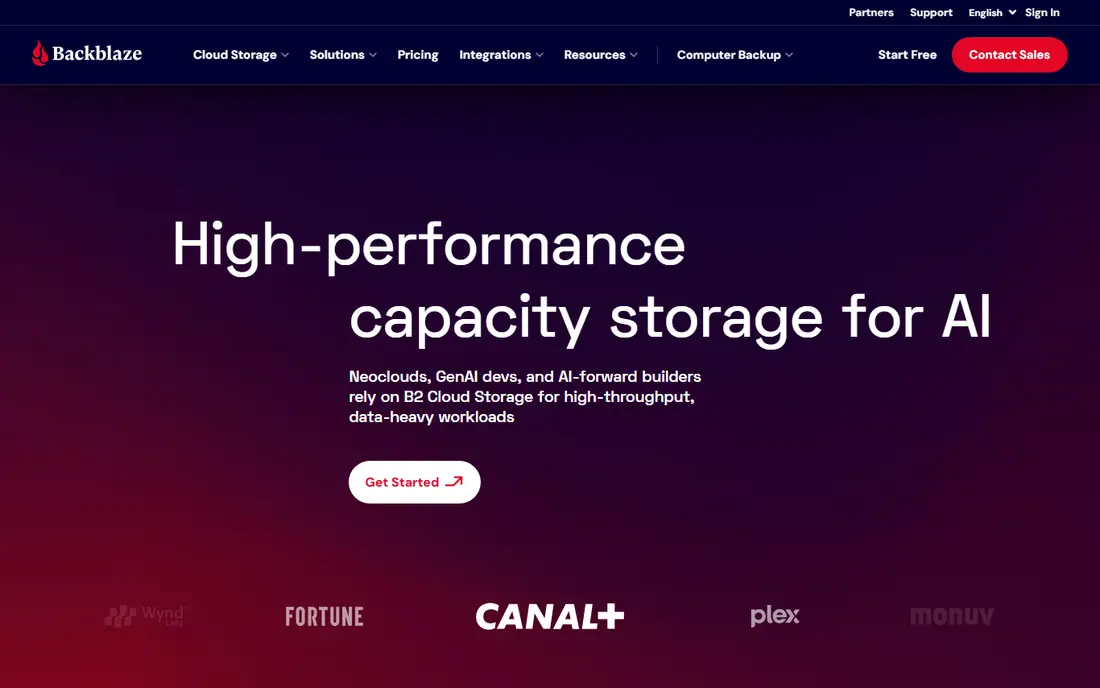
For simple unlimited computer backup, Backblaze is a strong starting point. Backblaze keeps backup simple, with unlimited storage for one computer at a clear price. We compared its official feature pages and pricing against the other options in this list, and it stood out for automatic backups, version history, and easy restore. Readers who do that kind of work regularly will notice the difference in daily use, while occasional users may care less about depth and more about price and simplicity.
Households with several computers need a license per machine, so count devices before buying. That balance makes it a sensible pick for buyers who value that strength over a broader feature list. Check the current pricing page before you commit, since plans and limits change, and use a trial or small order to confirm it fits your workflow.
- Unlimited backup for one computer
- Simple setup
- Affordable pricing
- One computer per license
- Restore speed varies by size
Carbonite
Ideal for: Home and small business backup
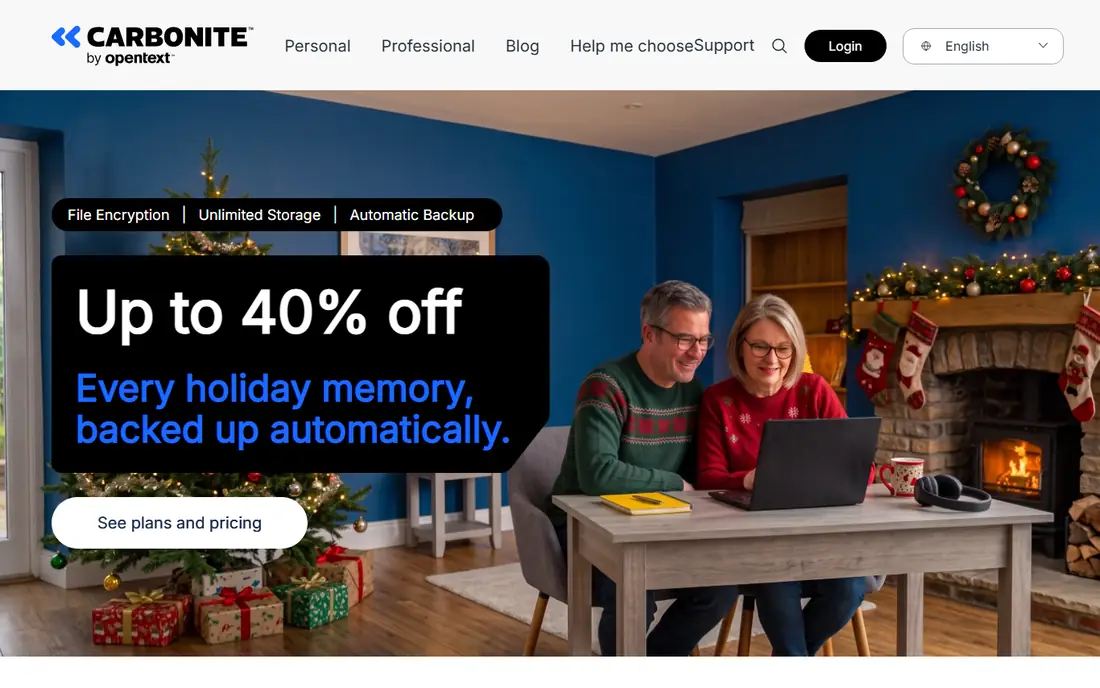
If home and small business backup is the priority, Carbonite deserves a close look. Carbonite backs up automatically with version history, which helps users recover older file versions. We compared its official feature pages and pricing against the other options in this list, and it stood out for automatic backups, version history, and easy restore. Readers who do that kind of work regularly will notice the difference in daily use, while occasional users may care less about depth and more about price and simplicity.
Users with external drives should check the plan level, since some tiers limit that coverage. Buyers who need that specific strength will likely accept the trade-off, while others may prefer a broader option. Check the current pricing page before you commit, since plans and limits change, and use a trial or small order to confirm it fits your workflow.
- Automatic backup
- Version history
- Business plans
- Higher tiers needed for external drives
- Interface feels dated
IDrive
Ideal for: Backup across many devices
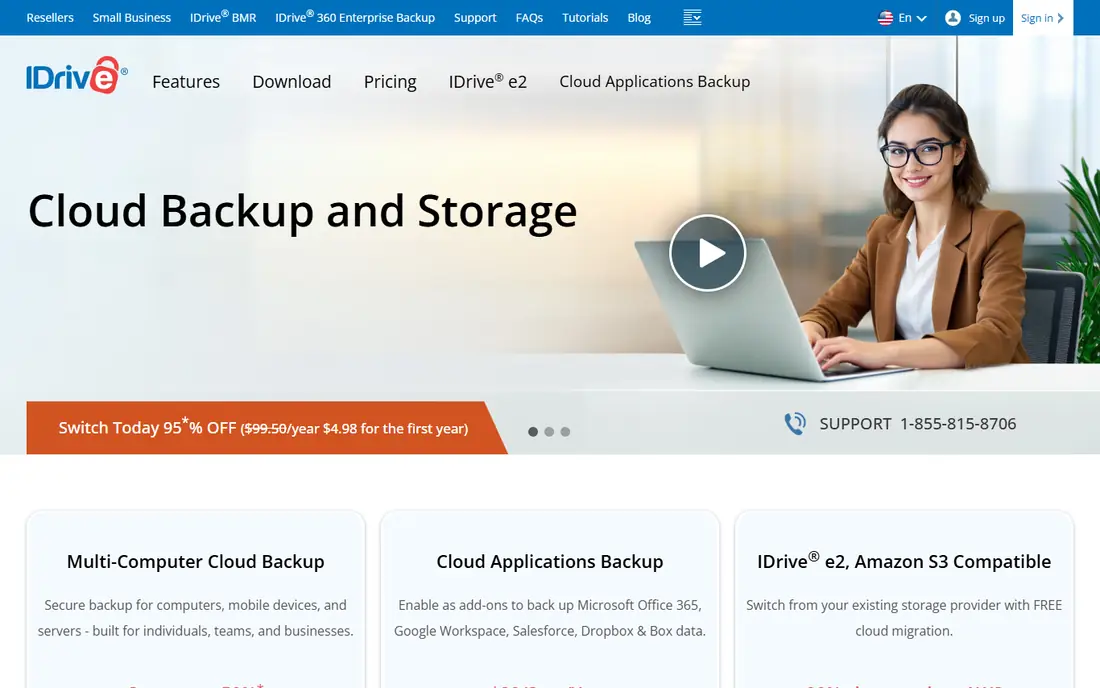
Teams focused on backup across many devices will find IDrive worth considering. IDrive covers many devices on one plan, which suits households and small teams with mixed hardware. We compared its official feature pages and pricing against the other options in this list, and it stood out for automatic backups, version history, and easy restore. Readers who do that kind of work regularly will notice the difference in daily use, while occasional users may care less about depth and more about price and simplicity.
The busy interface takes a little learning, but the device coverage is hard to beat at the price. It is a good fit when that strength matches your daily work, and less so when you need the missing pieces. Check the current pricing page before you commit, since plans and limits change, and use a trial or small order to confirm it fits your workflow.
- Many devices on one plan
- Disk image backup
- Versioning
- Upload speeds vary
- Interface is busy
Acronis
Ideal for: Backup plus security features
When backup plus security features matters most, Acronis stands out in this list. Acronis pairs backup with security features, including ransomware protection, for users who want both. We compared its official feature pages and pricing against the other options in this list, and it stood out for automatic backups, version history, and easy restore. Readers who do that kind of work regularly will notice the difference in daily use, while occasional users may care less about depth and more about price and simplicity.
Users who only want simple file backup may find the extra features more than they need. Weigh that strength against the catch before deciding, since the right choice depends on which side matters more to you. Check the current pricing page before you commit, since plans and limits change, and use a trial or small order to confirm it fits your workflow.
- Disk imaging
- Ransomware protection
- Cloud and local backup
- Higher price
- Features can feel complex
CrashPlan
Ideal for: Small businesses needing steady backup
For buyers who need small businesses needing steady backup, CrashPlan offers a practical option. CrashPlan focuses on business backup with unlimited storage and version history. We compared its official feature pages and pricing against the other options in this list, and it stood out for automatic backups, version history, and easy restore. Readers who do that kind of work regularly will notice the difference in daily use, while occasional users may care less about depth and more about price and simplicity.
Home users should check current consumer availability, since its focus is now business. If that trade-off fits your workflow, it is easy to recommend. If not, another option in this list may suit you better. Check the current pricing page before you commit, since plans and limits change, and use a trial or small order to confirm it fits your workflow.
- Unlimited backup
- Business focus
- Version history
- No free tier for full use
- Consumer plans have changed over time
SpiderOak
Ideal for: Privacy focused backup users
If your shortlist centers on privacy focused backup users, SpiderOak belongs on it. SpiderOak uses zero knowledge encryption, so even the provider cannot read backed-up files. We compared its official feature pages and pricing against the other options in this list, and it stood out for automatic backups, version history, and easy restore. Readers who do that kind of work regularly will notice the difference in daily use, while occasional users may care less about depth and more about price and simplicity.
Storage amounts are smaller for the price, so users with huge media libraries should compare costs. That profile suits buyers who prioritize the strength, while buyers who need the missing features should keep looking. Check the current pricing page before you commit, since plans and limits change, and use a trial or small order to confirm it fits your workflow.
- Zero knowledge encryption
- Cross platform support
- Secure sharing
- Higher price per storage amount
- Smaller storage tiers
pCloud
Ideal for: Cloud storage with backup options
For cloud storage with backup options, pCloud brings a focused set of tools to the table. pCloud offers cloud storage with versioning and a lifetime option, which appeals to users who dislike subscriptions. We compared its official feature pages and pricing against the other options in this list, and it stood out for automatic backups, version history, and easy restore. Readers who do that kind of work regularly will notice the difference in daily use, while occasional users may care less about depth and more about price and simplicity.
It is storage first, so users who need full disk imaging should pick a dedicated backup tool. For the right buyer, the strength outweighs the catch. For others, the catch is a reason to compare further. Check the current pricing page before you commit, since plans and limits change, and use a trial or small order to confirm it fits your workflow.
- Lifetime plan option
- File versioning
- Media playback
- Not a pure backup tool
- Lifetime terms need reading
How we picked these
We started with products that exist and work in October 2026 and truly fit best online data backup services. We checked official feature pages, pricing pages, app store listings, privacy policies, and public reviews, and we left out products that did not fit the topic even if they were popular elsewhere. We favored options with clear pricing, honest limits, and a track record of serving real users, and we mixed well known leaders with strong smaller options so readers are not pushed toward one brand.
We did not claim hands-on testing that did not happen. Instead, we compared what vendors publish against what users report, and we noted honest weaknesses where they matter. If a price could not be verified from the vendor website or an app store listing, we wrote See website rather than guessing a number.
What to check before you choose
Start with budget, but look at the full cost. A low headline price can hide per-user fees, add-on charges, or renewal increases, so read the pricing page carefully and add up the cost for your real team size or volume. A trial period is useful here, since it shows whether the daily workflow feels natural or forced.
Next, check the features that matter for best online data backup services: automatic backups, version history, and easy restore. Make a short list of must-have features before you trial anything, and score each option against that list. A tool with many features you never use is not better than a focused tool that does your core job well.
Then think about scale and support. A tool that works for one person may struggle with a team, and a tool built for enterprises may feel heavy for a small operation. Check support hours, documentation, and integration options, since help matters most when something goes wrong.
Finally, Test a restore before you need it, since a backup you cannot restore is not a backup. Test with real work, not just a demo, and keep notes on what worked and what did not. That short trial record will make the final choice much clearer than a feature list alone.
Frequently asked questions
What is the best option for best online data backup services?
There is no single best option for every buyer. Our pick for most people balances features, pricing, and ease of use, but the right choice depends on your budget and on automatic backups, version history, and easy restore. Use the comparison table above to narrow the list to two or three options, then trial them with real work.
Are there free options for best online data backup services?
Some options in this list offer a free plan or a free trial, and the table above shows which ones do. Free plans usually limit features or volume, so check those limits against your needs. For paid tools, a trial is often the best way to judge value before committing.
How much do these options cost?
Prices vary widely, and vendors change plans often, so we list See website where a price could not be verified at the time of writing. Always check the vendor pricing page for the current cost, including renewal prices and any per-user or per-volume fees, before you buy.
How do I choose between these options?
Start with your must-have features for best online data backup services, then filter by budget and team size. Trial the top two or three options with real tasks, and pay attention to support quality and ease of use. Test a restore before you need it, since a backup you cannot restore is not a backup.
Can I switch later if I pick the wrong option?
In most cases, yes, but switching costs time and effort, especially if you have stored data or trained a team on one tool. Check export options and contract terms before you commit, and avoid long contracts until you are sure the tool fits your workflow.