Best Organizational Tools in 2026: 8 Compared

- We compared 8 options for best organizational tools and ranked them on fit, features, pricing, and ease of use, so you can shortlist quickly.
- Our pick for most people is Todoist, which suits people who want tasks captured fast.
- If you want a different strength, consider Notion for people organising notes, tasks, and docs in one place or Trello for visual planners who like boards and cards.
- Prices and free tiers change often, so check the official pricing page for Todoist and your other finalists before you commit.
- The best choice depends on your budget, your experience level, and how you plan to use it week to week, not on brand size alone.
Quick comparison
| Product | Ideal for | Price from | Free version | |
|---|---|---|---|---|
 Todoist | people who want tasks captured fast | See website | Yes | Visit |
 Notion | people organising notes, tasks, and docs in one place | See website | Yes | Visit |
 Trello | visual planners who like boards and cards | See website | Yes | Visit |
 Asana | teams organising shared work and deadlines | See website | Yes | Visit |
 Evernote | people organising notes, clippings, and documents | See website | Yes | Visit |
 Microsoft OneNote | Microsoft users wanting a free-form notebook | Free | Yes | Visit |
 Google Keep | people wanting fast, simple notes and reminders | Free | Yes | Visit |
 Any.do | people combining tasks, calendar, and reminders | See website | Yes | Visit |
The best best organizational tools
We reviewed official feature pages, pricing, app-store listings, privacy policies, and public reviews to build this shortlist for best organizational tools. The seven options below cover the well-known leaders plus strong smaller choices, and each one fits the topic in a different way.
Todoist
Ideal for: people who want tasks captured fast
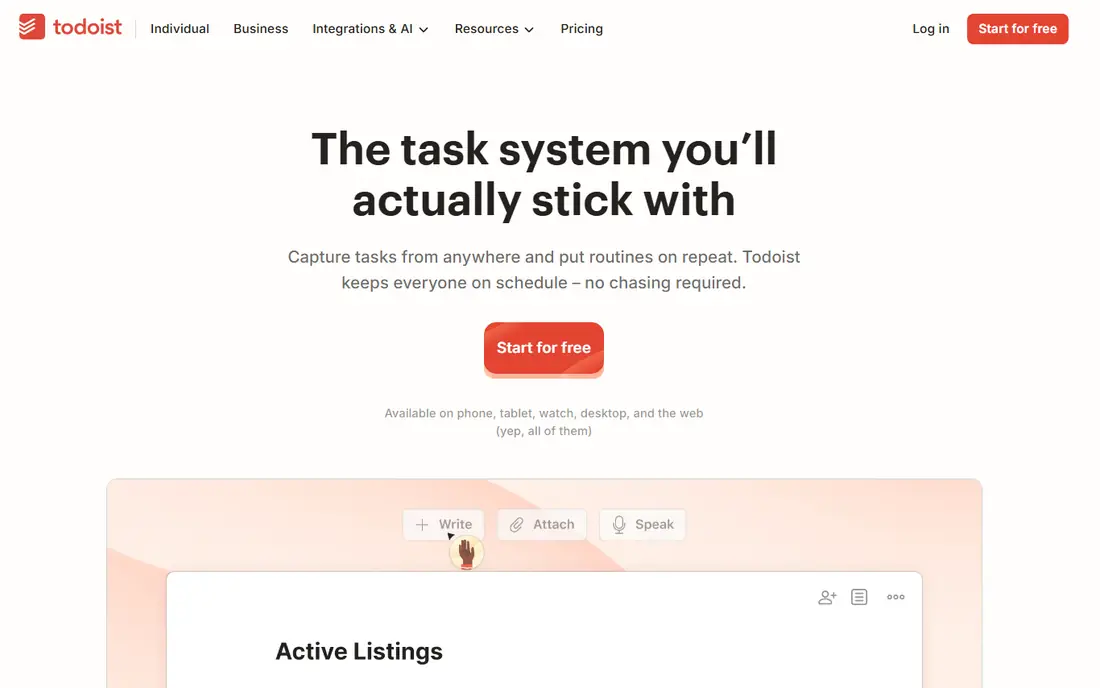
Todoist wins on capture speed. Type a task in plain words, add a date, and it lands in the right project on every device, which is why it suits busy people who otherwise lose tasks to sticky notes.
It is a task tool first, so if you need full project timelines or docs, pair it with another app. For personal organisation, its speed and simplicity are the point.
- Fast capture and natural language dates
- Clean cross-device apps
- Project labels and filters
- No built-in calendar view at free tier
- Power features sit in paid plans
Notion
Ideal for: people organising notes, tasks, and docs in one place
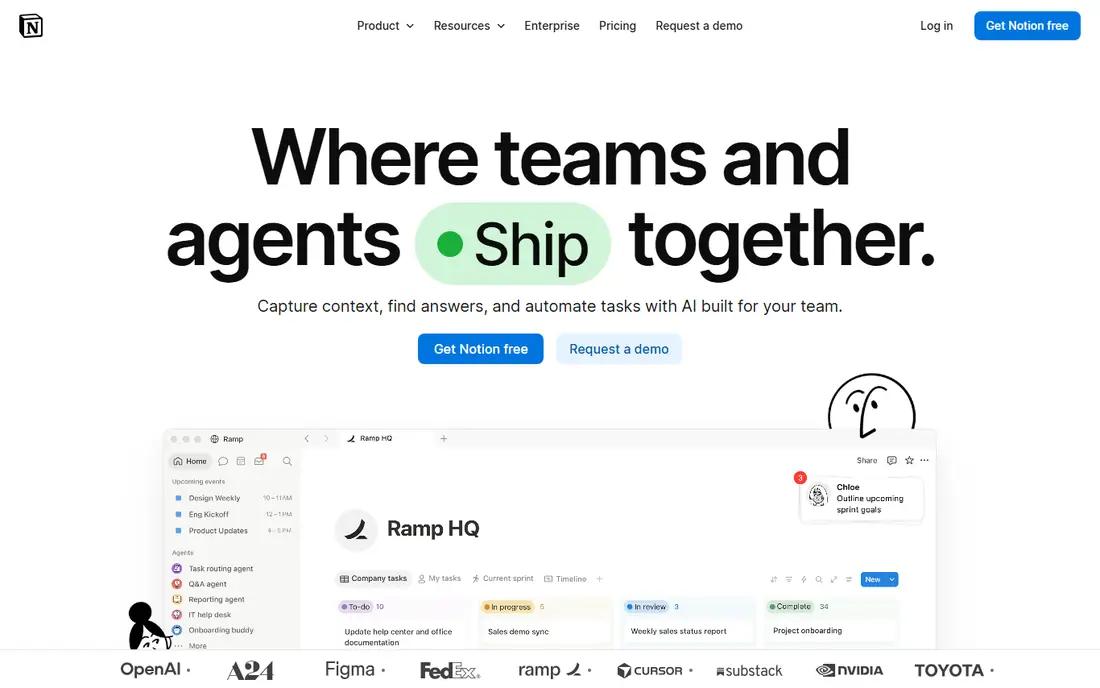
Notion is the most flexible organiser on this list. Notes, tasks, databases, and wikis live in one workspace, and templates give you a starting point for almost any system.
That freedom is also the risk: without a simple structure, a Notion workspace can grow messy. Start with one database and a few pages, then expand only when the system proves useful.
- Flexible pages, databases, and wikis
- Strong templates
- Good team sharing
- Flexibility can lead to messy setups
- Offline use is limited
Trello
Ideal for: visual planners who like boards and cards
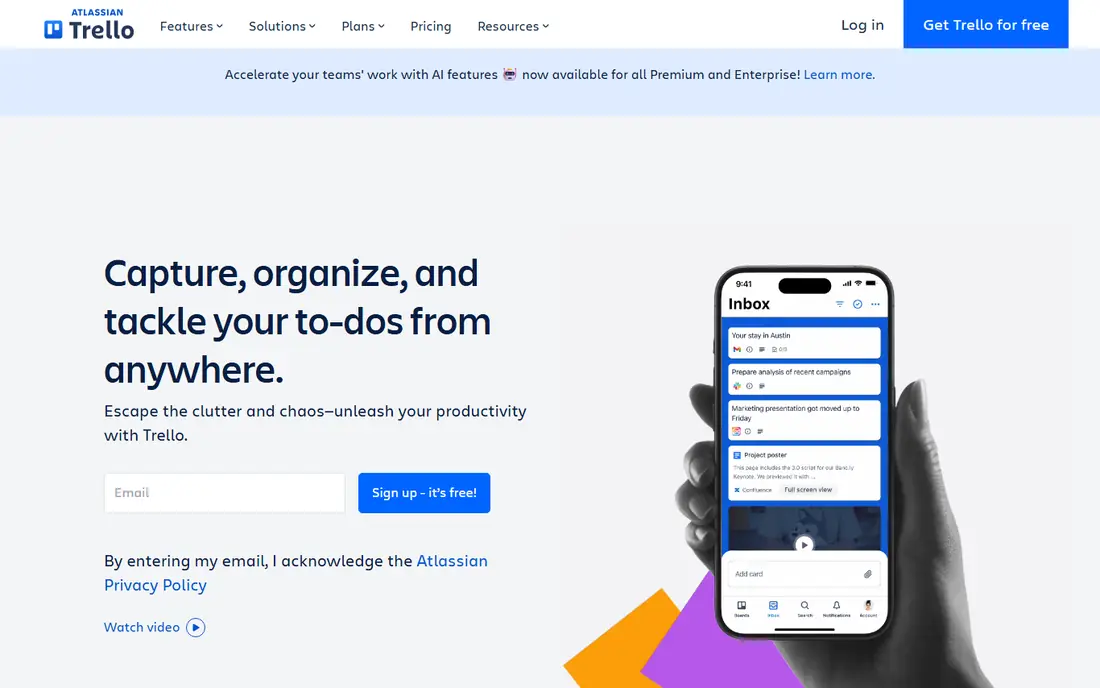
Trello keeps organisation visual. Move cards across lists, add checklists and due dates, and the state of a project is clear at a glance, which suits households and small teams alike.
Very large projects can feel flat on a board, and reporting sits in paid tiers. For everyday planning, its low friction beats heavier project tools.
- Simple board and card workflow
- Easy drag and drop
- Power-ups for extra features
- Large projects can feel flat
- Reporting needs paid features
Asana
Ideal for: teams organising shared work and deadlines
Asana suits teams that share deadlines and handoffs. Tasks, timelines, and workload views show who owns what and what slips, which cuts the need for status meetings.
Solo users may find it heavier than Todoist or Trello. Its value shows when several people share work and need one clear record of progress.
- Task, timeline, and workload views
- Strong team assignments
- Good integrations
- Can feel heavy for solo use
- Advanced features need paid plans
Evernote
Ideal for: people organising notes, clippings, and documents
Evernote remains a solid home for notes, web clippings, and scanned documents. Search that reaches inside attachments helps you find an old receipt or article long after you saved it.
The free tier is limited, and long-time users have seen price rises. If your organisation problem is mainly notes and research, Evernote still earns its place.
- Strong web clipping
- Search inside documents
- Notebooks and tags
- Free tier is limited
- Price has risen over time
Microsoft OneNote
Ideal for: Microsoft users wanting a free-form notebook
OneNote feels like a paper notebook that syncs. Drop text, images, and handwriting anywhere on a page, and Microsoft users get it free with their account, which keeps the barrier low.
Its loose structure suits free-form thinkers more than strict database users. If you want rigid tables and linked databases, Notion will fit better.
- Free-form pages like paper notebooks
- Strong handwriting support
- OneDrive sync
- Organisation is looser than Notion
- Sharing is simpler than some rivals
Google Keep
Ideal for: people wanting fast, simple notes and reminders
Google Keep is for quick capture: a note, a list, or a reminder in seconds, colour-coded and synced across devices. It suits people who lose ideas because opening a heavy app takes too long.
It has no folders and little depth, so long documents belong elsewhere. Use Keep for the short stuff and a fuller tool for archives.
- Very fast capture
- Colour-coded notes
- Location and time reminders
- No folders or deep organisation
- Best for short notes
Any.do
Ideal for: people combining tasks, calendar, and reminders
Any.do combines tasks, calendar, and reminders in one calm app. Its daily planning view helps you pick a few priorities each morning instead of facing an endless list.
Team features are lighter than Asana, and some useful extras sit in the premium tier. For personal organisation across work and home, the combined view is its strength.
- Tasks plus calendar in one app
- Daily planning view
- Clean mobile apps
- Some features need premium
- Team features are lighter than Asana
How we picked these
We started with the topic itself, best organizational tools, and looked for products that exist and work in October 2026 and truly fit it. We compared official feature pages, pricing pages, app-store listings, privacy policies, and public reviews, and we left out products that did not fit, even when they were popular elsewhere. We did not claim hands-on testing that did not happen; our judgement rests on that documented comparison.
We also checked that each product is still actively offered and supported, and we dropped any product whose official site no longer loaded or no longer matched the topic. That check matters because a list that includes a closed or changed product wastes your time.
For prices, we used the vendor official site or app-store listing wherever possible. Where we could not verify a current price, we wrote See website rather than guessing, and we suggest you confirm the price for your plan and region before you buy.
We also weighed who each product serves best, what it costs to start, whether a free plan or trial exists, and where it falls short. A product with a clear weakness stayed on the list when its strength matched a real need, because an honest shortlist should show trade-offs rather than hide them.
How to choose an organizational tool
Start with the job you need done, not with the longest feature list. Write down the one outcome that matters most for best organizational tools, then check which products on this list deliver that outcome without forcing you to pay for extras you will never use. A shorter list of must-have features makes the choice clearer and keeps costs down.
Next, compare total cost, not just the headline price. Look at the starting price, the free plan or trial, and what happens when you add team members, storage, or higher limits. A cheap start that doubles in a few months can cost more than a slightly higher plan that stays stable, so read the pricing page carefully before you sign up.
Then test the fit in real use. Use a free plan or trial with your own material, whether that means your own documents, your own data, or your own daily routine. Pay attention to how fast support answers, how clear the settings feel, and how easy it is to leave if the product stops suiting you. A trial with your real work tells you more than any demo video.
Watch out for common traps when you compare options. A long feature list does not always mean a better product, and a low starting price does not always mean a low total cost. Read user reviews that mention your specific use case, and be wary of any product that hides its pricing, its cancellation steps, or its data practices behind vague wording. Clear, upfront information is usually a sign of a product that respects its users.
Also check privacy and safety practices before you share personal or business data. Read the privacy policy, look at what data the product collects, and check how it handles deletion and sharing. Products with clear, plain-language policies earned more trust in our comparison, and we suggest you favour them too.
Finally, think about support and longevity. A product with clear help pages, responsive support, and regular updates is easier to live with than a cheaper option that leaves you stuck when something breaks. Check recent reviews for support experiences, and favour vendors that explain changes plainly rather than surprising users with them.
Related searches for this topic include best organization tools | best tools for organization. Those phrases point to the same core need from different angles, so if a product on this list matches one of those phrases better than the main topic, it may still be the right pick for you.
Frequently asked questions
What is the best best organizational tools?
There is no single winner for everyone. Todoist is our pick for most people because it suits people who want tasks captured fast, while Notion suits people organising notes, tasks, and docs in one place. Pick the option whose strength matches your main need.
Is there a free best organizational tools?
Yes, several options on this list offer a free plan or trial, though limits vary. Check the free plan column in our comparison table, then confirm the current limits on the official site, since free tiers change over time.
How much does best organizational tools cost?
Costs vary widely, from free tiers to quoted business pricing. We list a starting price for each product where we could verify it, and we write See website where pricing is quoted or changes often. Always check the official pricing page before you budget.
How do I choose best organizational tools?
Start with your main need, your budget, and how much time you want to spend learning a new tool. Shortlist two or three products from this list, try them with your own work during a trial, and choose the one that feels clearest in daily use.
What should I check before I pick best organizational tools?
Check pricing for your usage level, privacy and data practices, support quality, and how easy it is to export your data or cancel. Those four checks prevent most regrets, whatever product you choose.
Can I switch later if I pick the wrong best organizational tools?
In most cases, yes, though switching takes some effort. Before you sign up, check how to export your data, how long cancellation takes, and whether you keep access until the end of a paid period. Choosing a product with clear export and cancellation steps makes a later switch much easier.